
How do I connect our ATS to Instaffo?
Connect your ATS to Instaffo directly from settings to automatically sync new applications and status updates between your tracking system and Instaffo
You can connect your Applicant Tracking System (ATS) to Instaffo directly in your settings, without waiting for your account management team. After that, new applications will automatically appear in your ATS, and status changes from your ATS will be synced back to Instaffo.
ATS integration is part of the Pro plan. If you don’t have a Pro plan, you can request an integration: How do I request an ATS integration?
Only admins can connect an ATS. Everyone else can see this section, but can’t make changes.
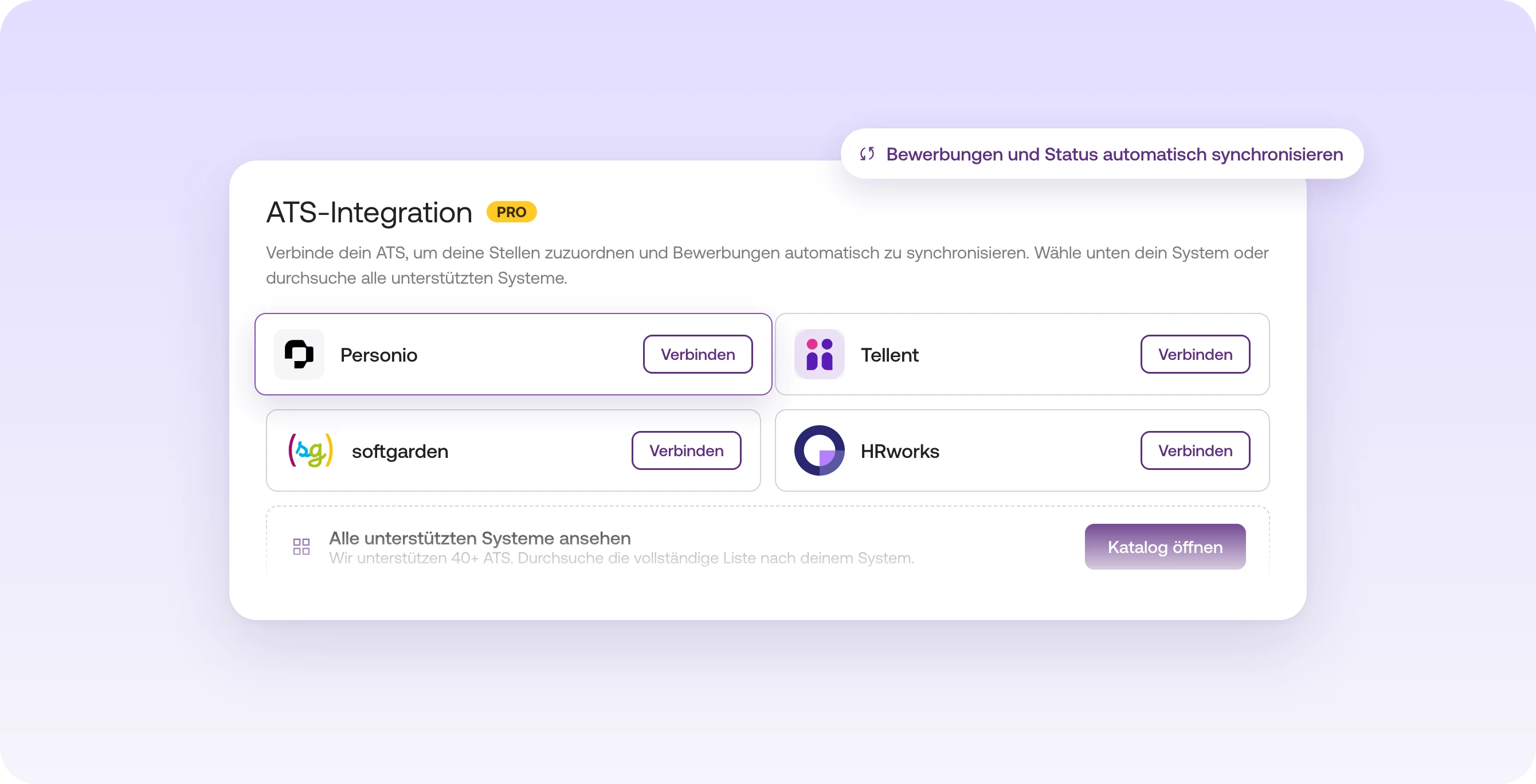
How to connect your ATS
-
Open settings
Open Einstellungen from your profile menu and select ATS-Integration. -
Select your system
You’ll see four suggested systems. If yours isn’t listed, click Katalog öffnen and browse all supported systems (40+). -
Click Connect
Click Verbinden next to your system. A dialog will open where you can sign in to your ATS and grant access. Make sure you have login credentials with admin permissions in your ATS. -
You’re all set
After a few seconds, the ATS-Integration section will show your connected system. If instead you see the message “Dein ATS ist verbunden und wir schließen die Einrichtung ab”, briefly reload the page.
[!TIP]
You can also get started directly from your dashboard: click ATS verbinden.
What’s next?
Link your jobs to your ATS so applications can be exported: How do I link a job to our ATS?
Check the status, reconnect, or remove your connection: Manage your ATS connection: status, reconnect, remove
Frequently asked questions
Can I connect multiple ATSs?
No, you can only connect one ATS at a time.
The dialog shows an error. What should I do?
Close the dialog and start the connection again. Nothing is saved until the connection is successful. If it still doesn’t work, contact your account management team.
I can’t find my system in the catalog.
That means it isn’t currently supported. Contact your account management team.
 Powered by happysupport.ai