
Add or Change Your Profile Picture
Customize your profile picture in Instaffo using the zoom and crop tools in your Personal Profile account settings
In this guide, you'll learn how to add or change your personal profile picture in Instaffo. Once you're done, your new profile picture will show up in your team member profile.

Open Your Personal Profile
-
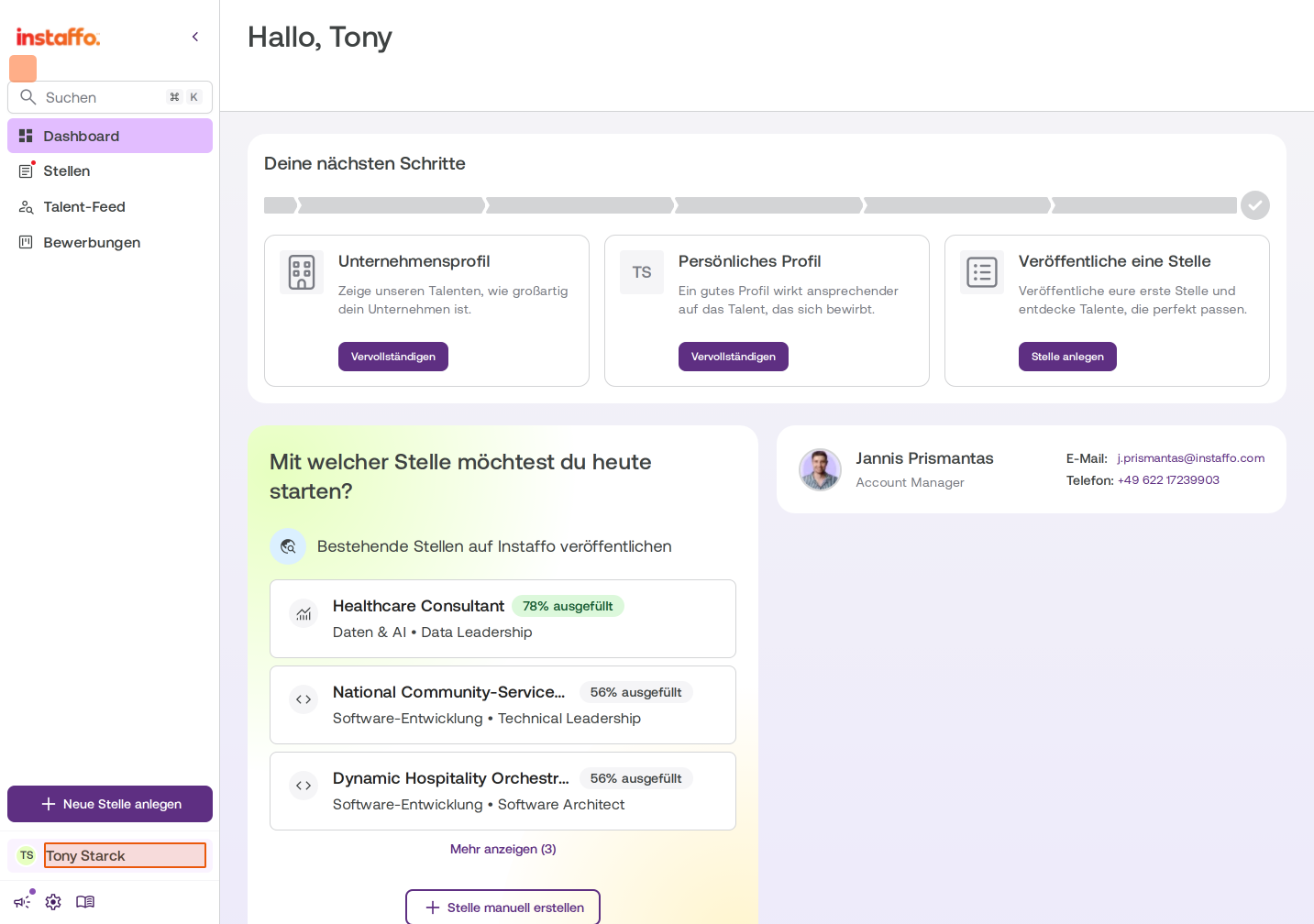
Click on your account area
Click on your profile section in the bottom left of the sidebar where your name is displayed (for example, "Tony Stack"). A dropdown menu with various options will appear. -
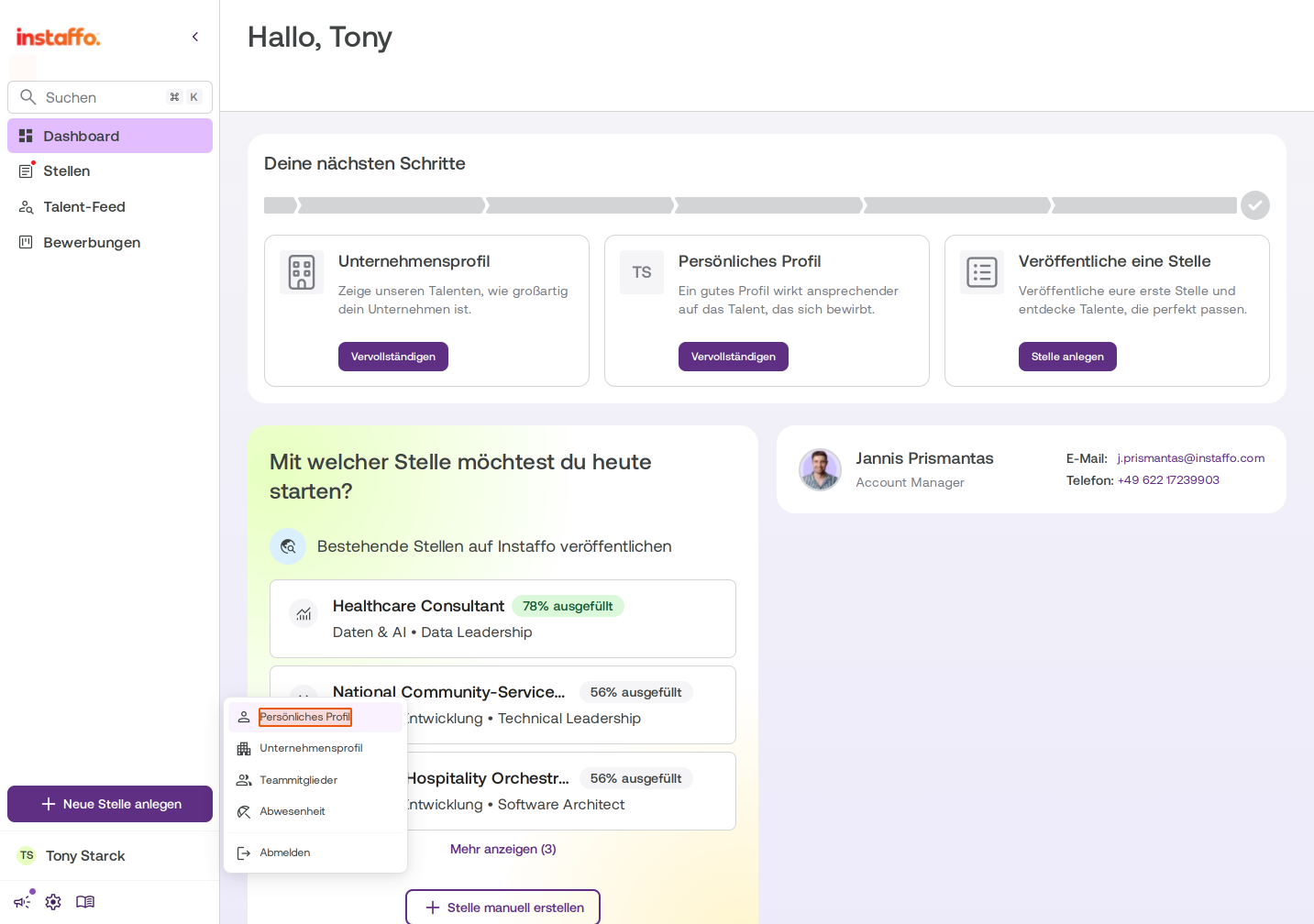
Select Personal Profile
Choose Personal Profile from the dropdown menu. An editing window titled "Edit Team Member" will open.
Upload and Customize Your Profile Picture
-
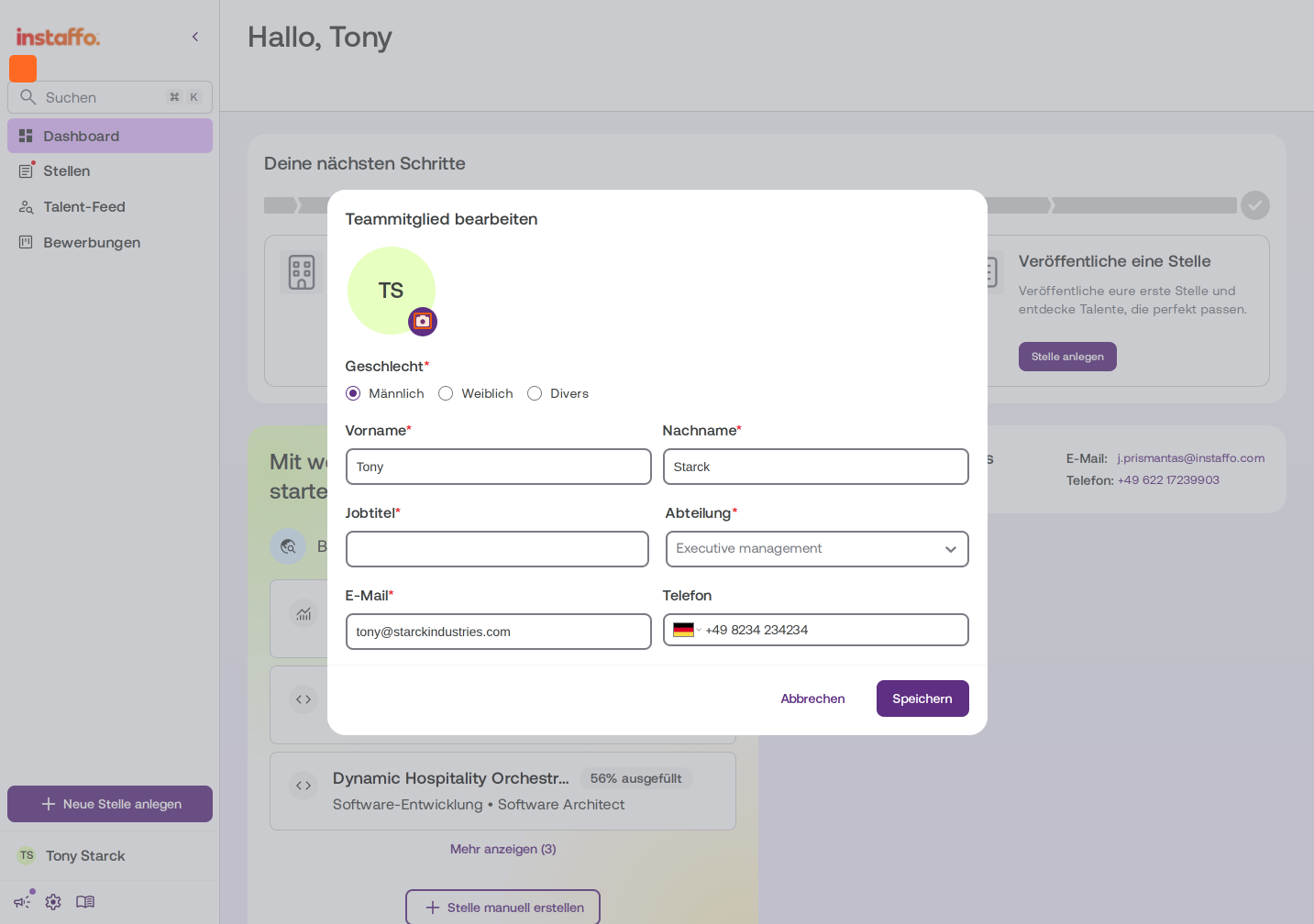
Open the profile picture area
In the editing window, click on the circular avatar with your initials in the top left. A new window for editing your profile picture will appear. -
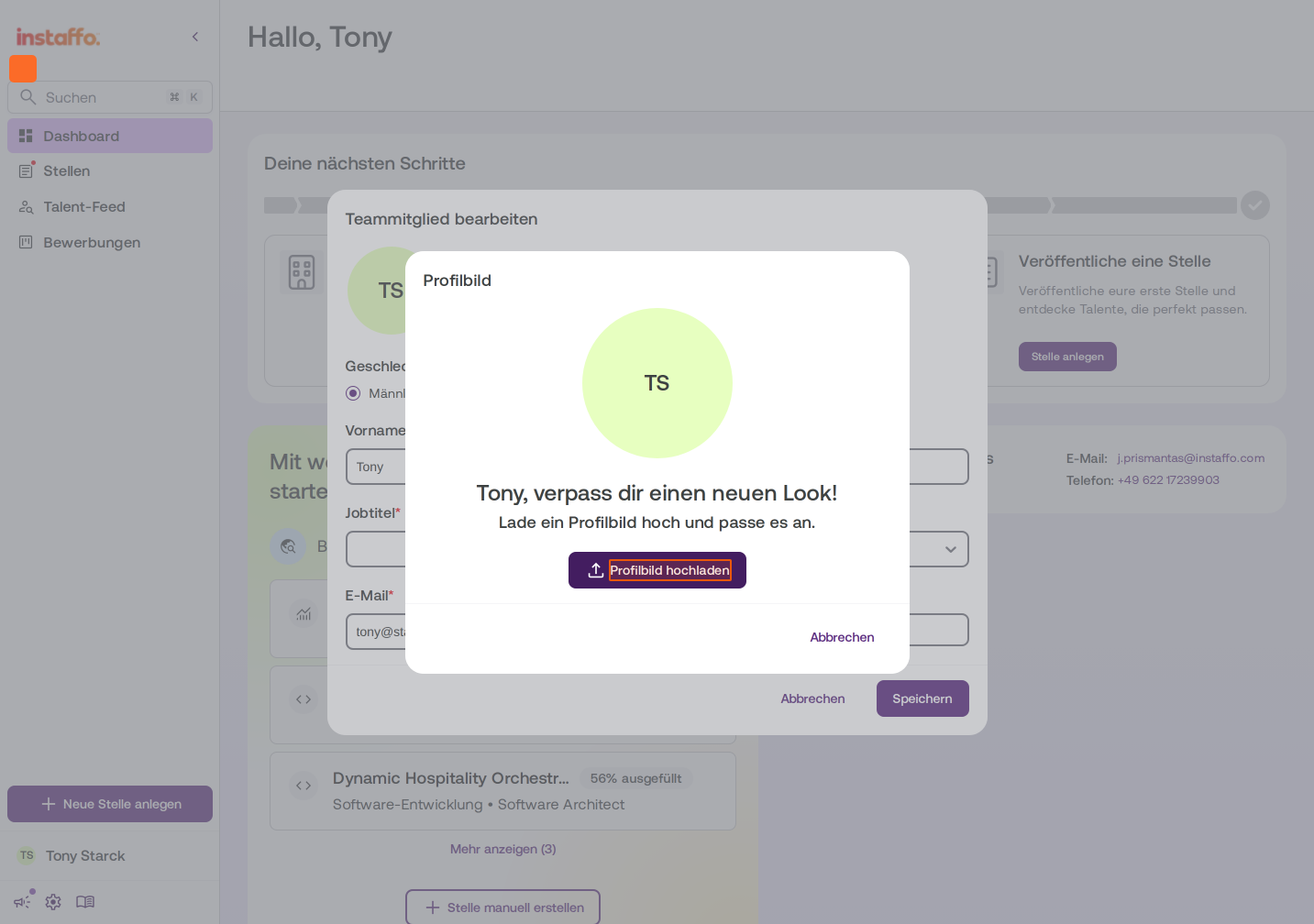
Upload your image
Click the Upload Profile Picture button to select an image from your computer.
-
Customize your image
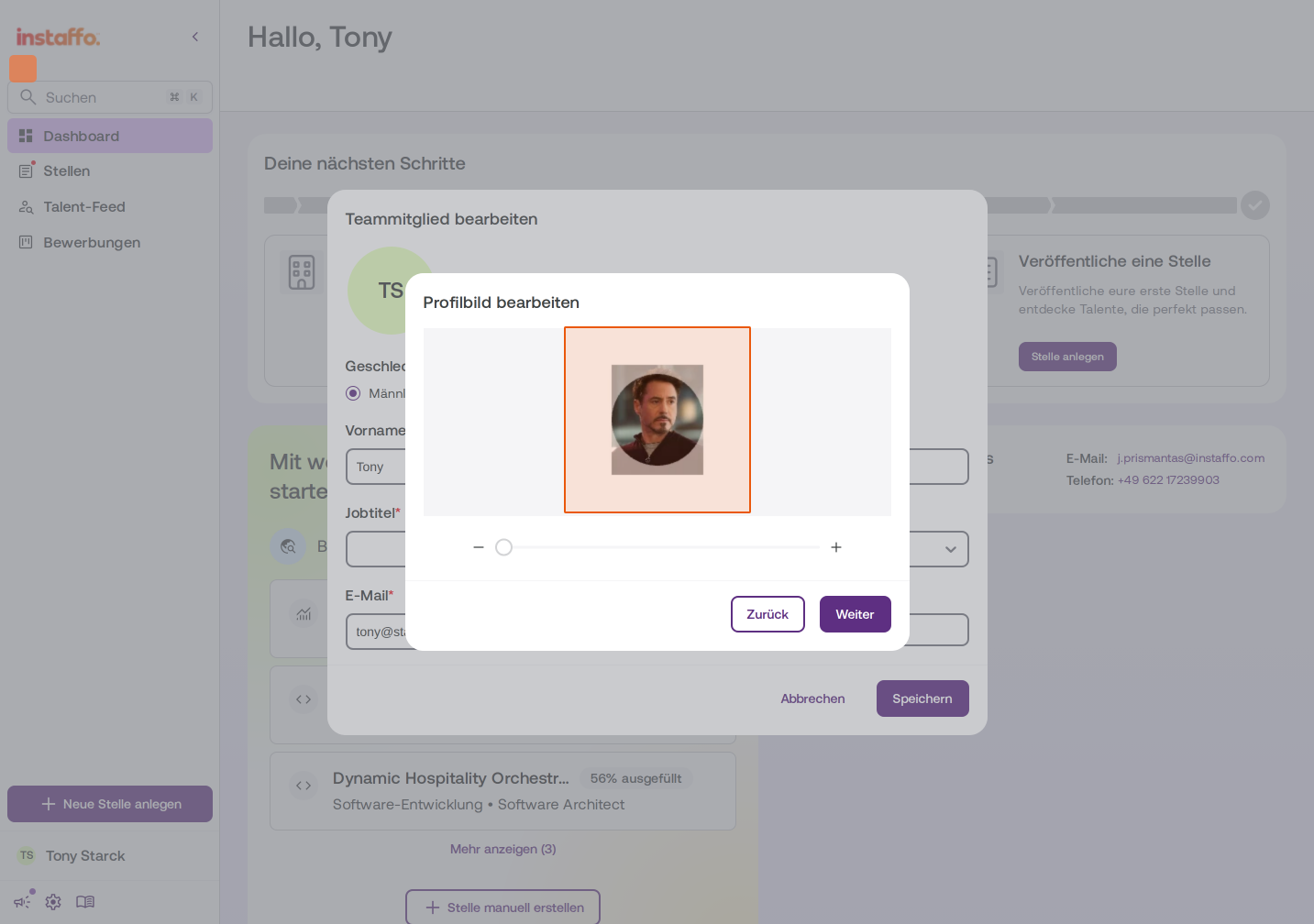
After you've selected an image, you can customize it:- Use the zoom slider (between the minus and plus symbols) to adjust the image size
- Position the image in the crop area however you like
-
Move to preview
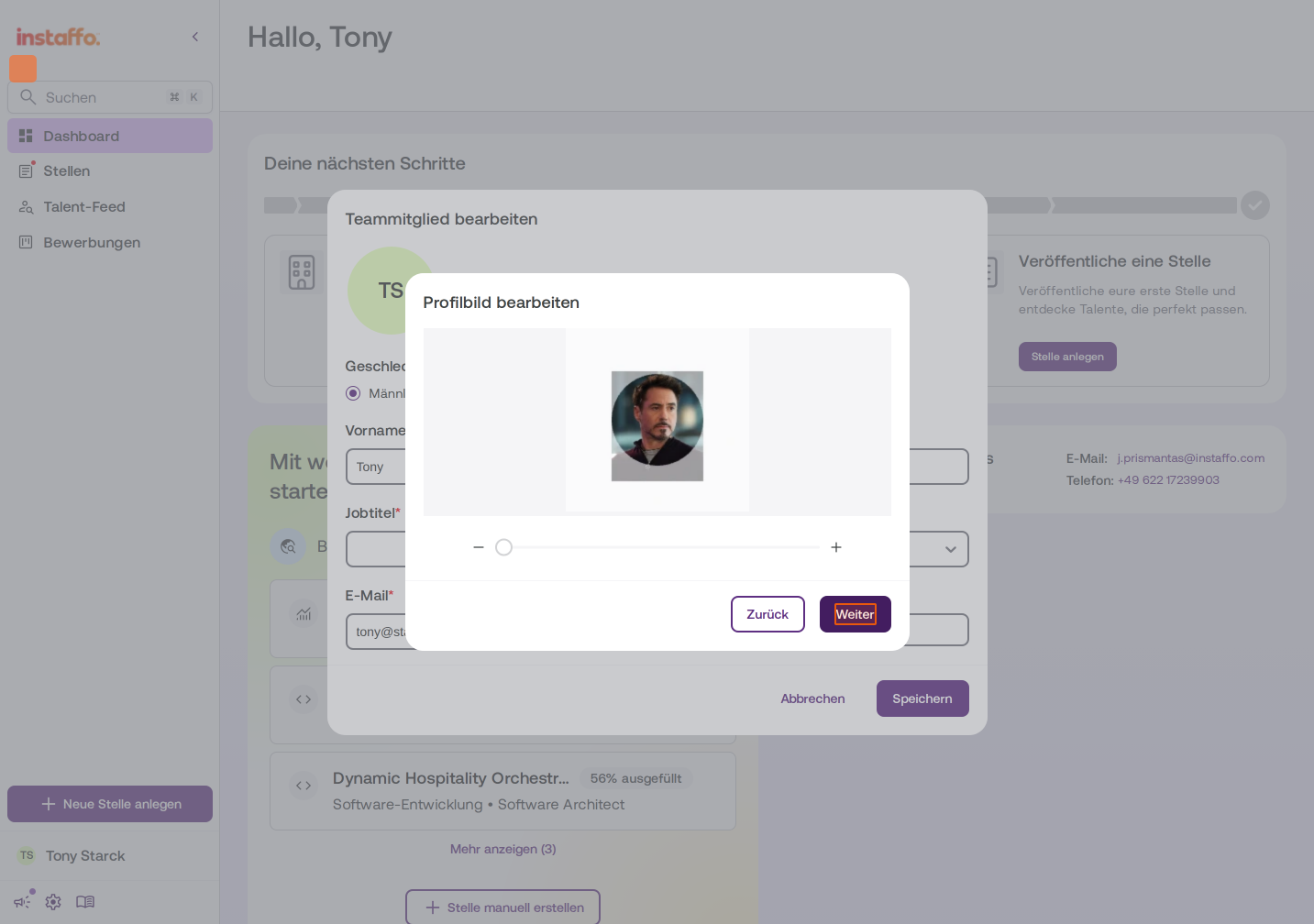
Click Next to see a preview of your profile picture. -
Confirm your profile picture
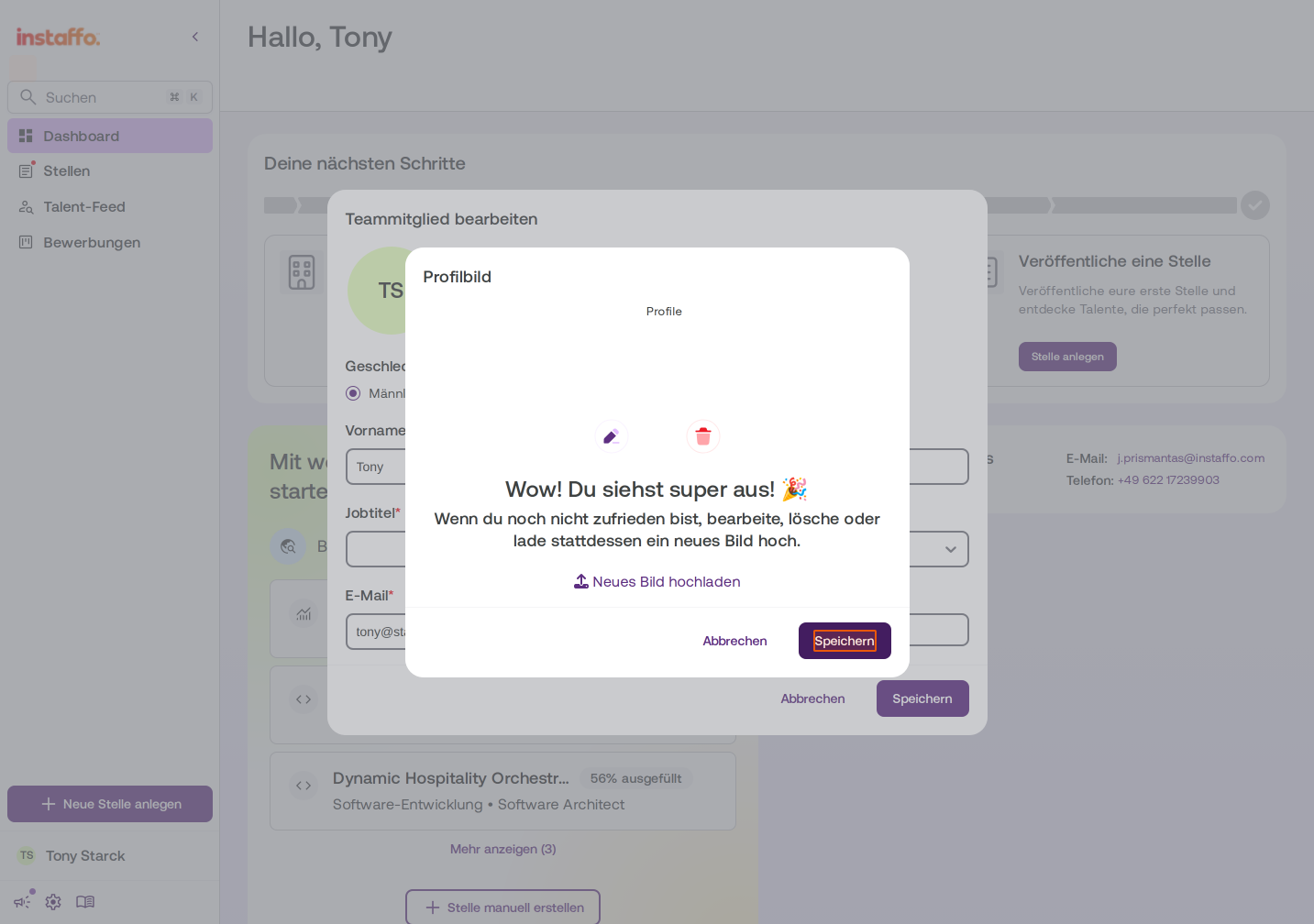
Check out your image in the preview. If you're happy with it, click Save. If you want to make changes, you can edit the image, delete it, or upload a new one. -
Save your changes
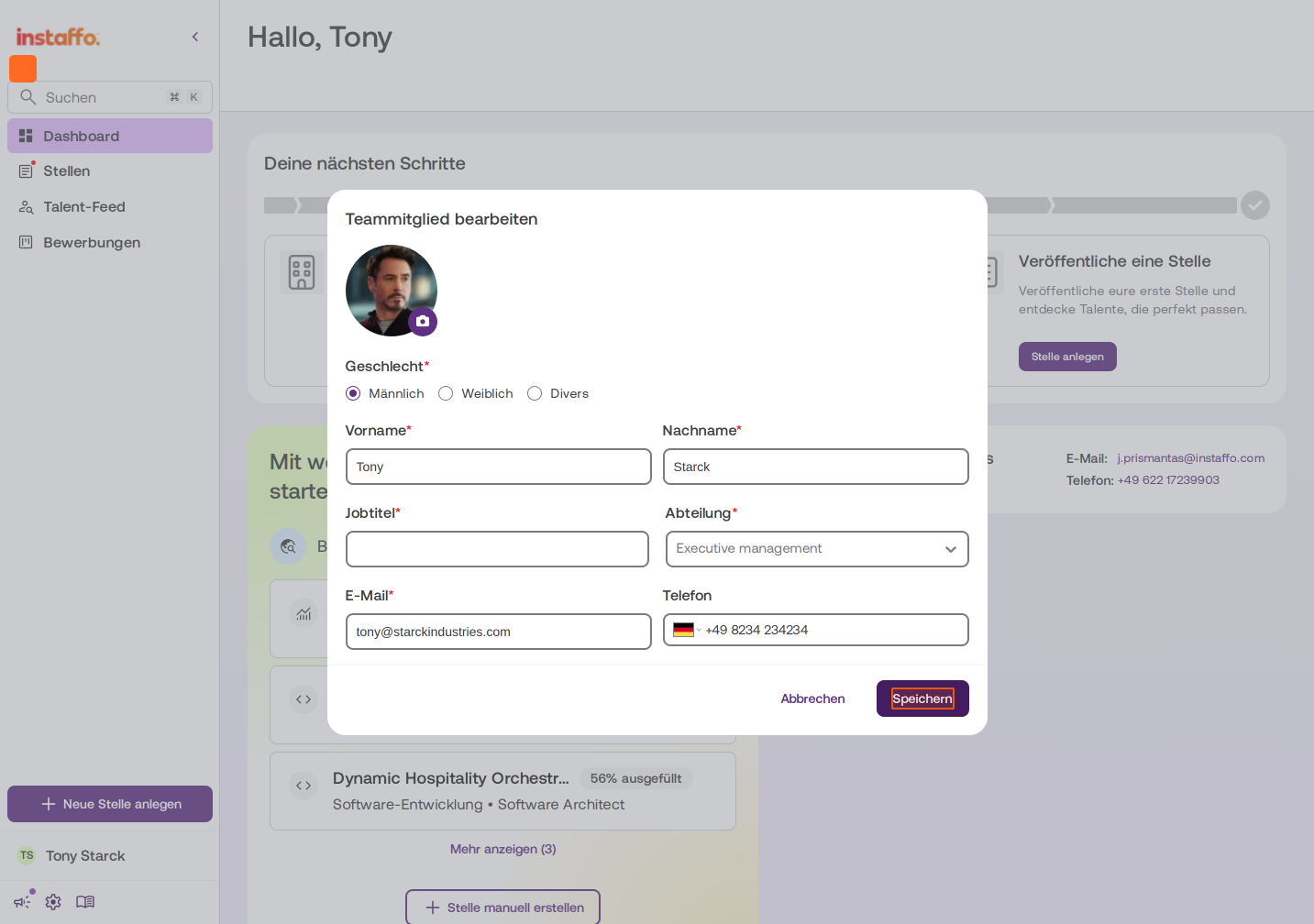
Click Save again in the "Edit Team Member" window to apply all changes to your profile.
Your new profile picture is now saved and will be displayed in your personal profile and throughout the Instaffo dashboard right away.
 Powered by happysupport.ai