
How can I customize the first chat message
Customize the first chat message to talents using dynamic placeholders like [First Name] and [Position] in your Instaffo dashboard
In this article, you'll learn how to customize the first chat message for a position in your Instaffo dashboard. This message is automatically sent to talents when they're hired or apply for a position. If no custom message is set up, a default message will be used.

Open the position
-
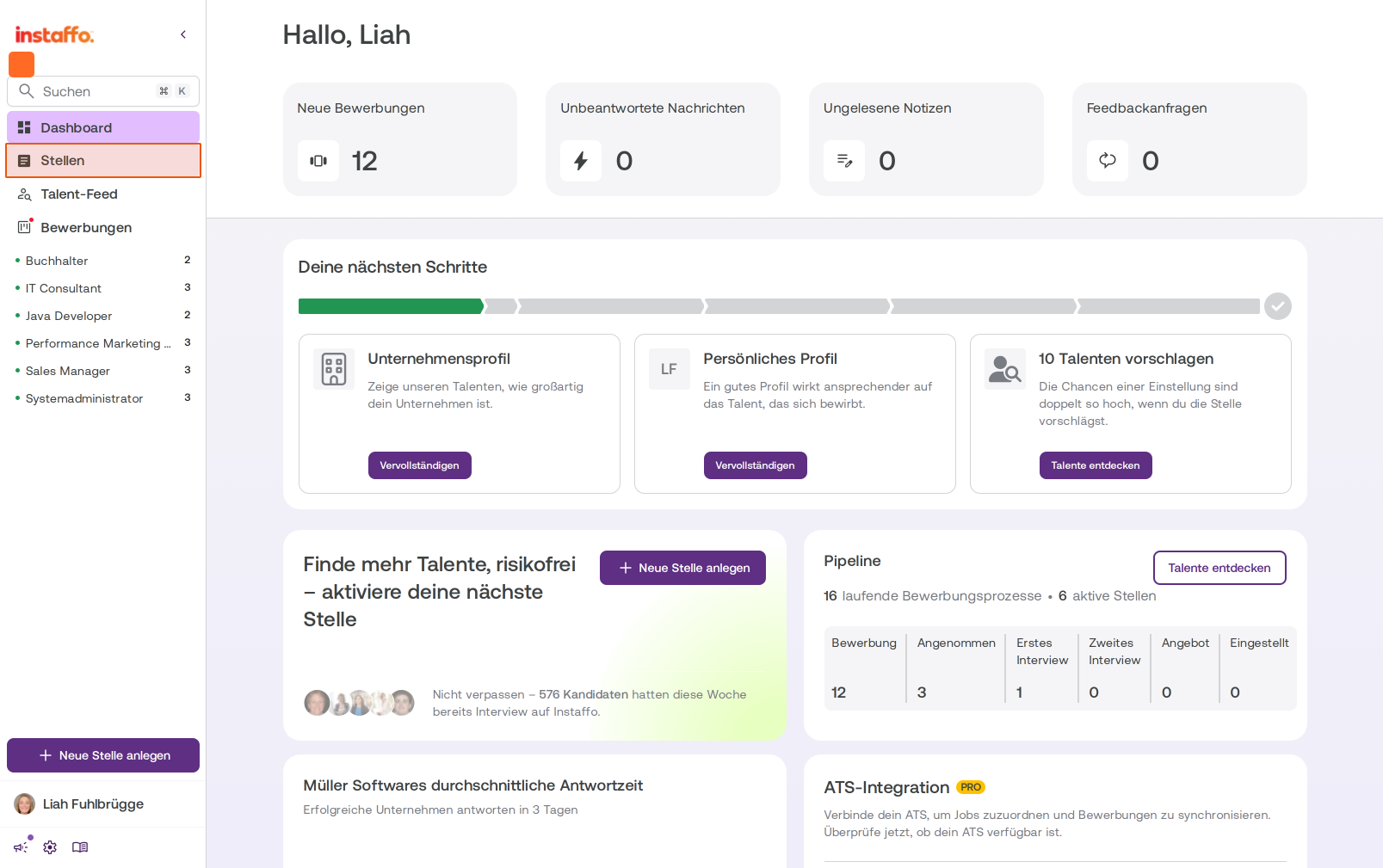
Navigate to the "Positions" section
Click on Positions in the left sidebar to go to your positions overview. -
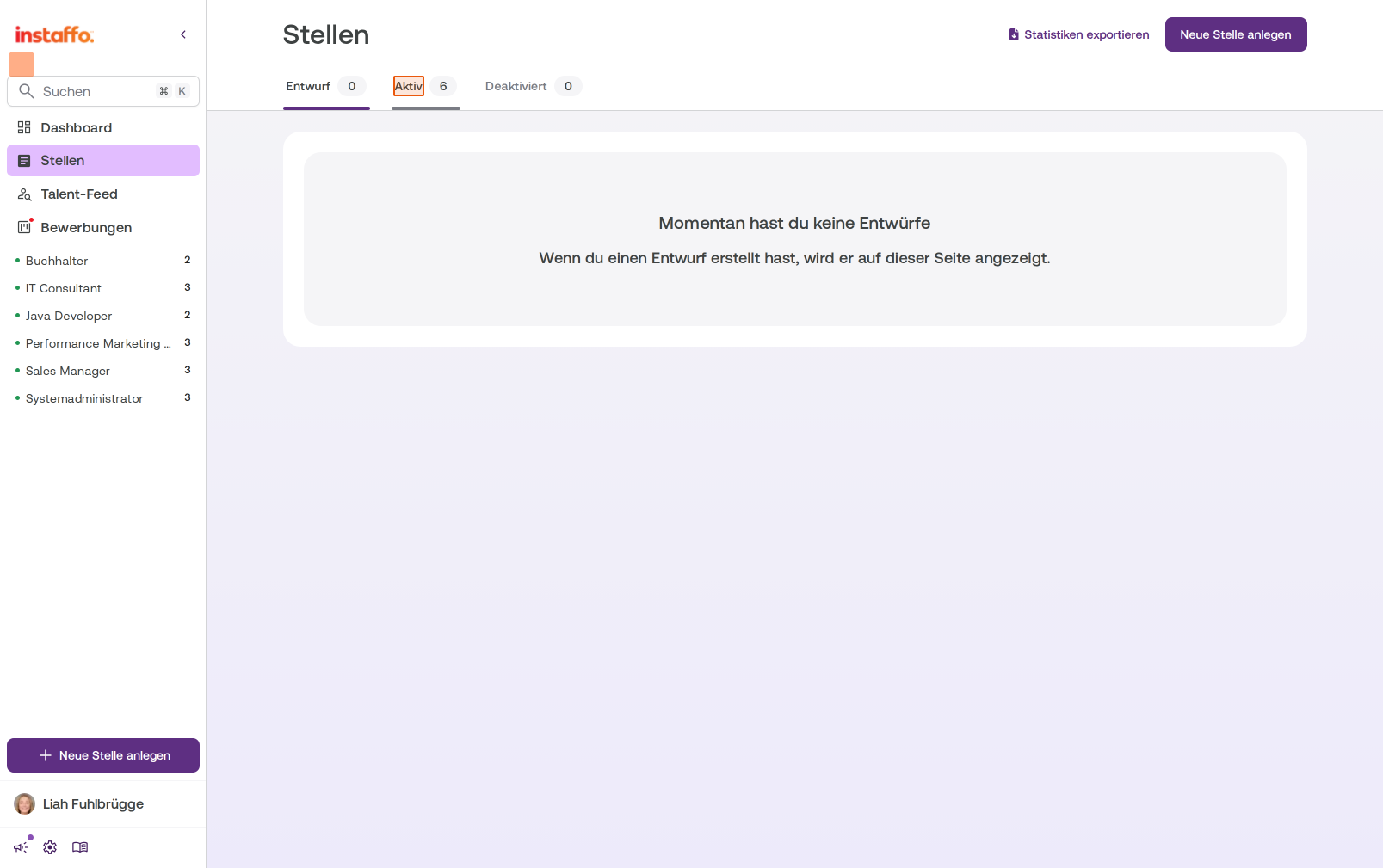
Select the "Active" tab
Click on the Active tab below the page heading to display all your active positions. -
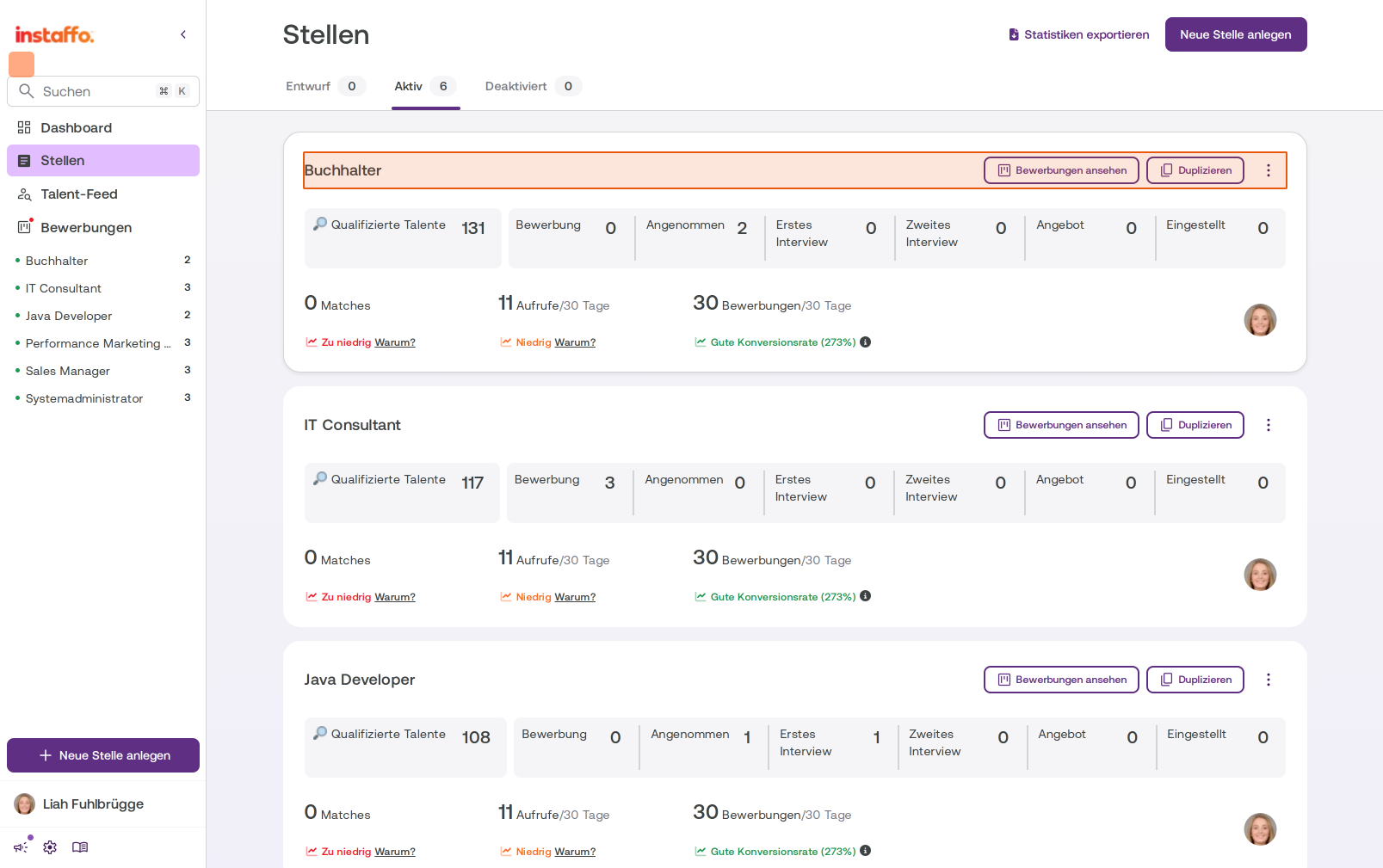
Open the desired position
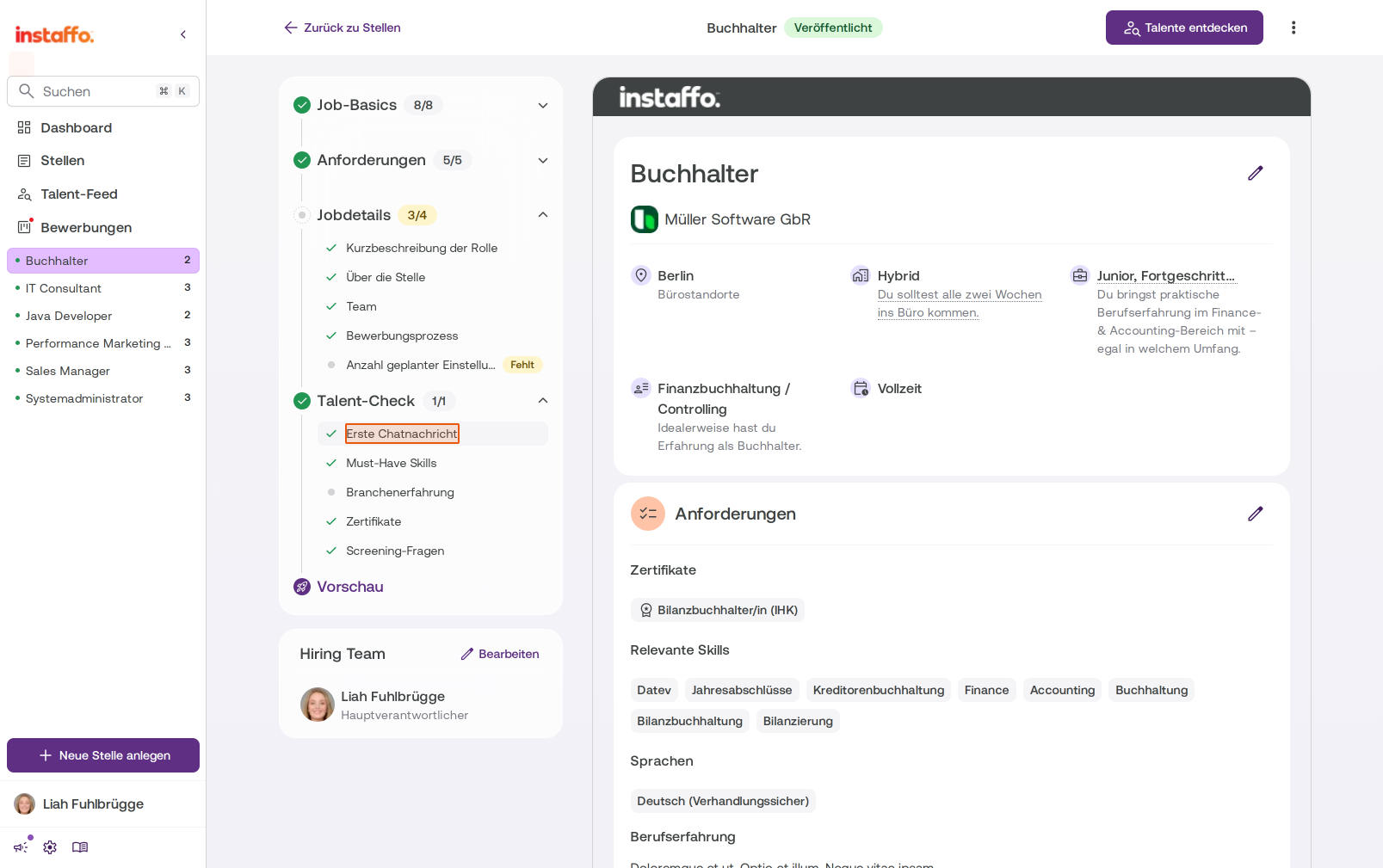
Click on the position for which you want to customize the first chat message. In this example, we're selecting the Accountant position.
Edit the first chat message
-
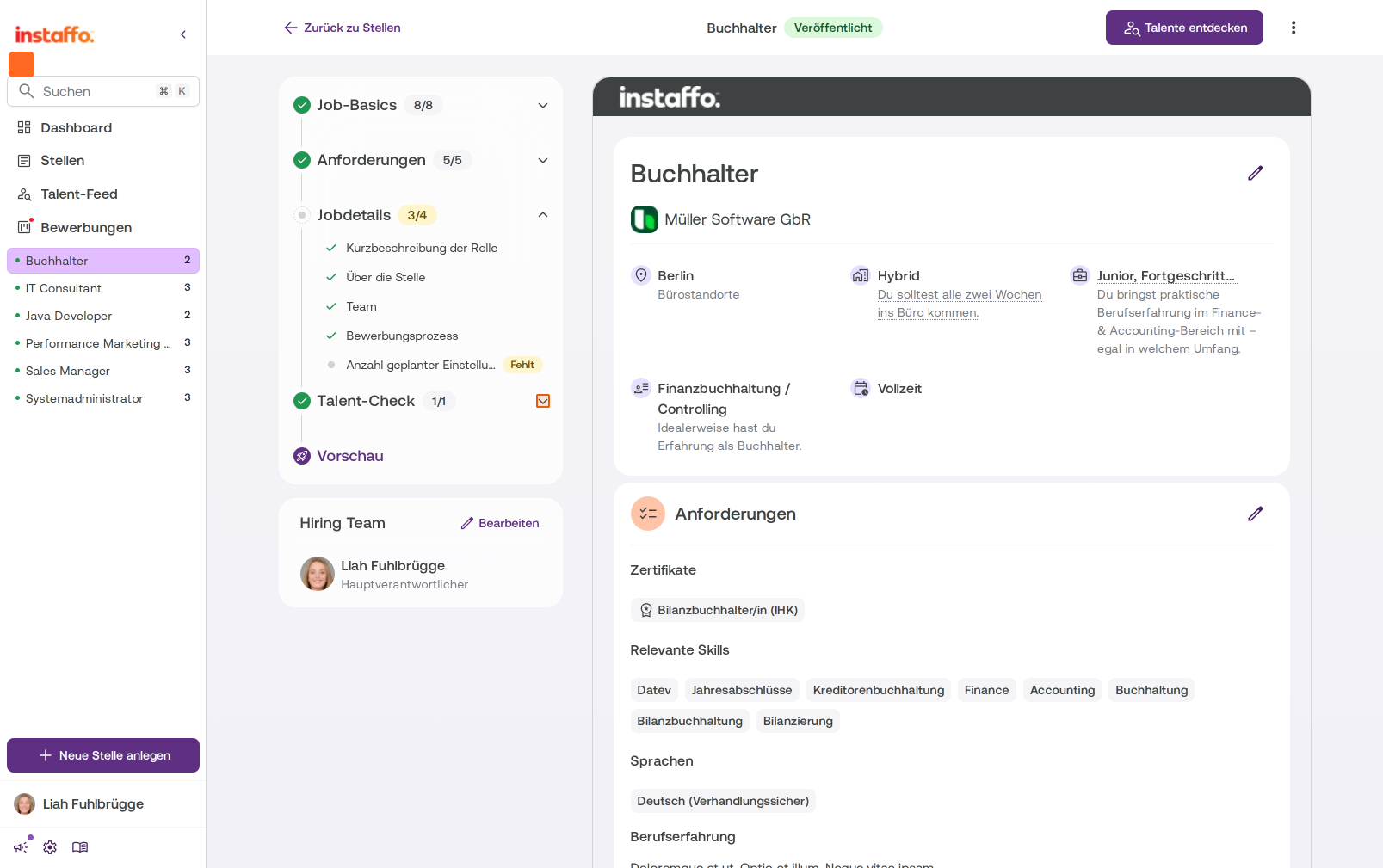
Open the "Talent Check" section
In the middle progress area, you'll find various sections like Job Basics, Requirements, Job Details, and Talent Check. Click on the Talent Check section to expand it. -
Select "First Chat Message"
Within the Talent Check section, click on First Chat Message. This entry shows with a green checkmark whether a message has already been set up.
-
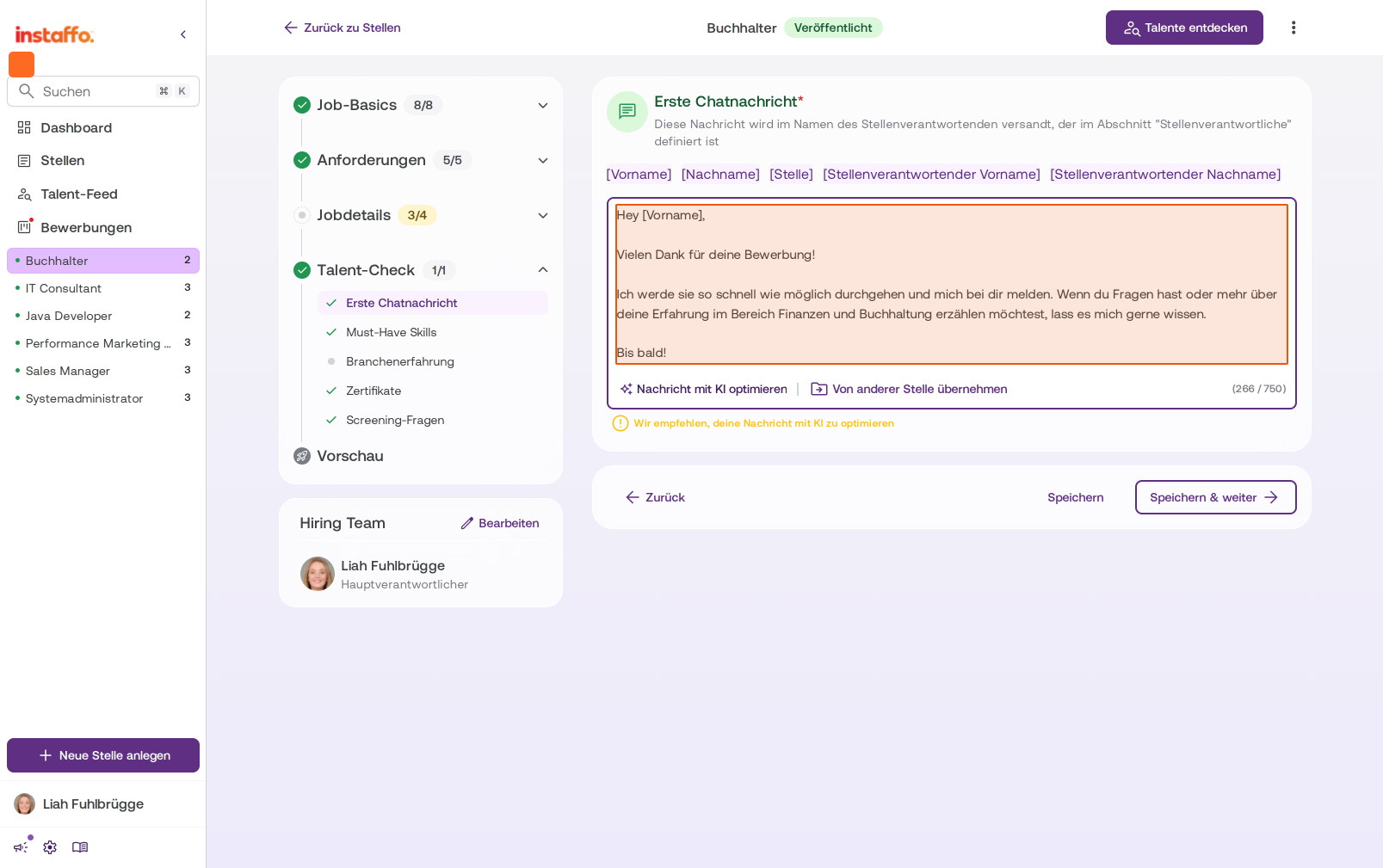
Edit the message in the text field
A large text field will open on the right side showing your current chat message. You can customize the text however you like. You have access to various placeholders that will automatically be filled with the corresponding data:- [First Name] – Talent's first name
- [Last Name] – Talent's last name
- [Position] – Position title
- [Position Manager First Name] – First name of the responsible person
- [Position Manager Last Name] – Last name of the responsible person
At the bottom of the text field, you'll see a character counter (for example, 266 / 750) that shows you how many characters you can still use.
-
Use template from another position (optional)
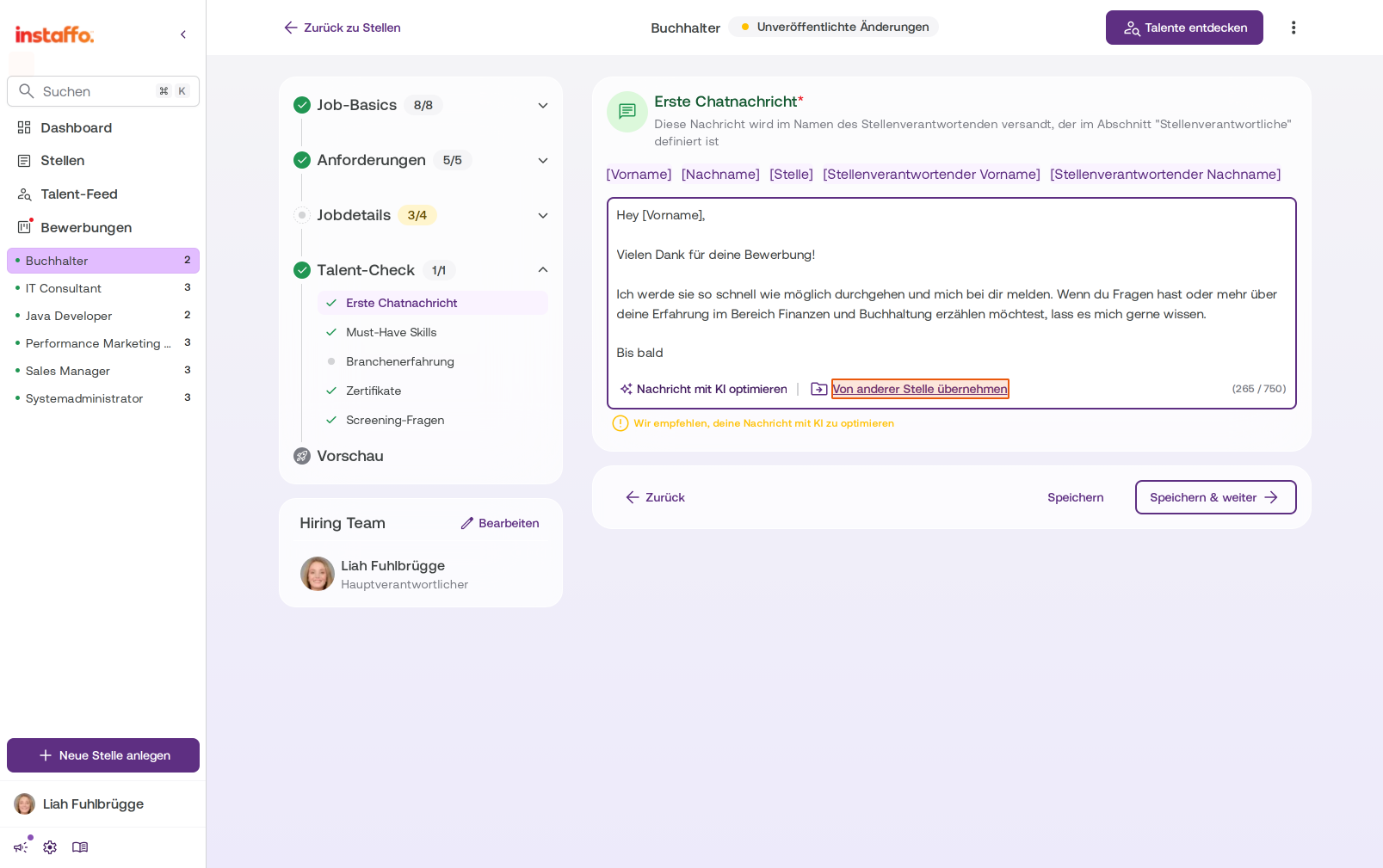
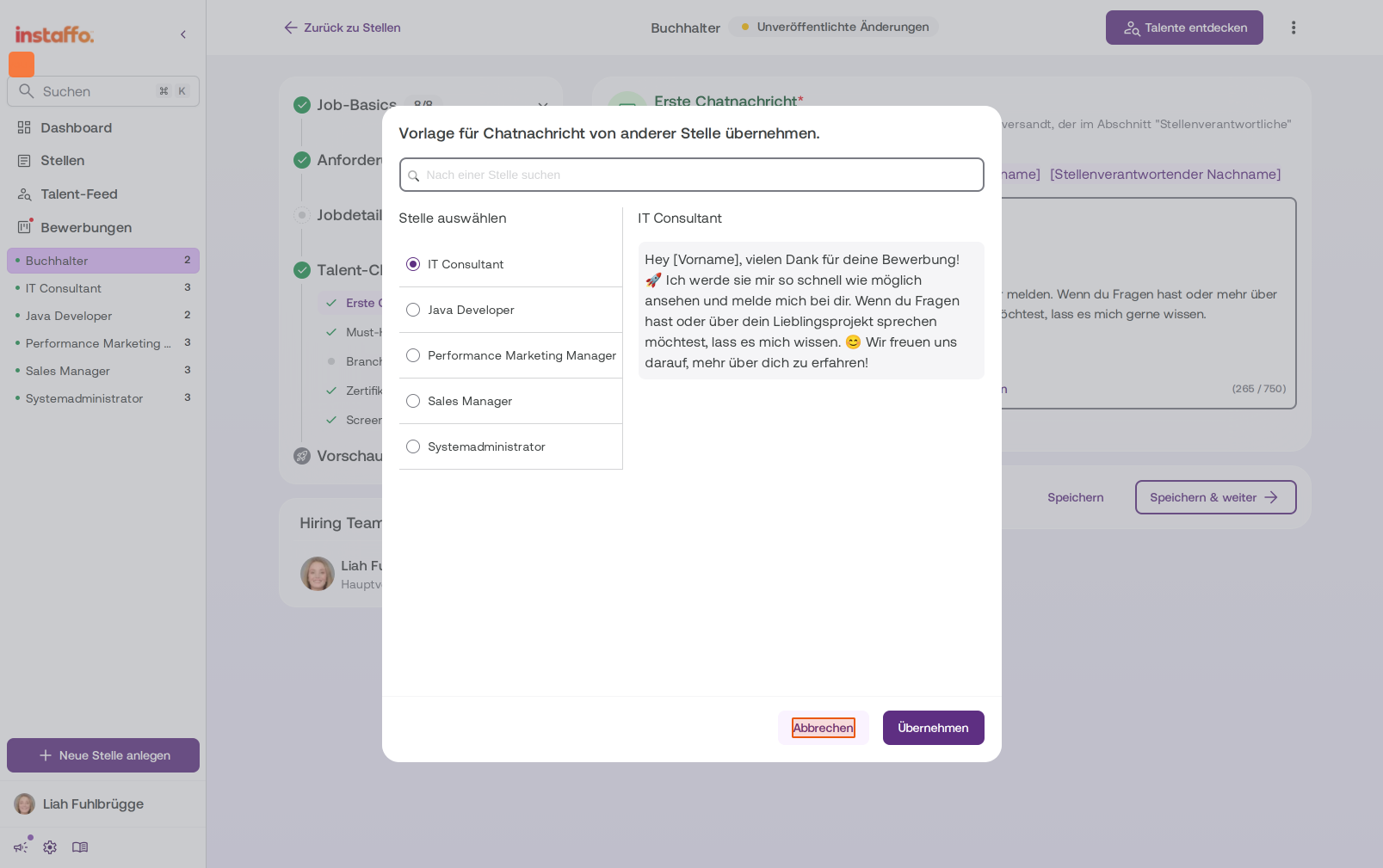
If you want to use an already created chat message from another position, click on Use template from position below the text field. A dialog will open where you can select another position and use its message as a template. Click Cancel to close the dialog without making changes, or click Apply to insert the selected template into the text field.
After you've made your changes, you can save them using the Save or Save & continue buttons at the bottom of the page. Your new customized first chat message will now automatically be sent to talents who apply from this point on, as soon as they're hired or apply for the position.
Please note that the first chat message will not change retroactively for applications that have already been received.
 Powered by happysupport.ai