
Enable Privacy Policy for Applications
Enable privacy policy automation by uploading your PDF document in Settings so candidates automatically agree during the application process
This feature is part of Instaffo Professional
No Instaffo Professional? No problem. This feature is optional - the application process through Instaffo is also legally compliant without your own privacy policy (Instaffo privacy policy + DPA). It's only relevant if your internal compliance requires your own declaration.
With privacy policy automation, you can make sure that candidates are automatically asked to agree to your privacy policy when they apply. This feature is part of the Pro plan and shows the current consent status directly in the candidates' screening responses.

Enable Privacy Policy Automation
-
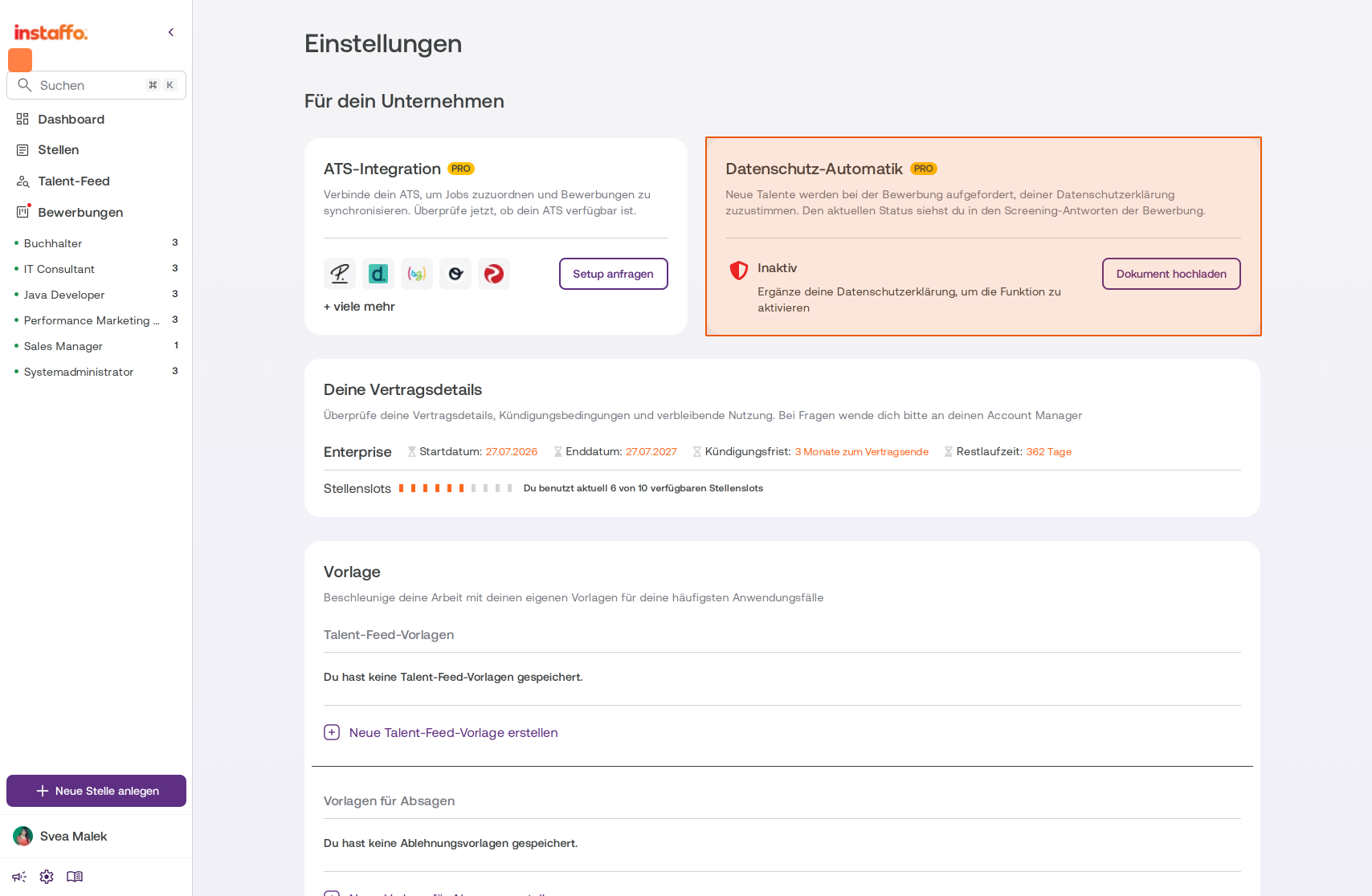
Open Settings
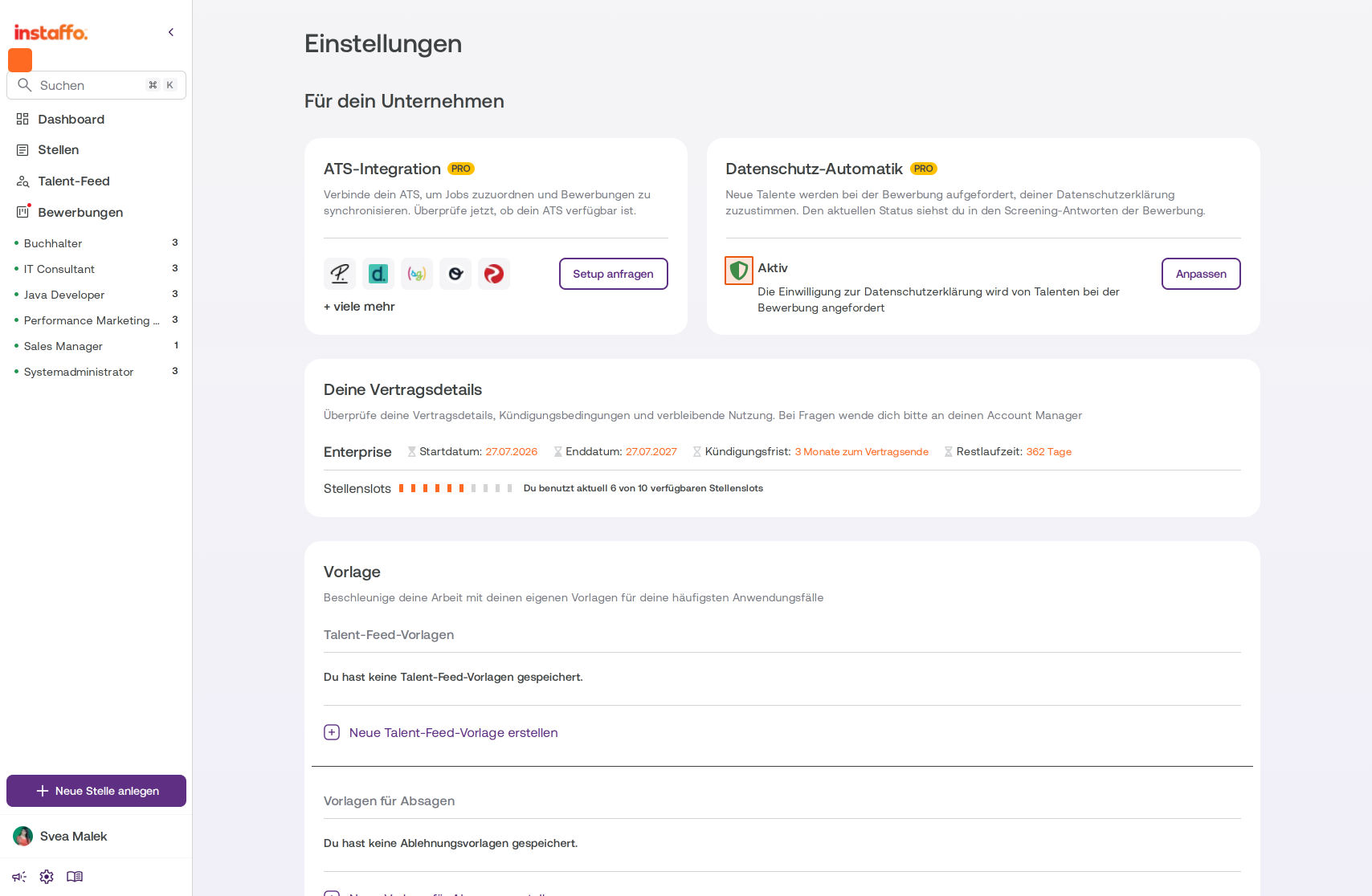
Navigate to the Settings page and look for the Privacy Policy Automation card in the For your company section. This card shows you the current status of the feature. -
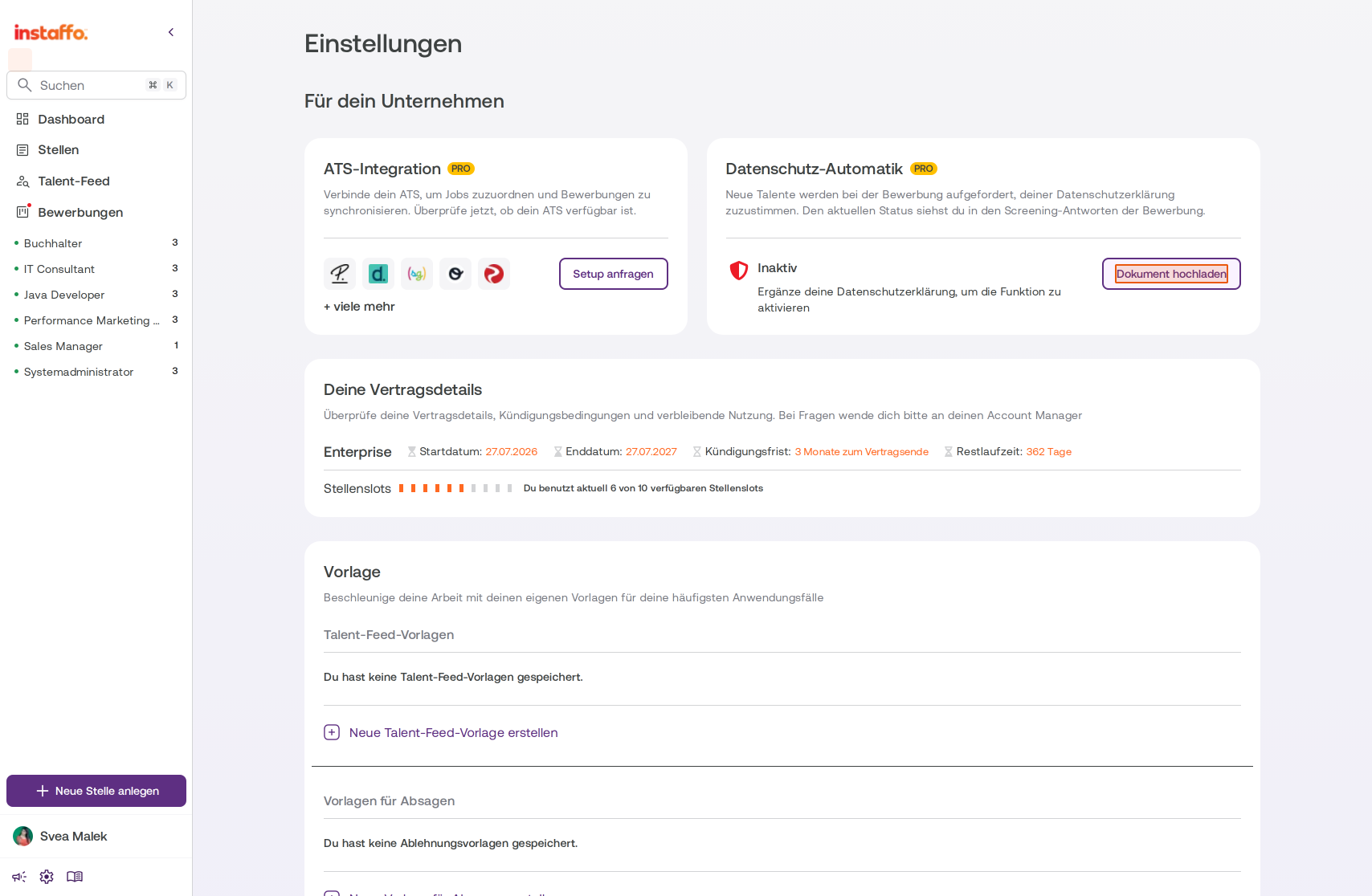
Start Uploading Your Document
Click the Upload document button on the Privacy Policy Automation card. A modal window will open for the upload. -
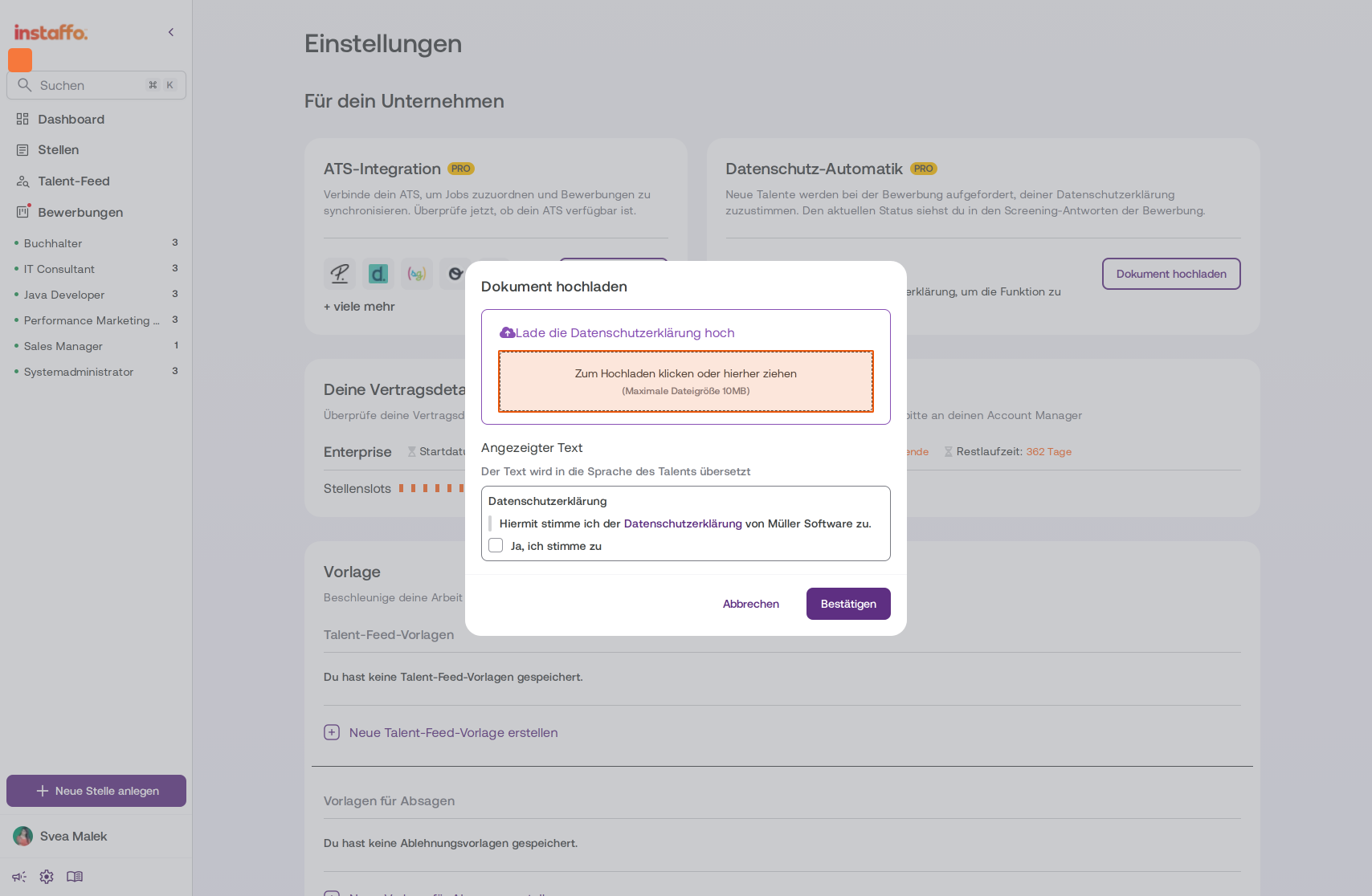
Upload Your Privacy Policy
In the Upload document modal window, you'll find an upload area labeled Upload your privacy policy. Click in this area or drag your PDF document directly into it. The maximum file size is 10 MB. -
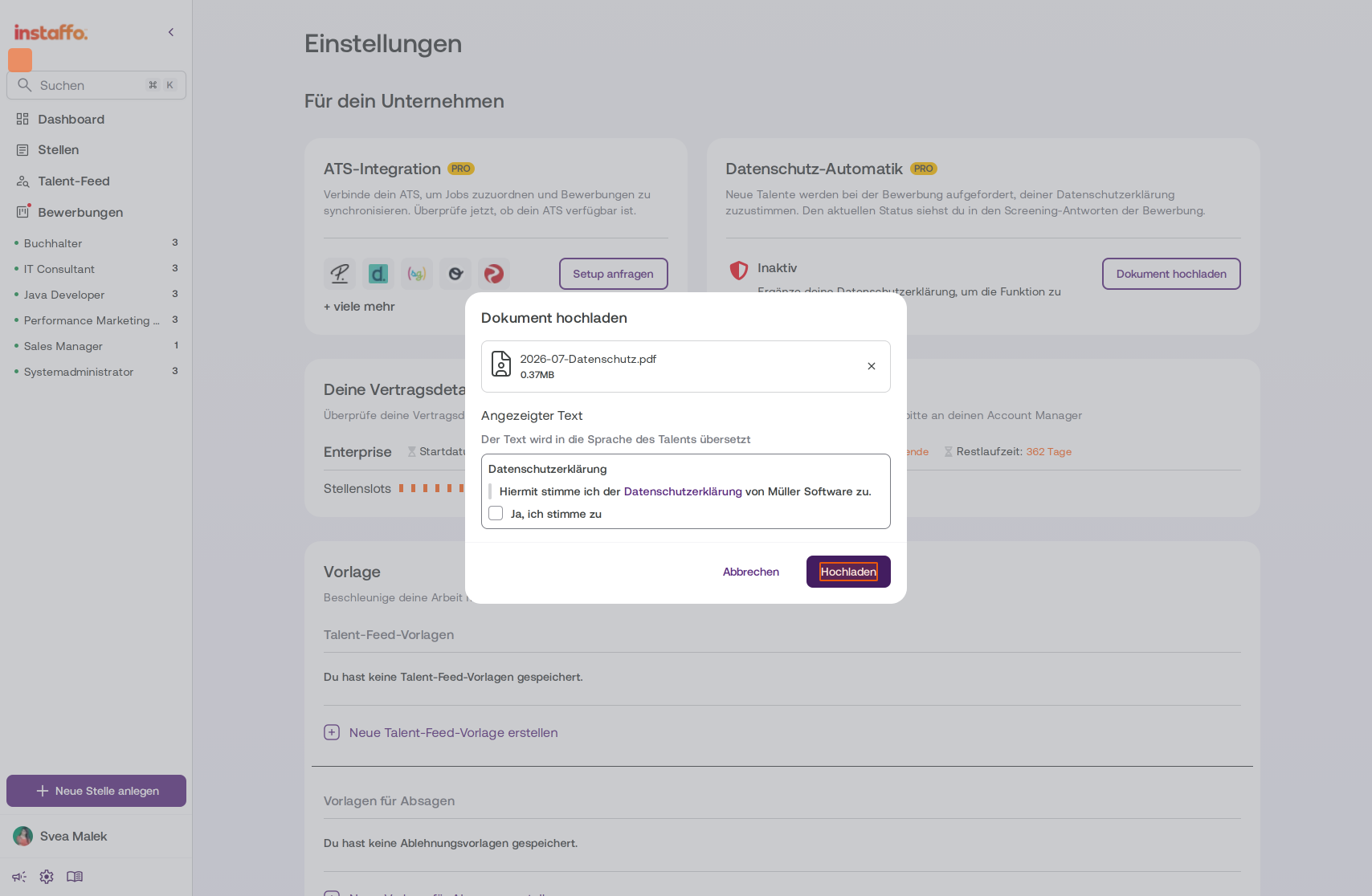
Confirm the Upload
After you've selected your PDF document, the file name and file size will be displayed. In the Display text section, you'll see a preview of the text that will be shown to the candidate during the application. This text is automatically translated into the candidate's language. Click Upload to complete the process.
-
Check Activation
After the upload is successful, privacy policy automation is automatically active. The status on the card changes from Inactive to Active. From now on, the privacy policy query will be shown for all new applications.
What the Query Looks Like for Candidates
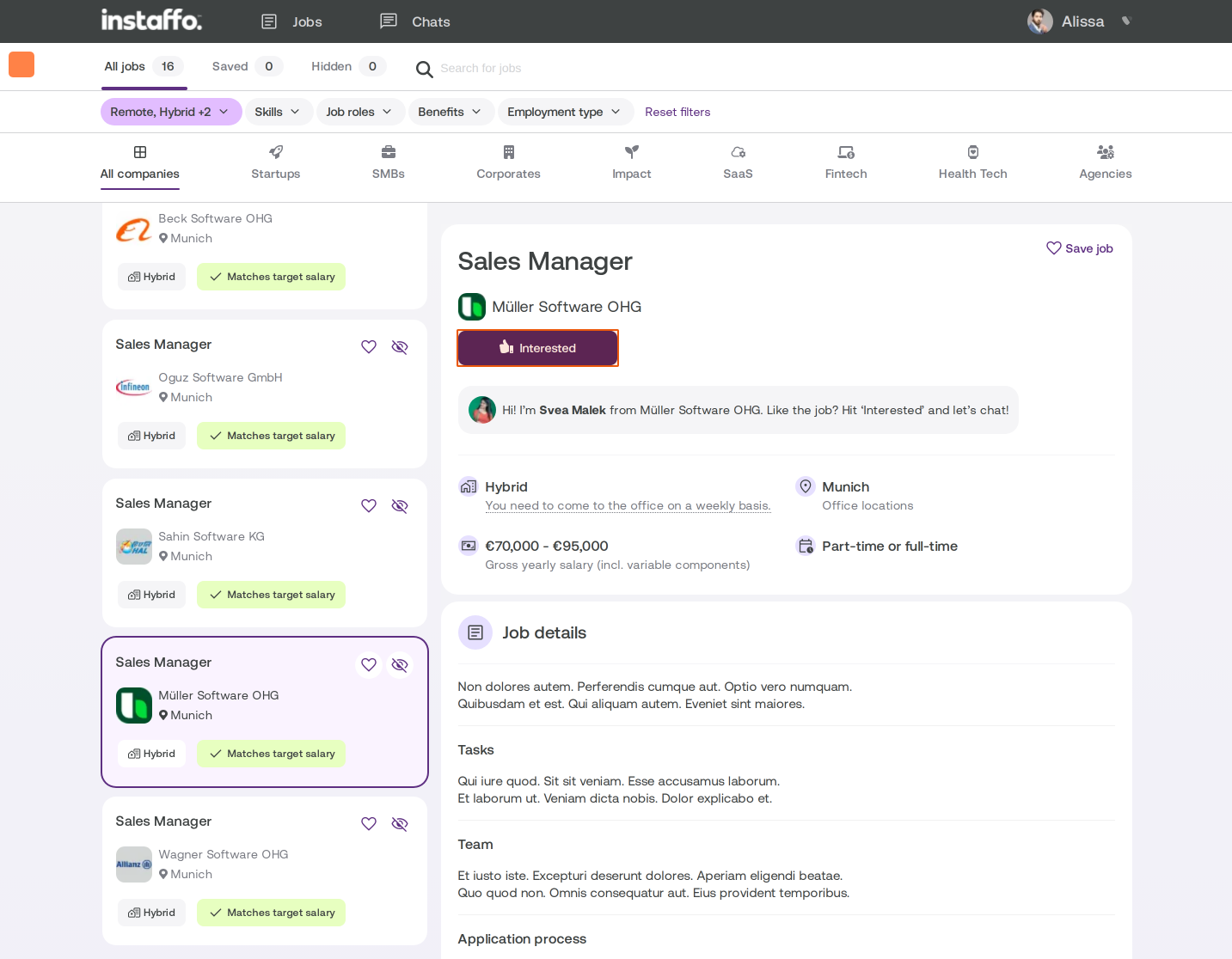
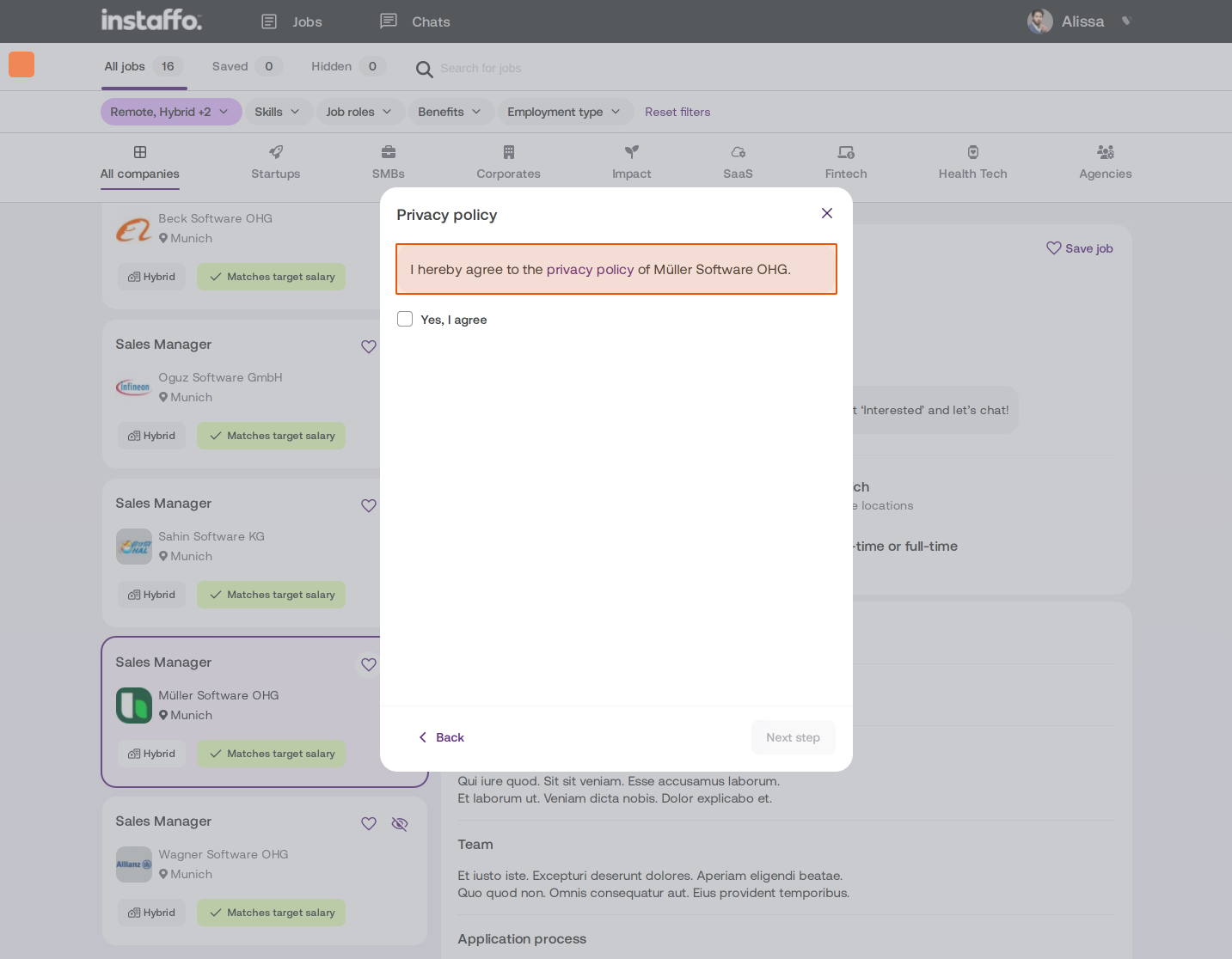
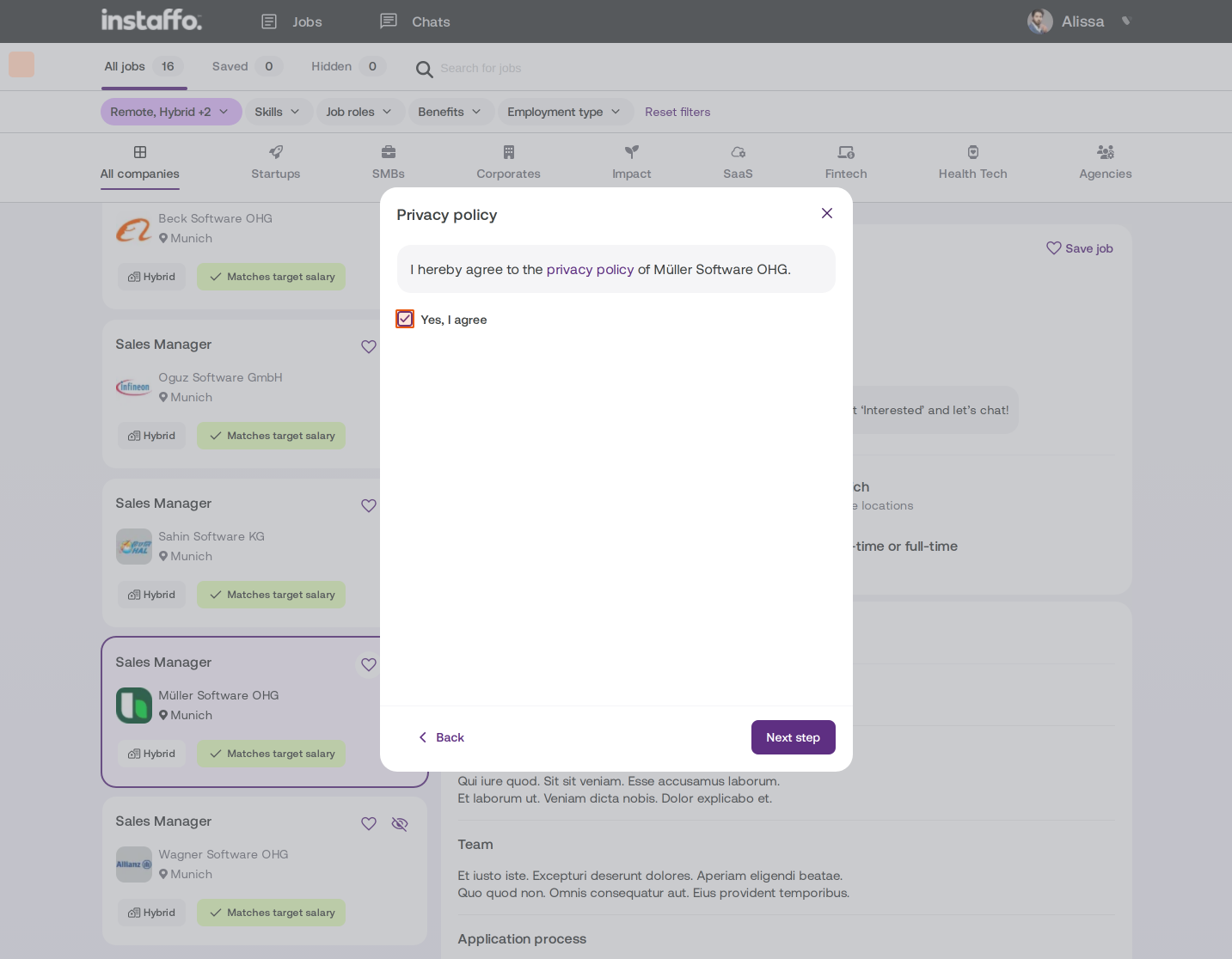
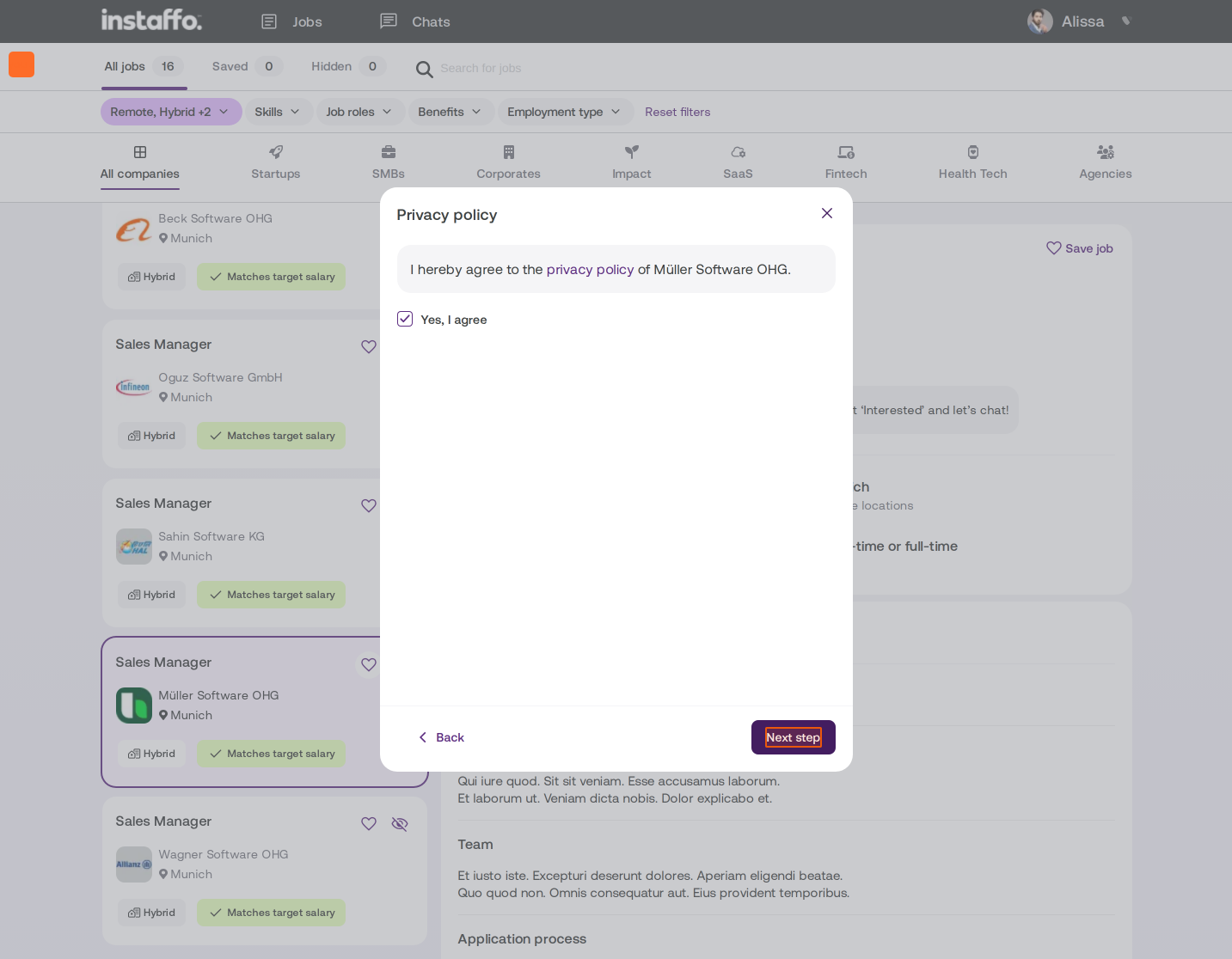
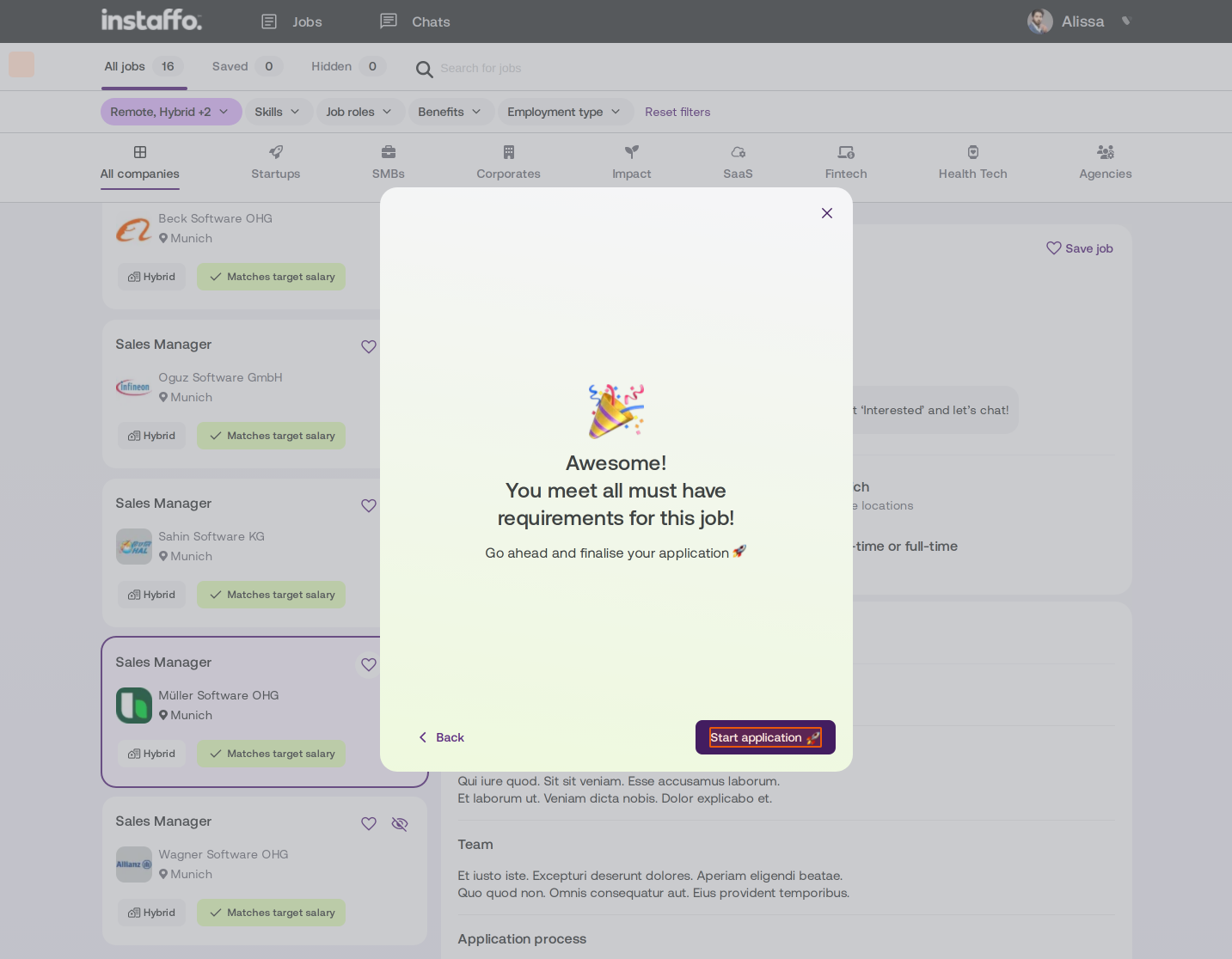
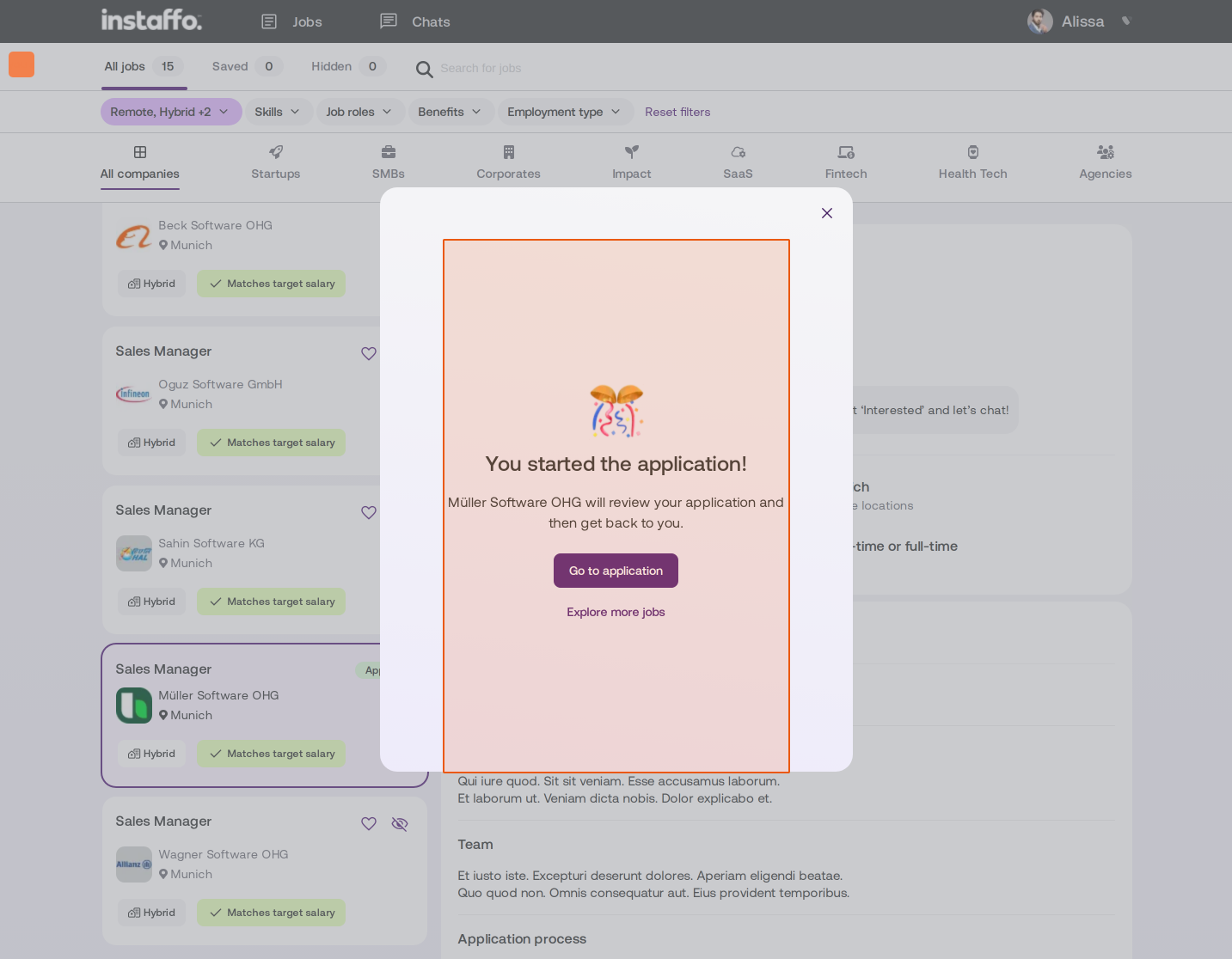
When a candidate applies for one of your positions, they'll see a modal with your privacy policy during the application process. The candidate sees the text "I hereby agree to the privacy policy of [Company name]" and can view the uploaded PDF document via a link. By selecting the Yes, I agree option and clicking Next step, the candidate can continue with their application.
View Consent Status
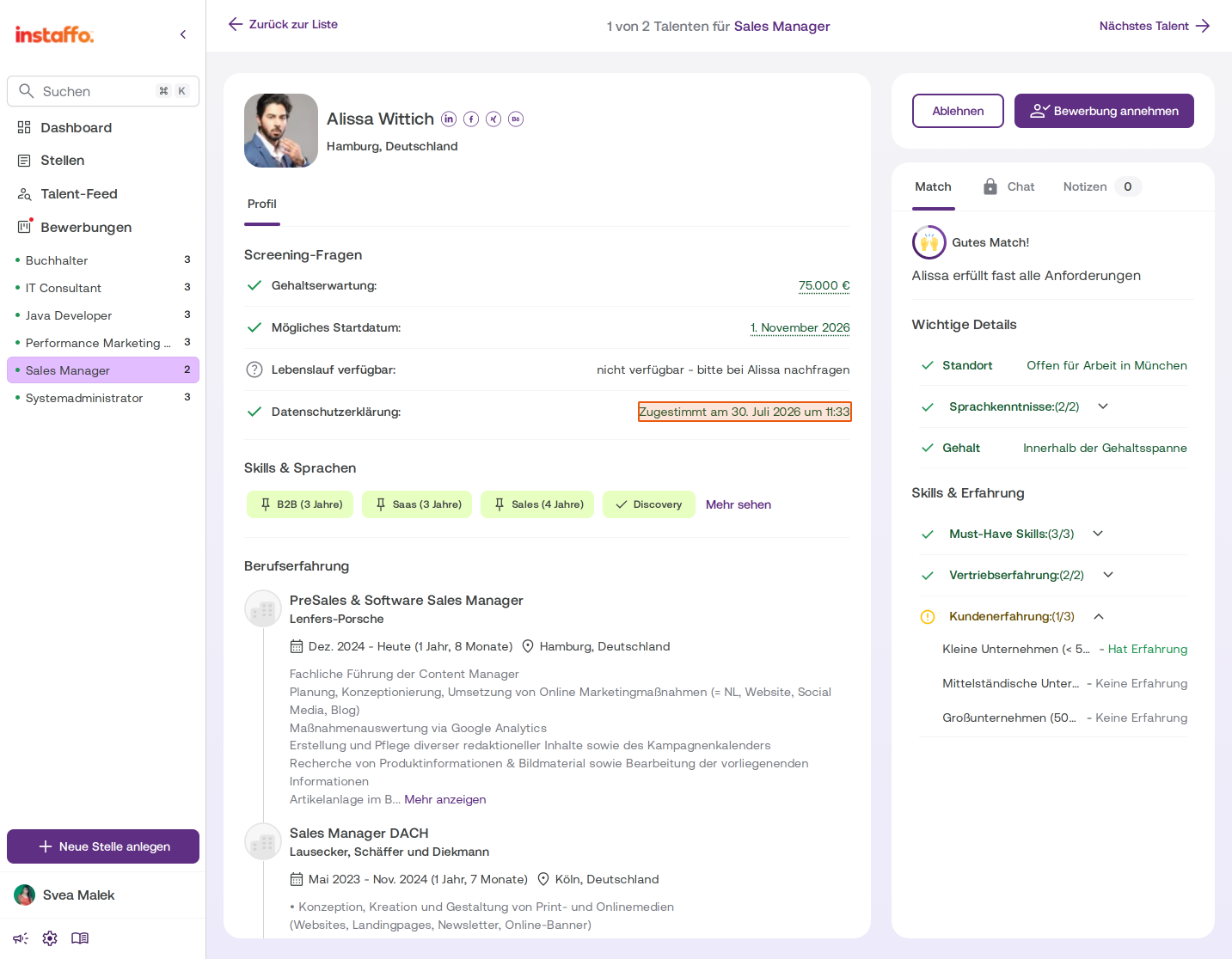
You can find a candidate's consent status in their candidate profile under the Screening questions section. Under Privacy policy, you'll see the exact date and time of consent, for example "Agreed on July 30, 2026 at 11:33".
After successful setup, all new candidates will automatically be asked to consent, and you can check the status anytime in their candidate profiles.
 Powered by happysupport.ai