
How do I work with a job?
Manage job postings, screen applications, and track candidate pipelines using the Stellen sidebar, job cards, and screening tabs on your job page
Instaffo revolves around your jobs. Each job has its own page, where you can edit the job posting, screen new applications, and track ongoing processes. On the Stellen page, each job card gives you an overview of where your attention is needed.
Requirements
- You’ve created at least one job.
- You need admin rights to access Alle Jobs.
Instructions
-
Open your jobs
Click Stellen in the sidebar. The Aktiv tab shows your active jobs, including paused jobs. -
Read a job card
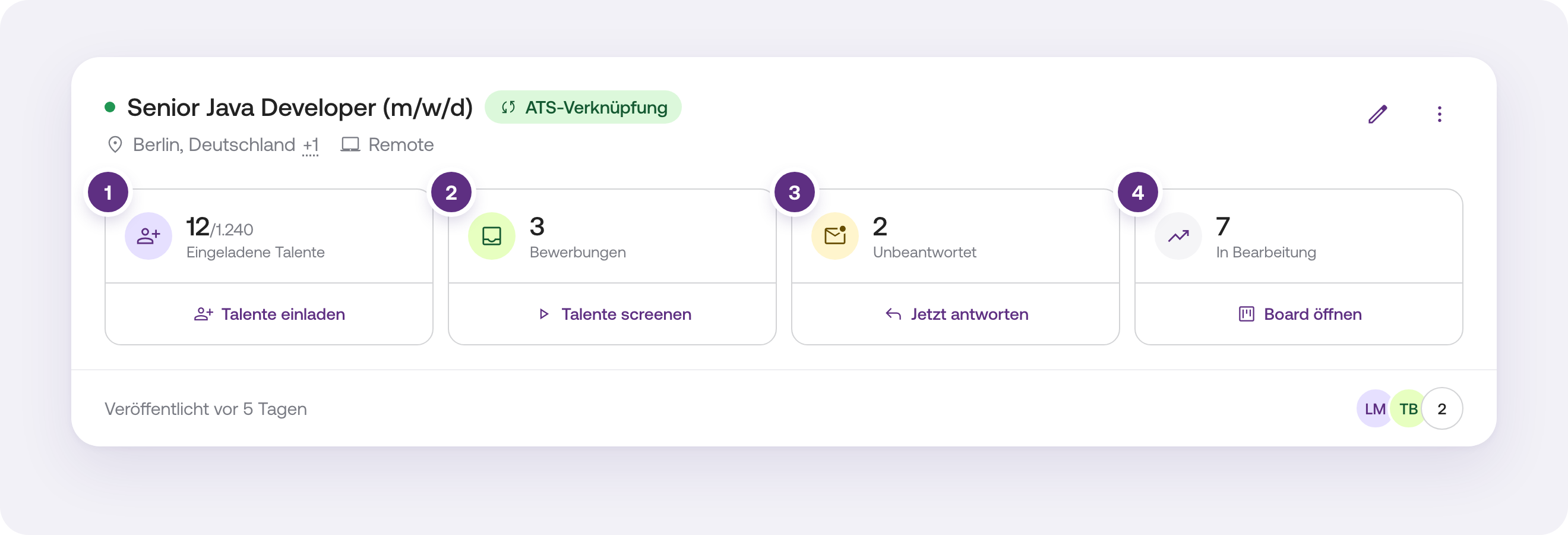
Each card displays four tiles, always in the same order:- Eingeladene Talente: the number of talents you’ve invited through the Talent Feed, compared with the total number of matching talents (for example, 1/26). Click Talente einladen to open the Talent Feed for this job.
- Bewerbungen: new applications you haven’t screened yet. Click Talente screenen to go straight to screening.
- Unbeantwortet: talents waiting for a response from you. Click Jetzt antworten to open those talents.
- In Bearbeitung: all ongoing processes, including interviews. Click Board öffnen to view your pipeline.
If a tile shows 0, it’s grayed out and displays a message such as “Nichts zu screenen” or “Alle beantwortet”. Eingeladene Talente is always clickable, so you can invite talents at any time.
-
Open a job
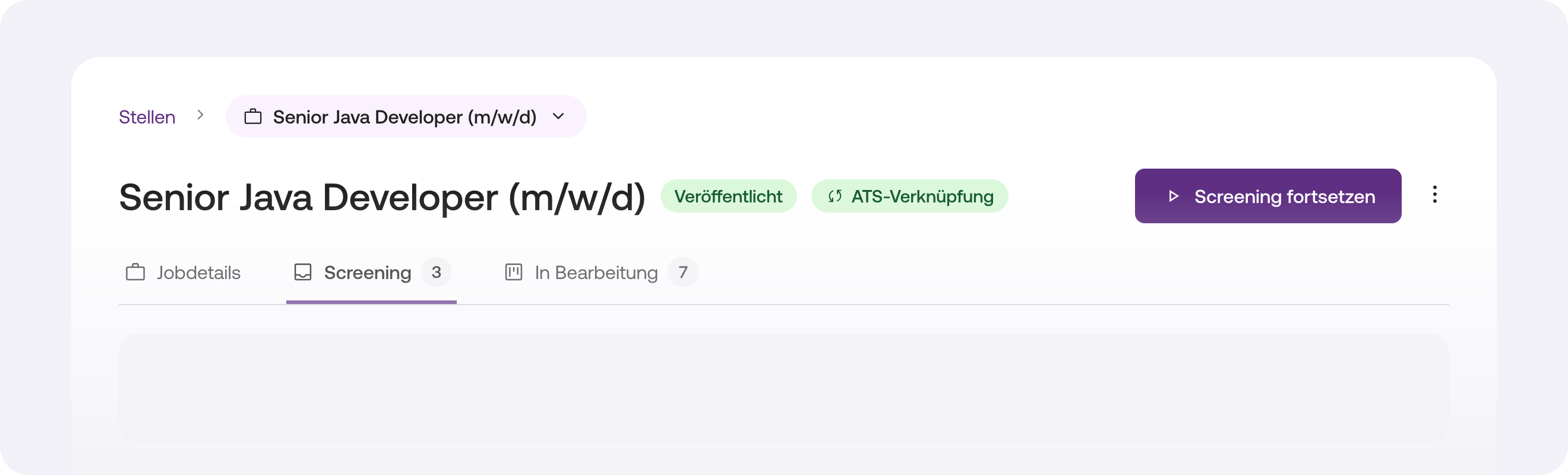
Click a tile, the job title, or the job in the sidebar. The job page has three tabs:- Jobdetails: your job posting, where you can edit it, preview it, save it, and publish it.
- Screening: new applications for this job.
- In Bearbeitung: your pipeline with all ongoing processes.
If there are new applications, you’ll land directly on the Screening tab. Otherwise, you’ll land on Jobdetails.
-
Switch to another job
Click the job name in the breadcrumb at the top, then select another job. You’ll stay on the same tab. -
View applications for multiple jobs
In the same selection menu, you’ll find Meine Jobs below your jobs. It shows applications for all jobs you’re involved in. If you’re an admin, you’ll also see Alle Jobs.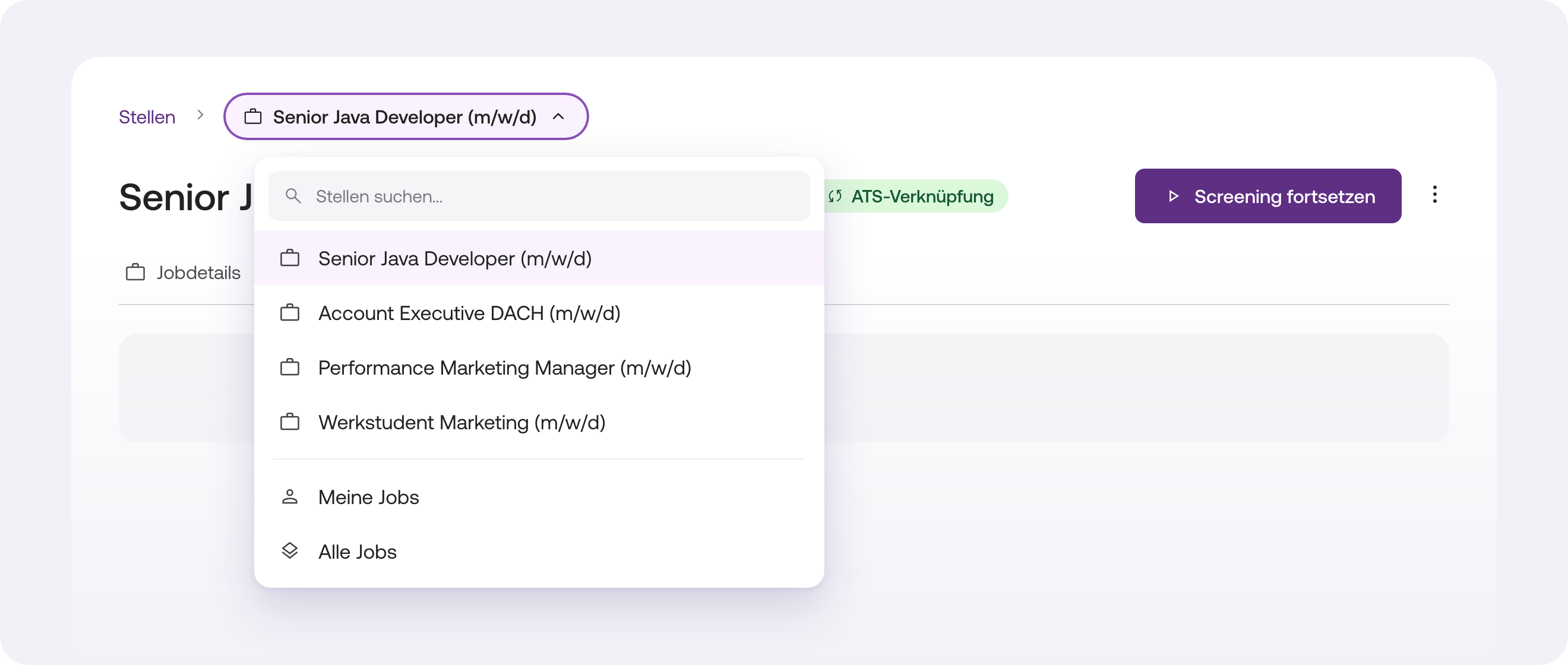
-
Edit, pause, or deactivate a job
Click the pencil icon on the job card to edit the job. Use the three-dot menu (⋮) to duplicate, pause, or deactivate it.
How to check that it worked
You’re on the job page when the job name appears as the page title at the top, with the Jobdetails, Screening, and In Bearbeitung tabs underneath.
Frequently asked questions
Where is the “Bewerbungen” menu item?
It’s no longer available. You can now find your applications directly in the relevant job under the Screening and In Bearbeitung tabs, or view applications across multiple jobs under Meine Jobs.
Why do I only see Jobdetails for a draft?
A draft doesn’t have any applications yet. The Screening and In Bearbeitung tabs appear once you publish the job.
What does the yellow notice on my job card mean?
Your job is paused. The notice tells you when it will automatically resume or, if Instaffo paused it because of too many unanswered applications, how to reactivate it. For more information, see the article “Wieso wird mein Job automatisch pausieren?” in the Stellen section.
Troubleshooting
A job is missing from my list.
Check the Entwurf and Deaktiviert tabs on the Stellen page. You’ll find paused jobs in the Aktiv tab under Pausierte Stellen.
 Powered by happysupport.ai