
How do I reactivate a deactivated job listing?
Reactivate a deactivated job listing from the Deactivated tab using the Publish Job Listing button to match it with suitable talent
In this article, you'll learn how to reactivate and publish a job listing that you previously deactivated in Instaffo. Once you've completed these steps, your listing will be active again right away and will be matched with suitable talent.

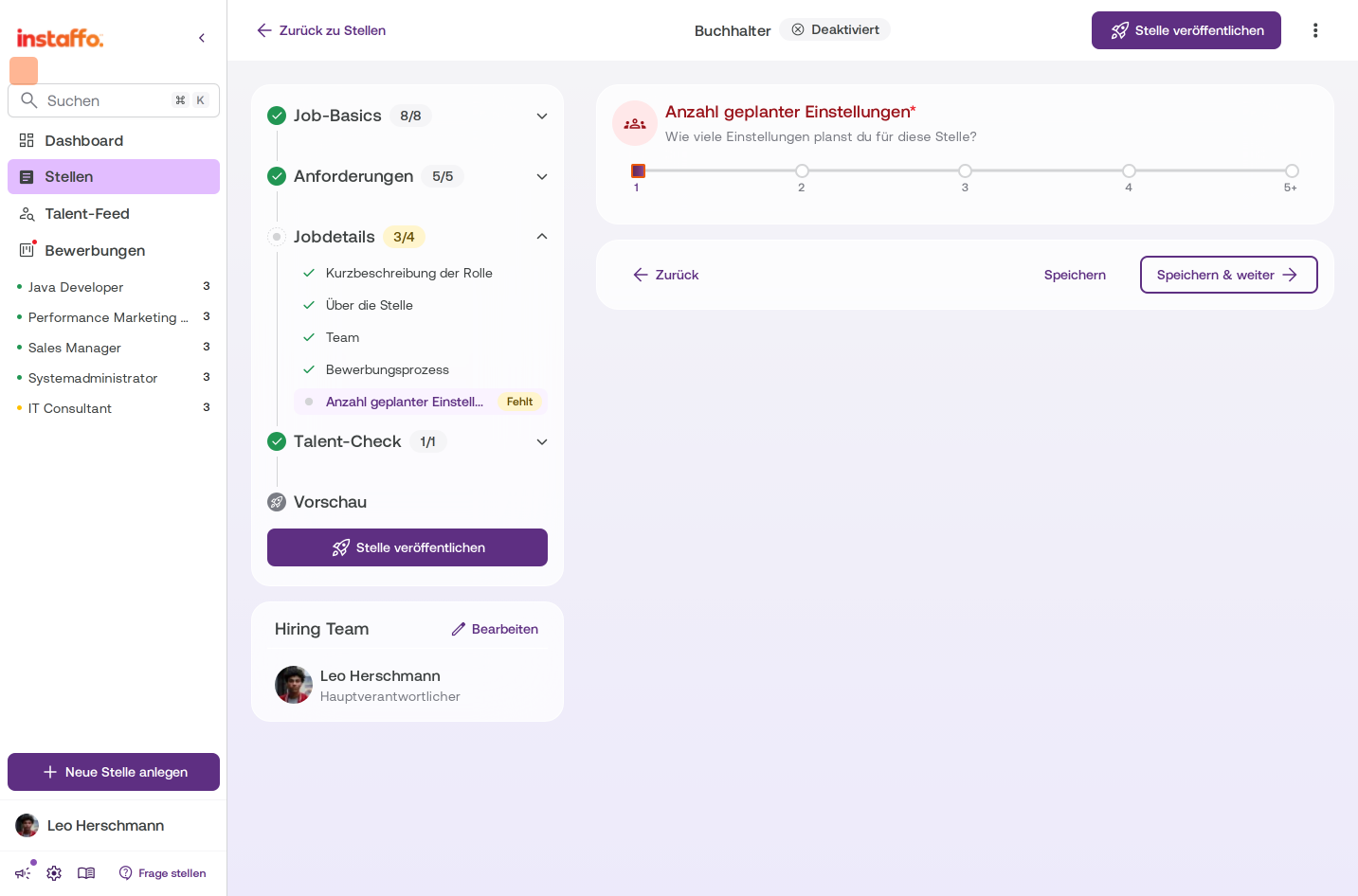
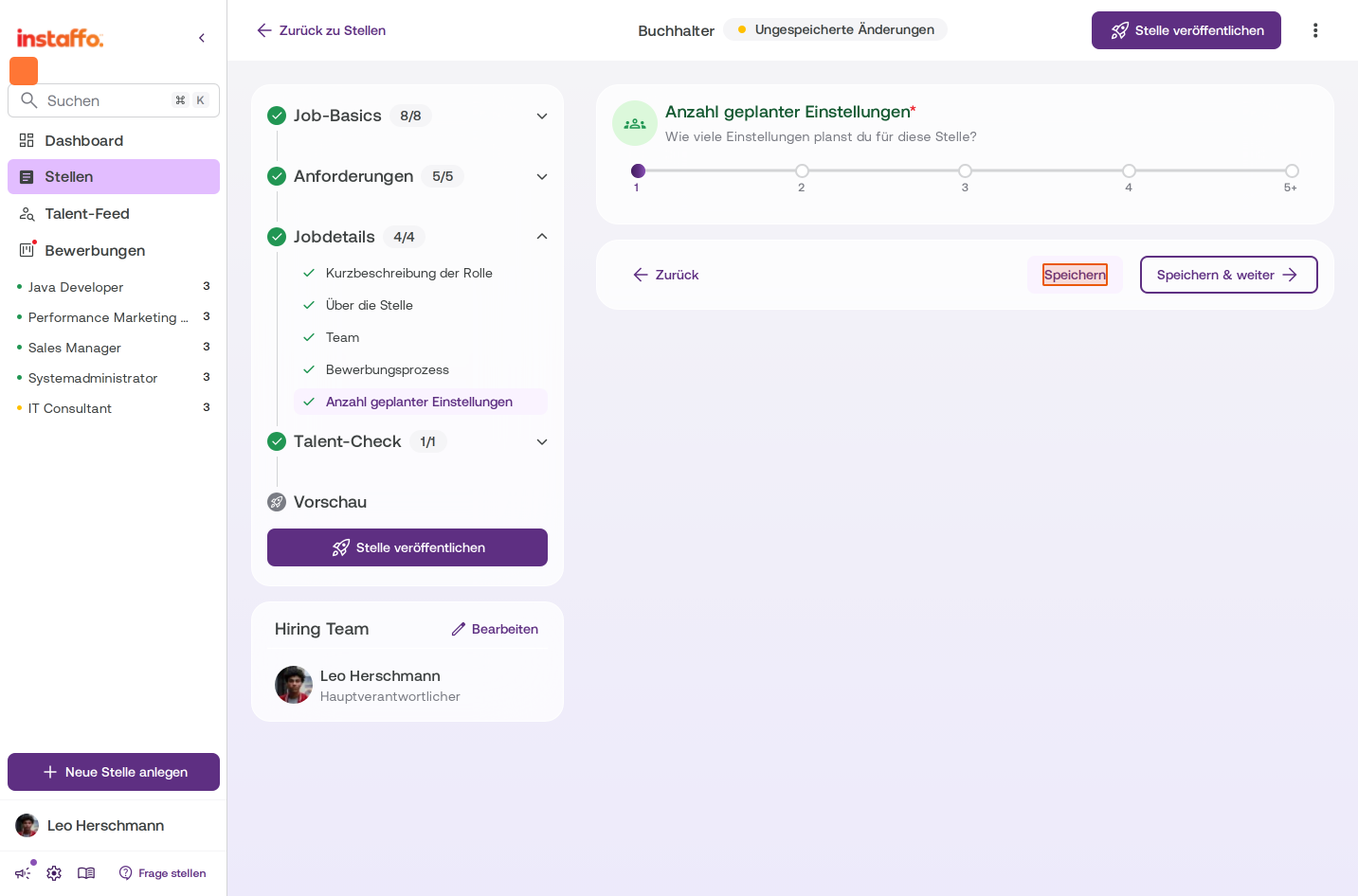
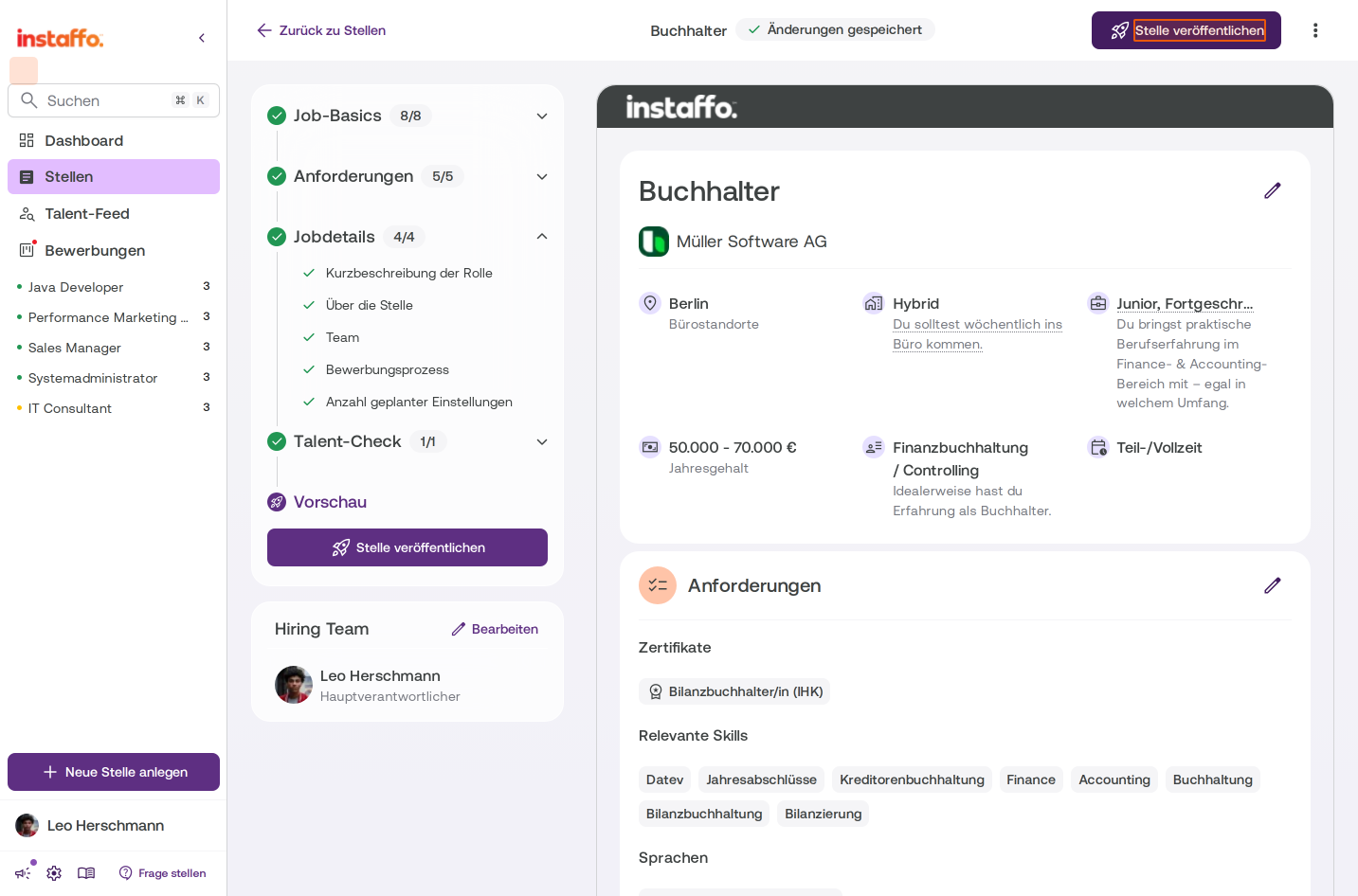
Publishing a deactivated job listing via the three-dot menu
-
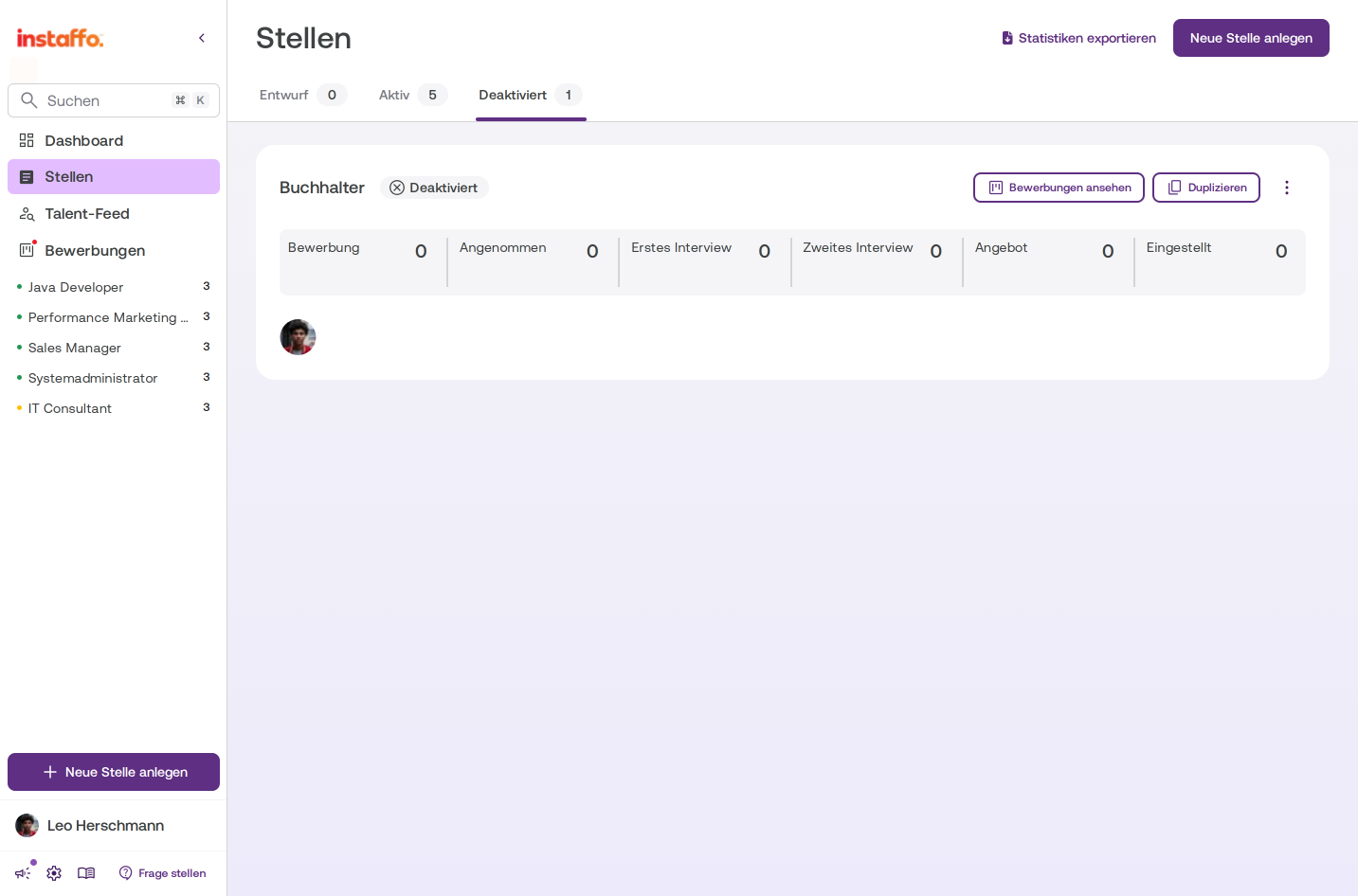
Navigate to the "Job Listings" section
Open the Job Listings menu item in the left sidebar. It's highlighted with a purple marker when you're already in this section. -
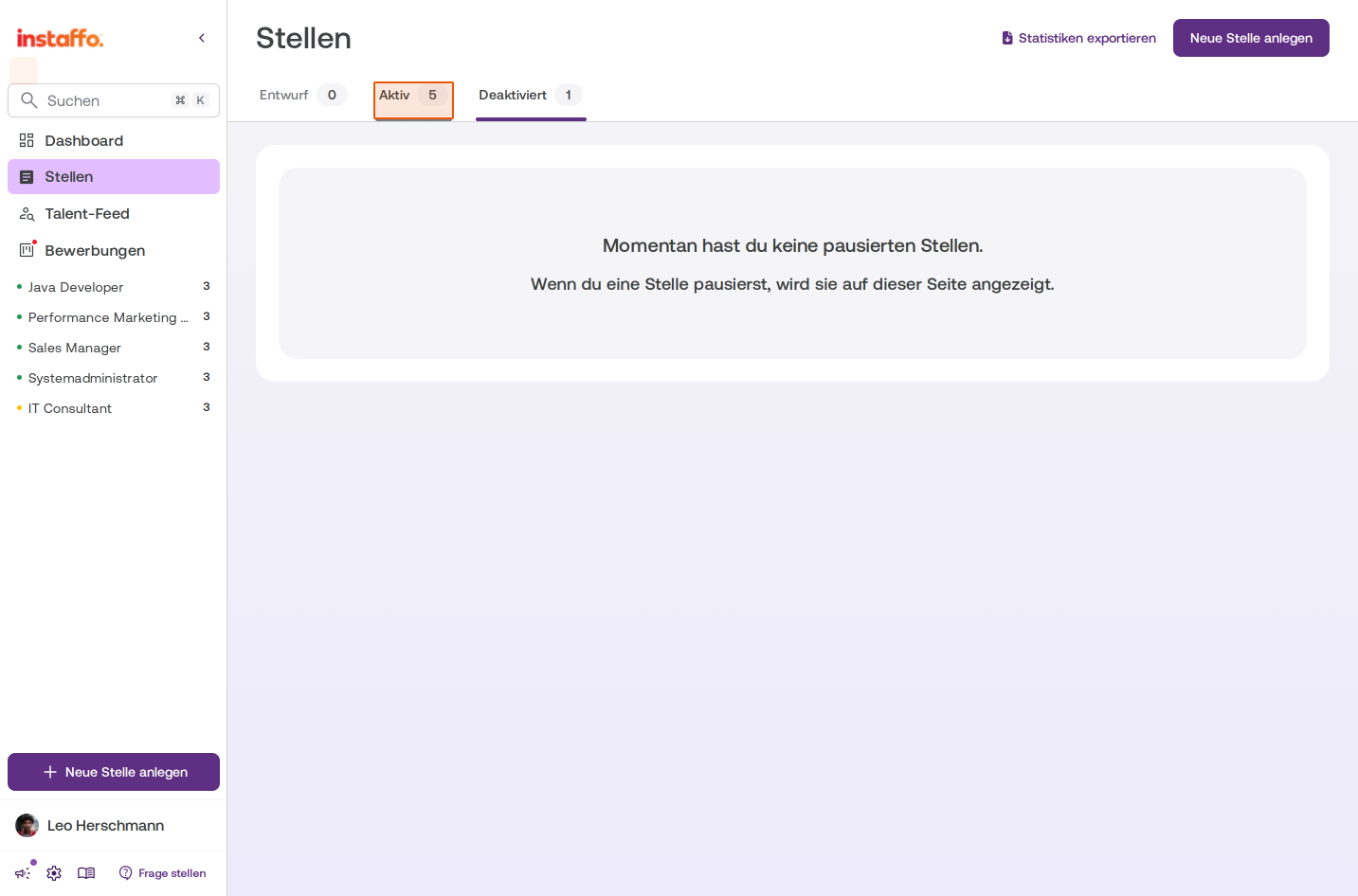
Switch to the "Deactivated" tab
At the top of the page, you'll find a tab bar with the options Draft, Active, and Deactivated. Click on the Deactivated tab to view all deactivated job listings. -
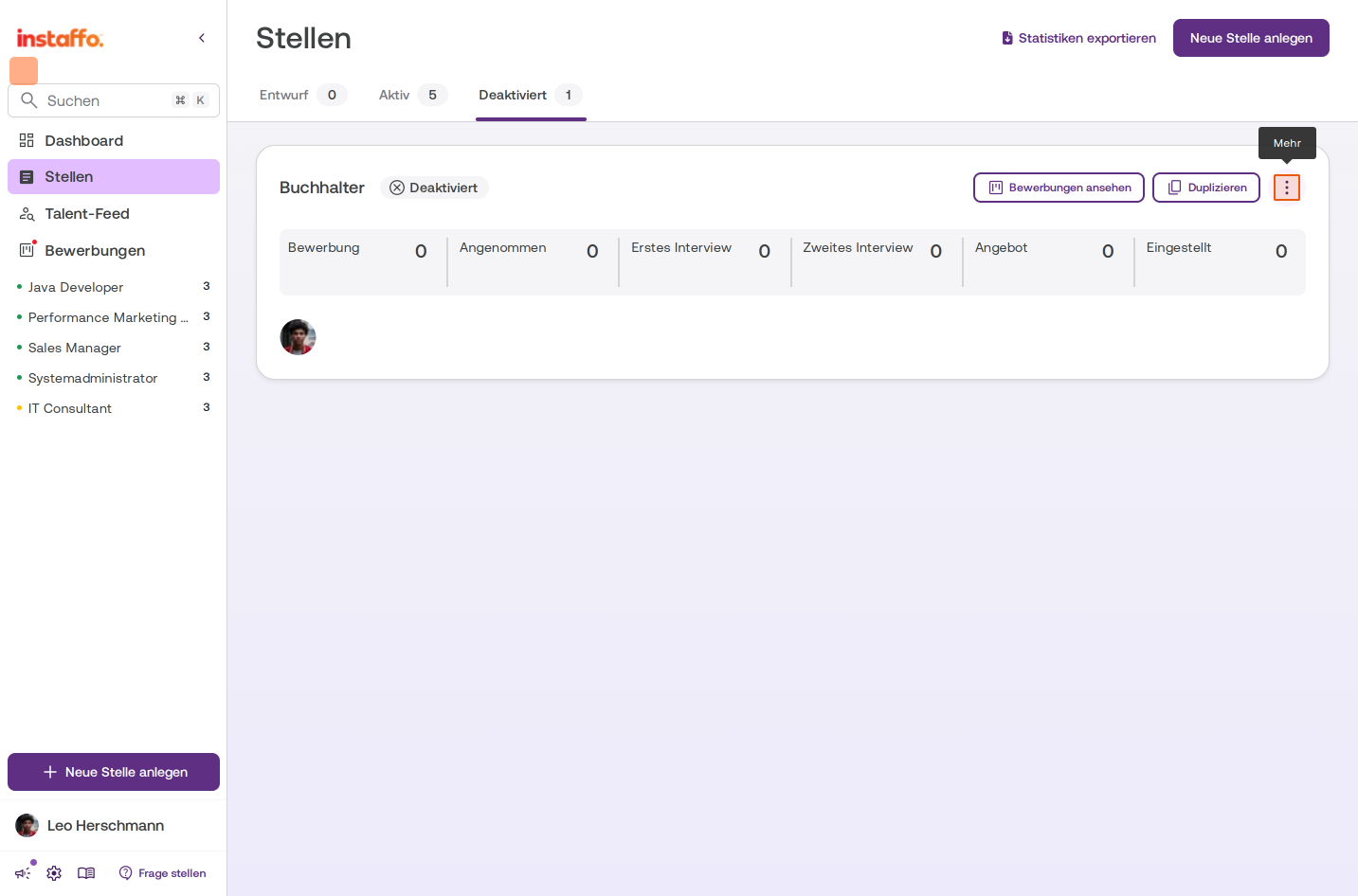
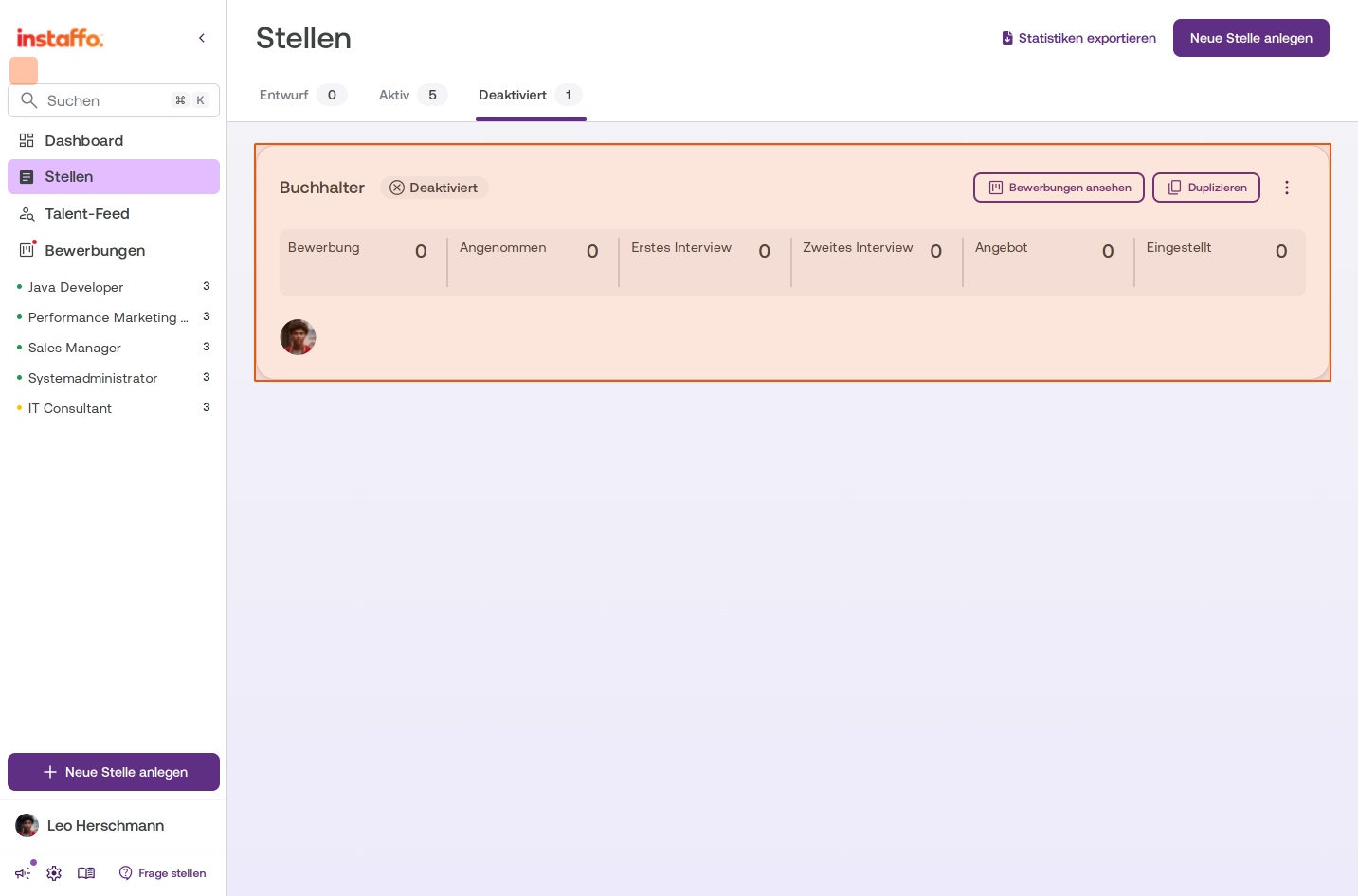
Open the job listing's action menu
On the deactivated job listing card (for example, "Accountant"), you'll find a three-dot menu to the right of the View Applications and Duplicate buttons. Click on this icon to display additional options.
-
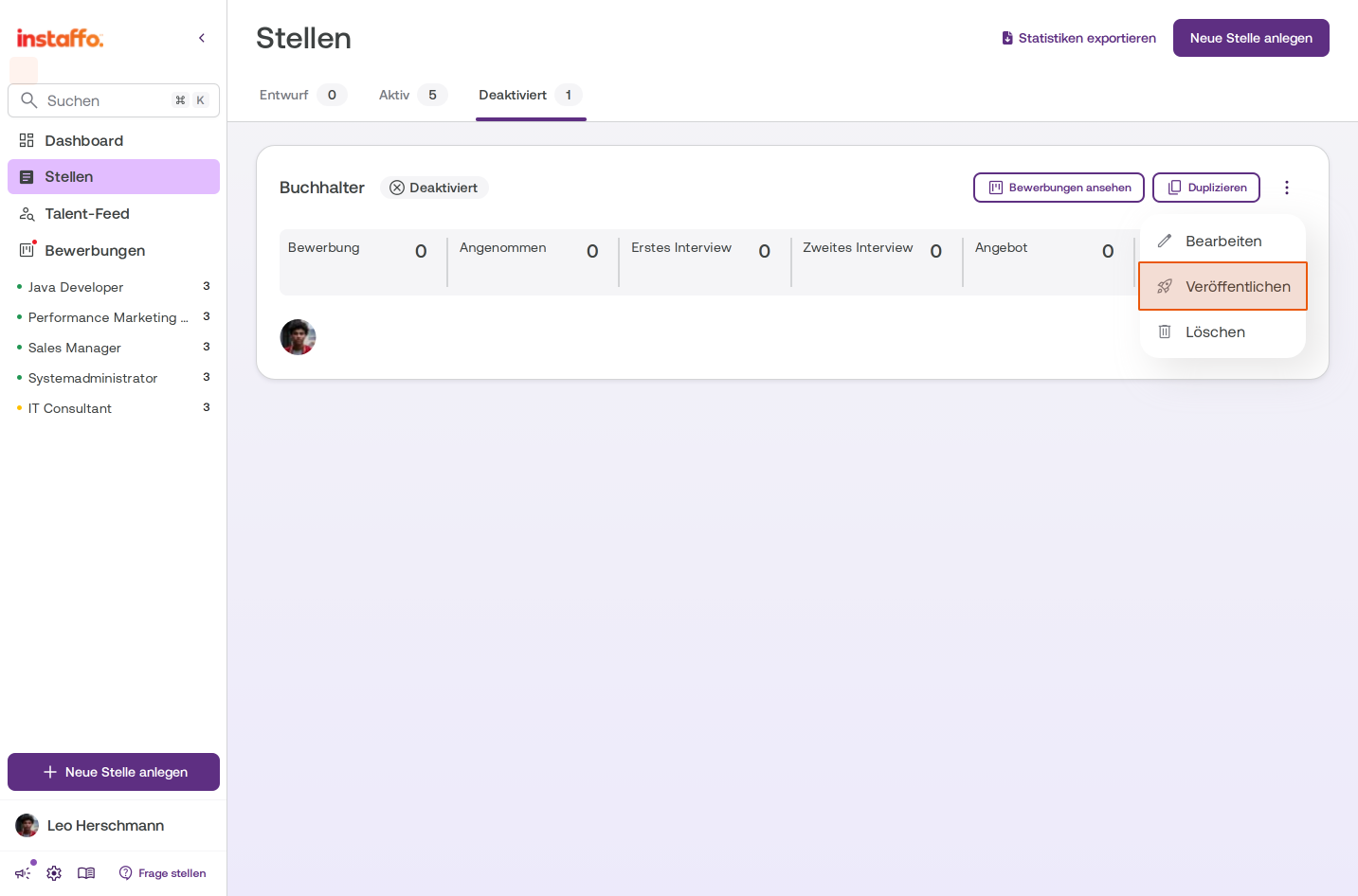
Select "Publish"
In the dropdown menu that opens, you'll see the options Edit, Publish, and Delete. Click on Publish to reactivate the job listing. -
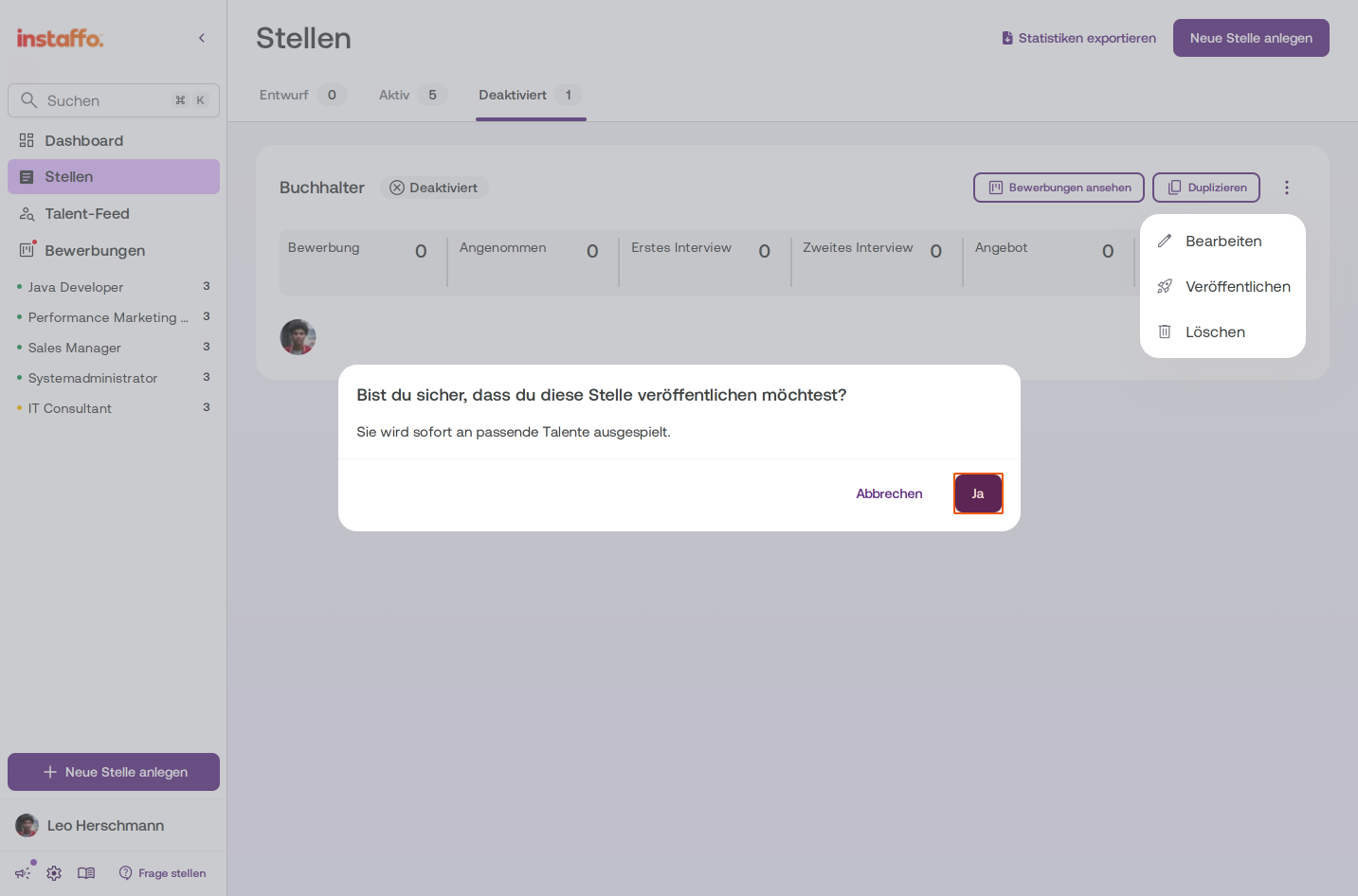
Confirm the publication
A confirmation dialog will appear asking "Are you sure you want to publish this job listing?" Click the Yes button to confirm the publication. The listing will be matched with suitable talent right away. -
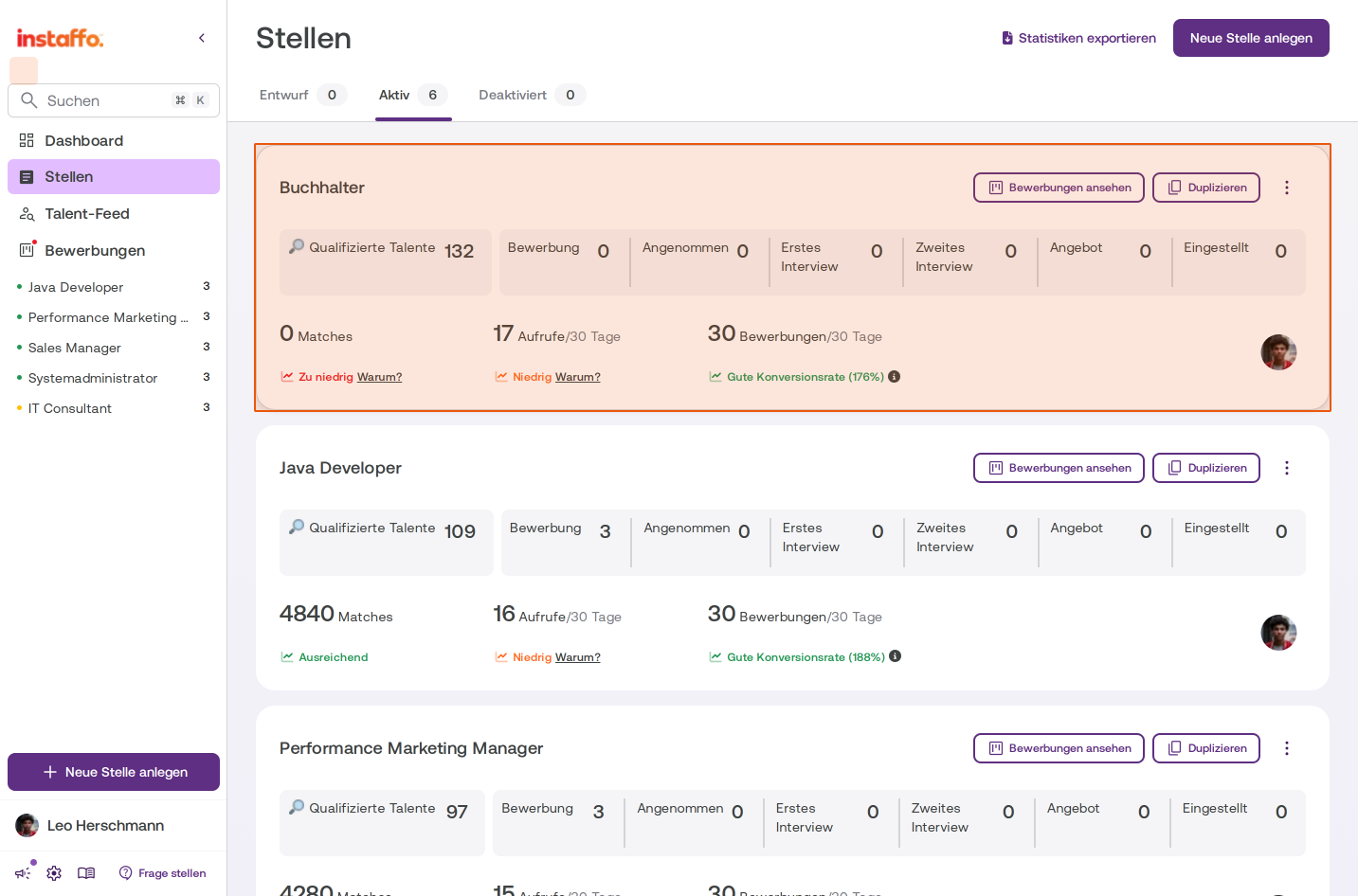
Check the status in the "Active" tab
After confirming, the listing will be active immediately. Switch to the Active tab to see that the job listing is now displayed there.
Alternative: Publishing a job listing via the detail view
-
Open the job listing details
Alternatively, you can also publish a deactivated job listing directly from the detail view. Click on the deactivated job listing card to open the edit view. -
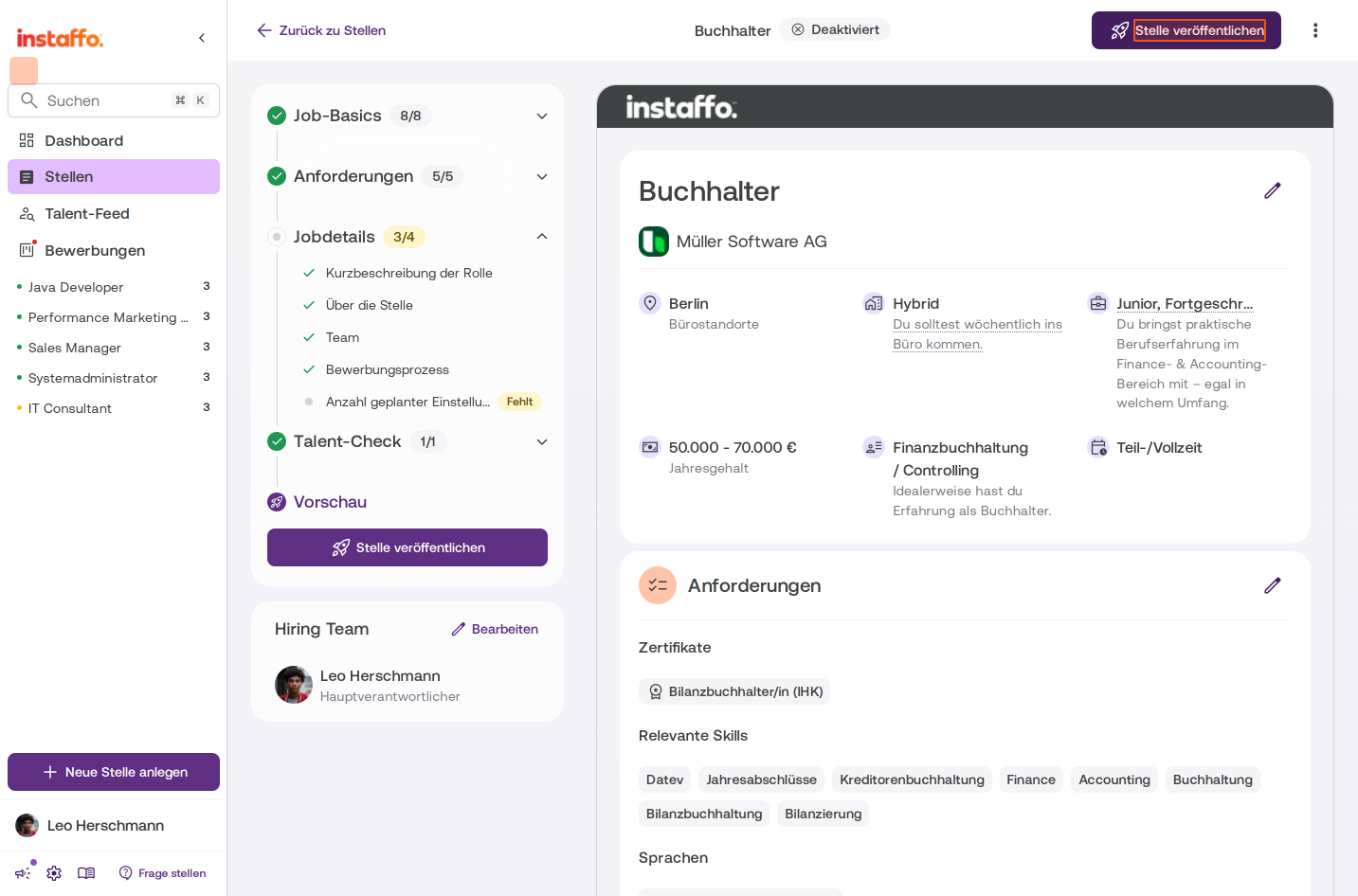
Click on "Publish Job Listing"
In the detail view, you'll find a purple Publish Job Listing button with a rocket icon in the top right. Click on this button to initiate the publication.
-
Complete any missing information
If required fields such as "Number of planned hires" haven't been filled in yet, you'll be asked to complete them. Select your desired number using the slider (1, 2, 3, 4, or 5+). -
Save your changes
Click the Save button to secure your information. A "Changes saved" confirmation will appear at the top of the page. -
Publish the job listing
Click the Publish Job Listing button again in the top right to finalize and activate the listing.
Once you've completed these steps, your job listing will be active again and will be matched with suitable talent in the Instaffo network right away.
 Powered by happysupport.ai