
Pause and resume a job
Pause a job to stop receiving applications while keeping your pipeline and chats intact, then resume anytime from the paused jobs section
In this article, you’ll learn how to temporarily pause a job. Pausing is especially useful if you’ll be away for an extended period or have already collected enough applications and don’t want any new proactive applications in your pipeline for a while.

Pause a job
-
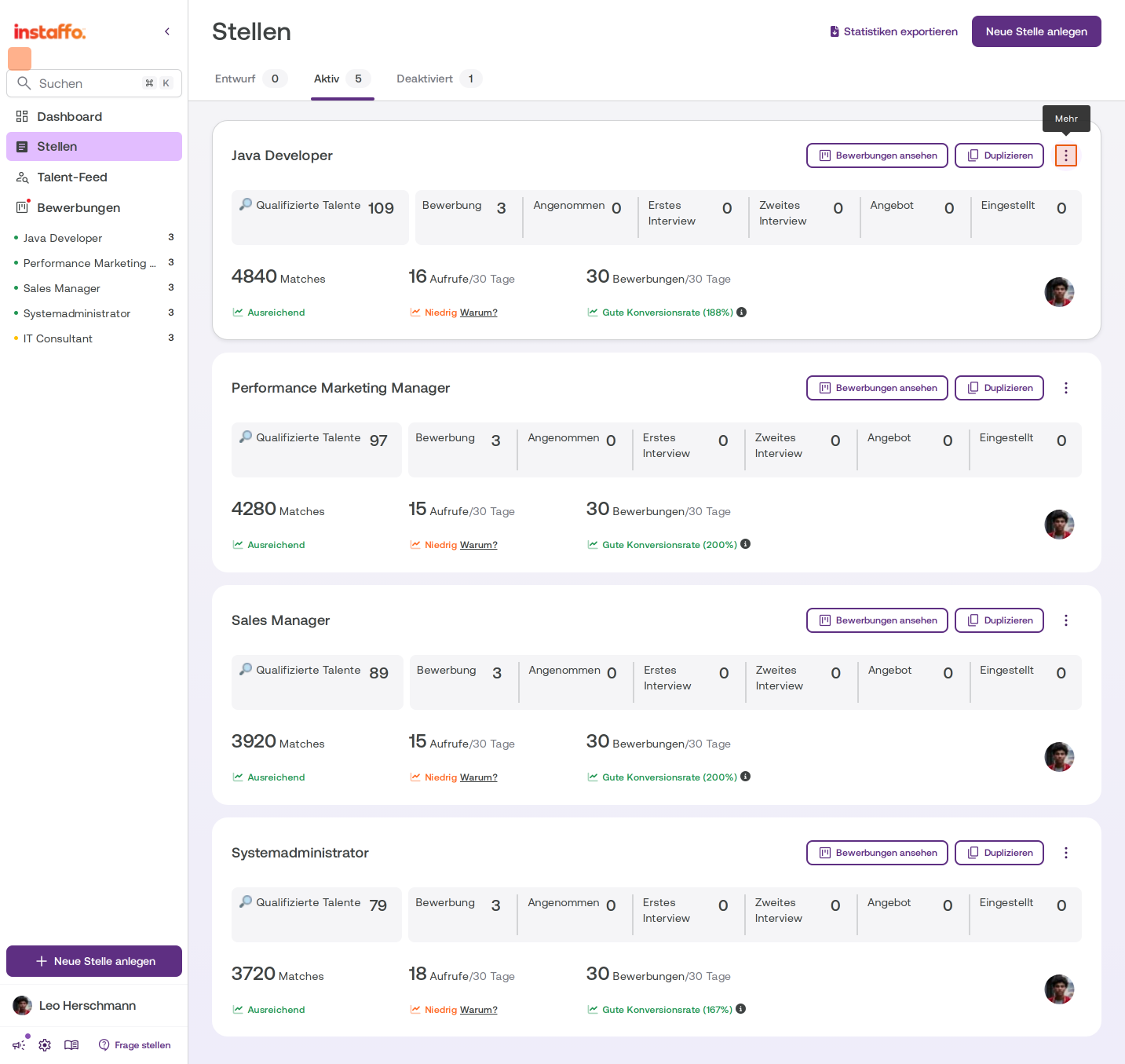
Open the job’s options menu
Go to the Stellen page and select the Aktiv tab to see your active jobs. Click the three-dot menu (⋮) to the right of the job you want to pause to open the action menu. -
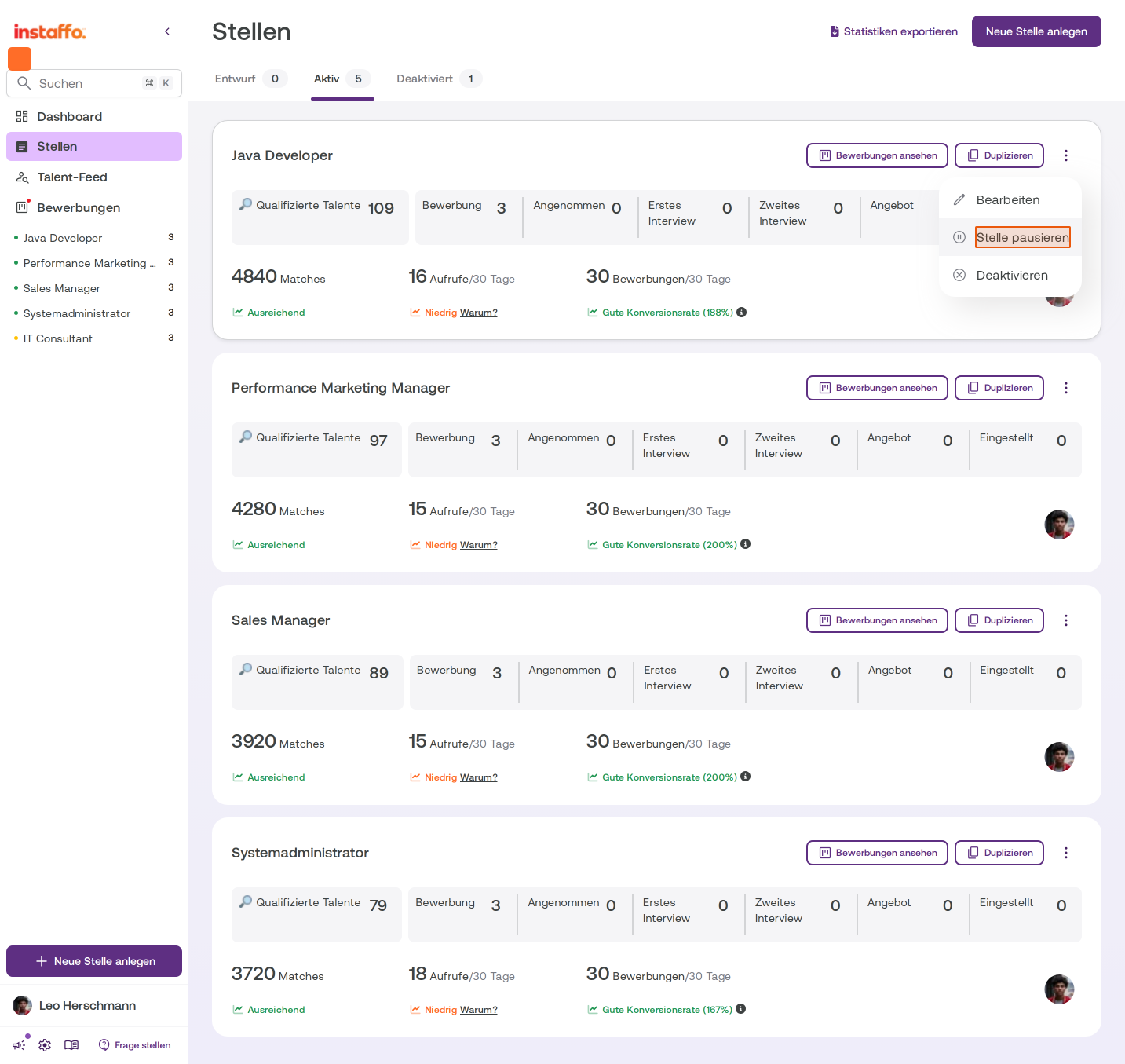
Select the pause option
In the dropdown menu, select Stelle pausieren.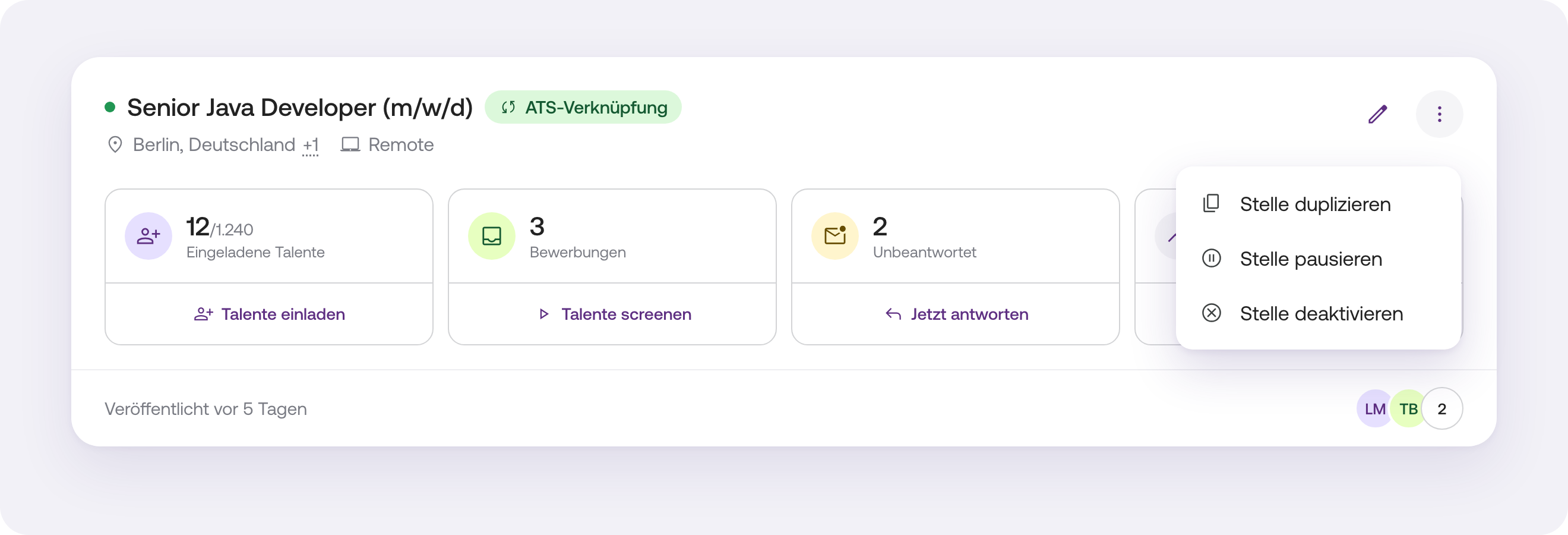
-
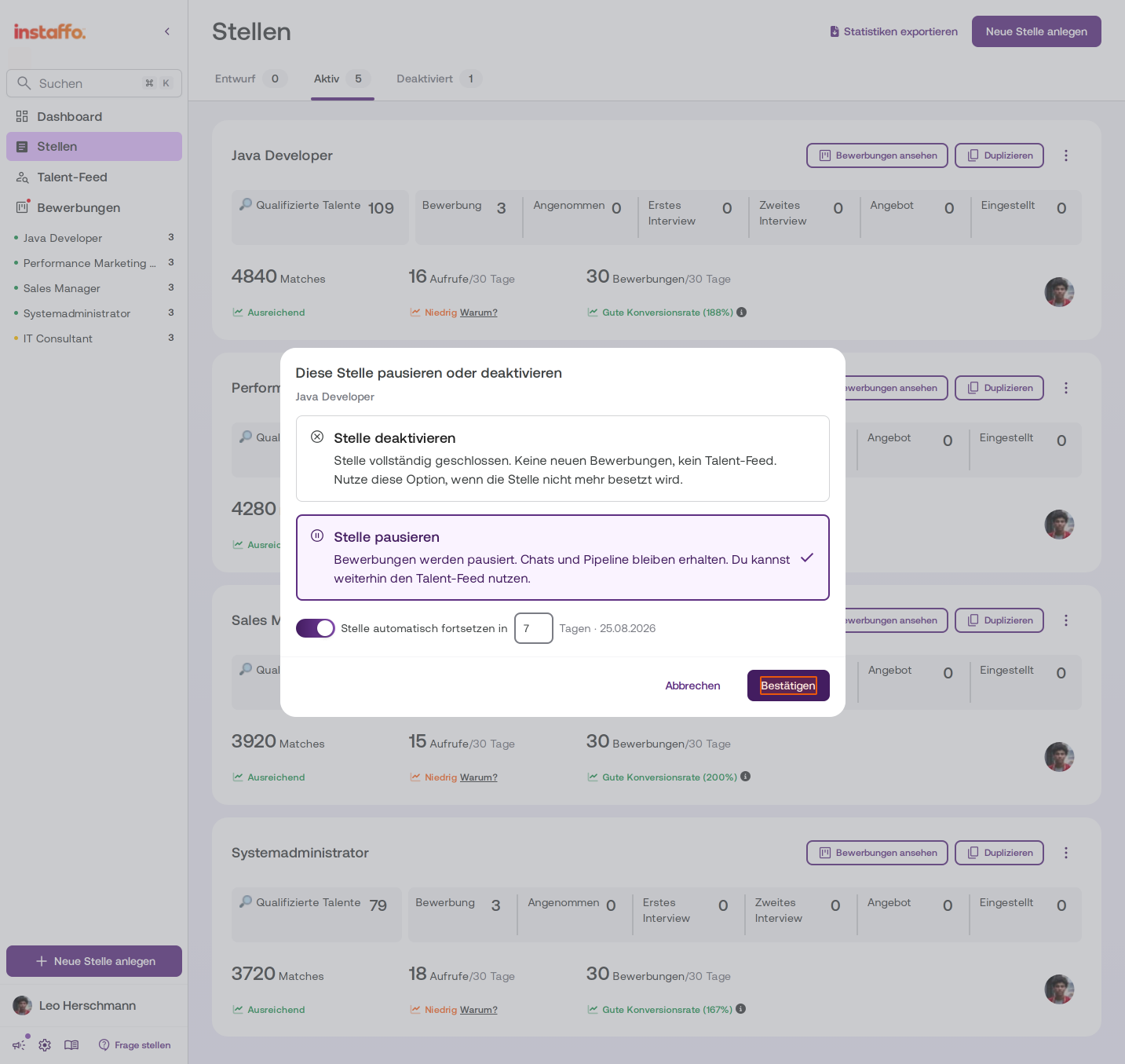
Confirm the pause
A dialog titled “Diese Stelle pausieren oder deaktivieren” will open. You’ll see two options:- Stelle deaktivieren: The job will be closed completely. You won’t receive any new applications, and the Talent-Feed will no longer be available.
- Stelle pausieren: Applications will be paused, but your chats and pipeline will remain. You can still use the Talent-Feed and suggest the job to talent. Your ongoing suggestions will remain open.
Select Stelle pausieren. If you like, you can choose to have the job resume automatically after a certain number of days. Then click Bestätigen.
Resume a paused job
-
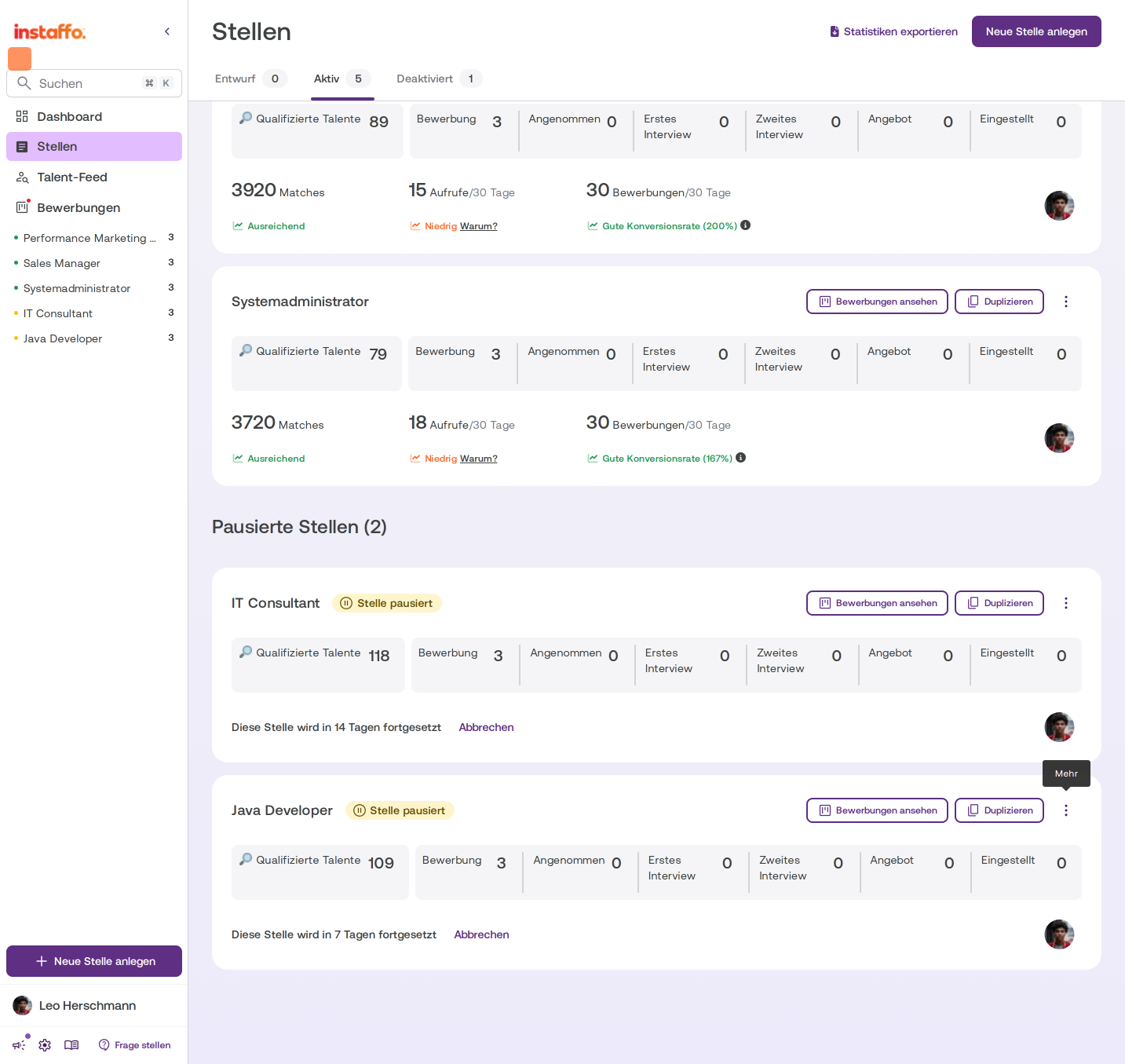
Find paused jobs
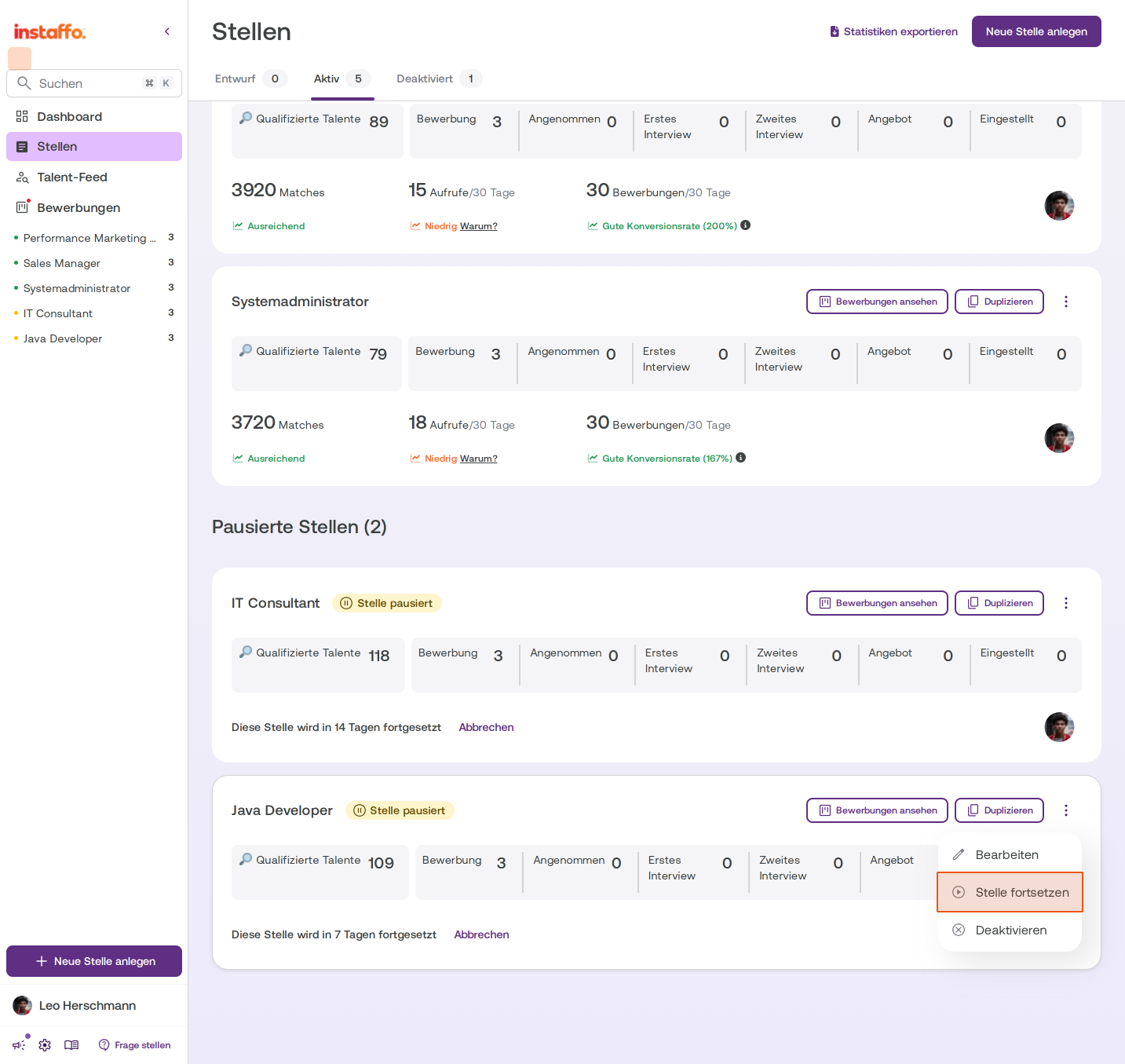
Paused jobs appear in the Pausierte Stellen section below your active jobs. Each paused job has a yellow status badge labeled “Stelle pausiert” and shows when it will resume automatically. -
Reactivate the job
Click the three-dot menu (⋮) for the paused job and select Stelle fortsetzen from the dropdown menu.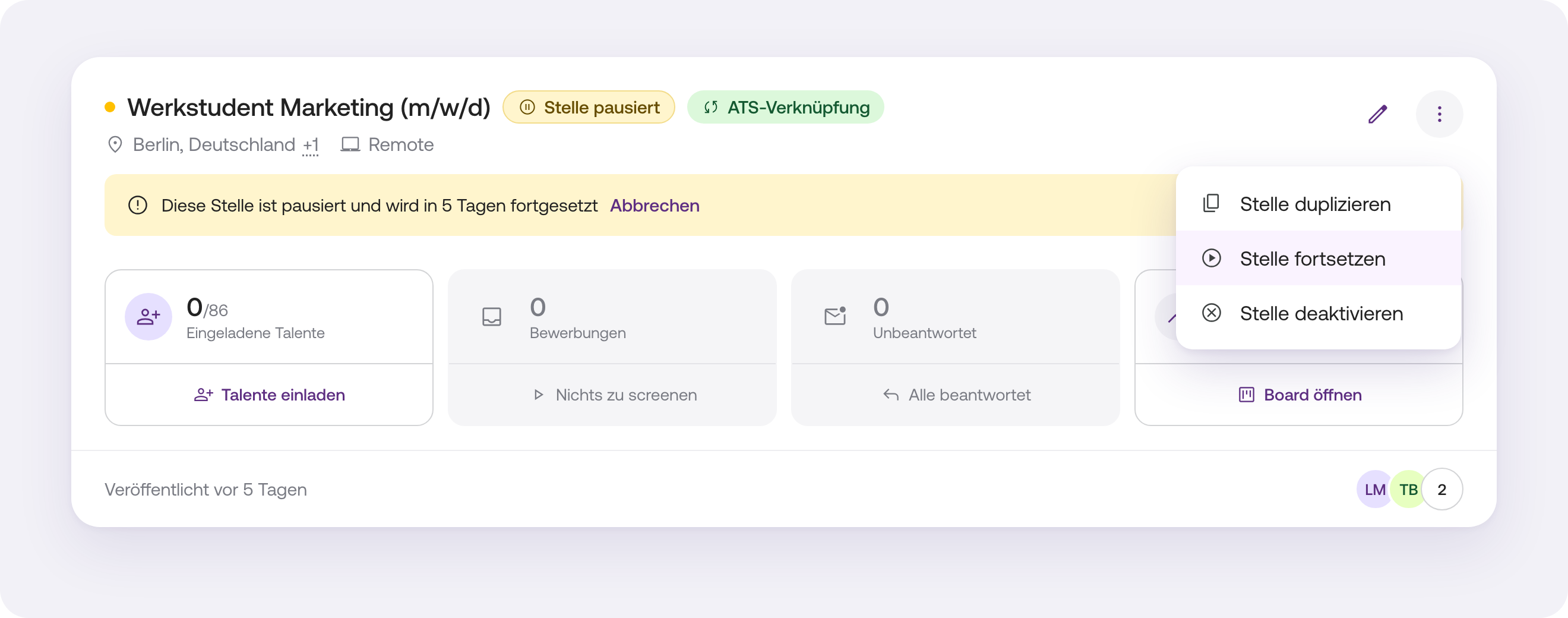
-
Close the confirmation
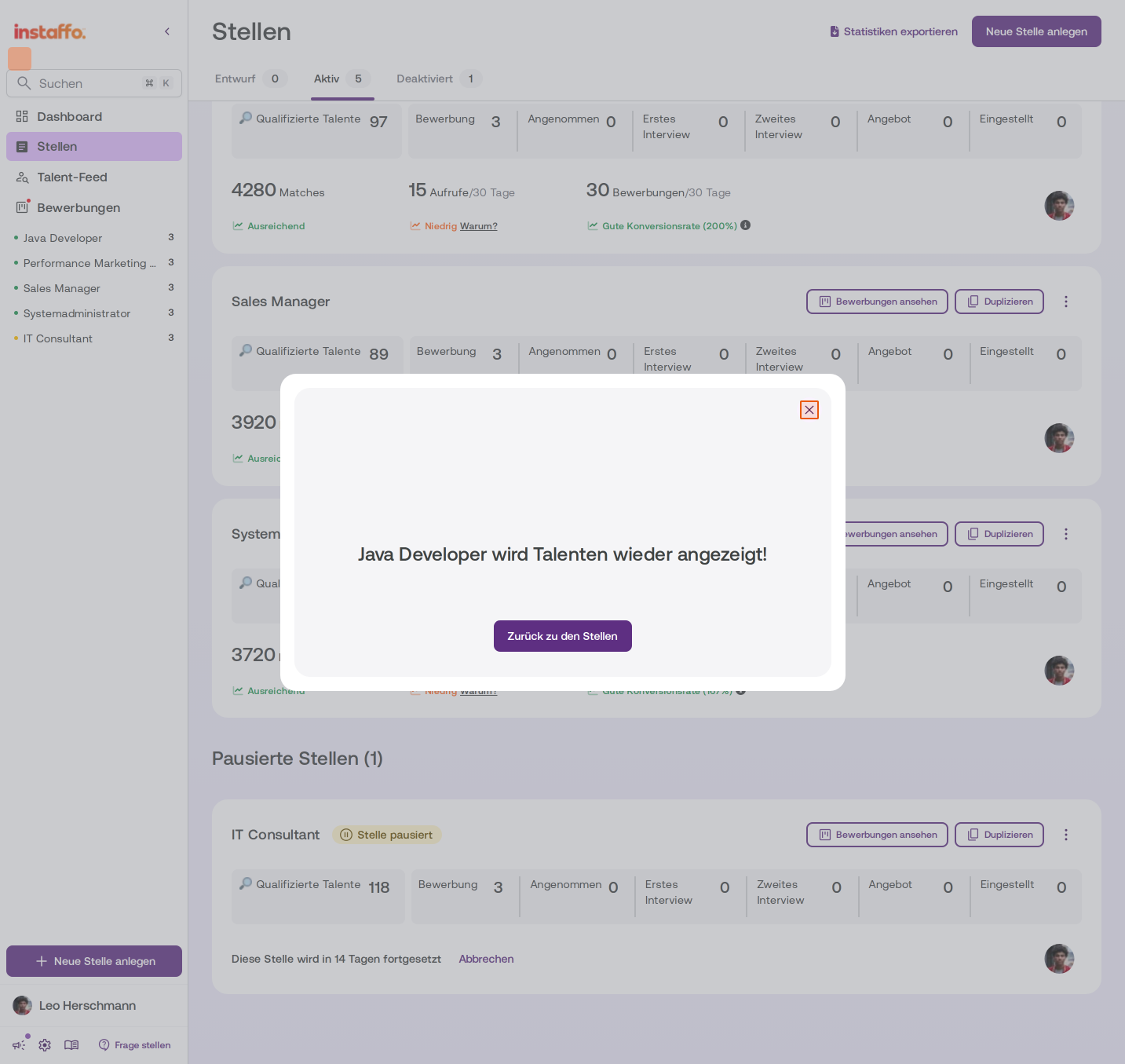
After the job is reactivated, a confirmation message will appear saying that the job is visible to talent again. Close the dialog by clicking the X icon, or click Zurück zu den Stellen.
Once resumed, your job will be active again and visible to talent. You’ll find it in the Aktiv tab on the jobs overview page.
 Powered by happysupport.ai