
How do I use drafts and job signals?
Complete missing job posting fields marked with yellow badges in the Job Cockpit to save drafts and activate job signals for streamlined hiring.
In this article, you'll learn how to work with drafts in the Jobs section and use job signals. You'll discover how to continue and edit job postings you've started, and how to review, activate, or mark job signals suggested by Instaffo as irrelevant.

Working with drafts
-
Open the Jobs section
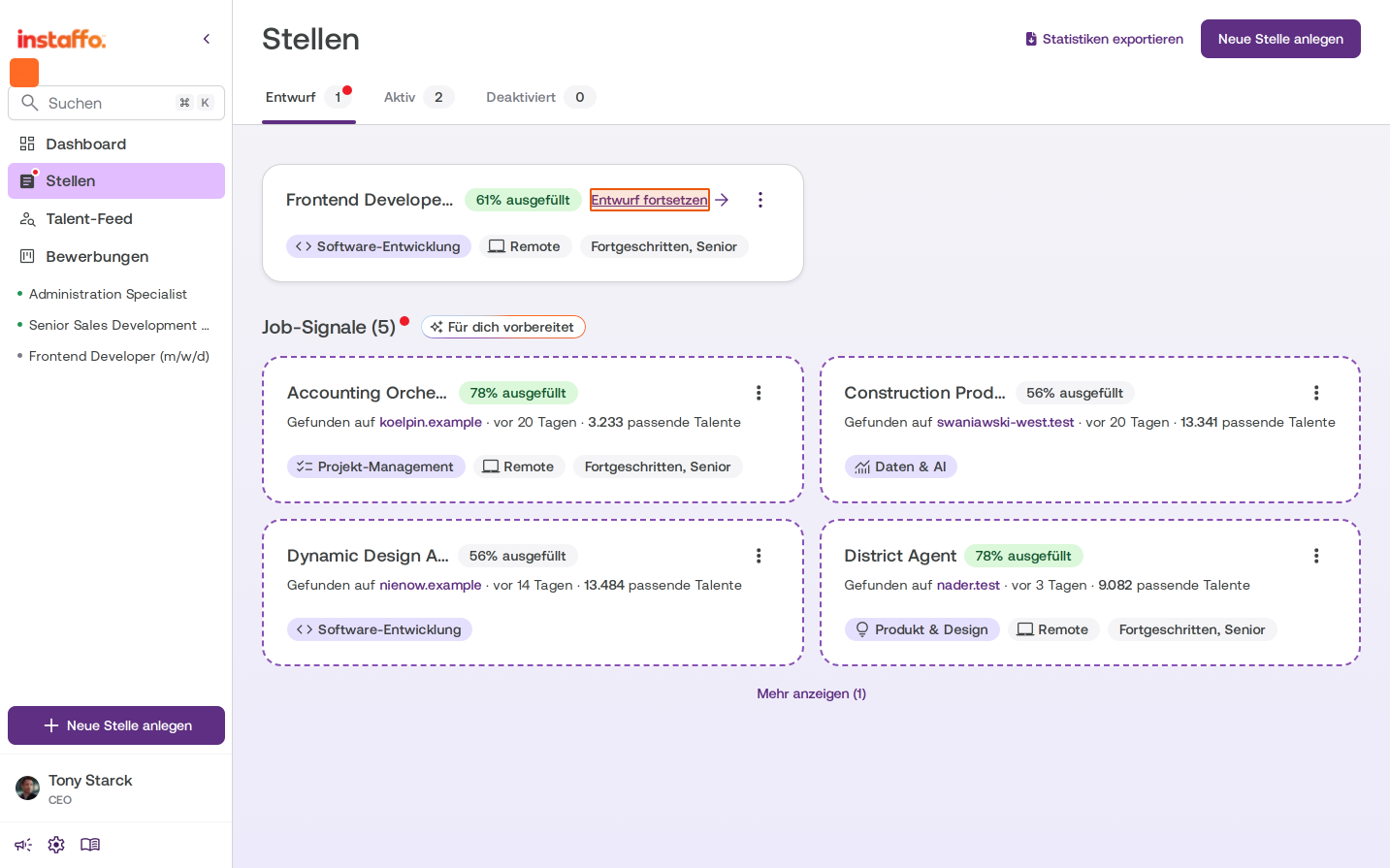
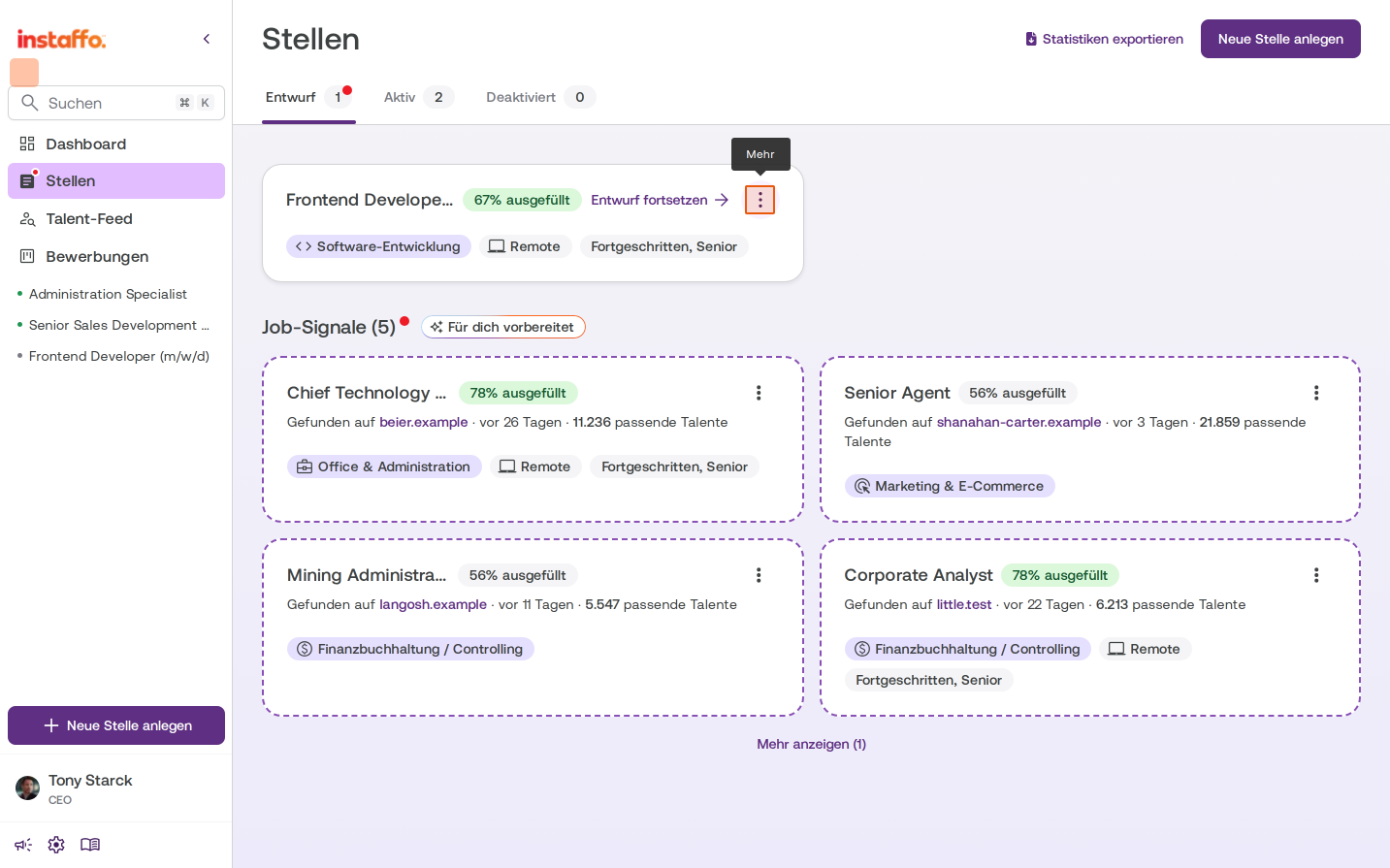
Navigate to Jobs in the left sidebar menu. The Draft tab opens automatically and shows you all drafts created by you or your team members. On each draft card, you can see how far along the job posting is (for example, "61% complete"). -
Continue a draft
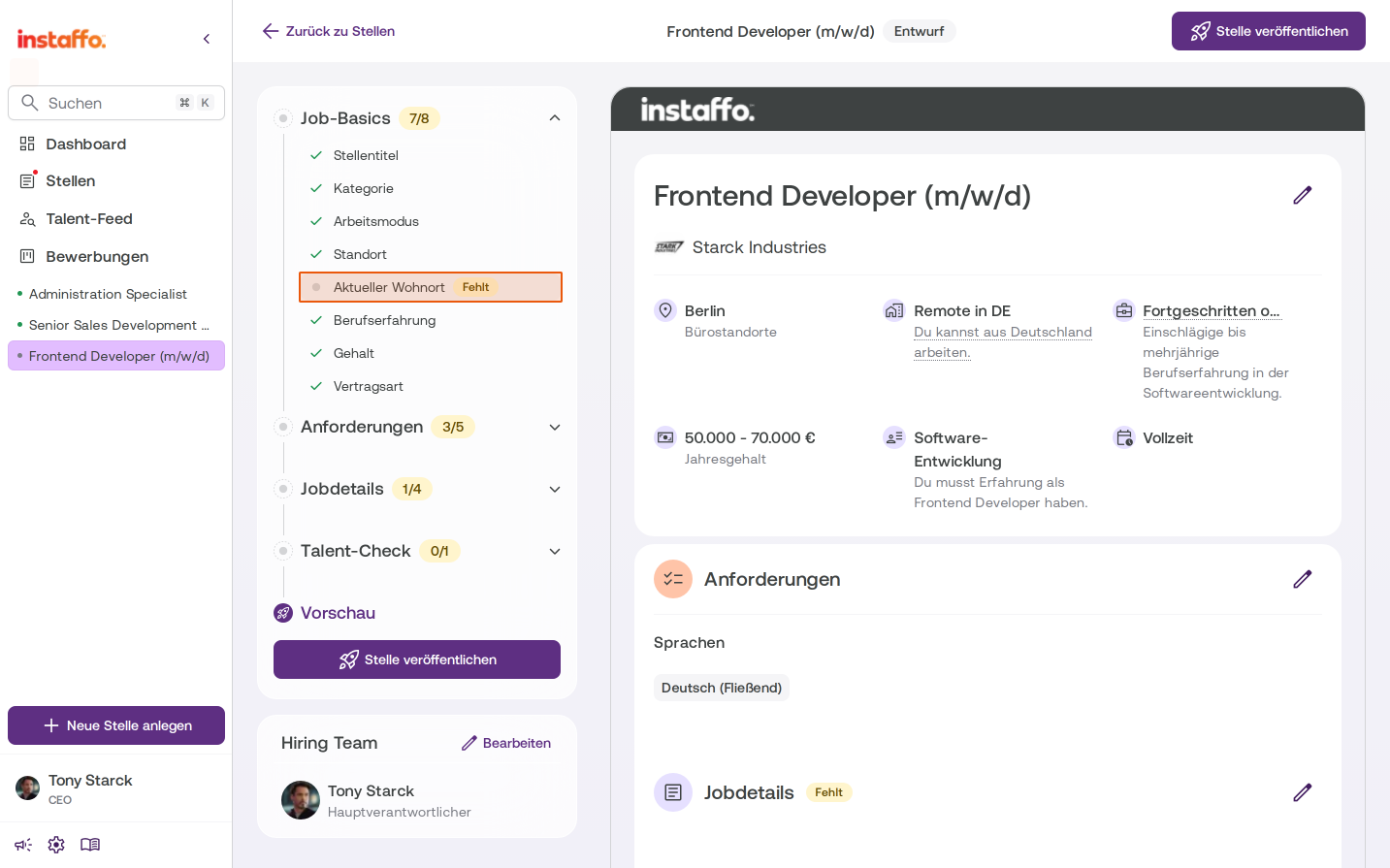
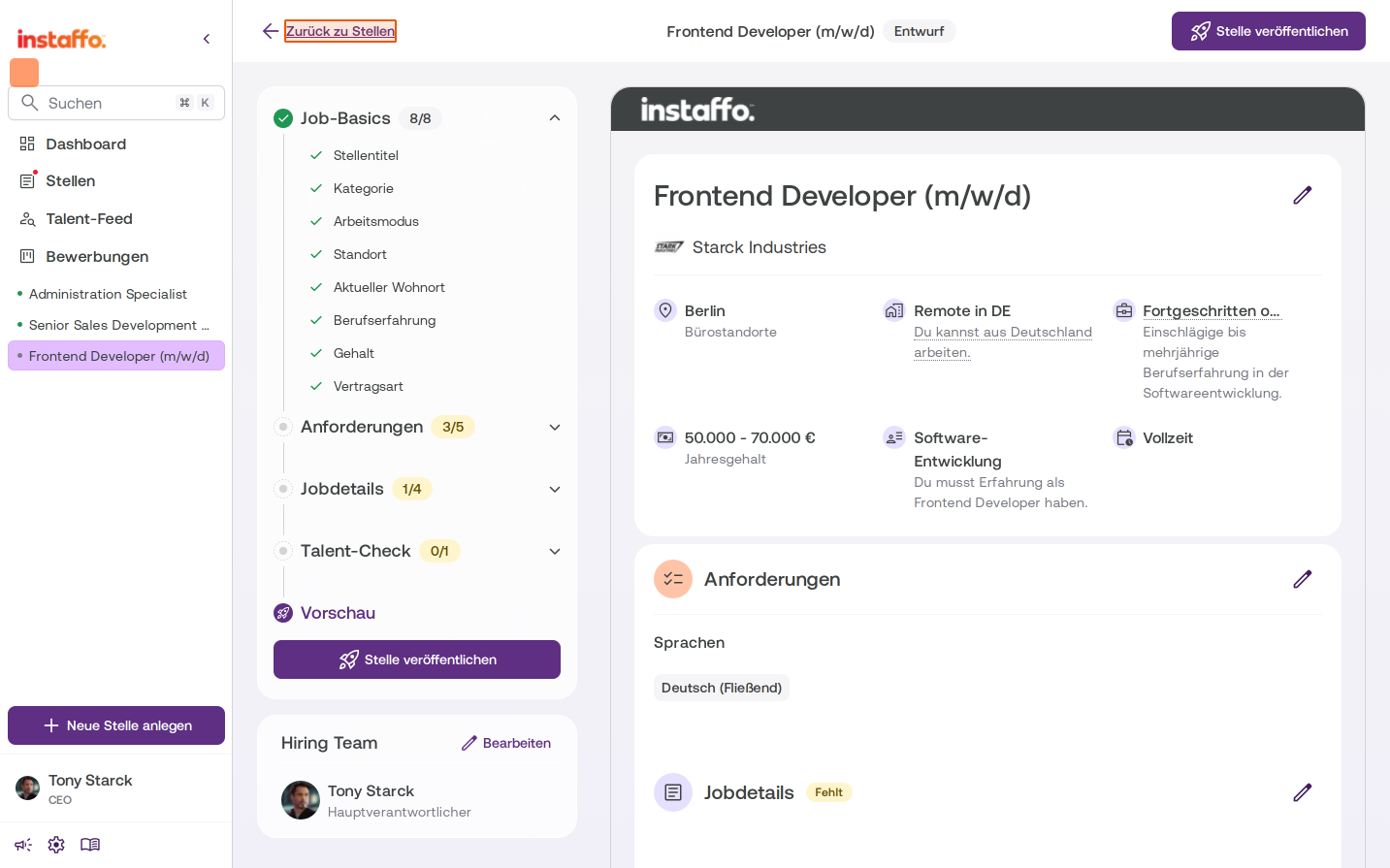
Click the Continue draft link on the corresponding job card. This takes you directly to the Job Cockpit, where you can add any missing information.
-
Fill in missing information
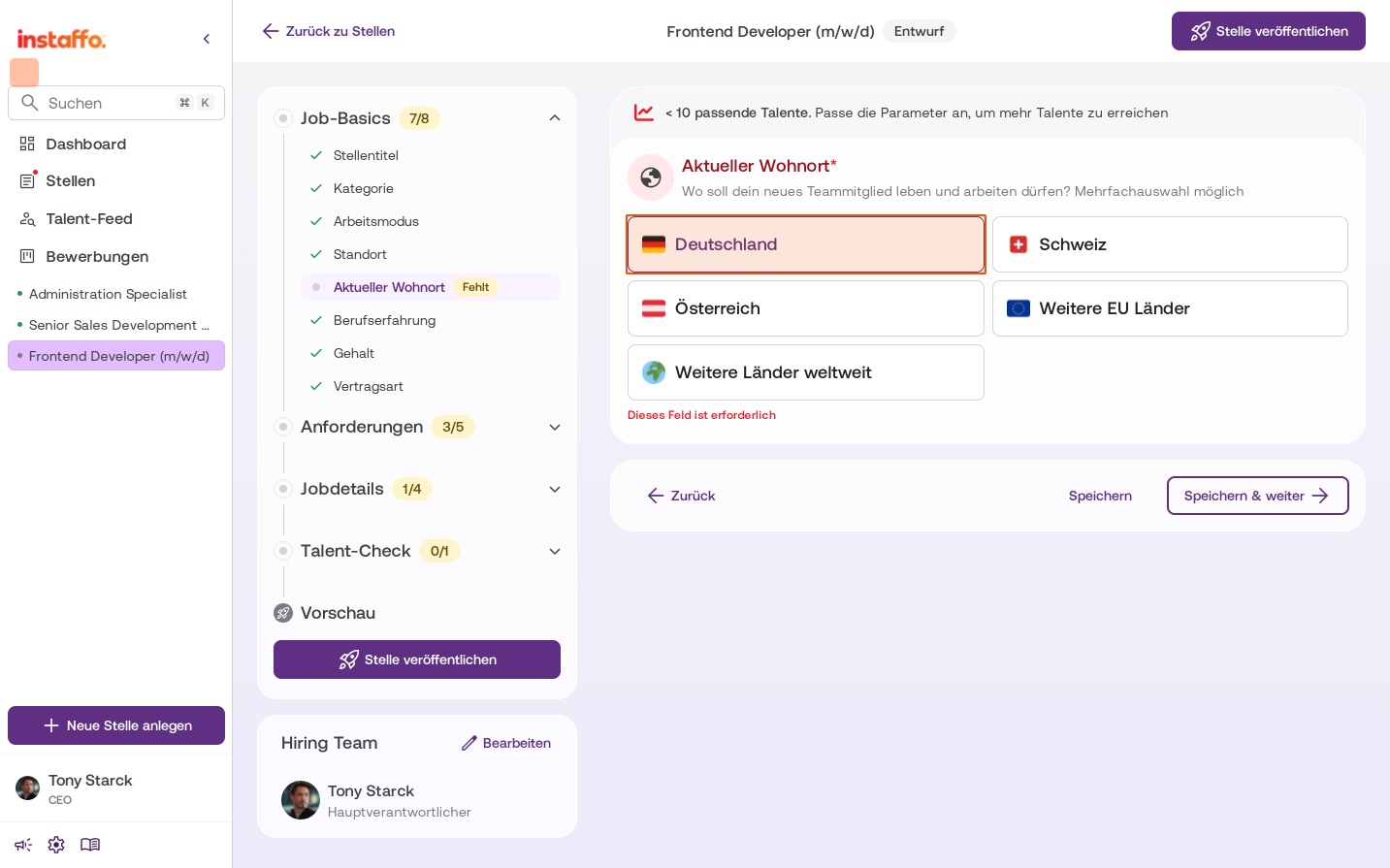
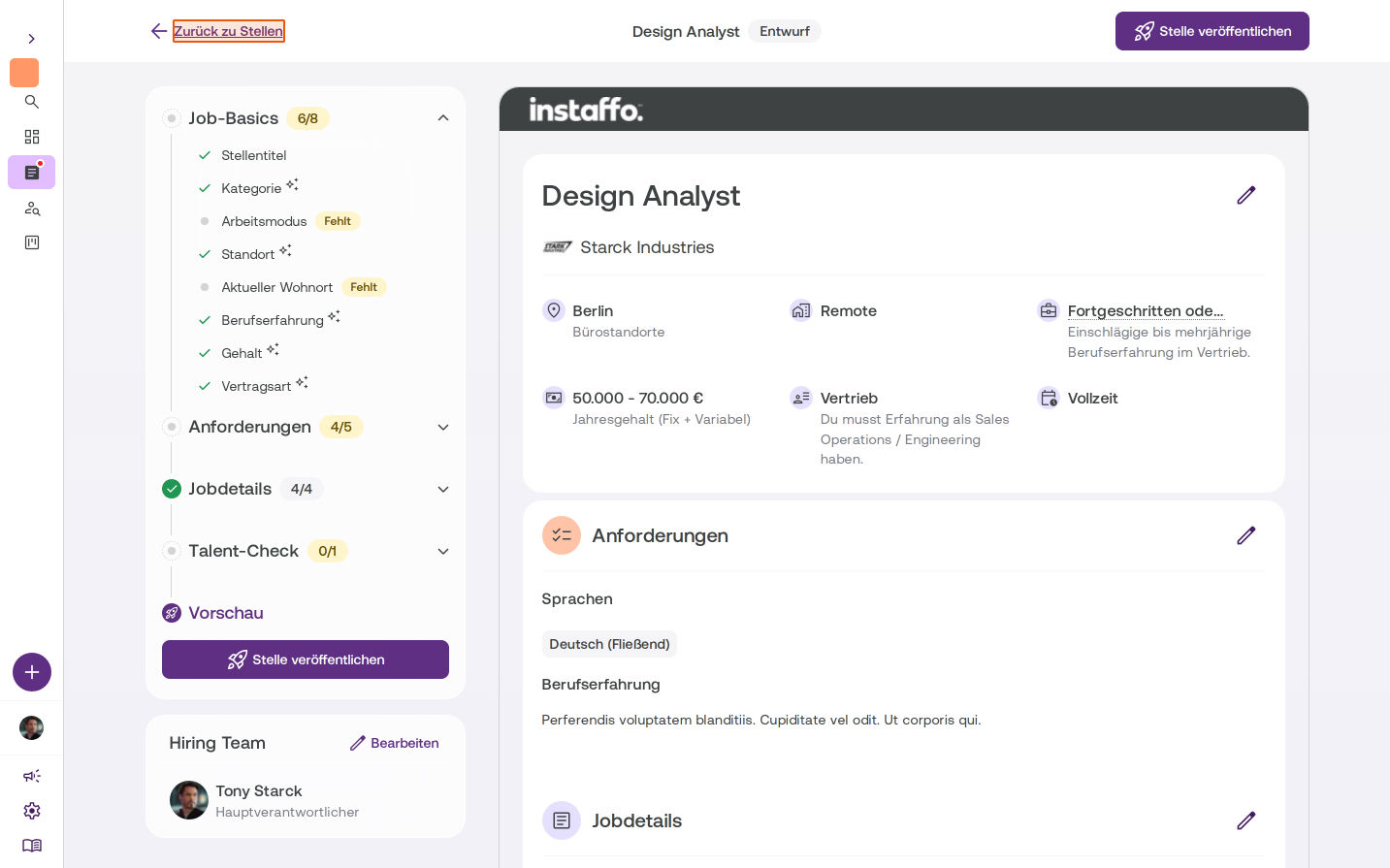
In the Job Cockpit, you'll see a progress overview on the left side with sections like Job Basics, Requirements, Job Details, and Talent Check. Fields that still need to be filled in are marked with a yellow Missing badge. Click on the relevant field to edit it - for example, Current Location. -
Complete required fields
Select the required options. For the Current Location field, for instance, you can choose from Germany, Switzerland, Austria, Other EU Countries, and Other Countries Worldwide. Multiple selections are possible. -
Save your changes
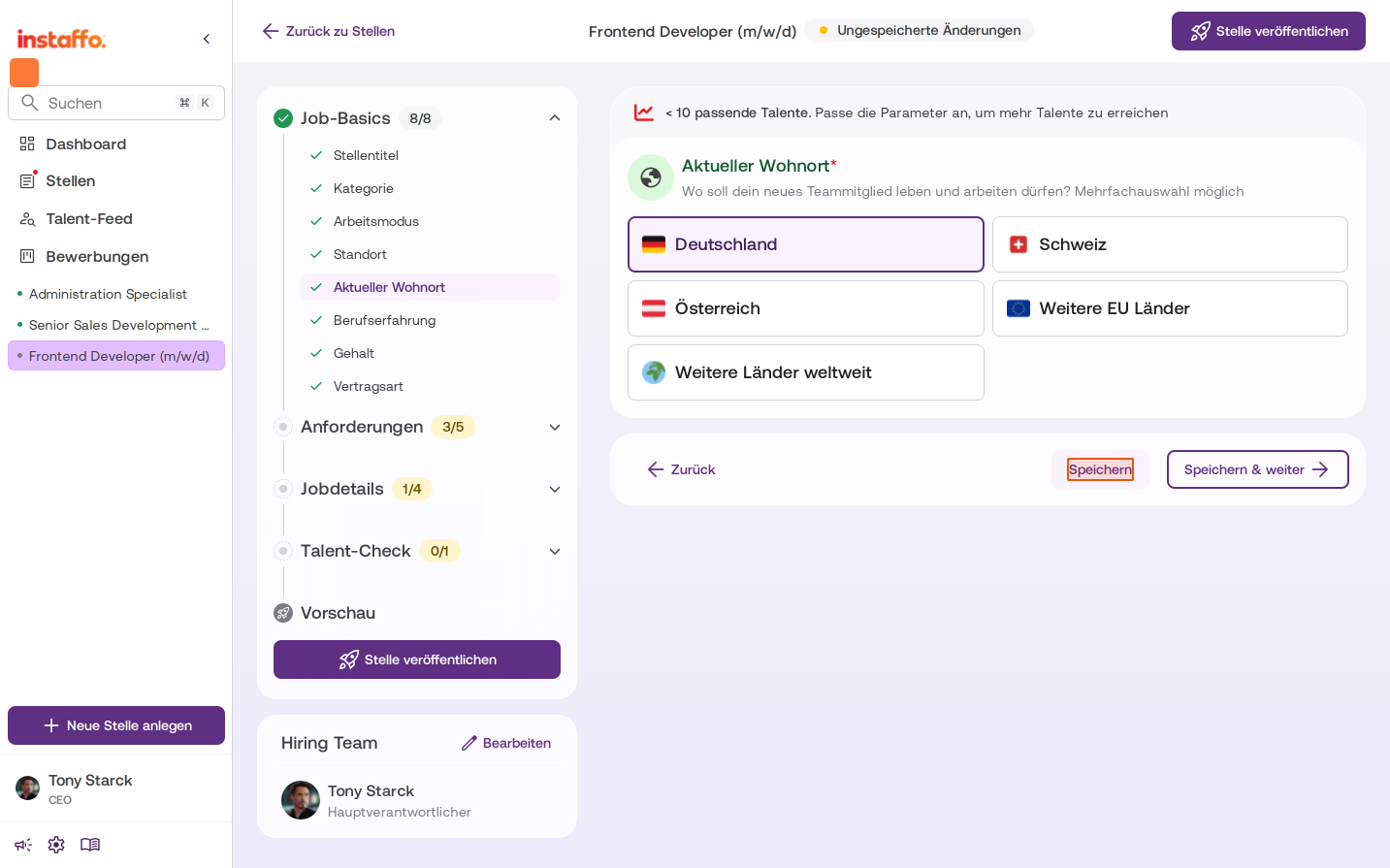
Click Save to secure your changes without moving to the next step. Alternatively, you can choose Save & continue to go directly to the next section. -
Navigate back
At the top of the Job Cockpit, you'll find the "← Back" button. Where it takes you depends on how you opened the cockpit:- From an applications list: The button says "Back to Applications" and takes you back to the original applications view.
- From the Jobs section: The button says "Back to Jobs" and takes you to the appropriate tab based on your job's current status. Published or hidden jobs go to "Active", deactivated jobs go to "Deactivated", and drafts go to "Draft".
The button is available on both desktop and mobile. From the job overview, you can publish the job as usual by clicking "Publish job".
After publishing, the destination of the "← Back" button updates immediately to "Active". You don't need to close any feedback or confirmation dialogs.
-
Use additional draft options
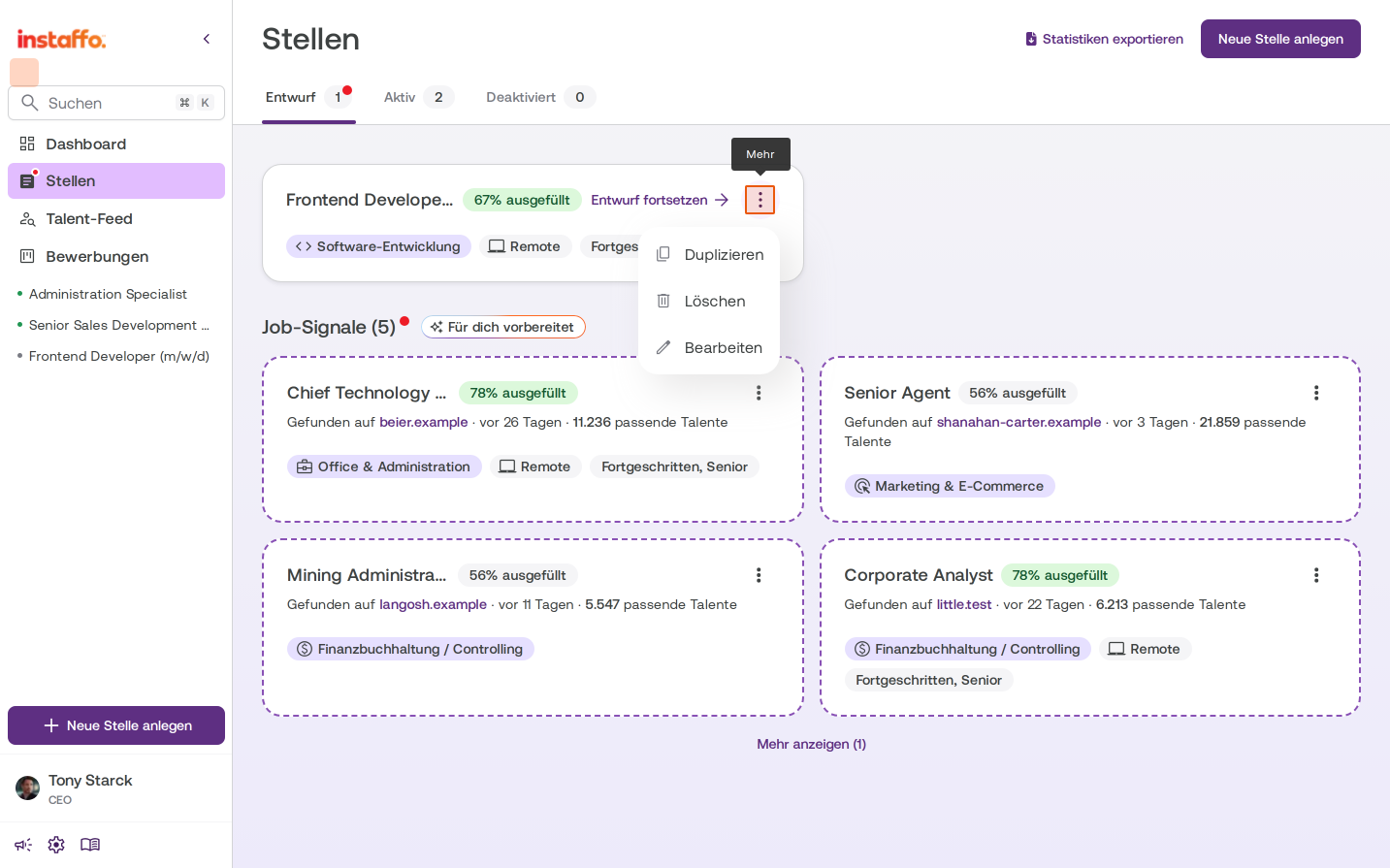
Click the three-dot menu on the right side of a draft card to access more actions:- Duplicate: Creates a copy of the draft
- Delete: Permanently removes the draft
- Edit: Opens the draft for editing
Using job signals
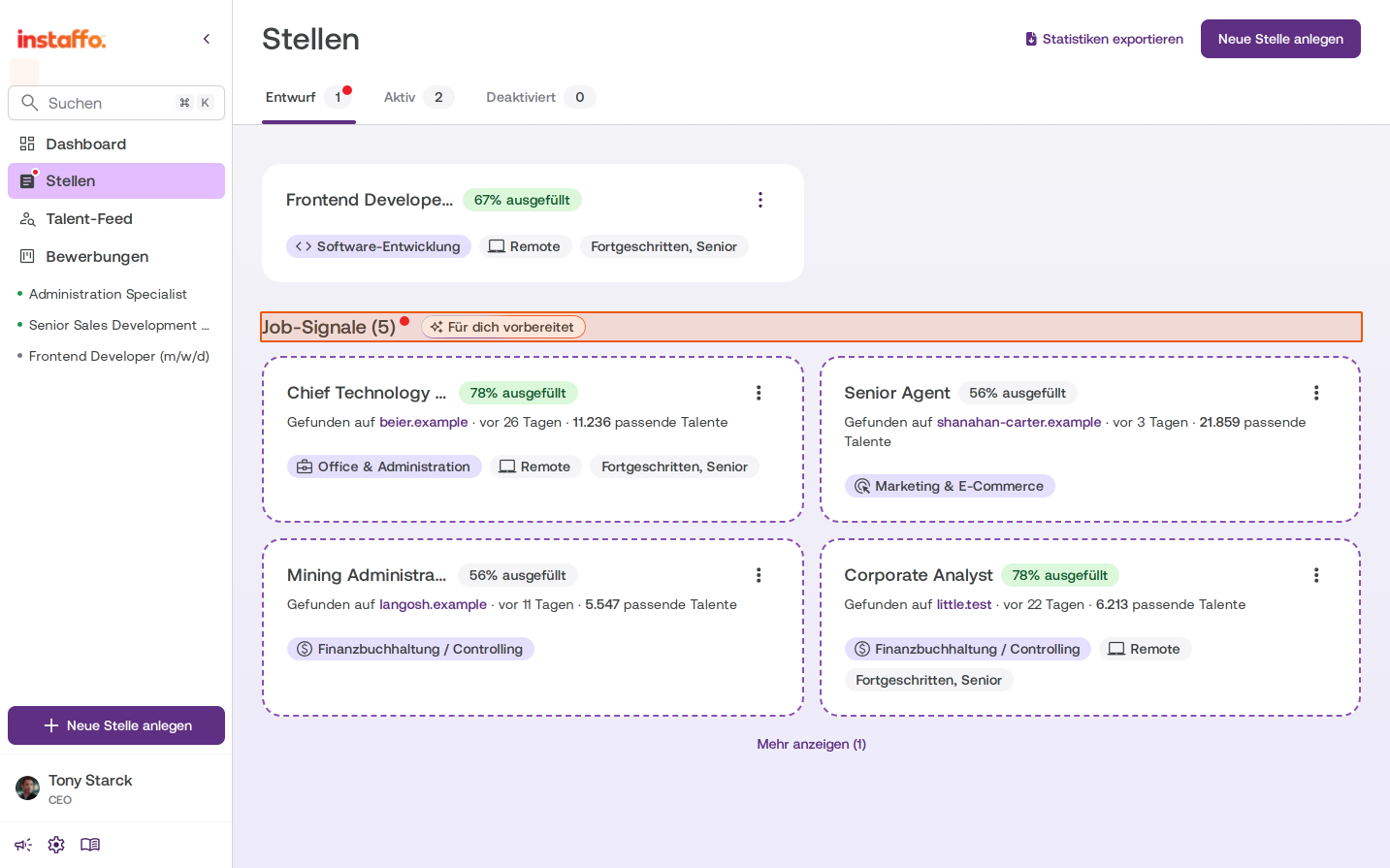
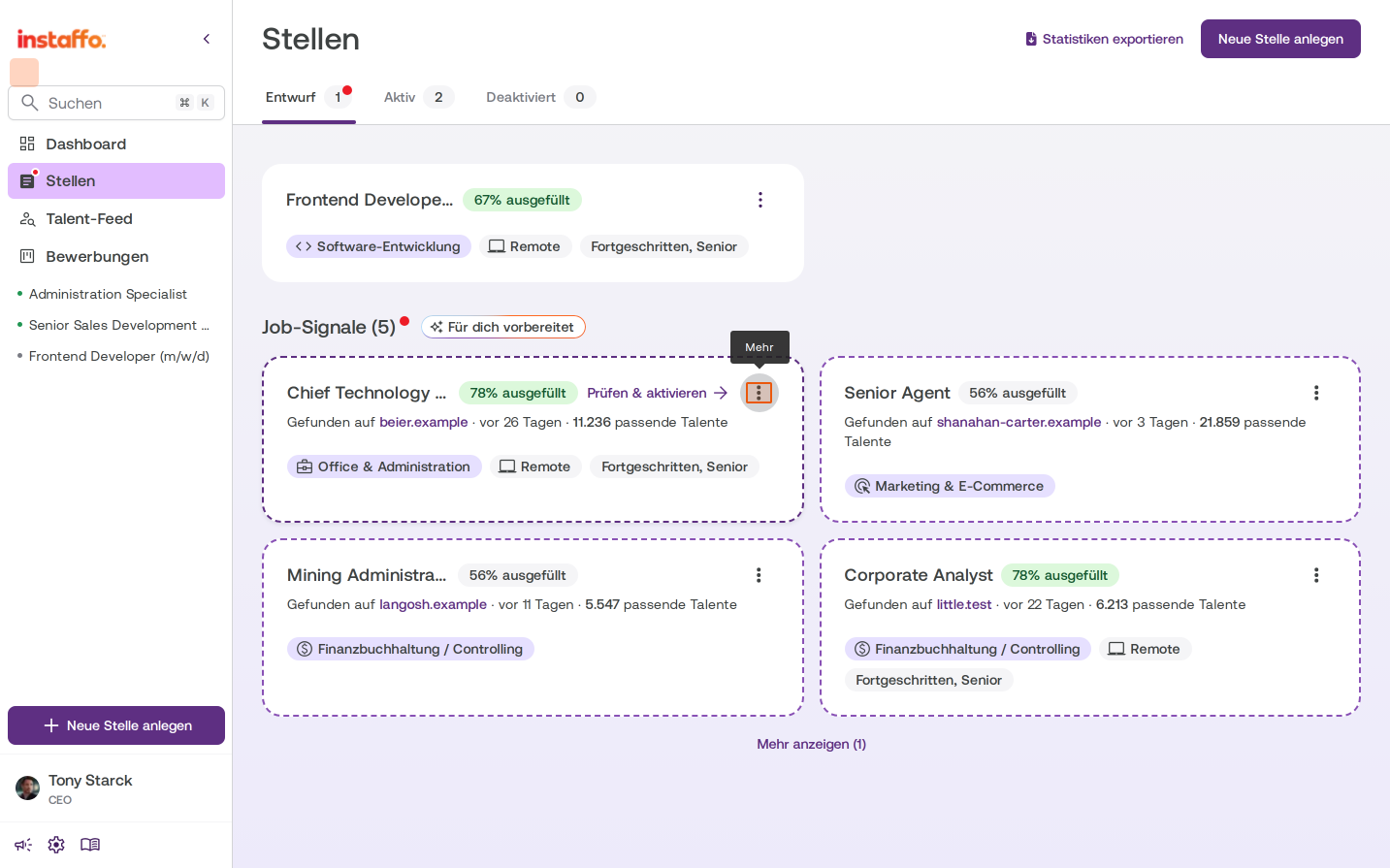
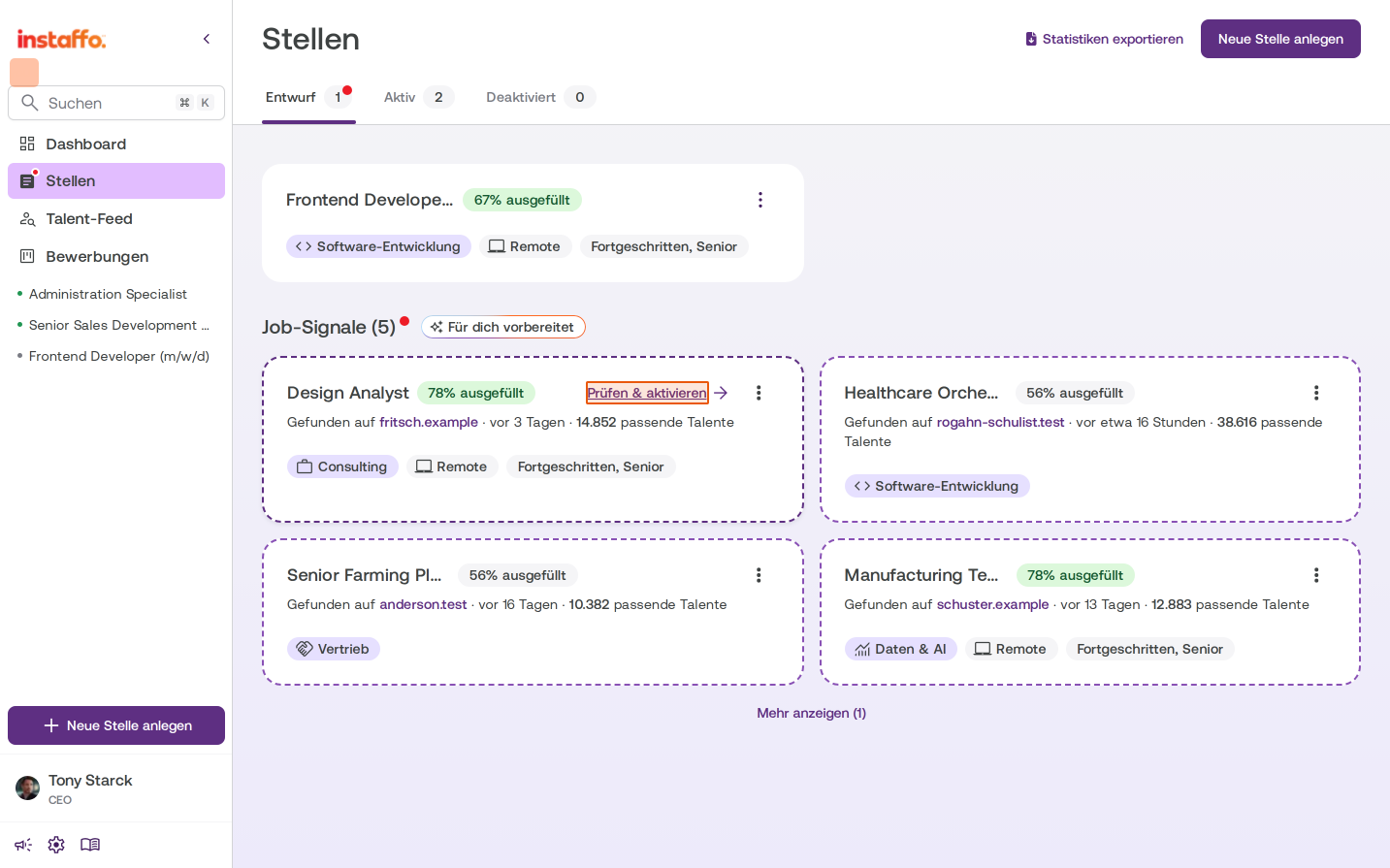
In the Draft tab, below your drafts, you'll find the Job Signals section. Job signals are job postings that Instaffo has found online on career pages or other portals for your company. You can use them to simplify job creation.
-
View job signals
Job signal cards give you important information at a glance:- What percentage of the job posting has already been filled in automatically
- The estimated job category, work mode, and seniority level
- When and where the job was found
- How many potentially matching talents are available on Instaffo
-
Mark a job signal as irrelevant
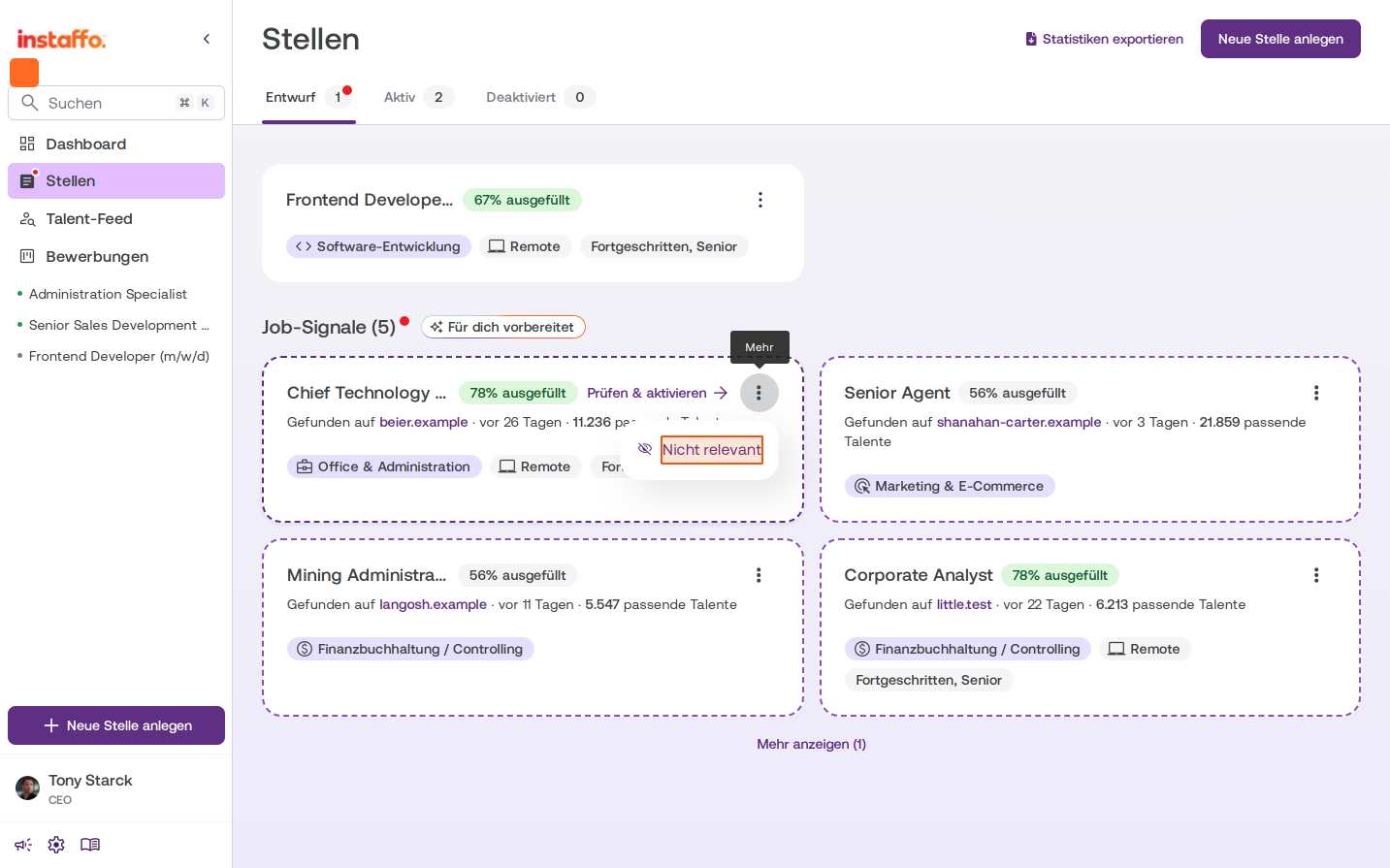
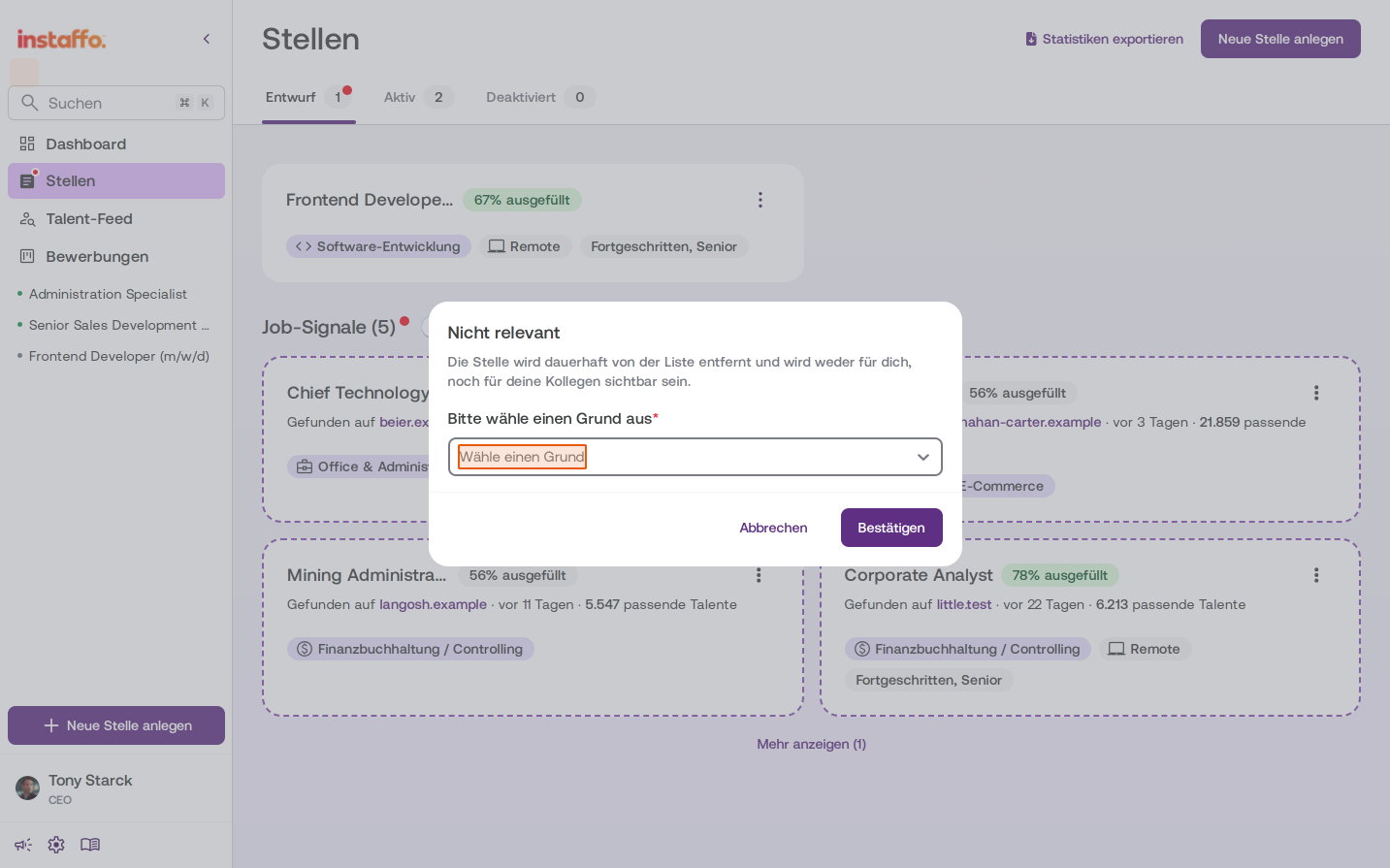
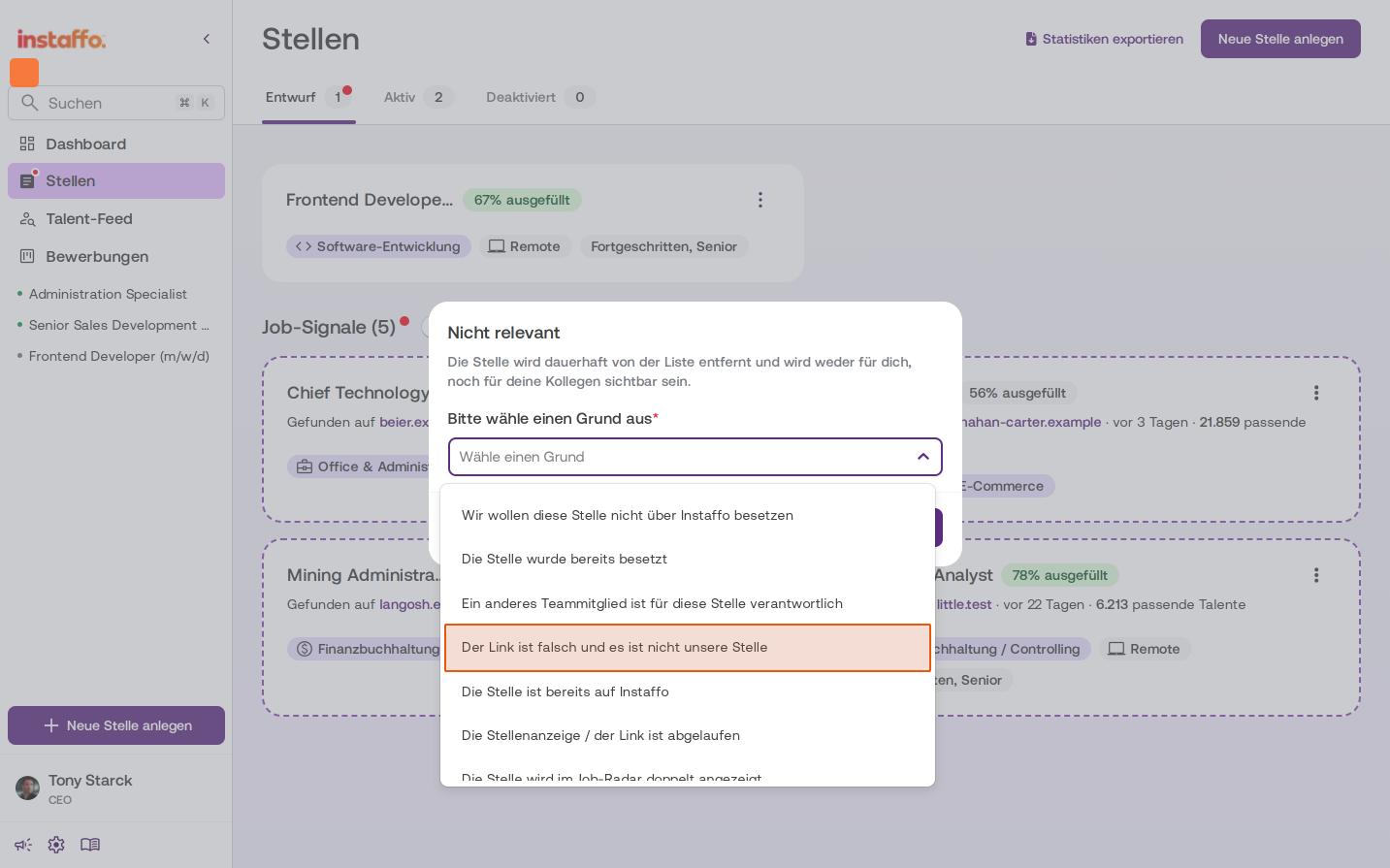
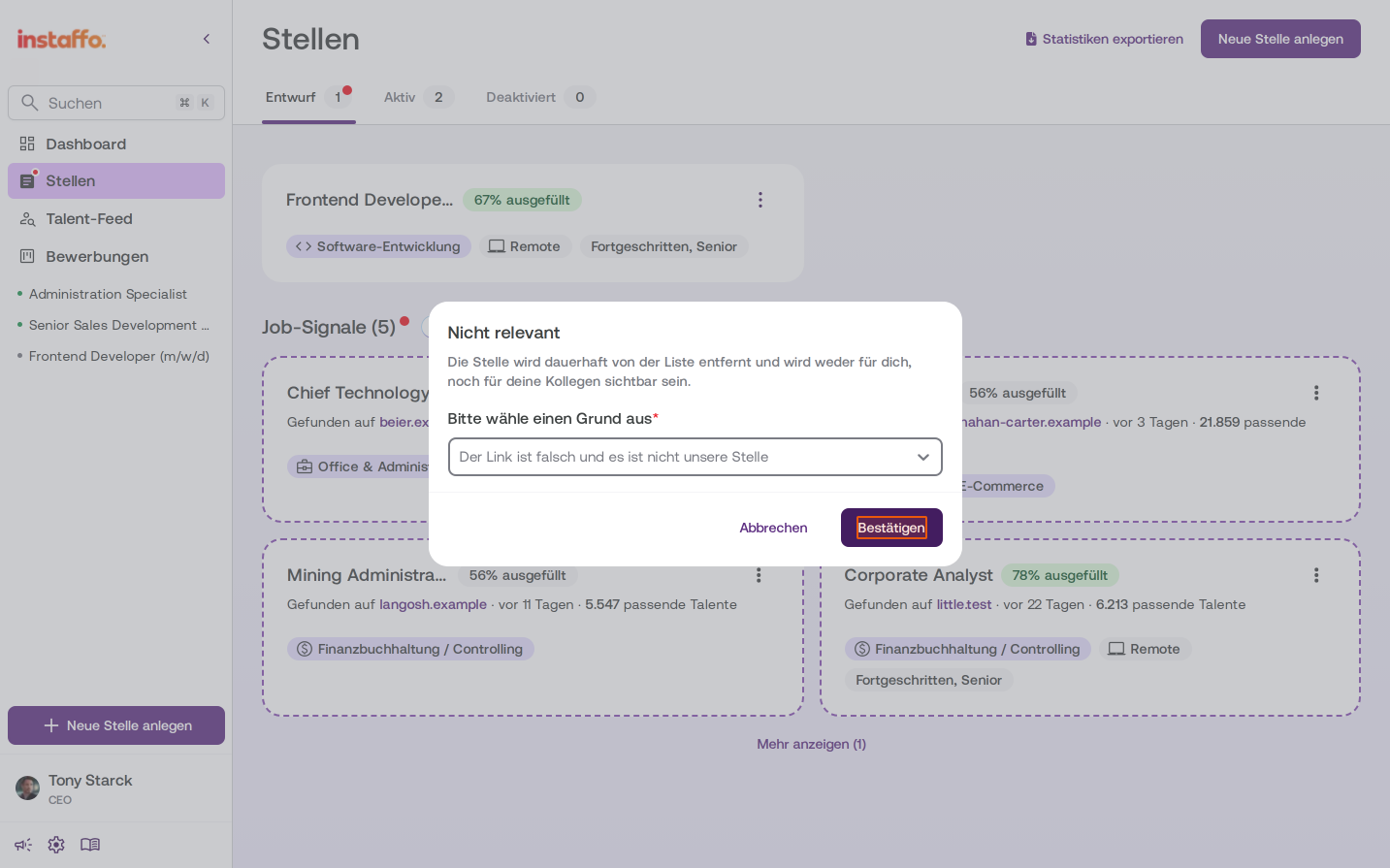
If a job signal doesn't match your requirements, click the three-dot menu on the corresponding card and select Not relevant. In the dialog that appears, select a reason from the dropdown menu, for example "The link is wrong and this isn't our job posting". Then click Confirm. The job posting will be permanently hidden from you and your team members.
-
Review and activate a job signal
If you want to proceed with a job signal, click Review & activate on the corresponding card. This takes you directly to job creation, with some fields already filled in automatically. -
Continue editing later
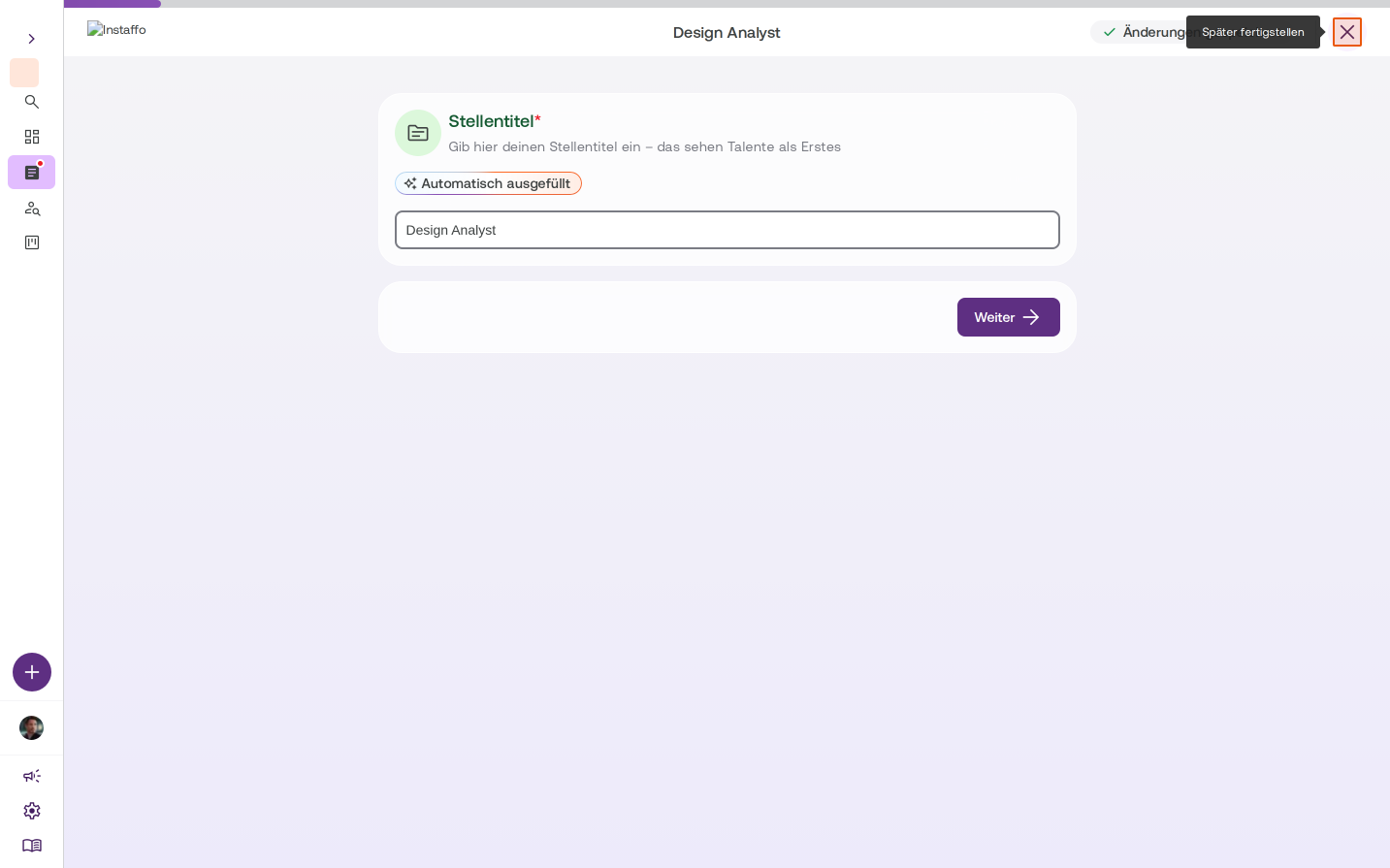
If you'd like to pause editing, you can leave the view using the close button in the top right. You can return to the job overview at any time via Back to Jobs.
After completing these steps, you'll have a complete overview of managing drafts and job signals. You can now work efficiently with job postings you've started and use job signals suggested by Instaffo for faster job creation.
 Powered by happysupport.ai