
Request feedback on applications
Collect feedback on job applications from your team using @mentions in notes or formal email requests, including external reviewers
This article explains how to collect feedback from team members on applications in the Instaffo recruiting dashboard. You have two options: the informal approach using notes with @mentions, or a formal feedback request by email, including to people without an Instaffo account.

Request feedback using notes
-
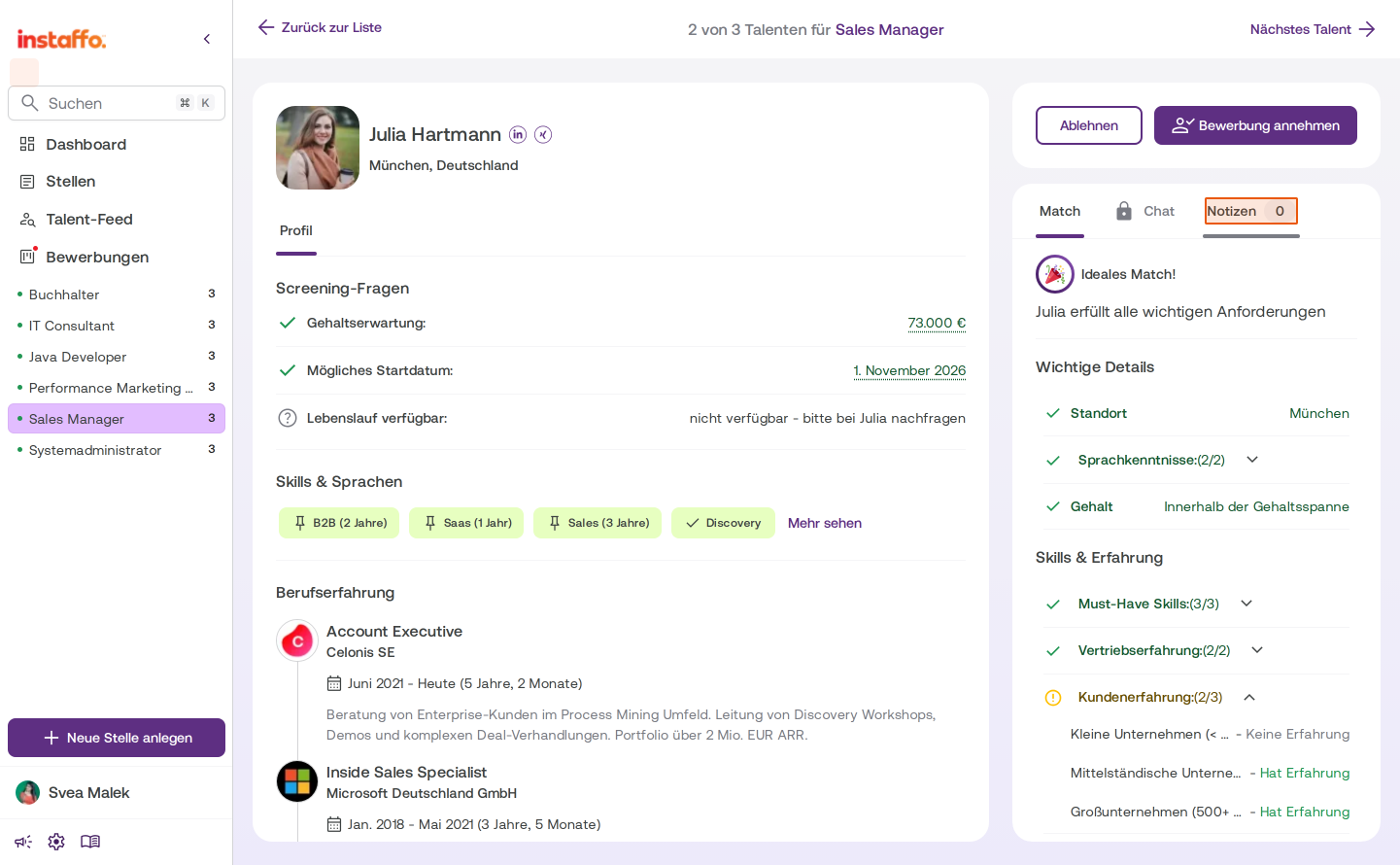
Open the notes tab
If you’re screening applications or working on applications in progress, go to the talent’s profile and click the Notizen tab in the right-hand panel. -
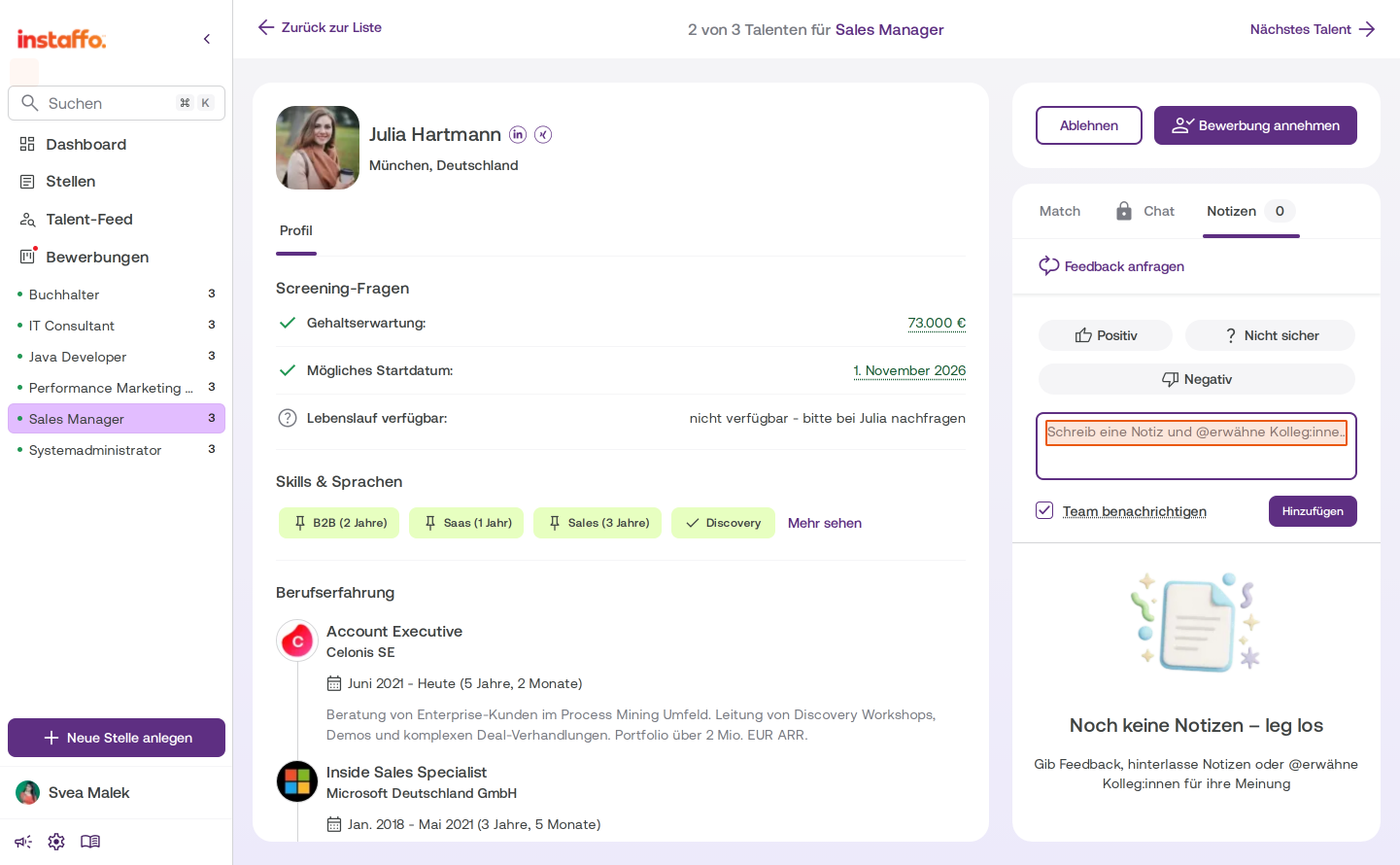
Write a note and mention team members
Click in the note field with the placeholder text “Schreib eine Notiz und @erwähne Teammitglieder...”. Write your note and use the @ symbol to mention one or more team members. The people you mention will automatically receive a notification and a feedback request. -
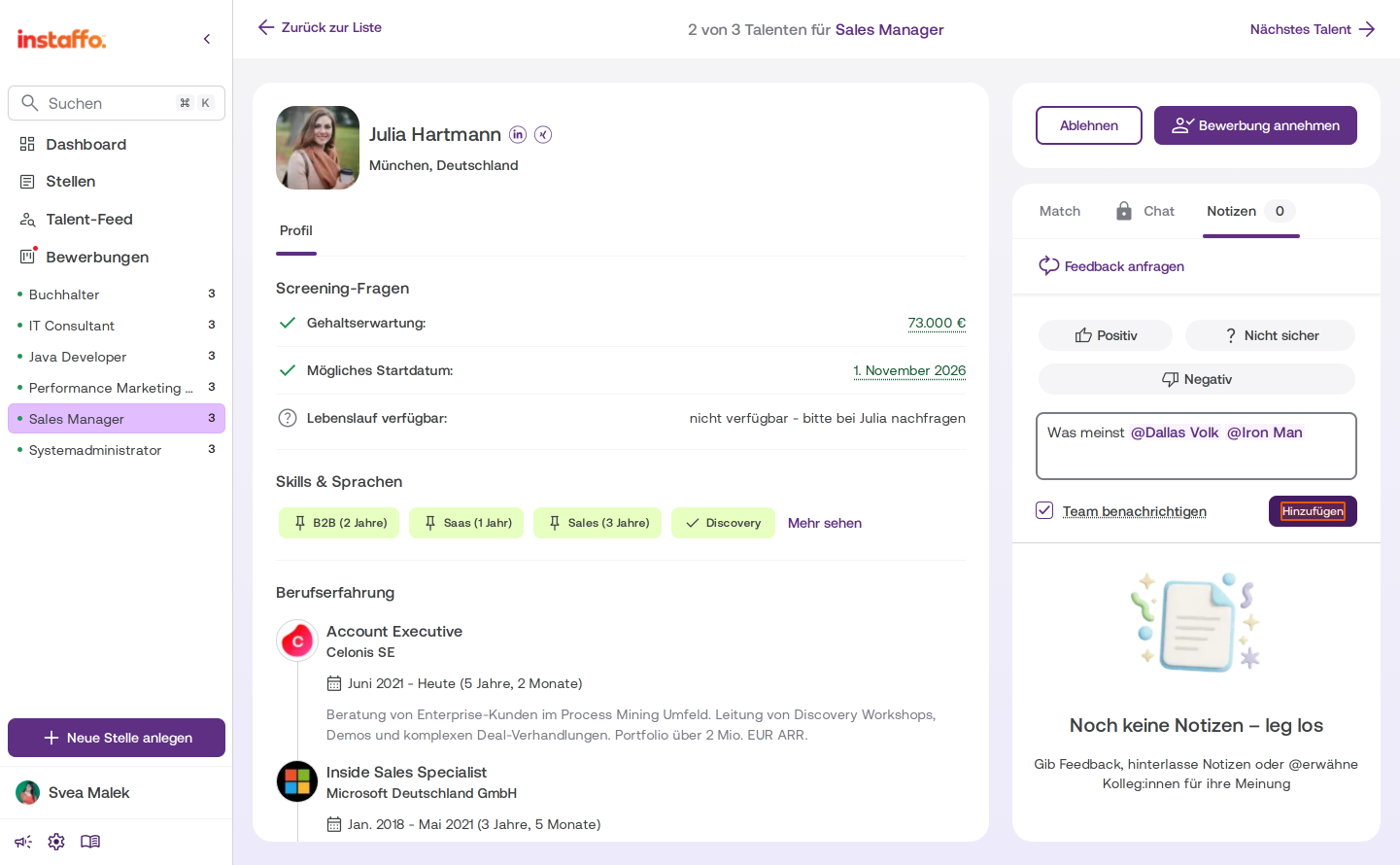
Add the note
Make sure the Team benachrichtigen option is enabled, then click Hinzufügen to save the note and send the notification.
Send a formal feedback request
-
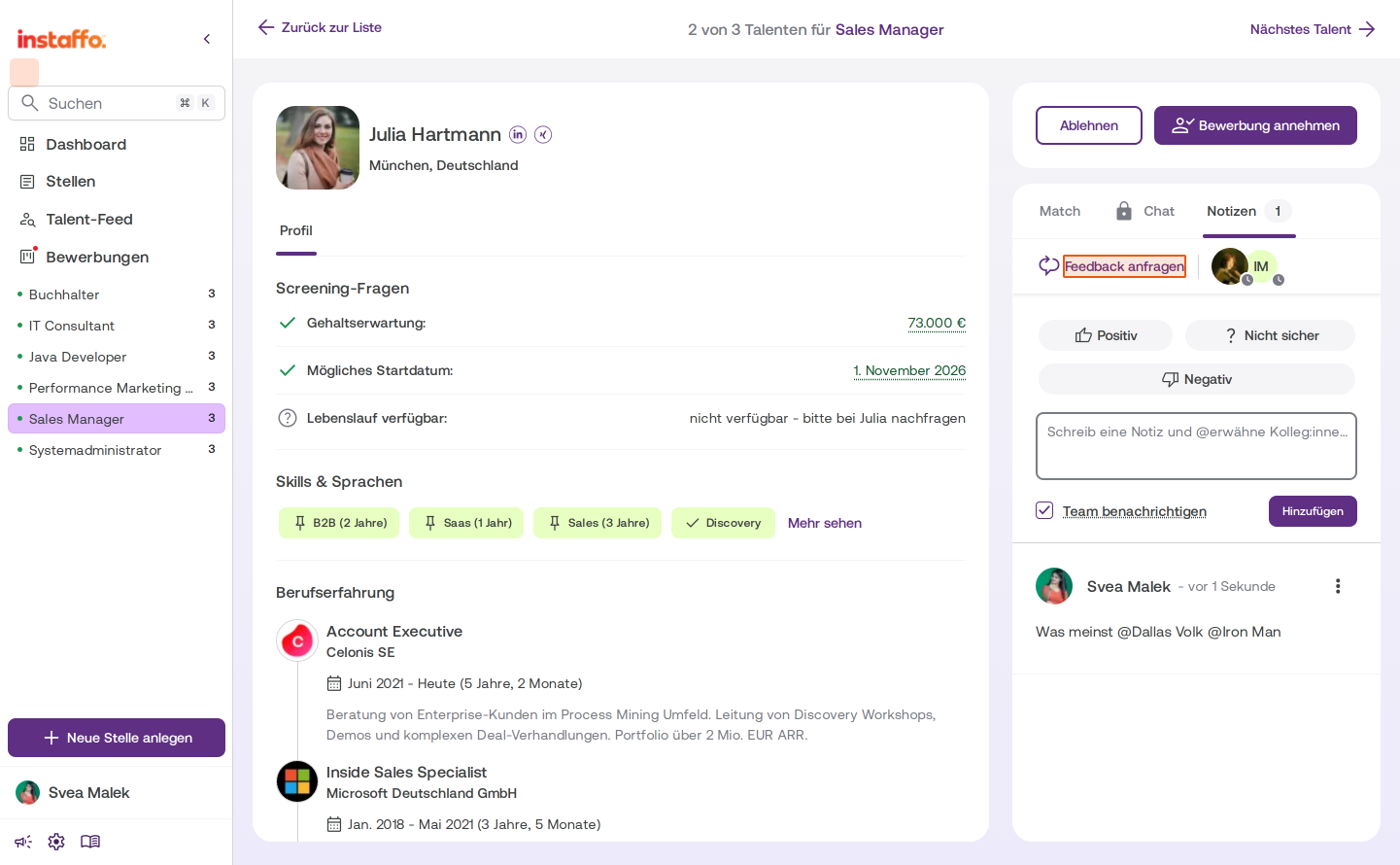
Start a feedback request
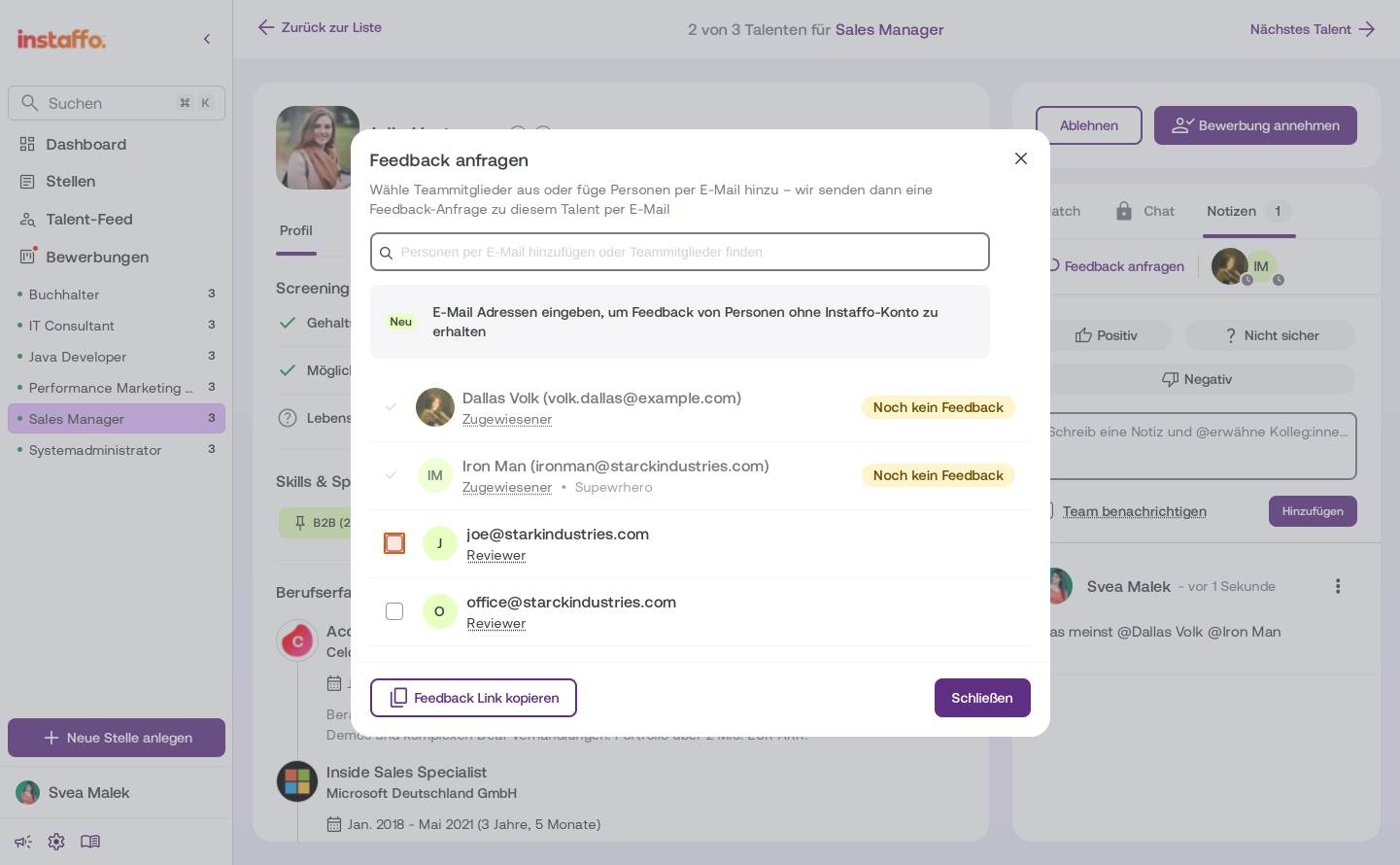
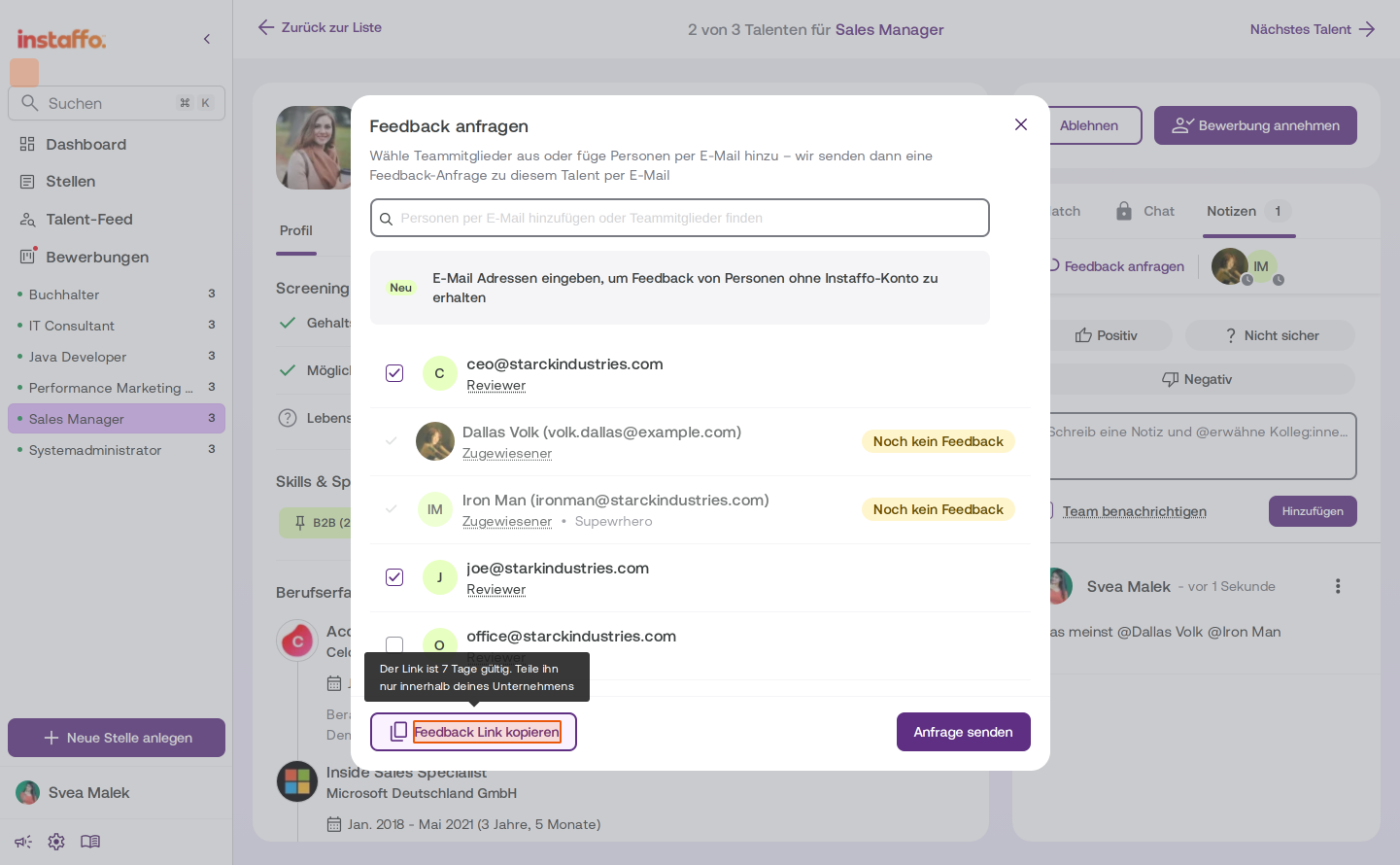
Click the Feedback anfragen link below the notes tab. A dialog will open where you can choose who you’d like to get feedback from.
-
Choose recipients
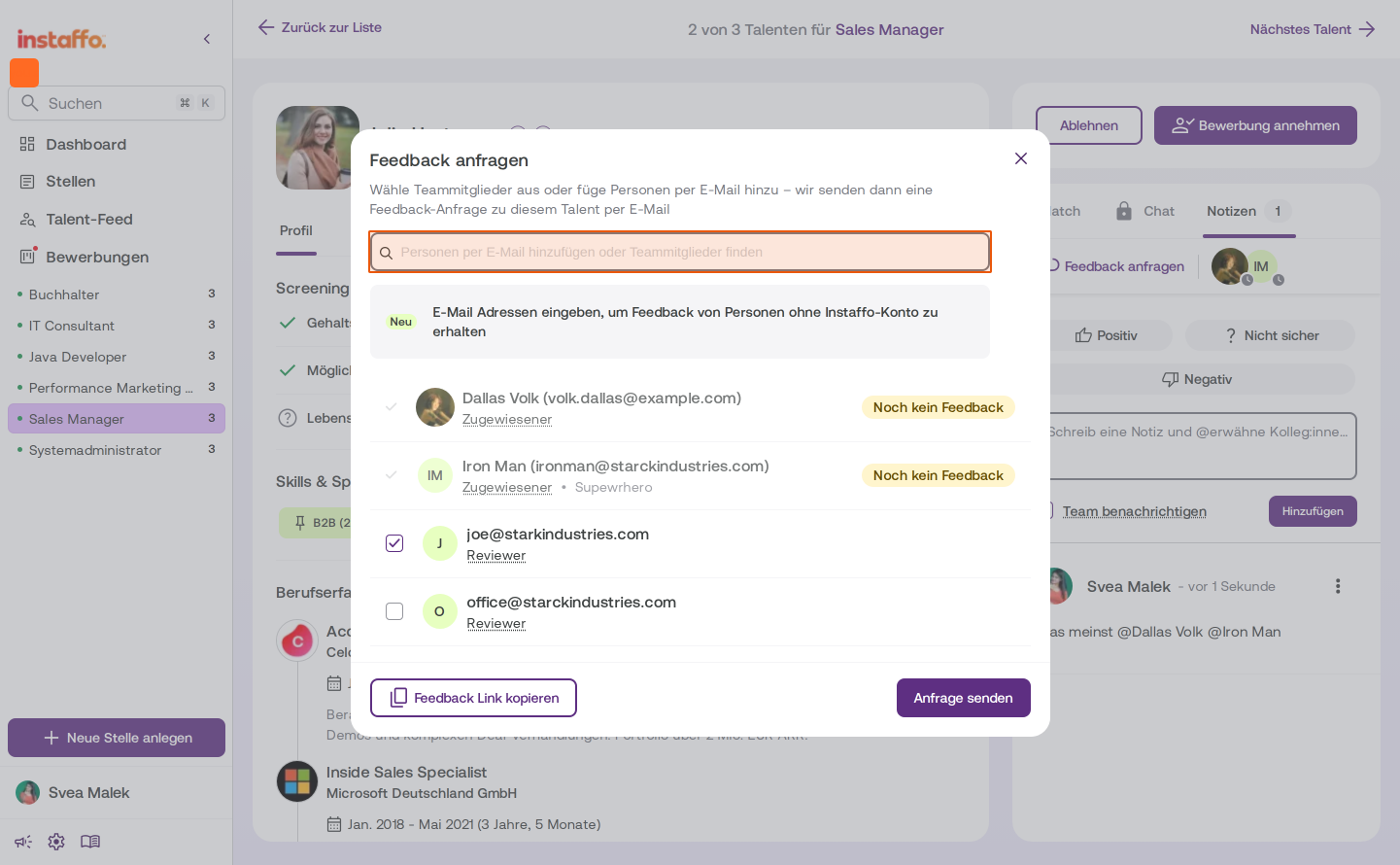
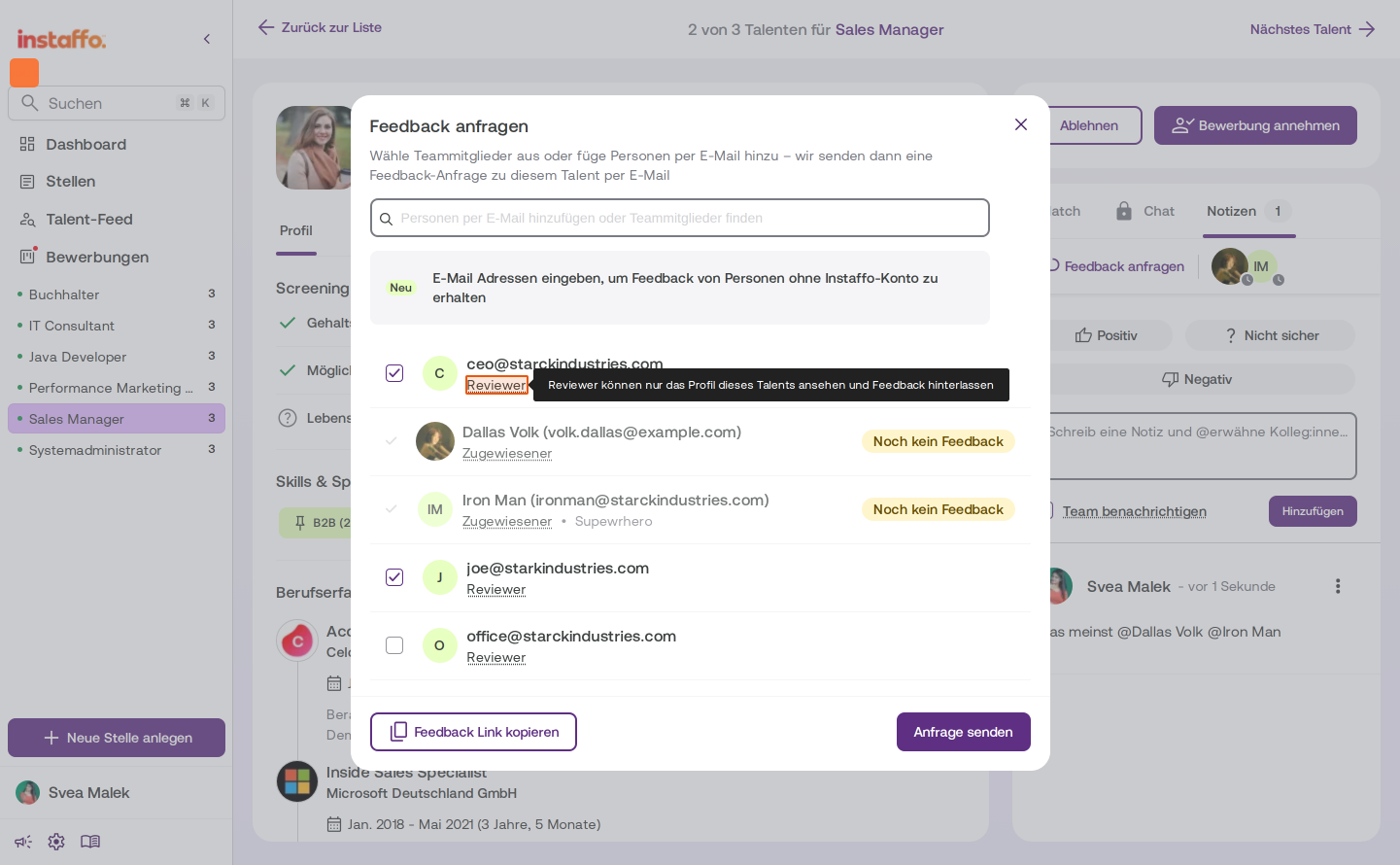
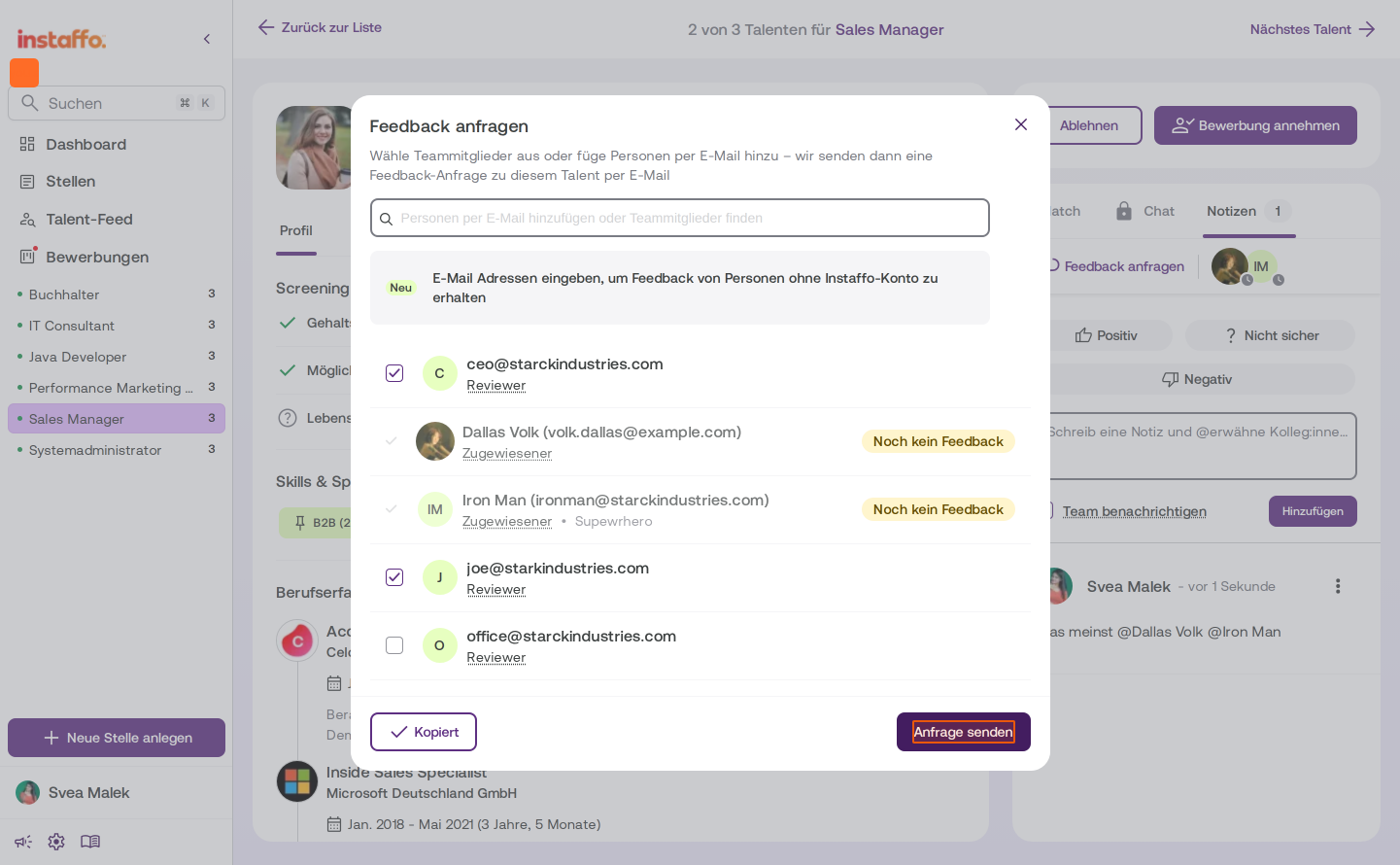
The dialog shows a list of people who already have an account or have been invited. Anyone you previously mentioned in a note will appear here automatically. Select the checkboxes next to the recipients you want. -
Add external people by email
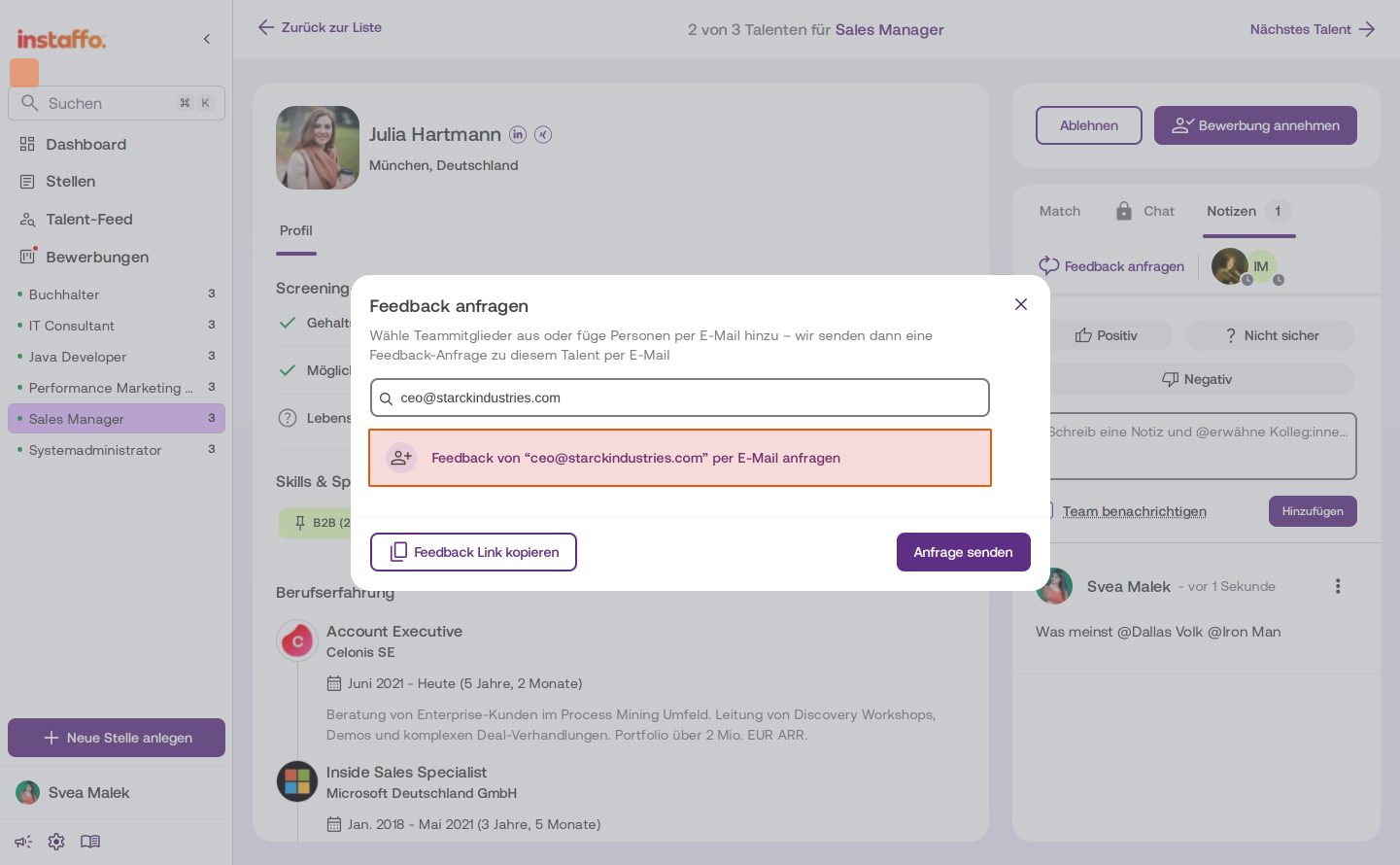
You can also ask people without an Instaffo account for feedback. Enter an email address in the search field and select Feedback von '[E-Mail-Adresse]' per E-Mail anfragen. These people will receive an email with a feedback link and won’t need to log in. -
What happens to the recipients
Team members are automatically added to the position’s hiring team with notifications turned off. This lets them find the request directly in Instaffo. People without an account are added as Reviewer. They can only see the talent’s profile and leave their feedback as a note. -
Copy the feedback link (optional)
If you want to share the feedback link manually, click Feedback Link kopieren. Keep in mind that the link is valid for 7 days and should only be shared within your company. -
Send the request
Click Anfrage senden to send the feedback request to everyone you selected.- People with an existing login will be taken directly to the product.
- People without a login or with a pending invitation will receive an email notification.
Find feedback requests sent to you
If someone has asked you for feedback, you can find the request in two places:
- Dashboard: The Feedbackanfragen card shows you separately how many open requests there are in Screening and In Bearbeitung. Click the card to go directly to the filtered list.
- Bewerbungen: In the Screening and In Bearbeitung tabs, use the Feedbackanfragen (N) filter to see the talents people are asking you to review.
When you open a talent from the filtered list, the detail view opens directly in the Notizen tab. After you submit your feedback, you’ll remain on the talent’s profile.
How invited people can give feedback
-
Open the email and give feedback
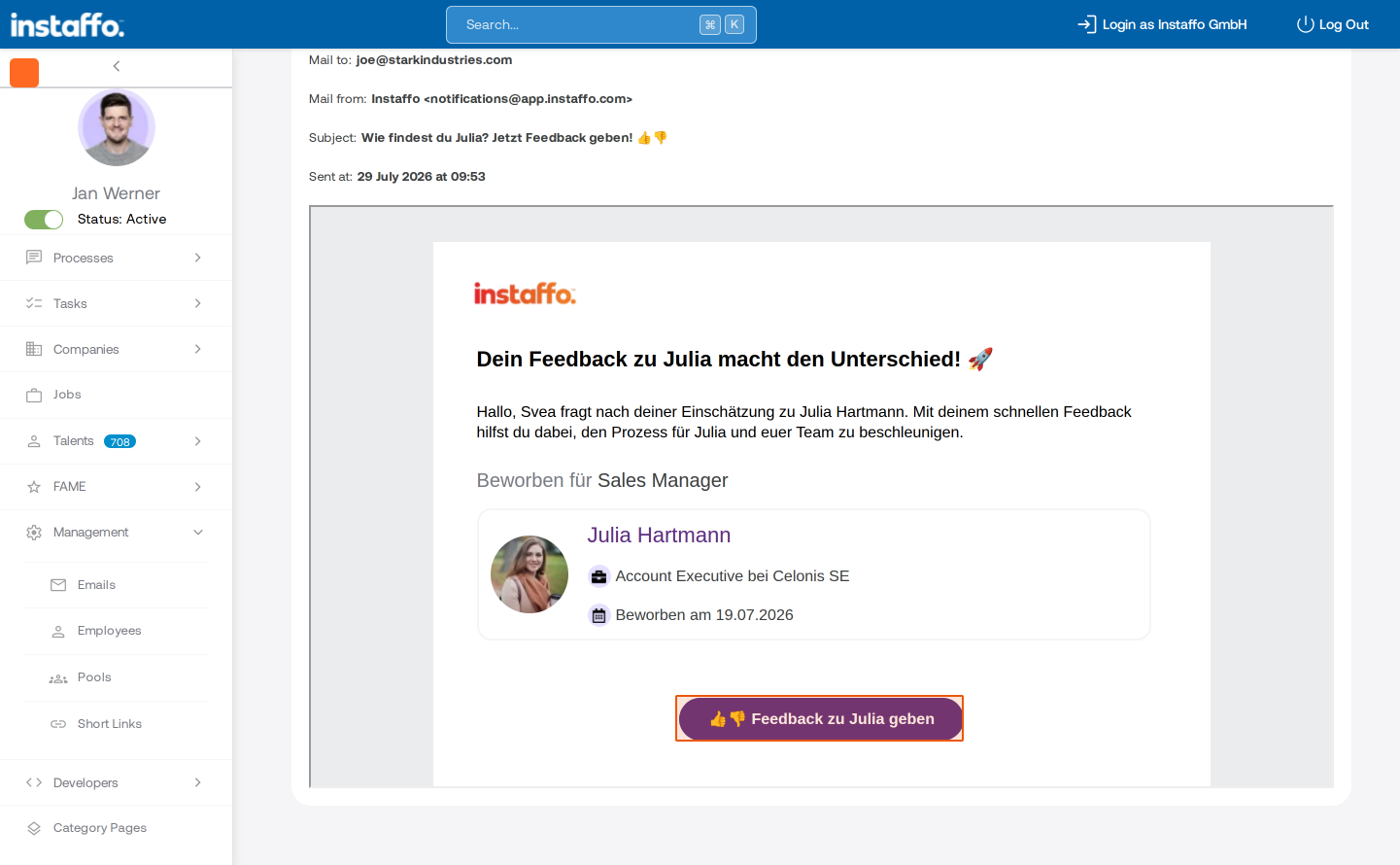
The invited person will receive an email letting them know that feedback has been requested. They can click the Feedback zu [Name] geben button in the email to go to the feedback page, even without logging in to Instaffo. -
View the talent’s profile
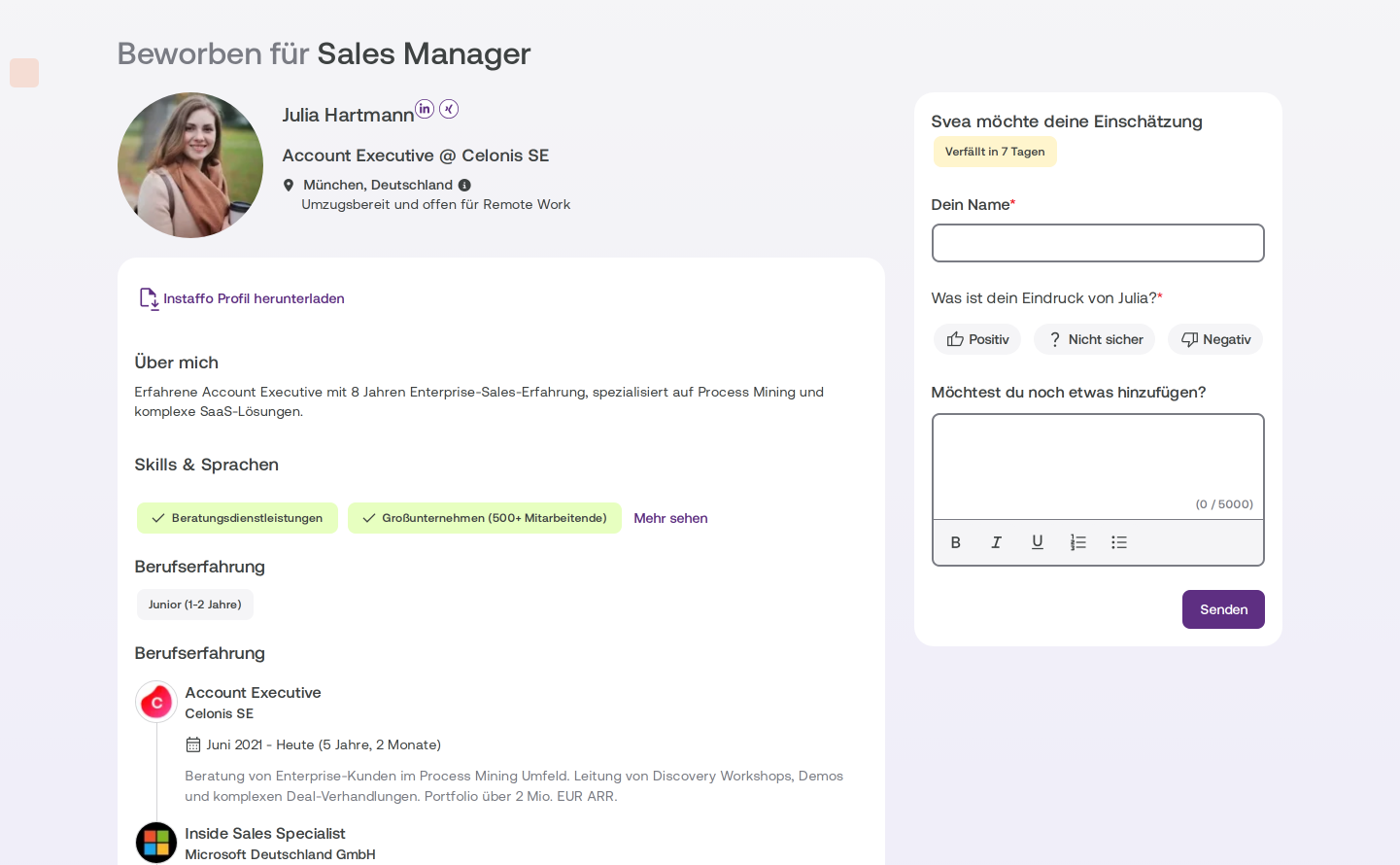
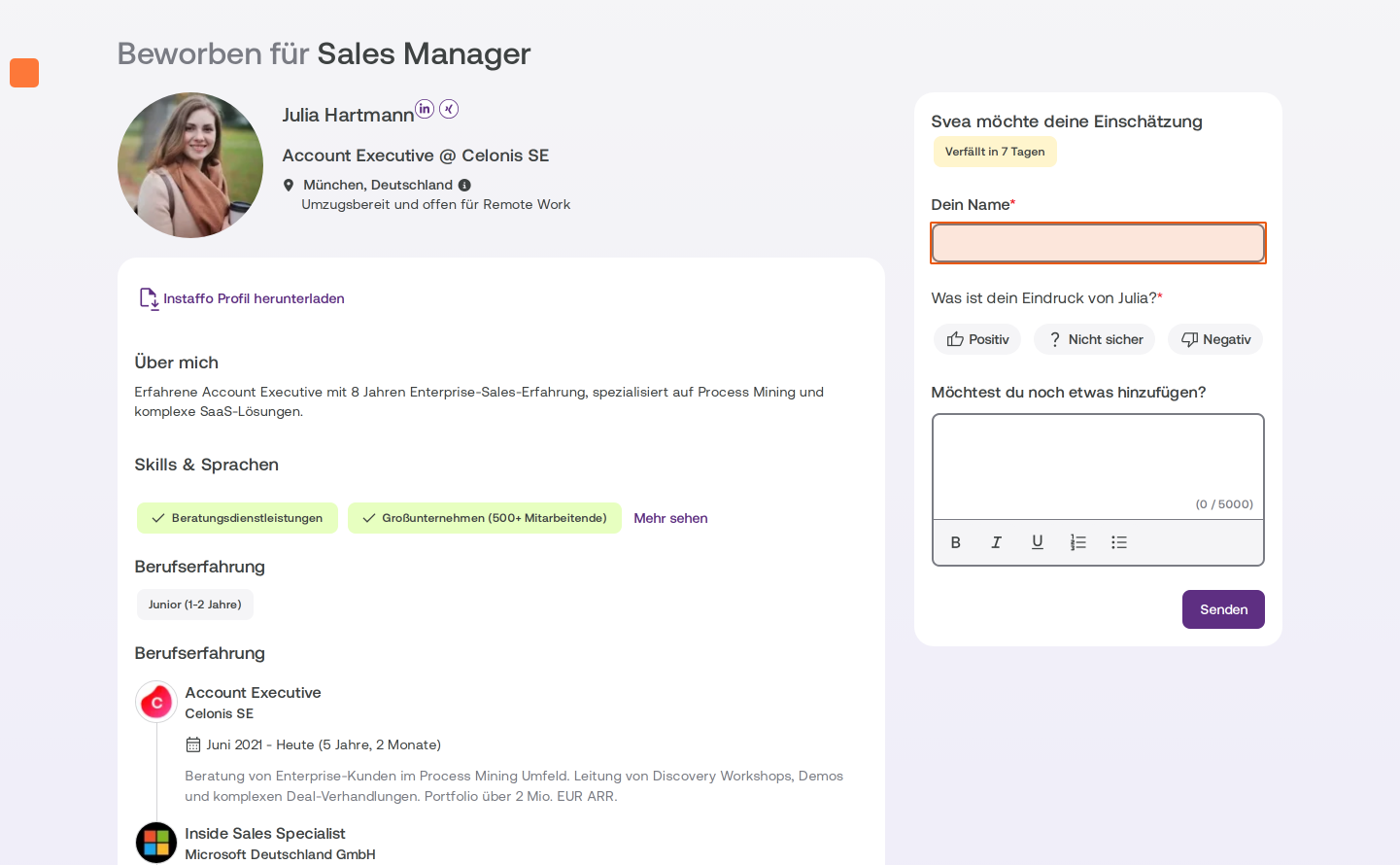
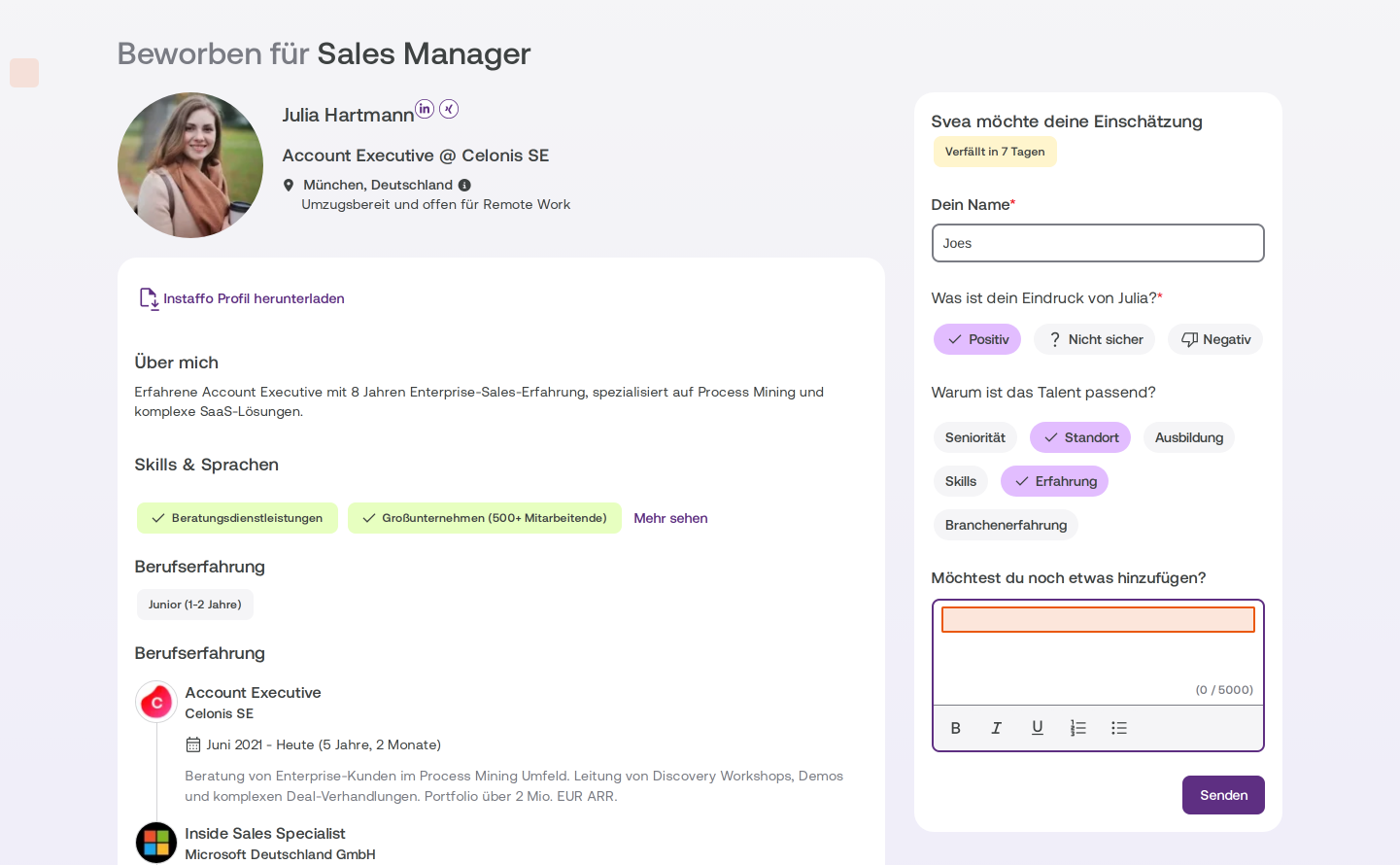
On the feedback page, the person can view the talent’s profile, including information such as their current position, location, skills, and work experience. -
Fill out the feedback form
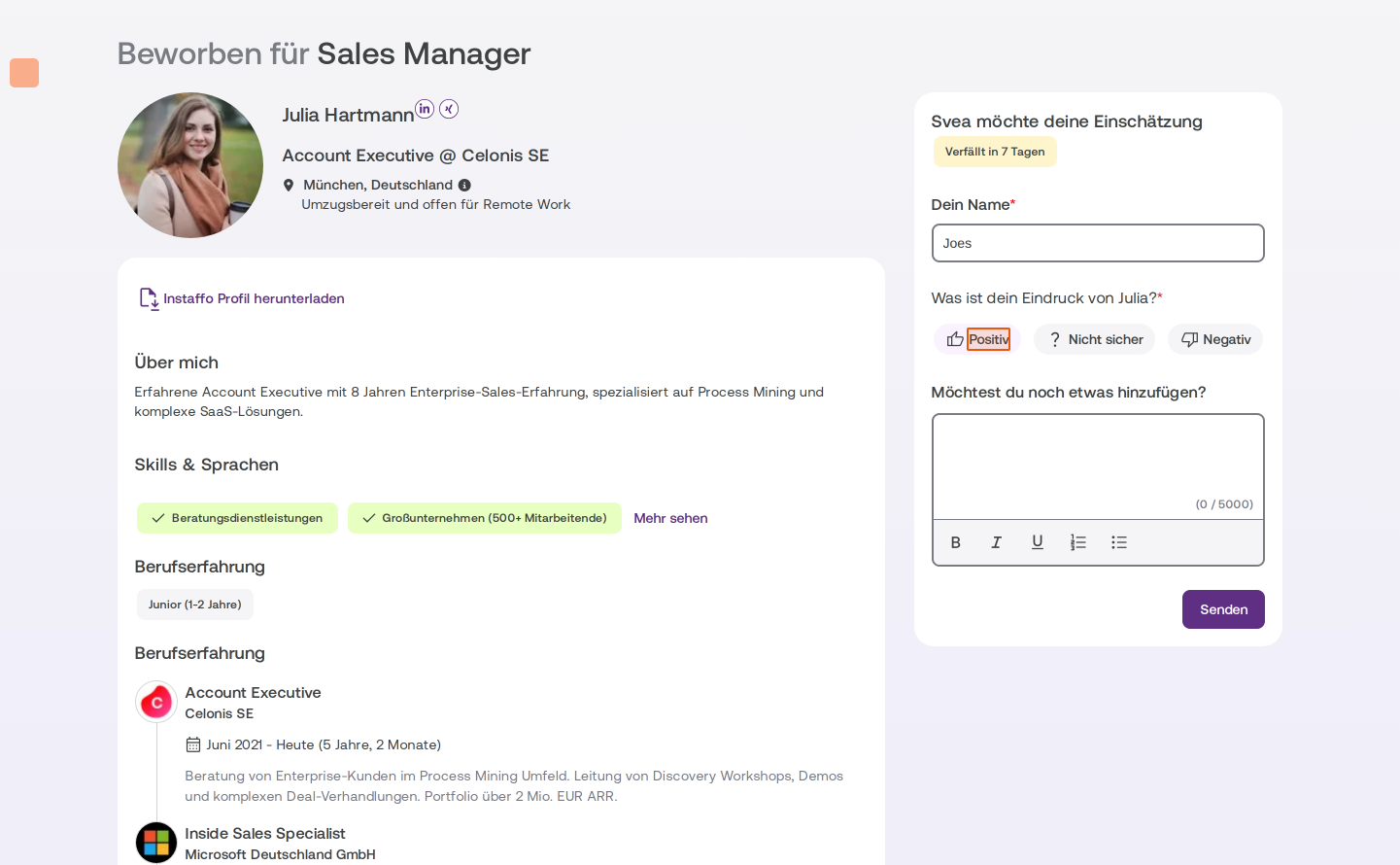
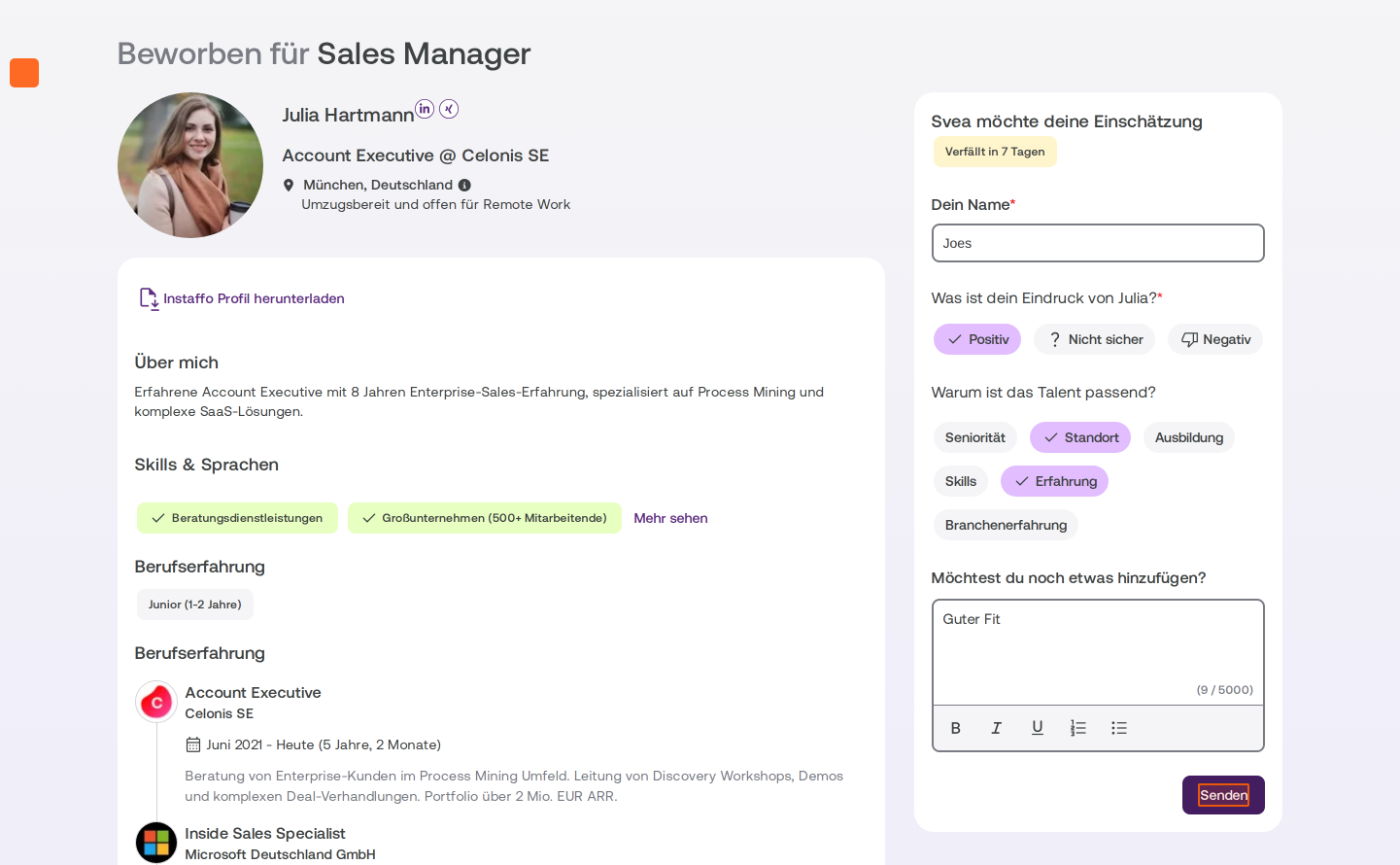
In the Svea möchte deine Einschätzung section, the person fills out the following fields:- Dein Name: Required field for identification
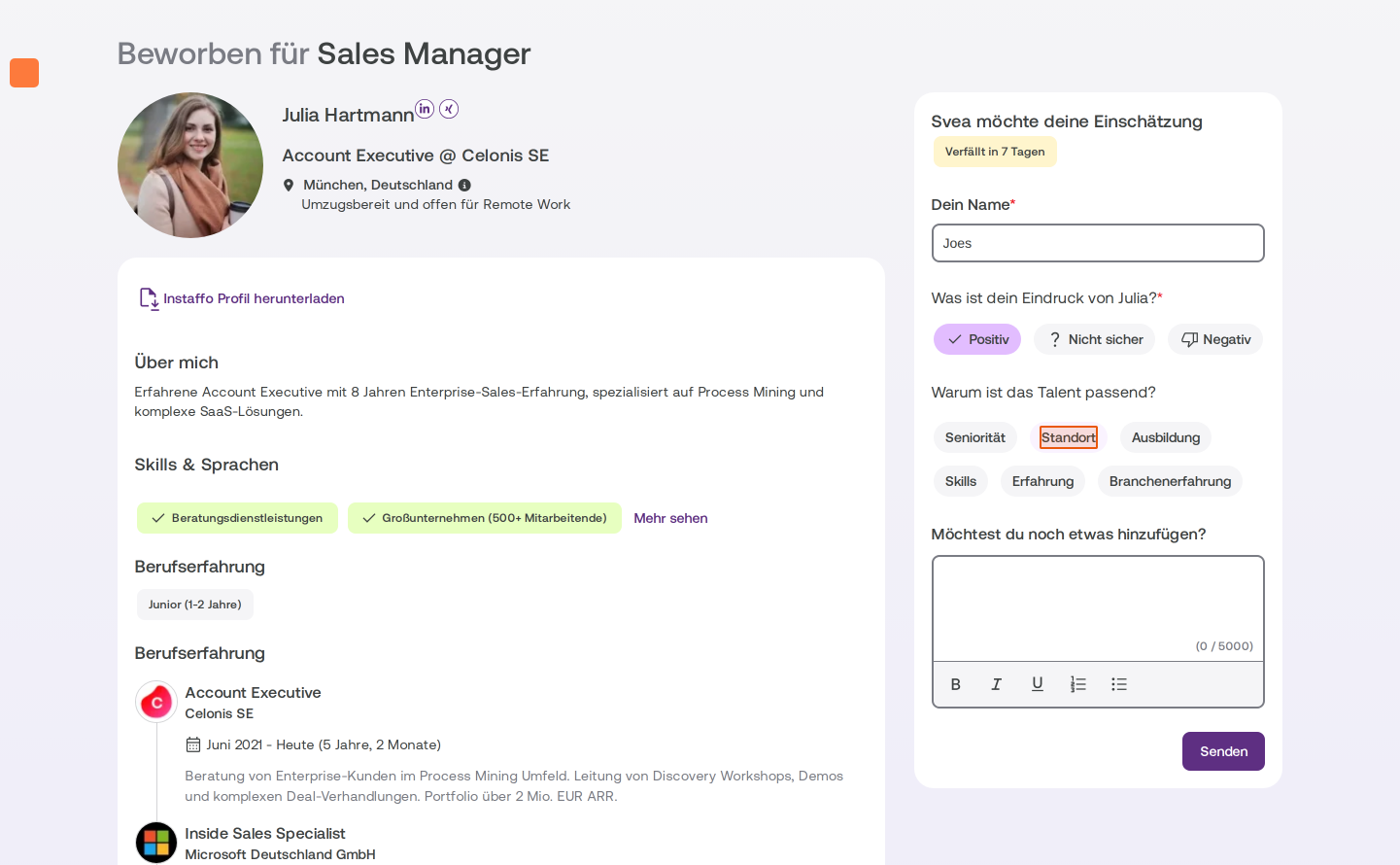
- Was ist dein Eindruck von [Name]?: Choose Positiv, Nicht sicher, or Negativ
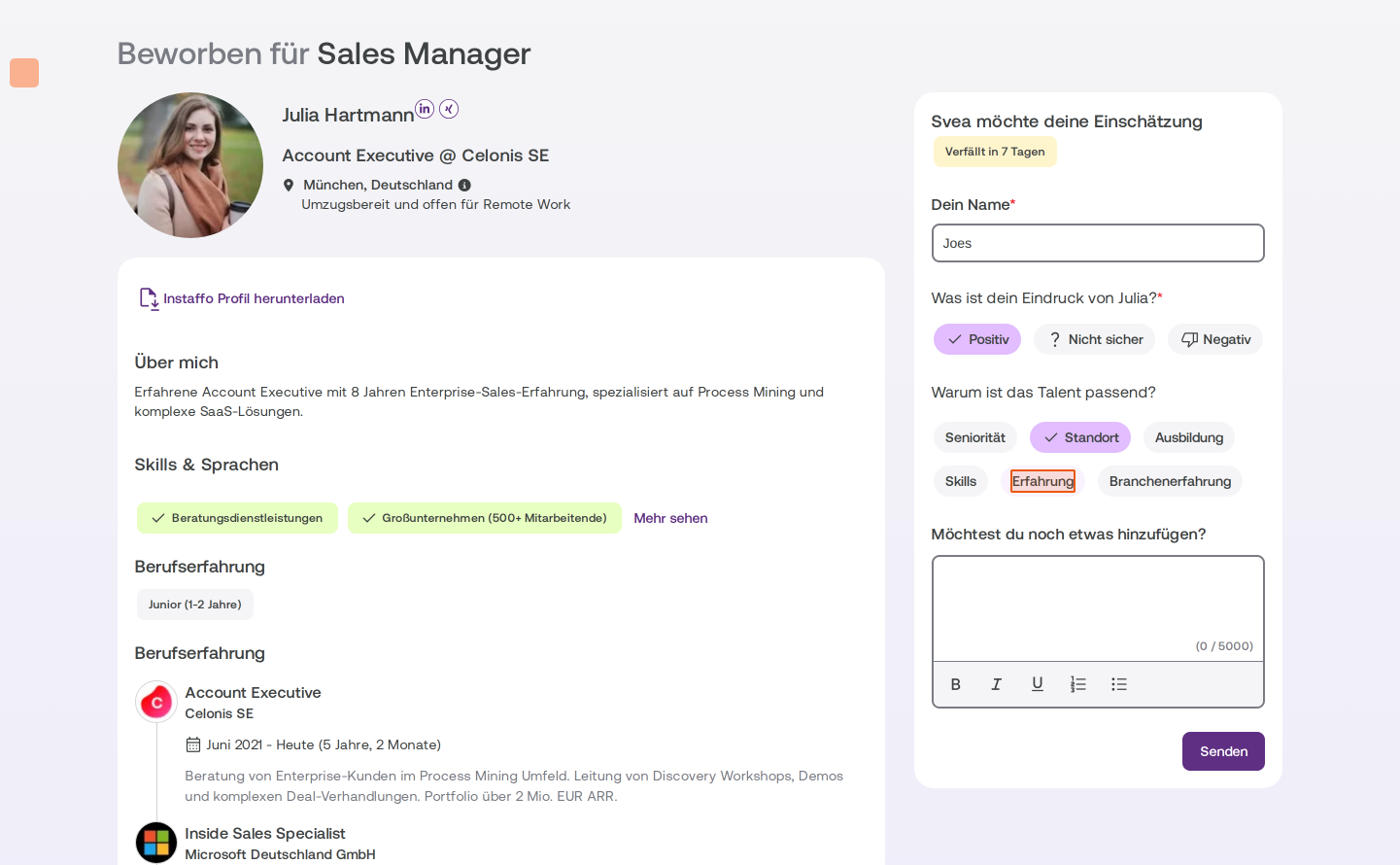
- Warum ist das Talent passend?: Optional tags for seniority, location, education, skills, experience, or industry experience
- Möchtest du noch etwas hinzufügen?: Free-text field for additional comments
-
Submit feedback
Once they’ve filled out the form, the person clicks Senden to submit their feedback.
The feedback they submit will then appear in the application’s notes section and help you and your team make informed decisions together.
 Powered by happysupport.ai