
Complete Your Company Profile
Complete your company profile in Instaffo by adding website links, social media URLs, team photos, and videos to showcase your company to job applicants.
In this article, you'll learn how to complete your company profile in Instaffo. A complete company profile is displayed under your job listings and presents your company in the best possible way to potential talent.

Access Your Company Profile
-
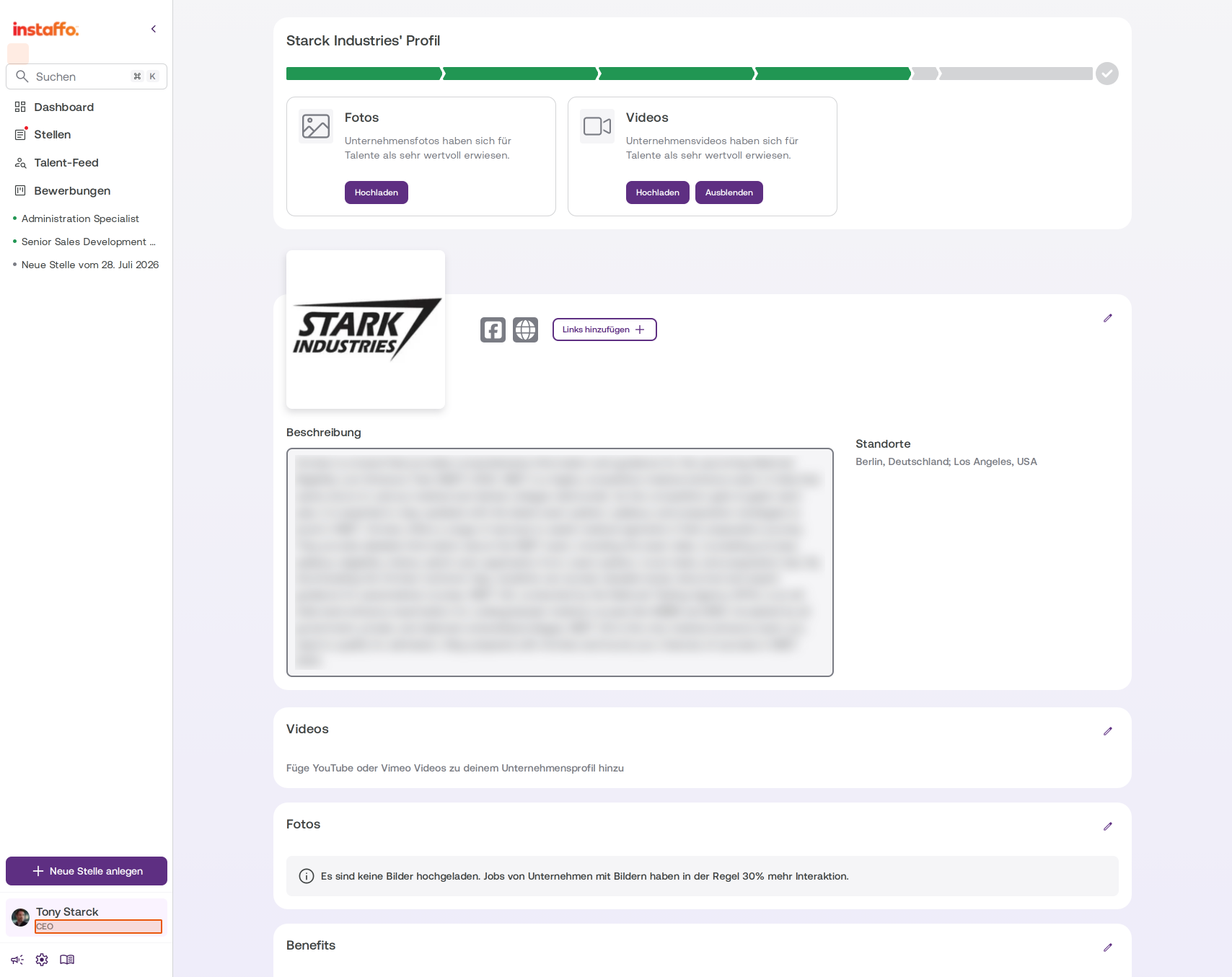
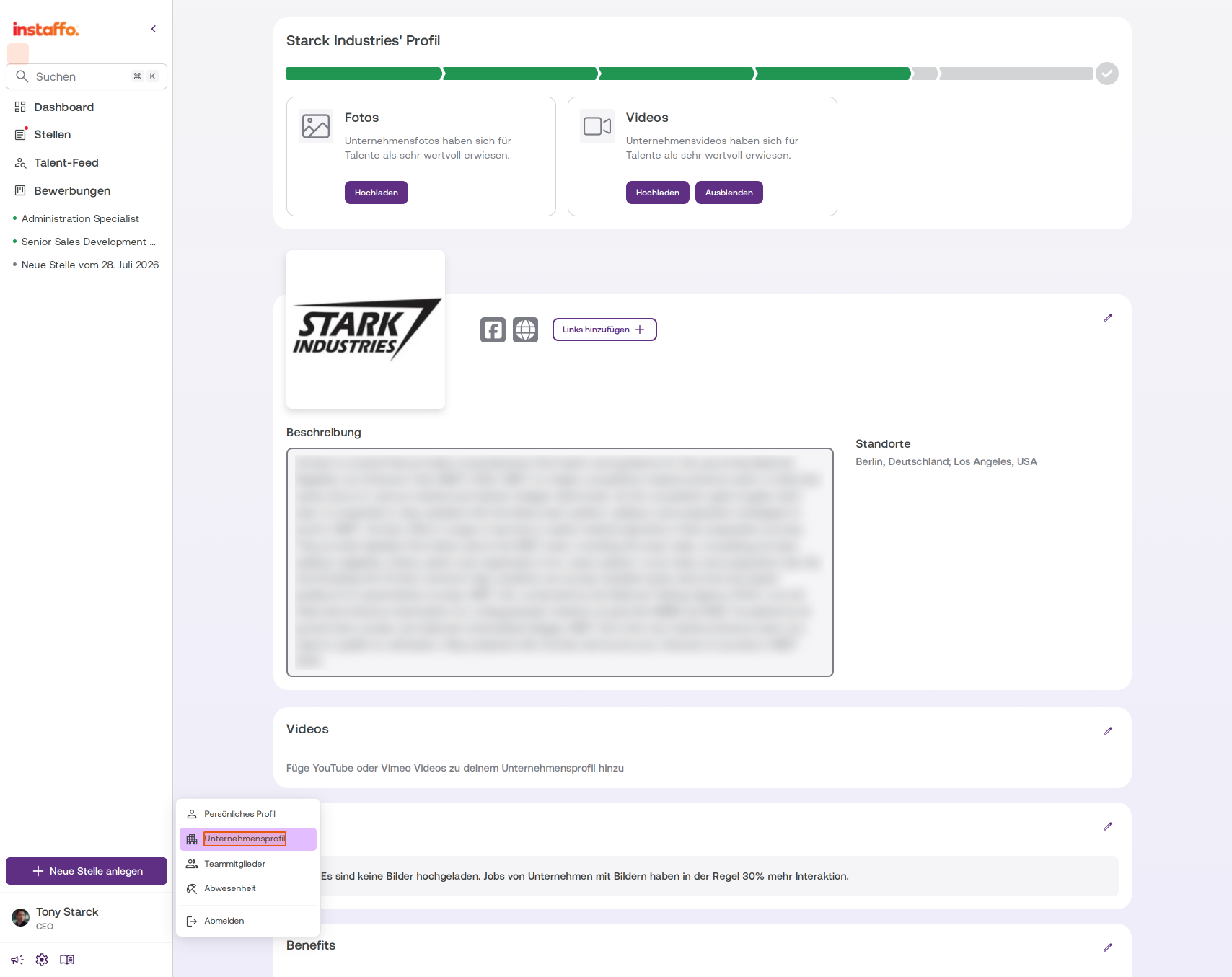
Navigate through the user menu
You can also reach your company profile through your user menu. Just click on your username at the bottom left of the sidebar. In the dropdown menu that appears, select Company Profile. -
Alternative: Access your company profile from the dashboard
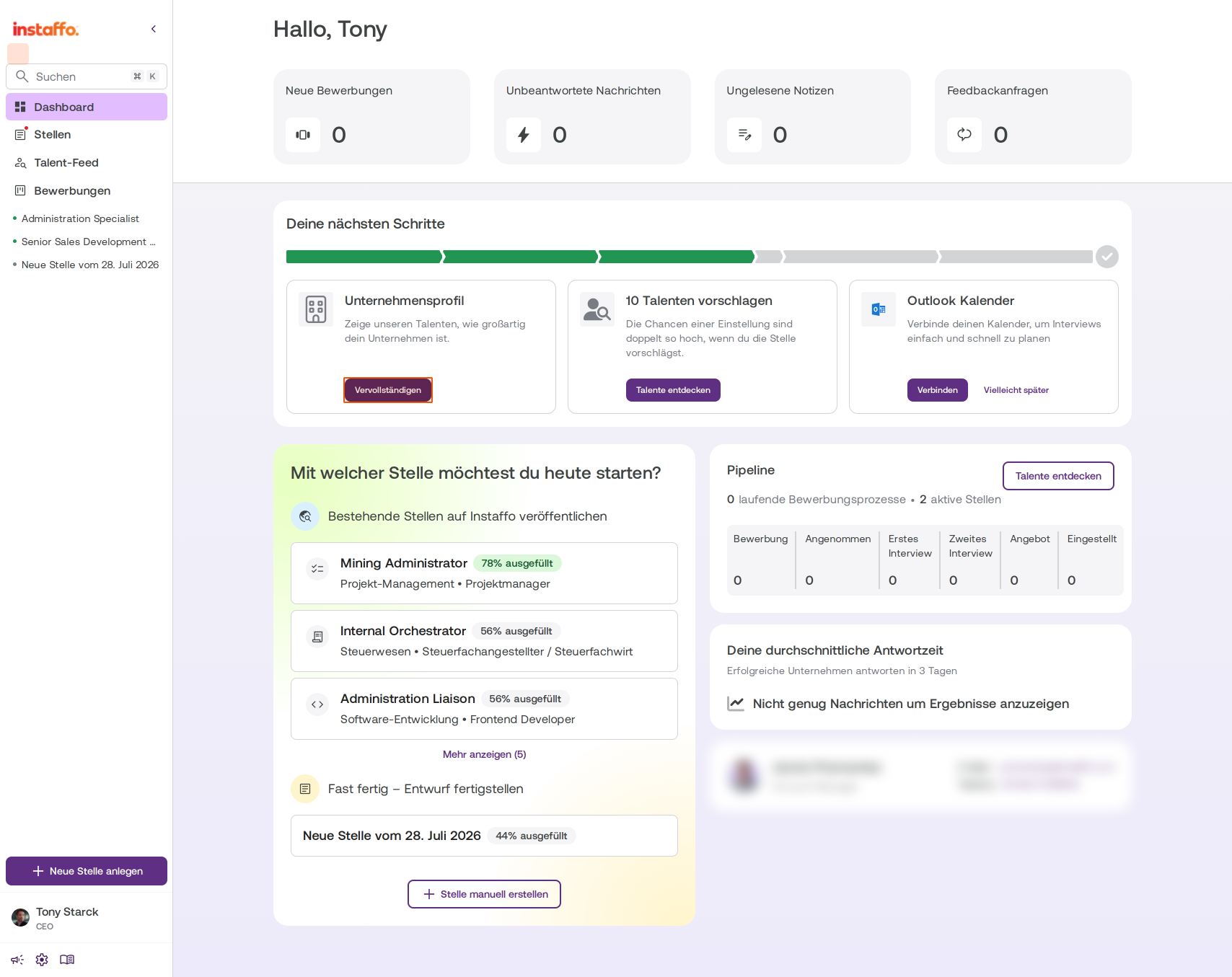
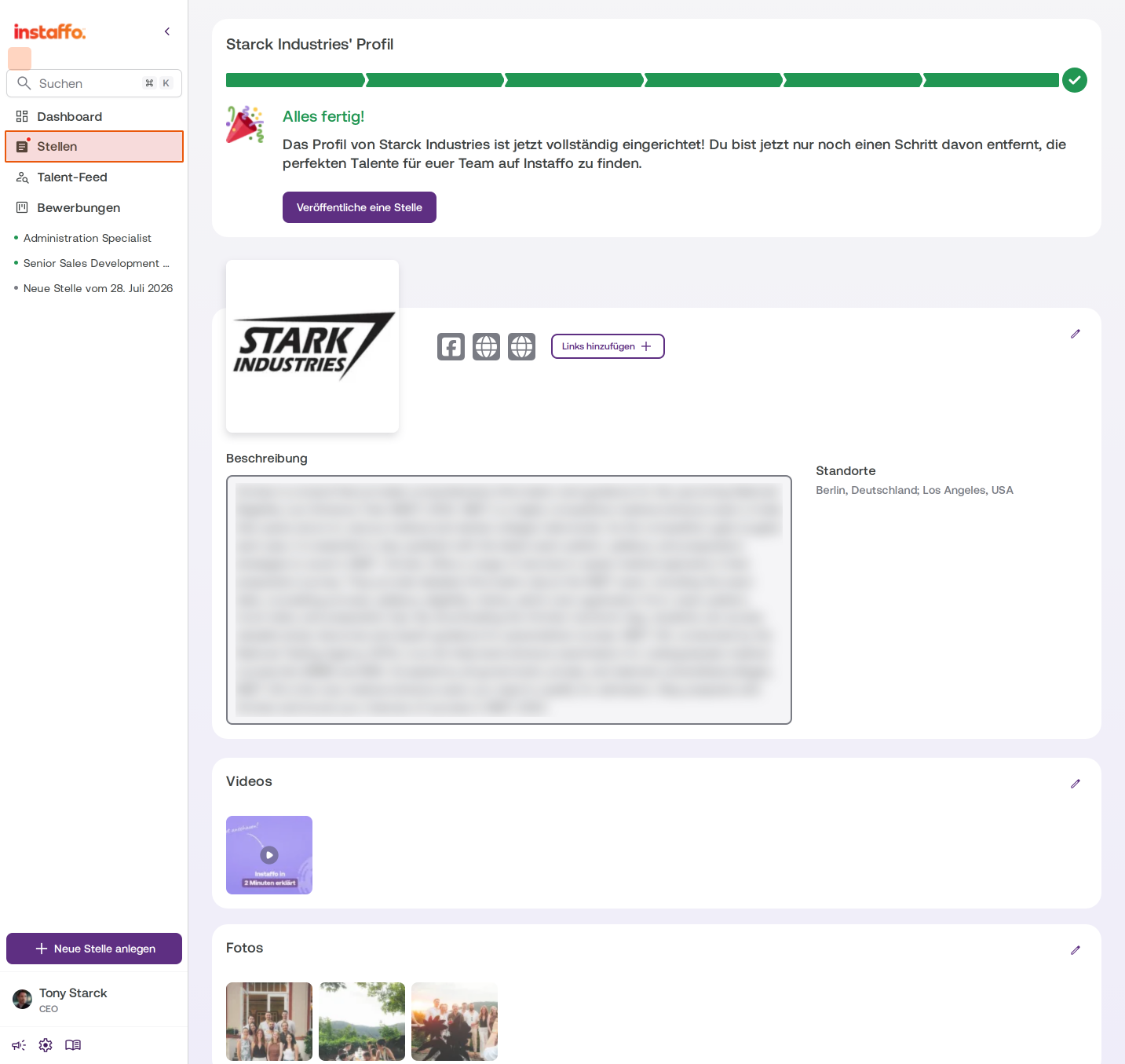
When you first start with Instaffo, you already created your company profile during onboarding. In most cases, however, the profile isn't complete yet. On your dashboard, you'll find a card called Company Profile in the Your Next Steps section. Click the Complete button there to go directly to profile editing.
Edit Company Details
-
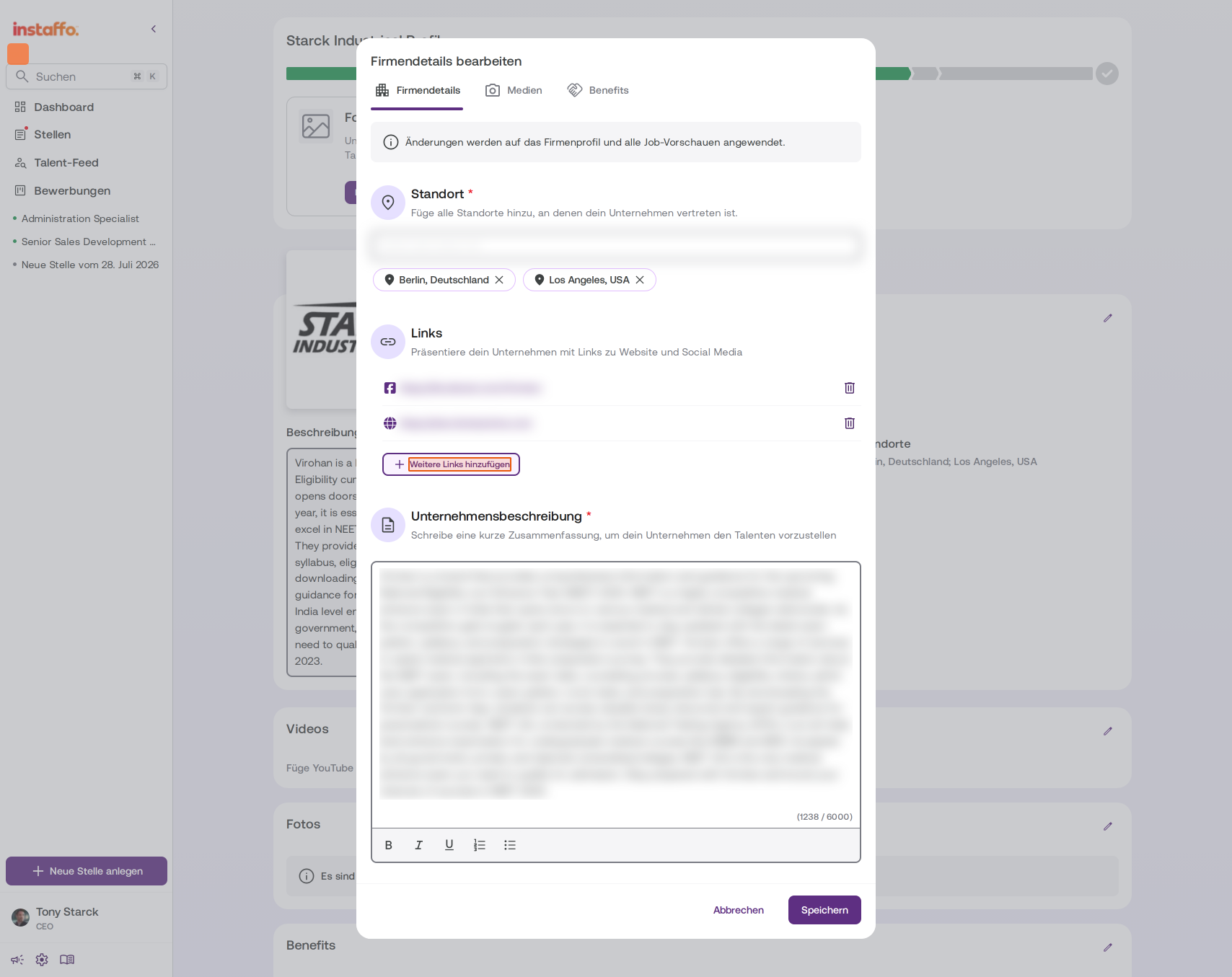
Add links to your company
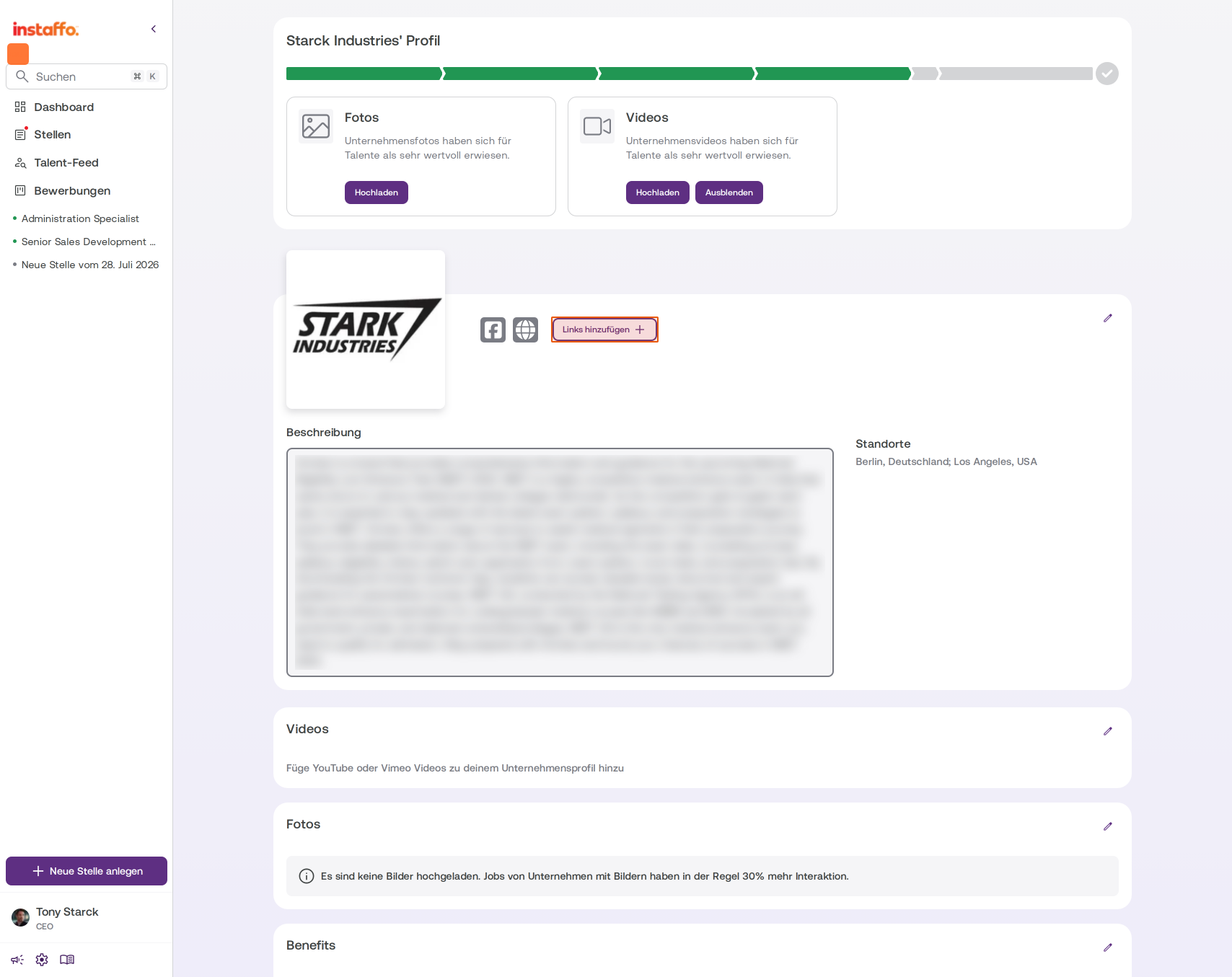
On the profile page, you'll quickly see what information is missing. Click Add Links to add website and social media links to your company profile. An editing window will open. -
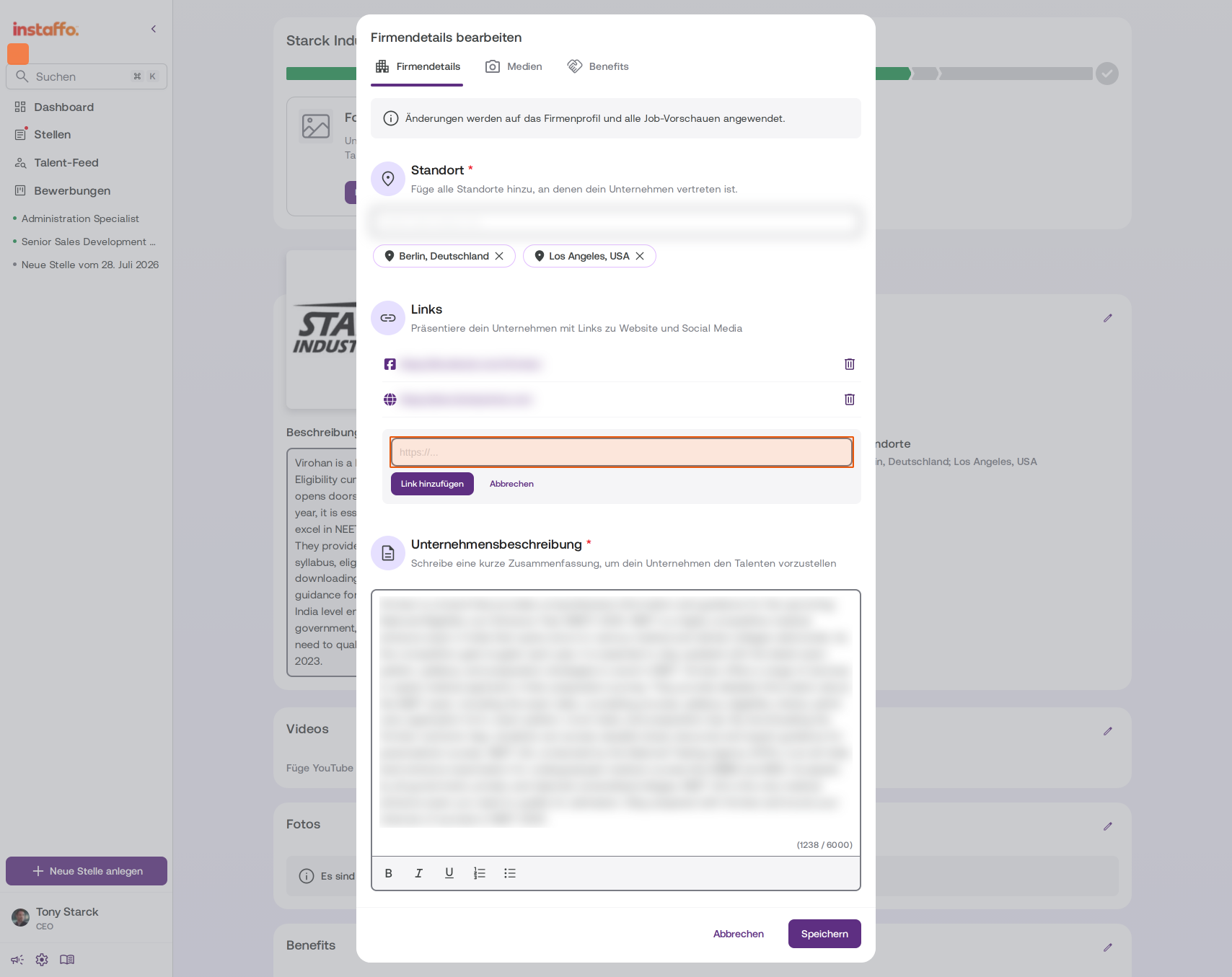
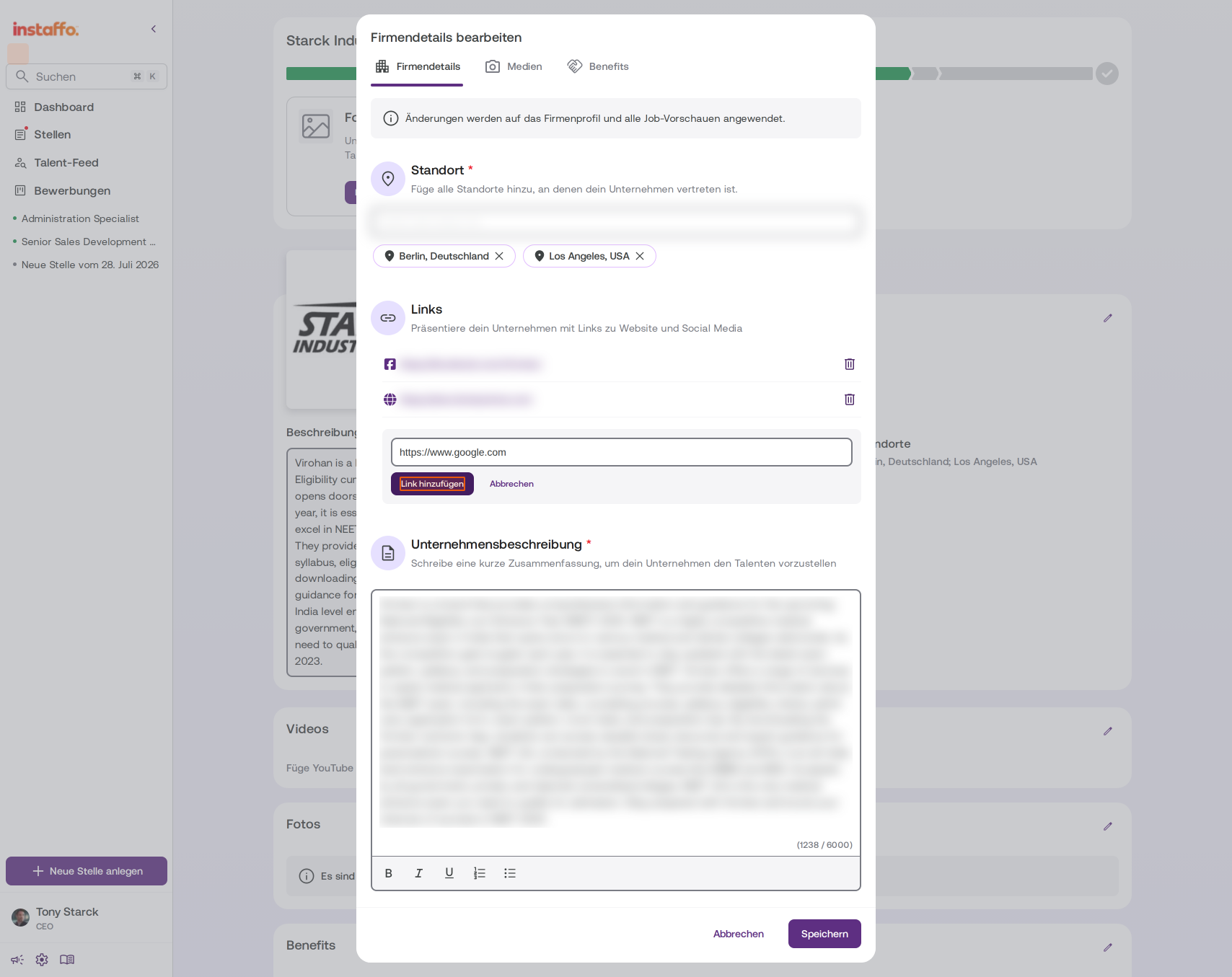
Add more links
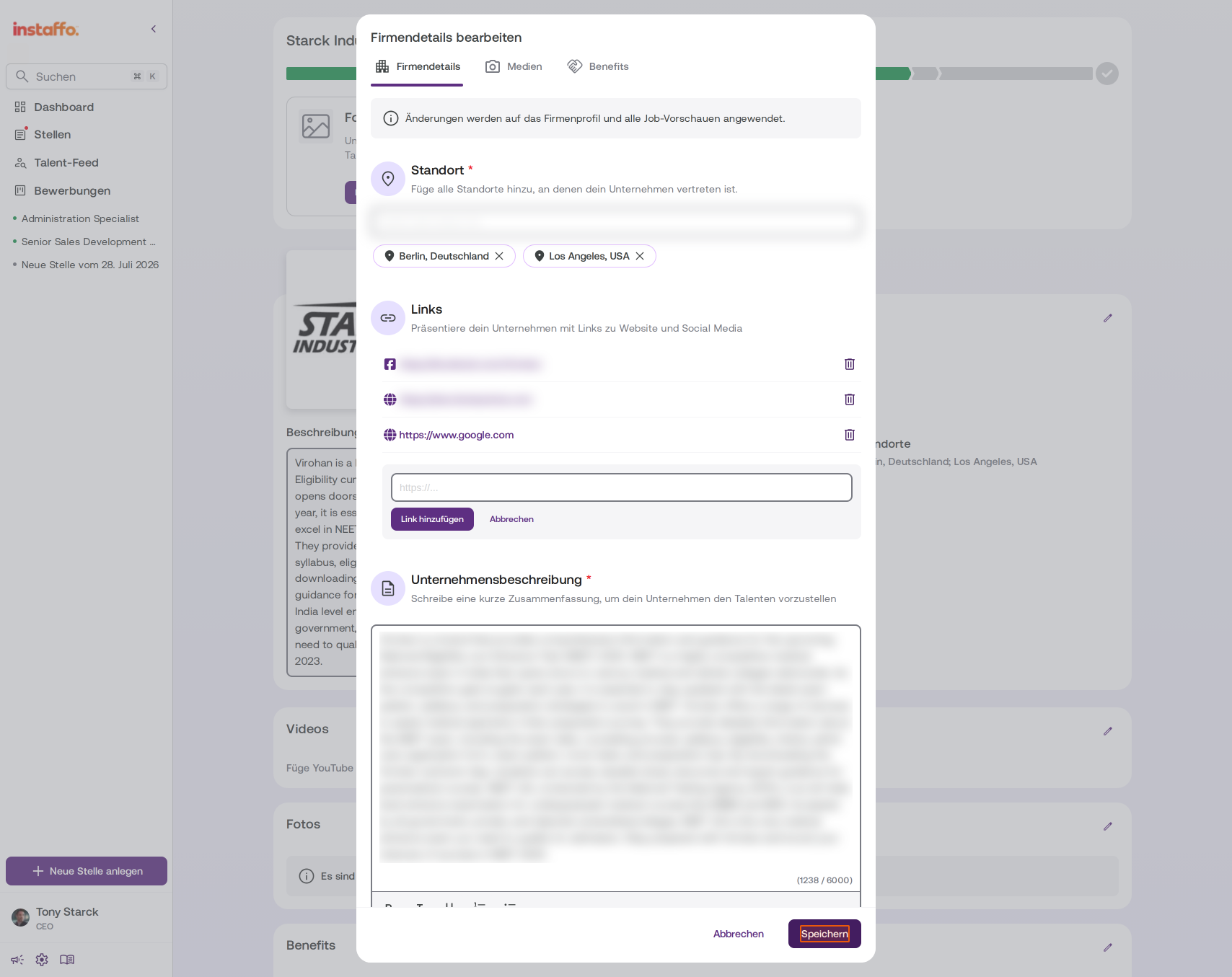
In the Edit Company Details editing window, you can add more links under the Company Details tab. Click Add Another Link to get an additional input field. Enter the URL and click Add Link. Facebook, LinkedIn, and other social media links will be automatically recognized and displayed accordingly. -
Save your changes
After you've made all the adjustments to your links and company description, click Save to apply your changes.
Add Media
-
Add videos to your profile
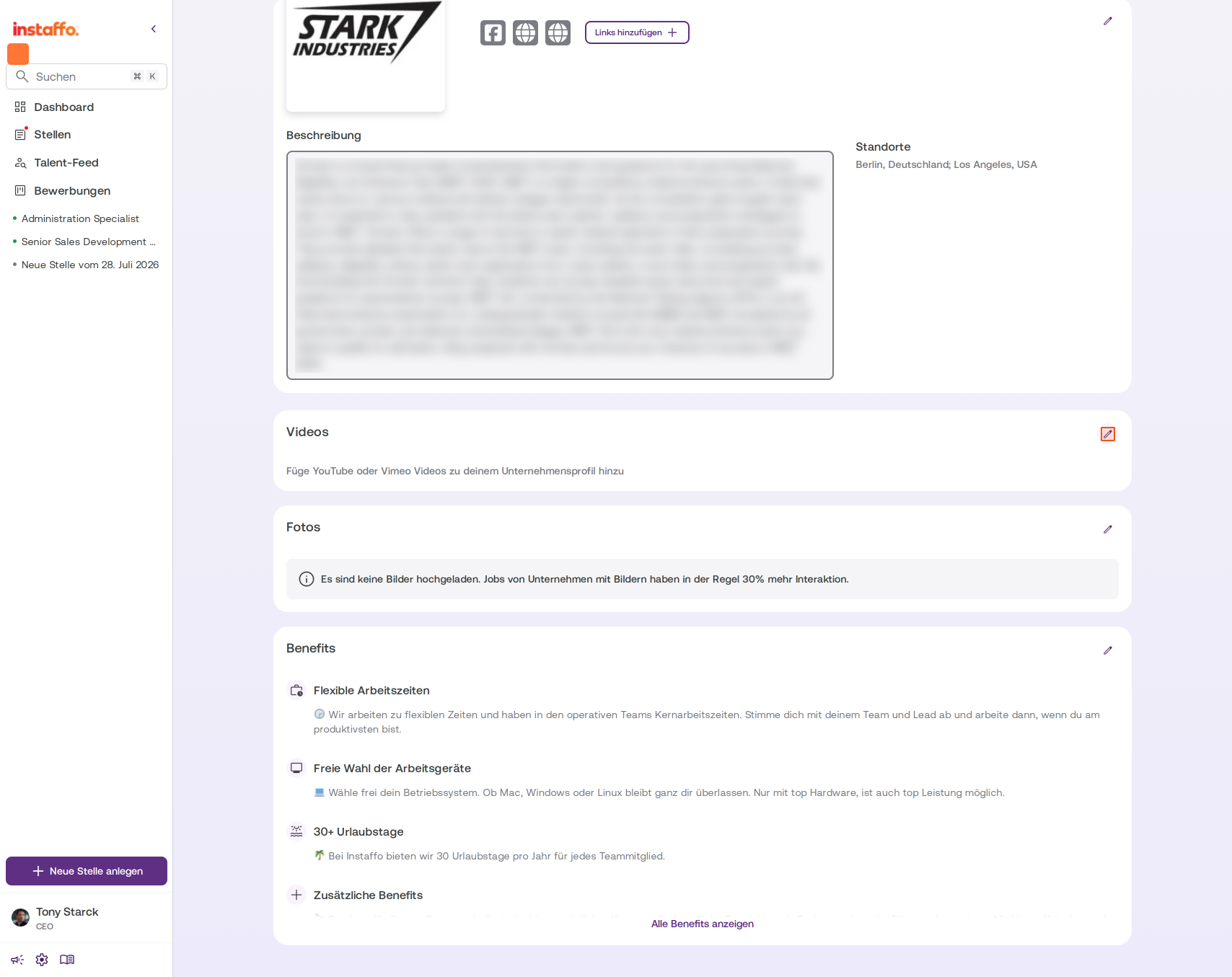
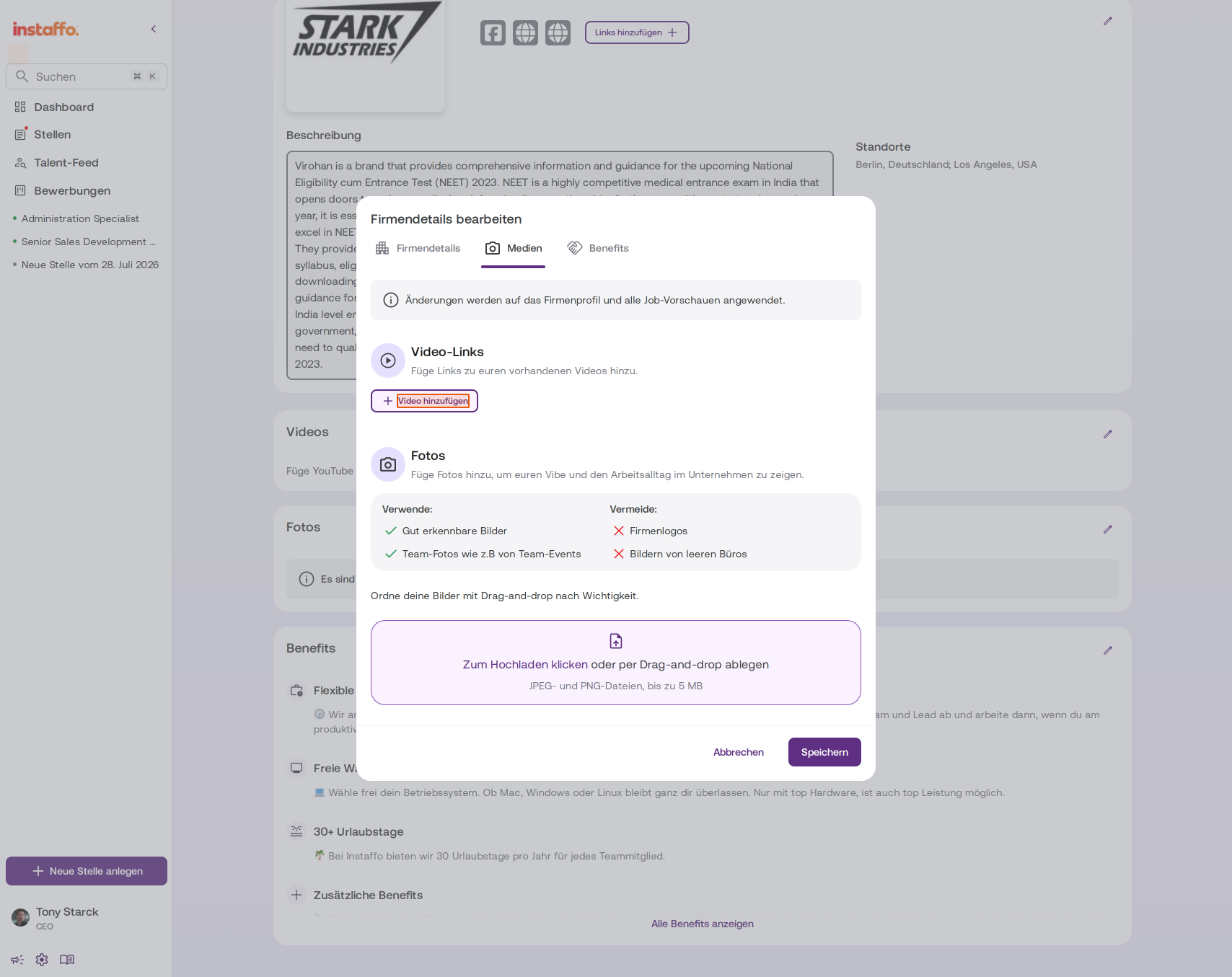
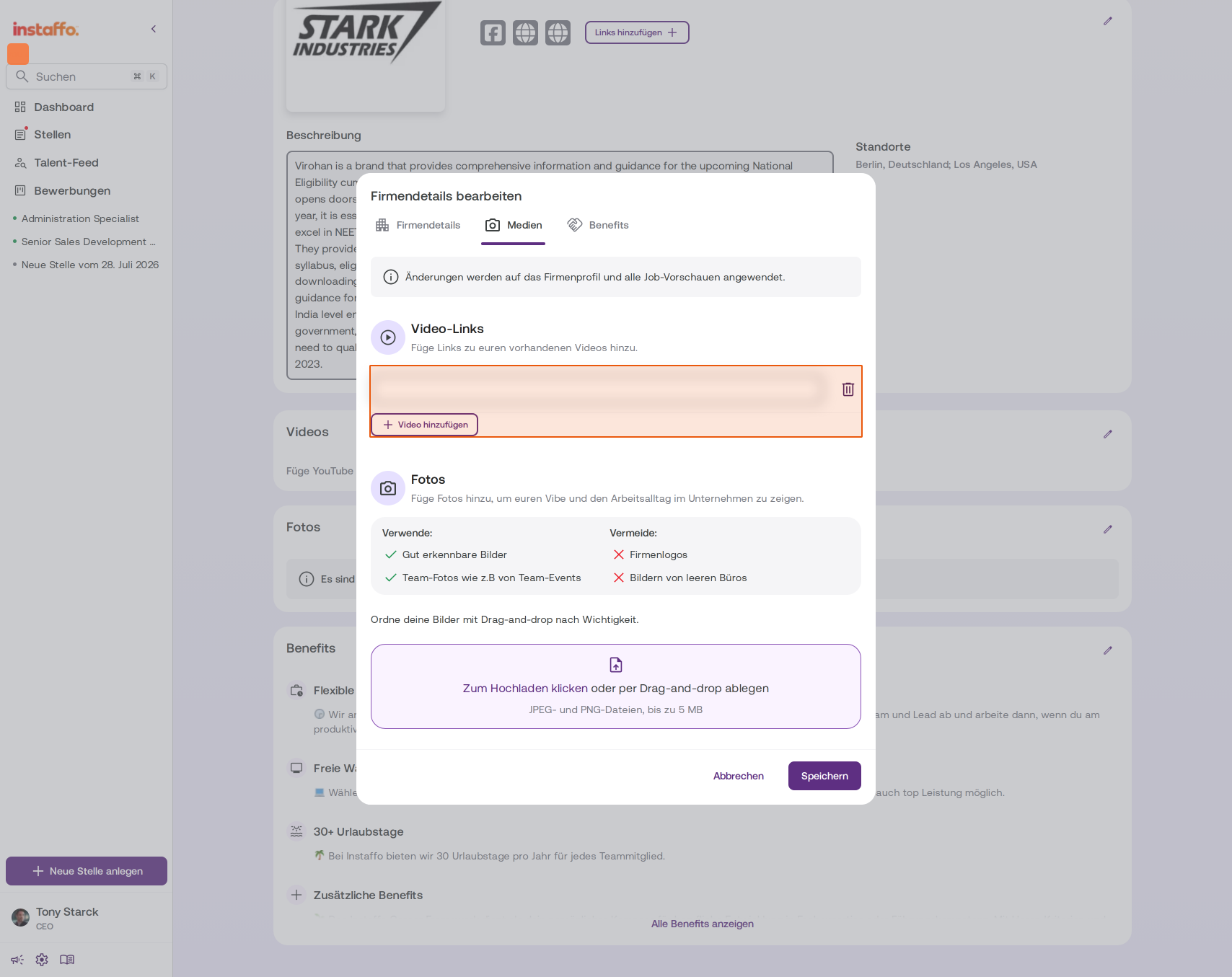
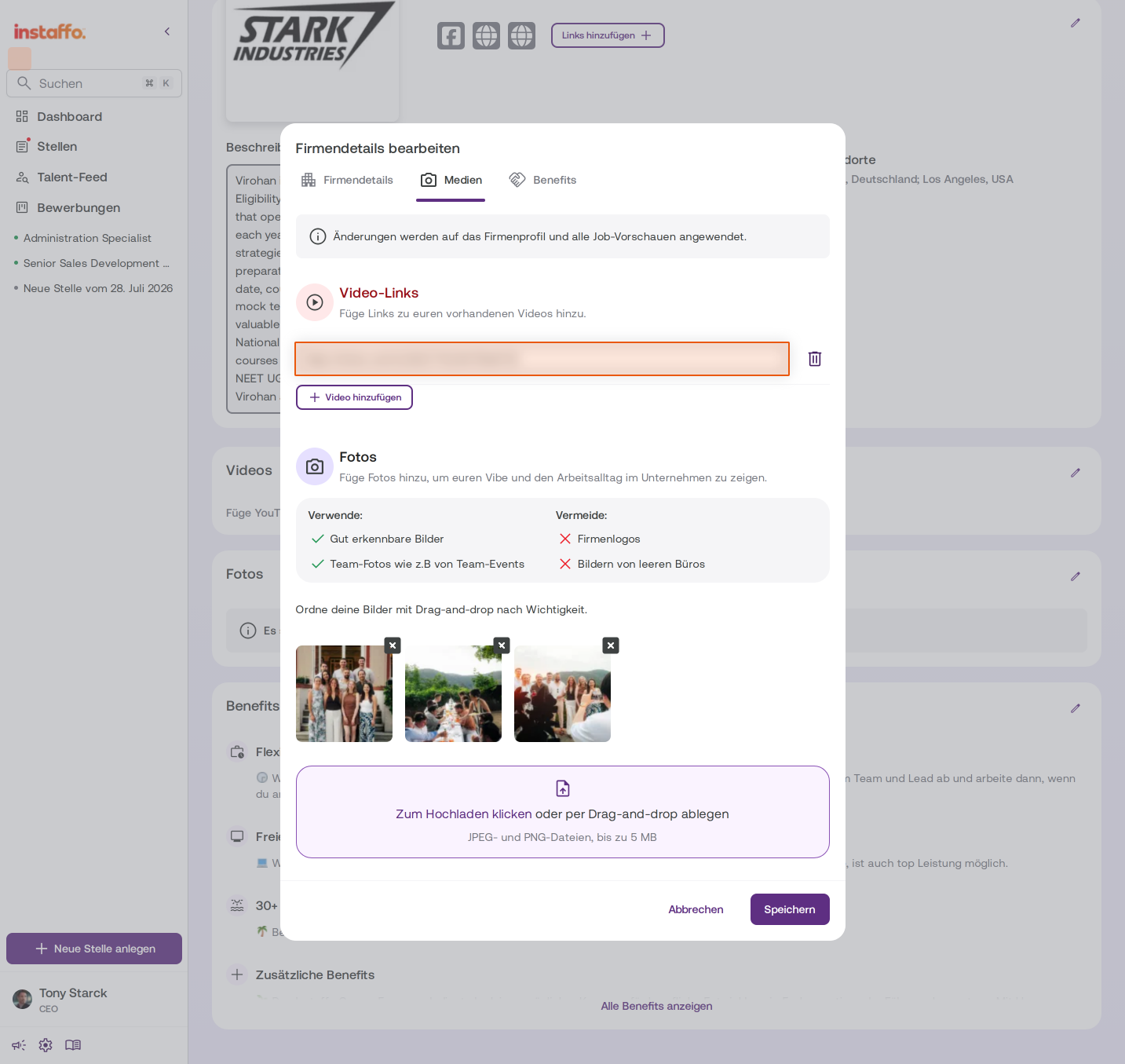
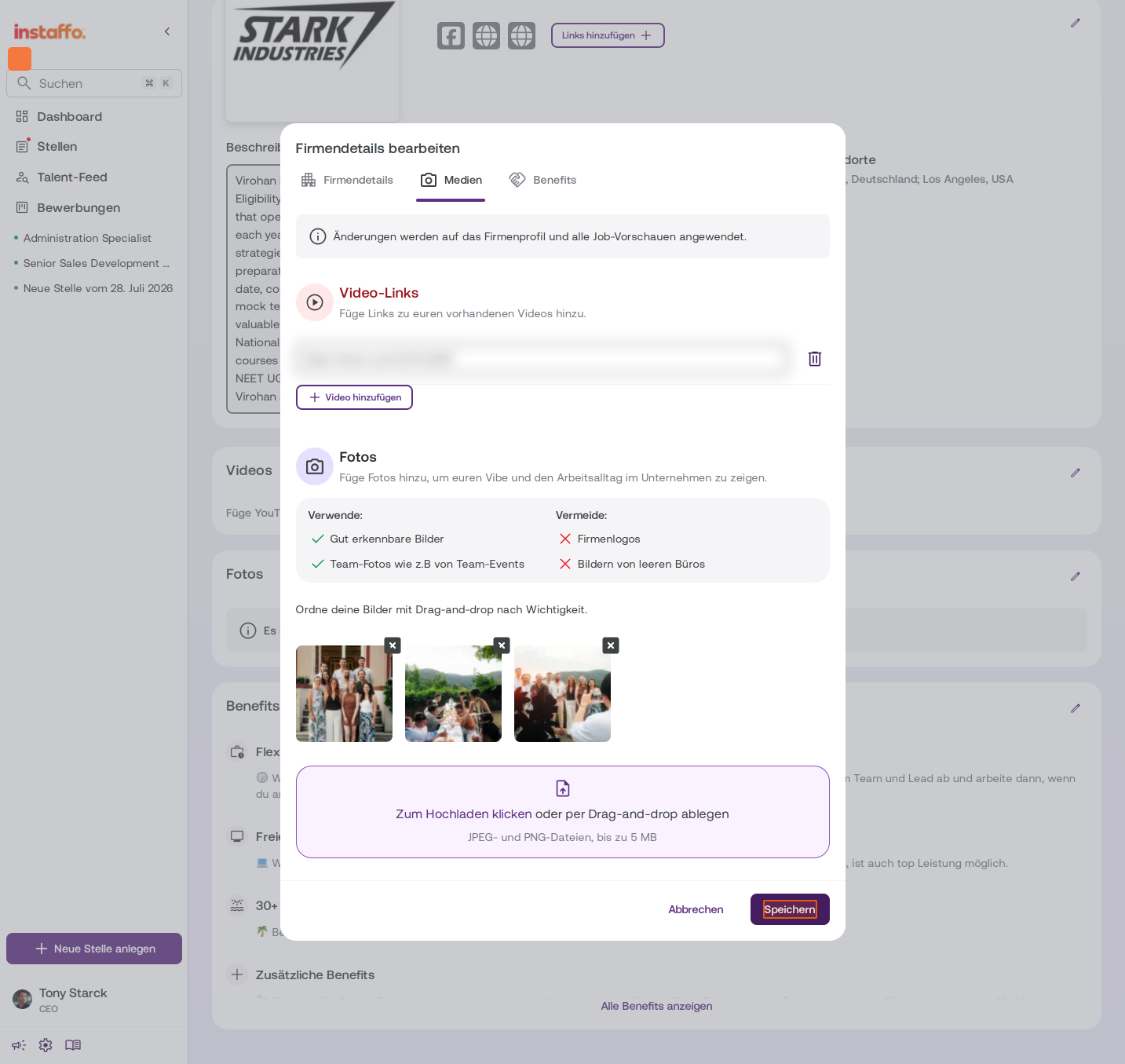
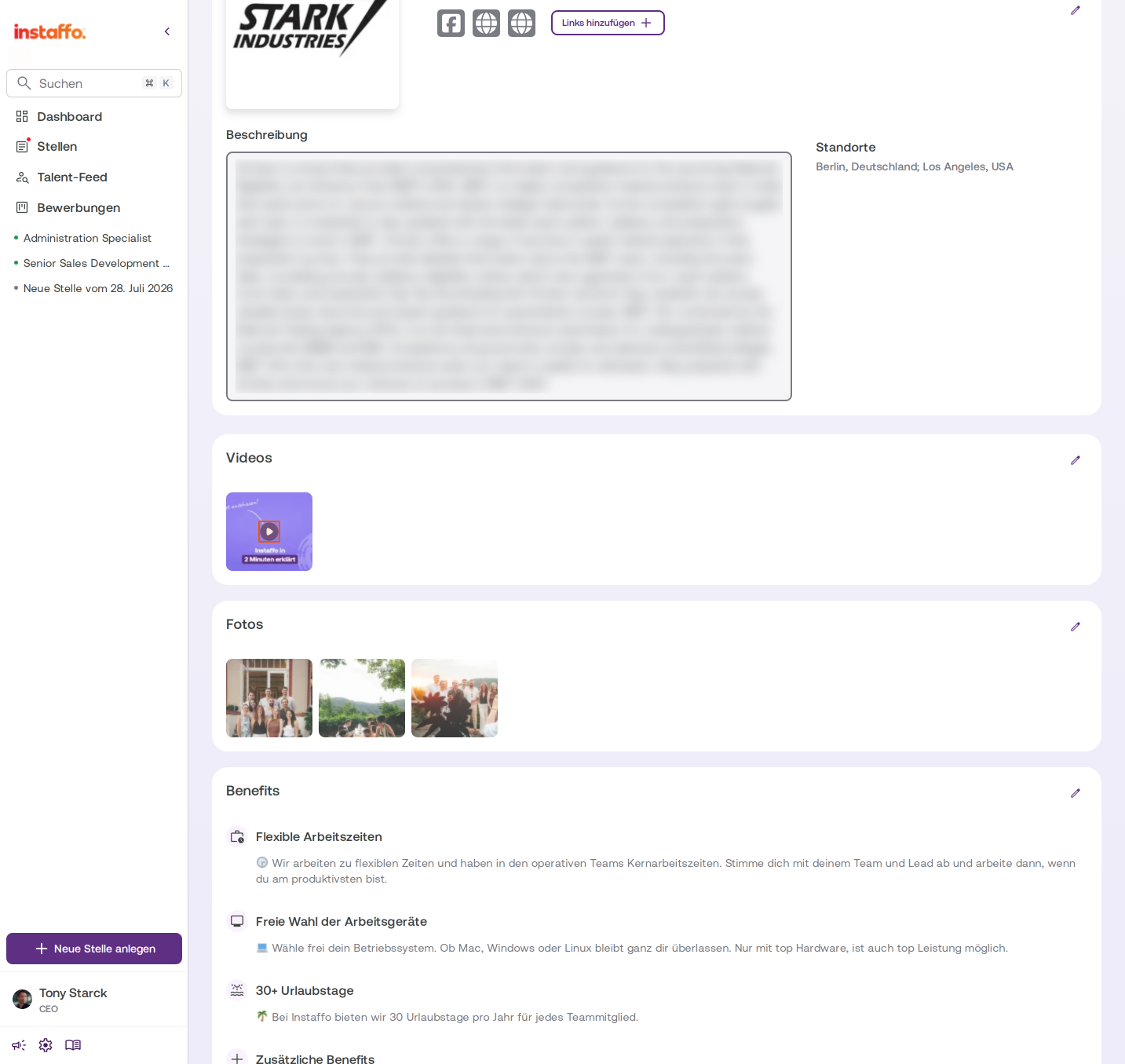
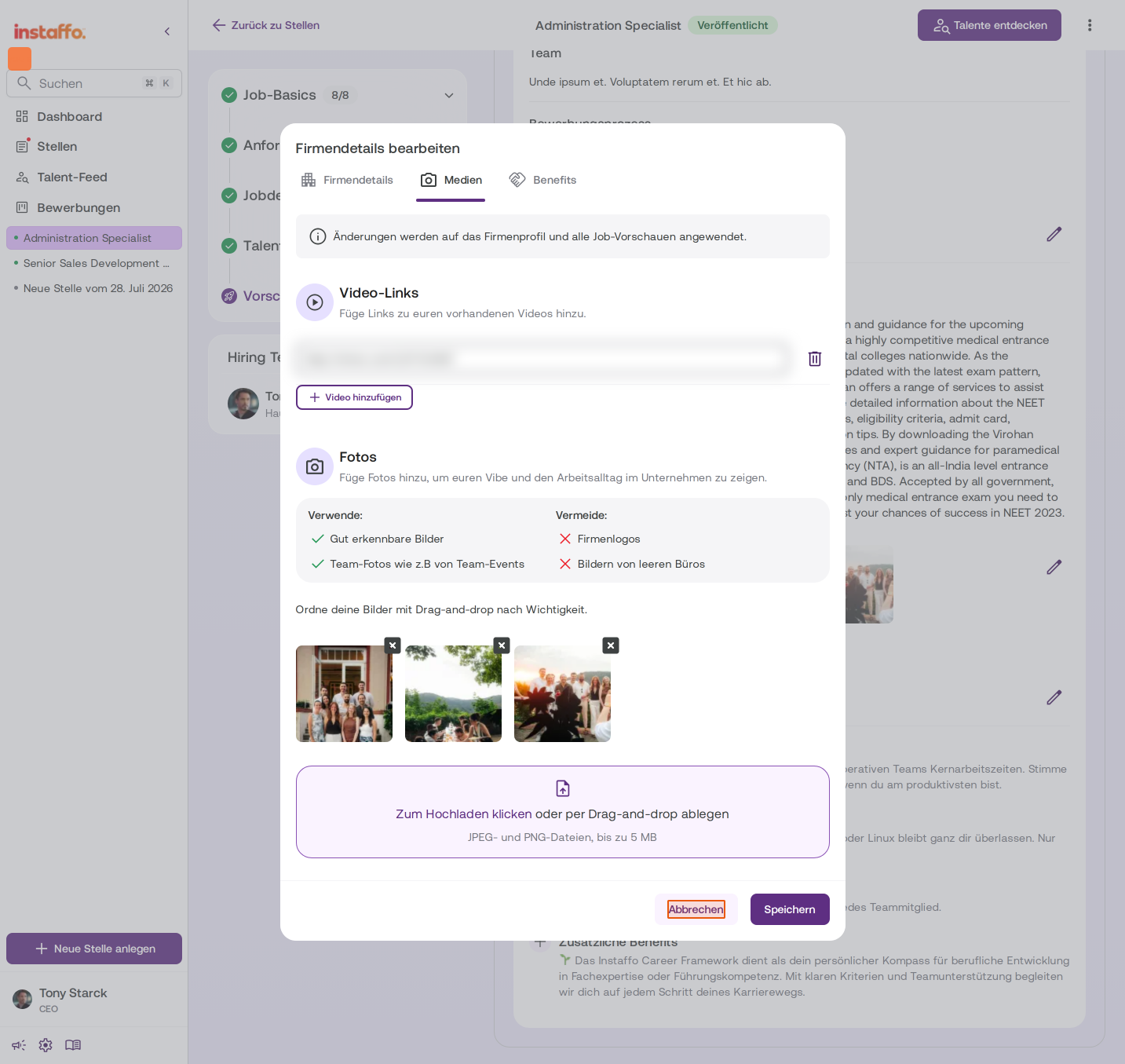
To add videos, click the edit icon in the Videos section. In the editing window, switch to the Media tab. Under Video Links, you can add links to YouTube or Vimeo videos. Click Add Video to get an input field for the video URL.
-
Upload photos
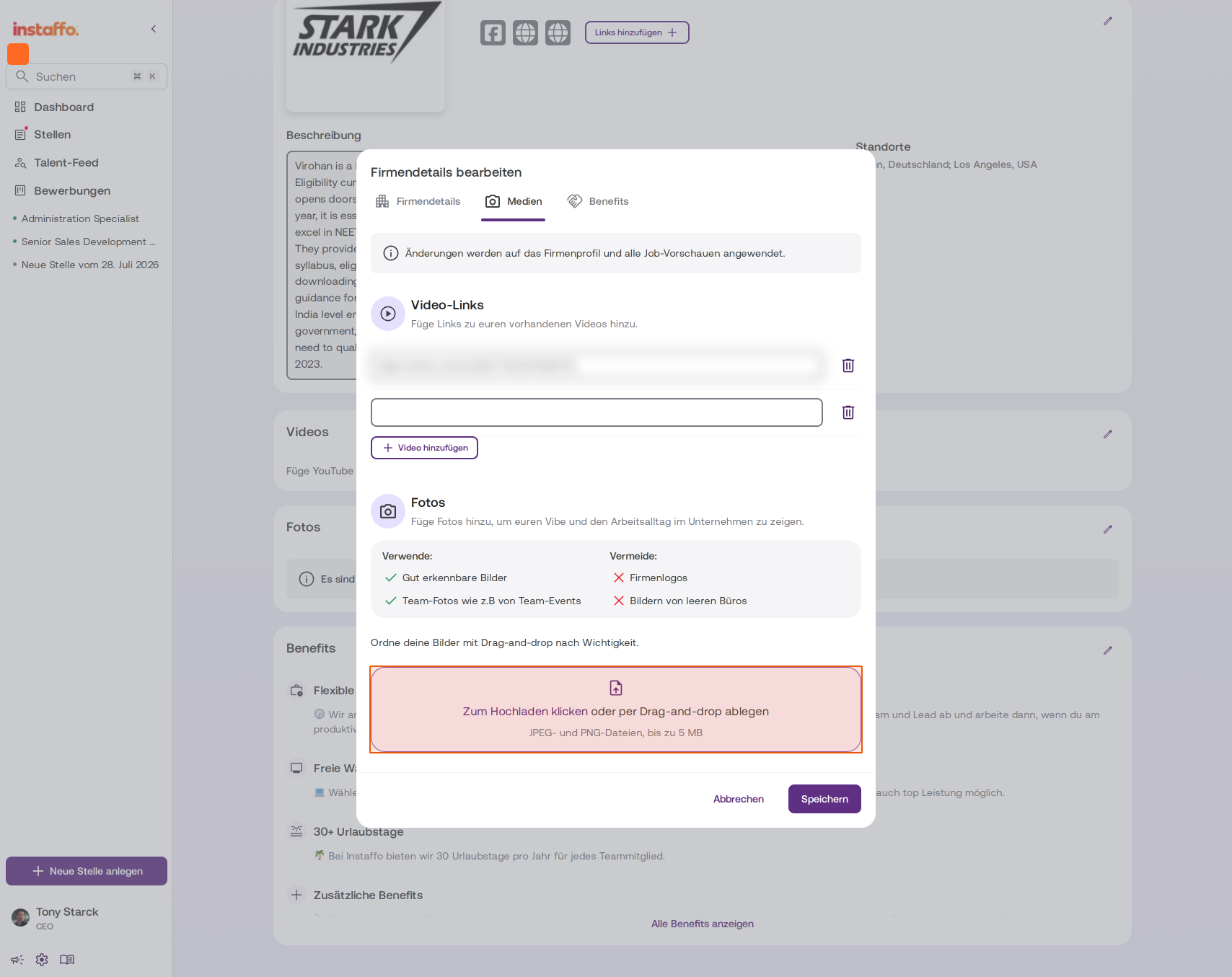
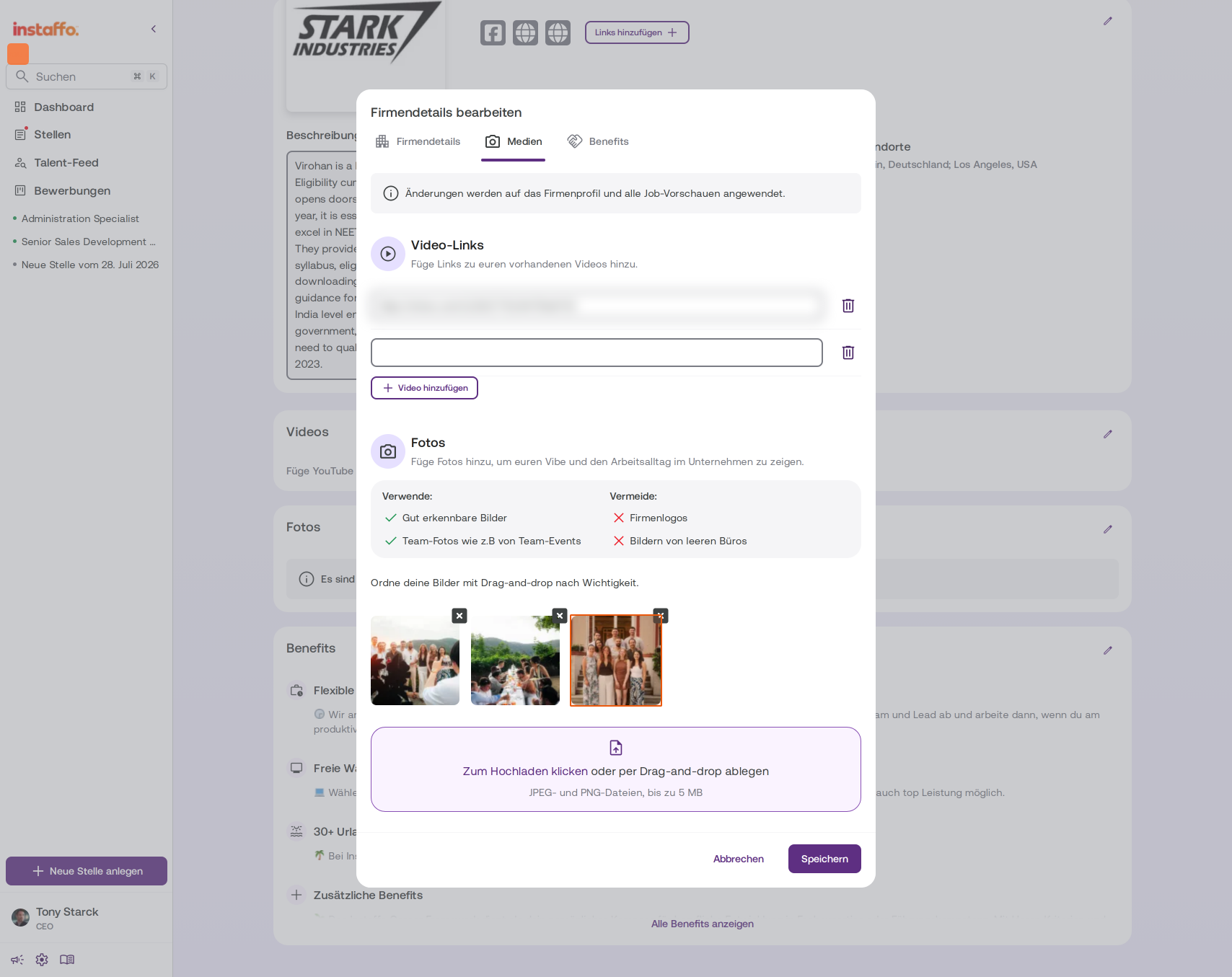
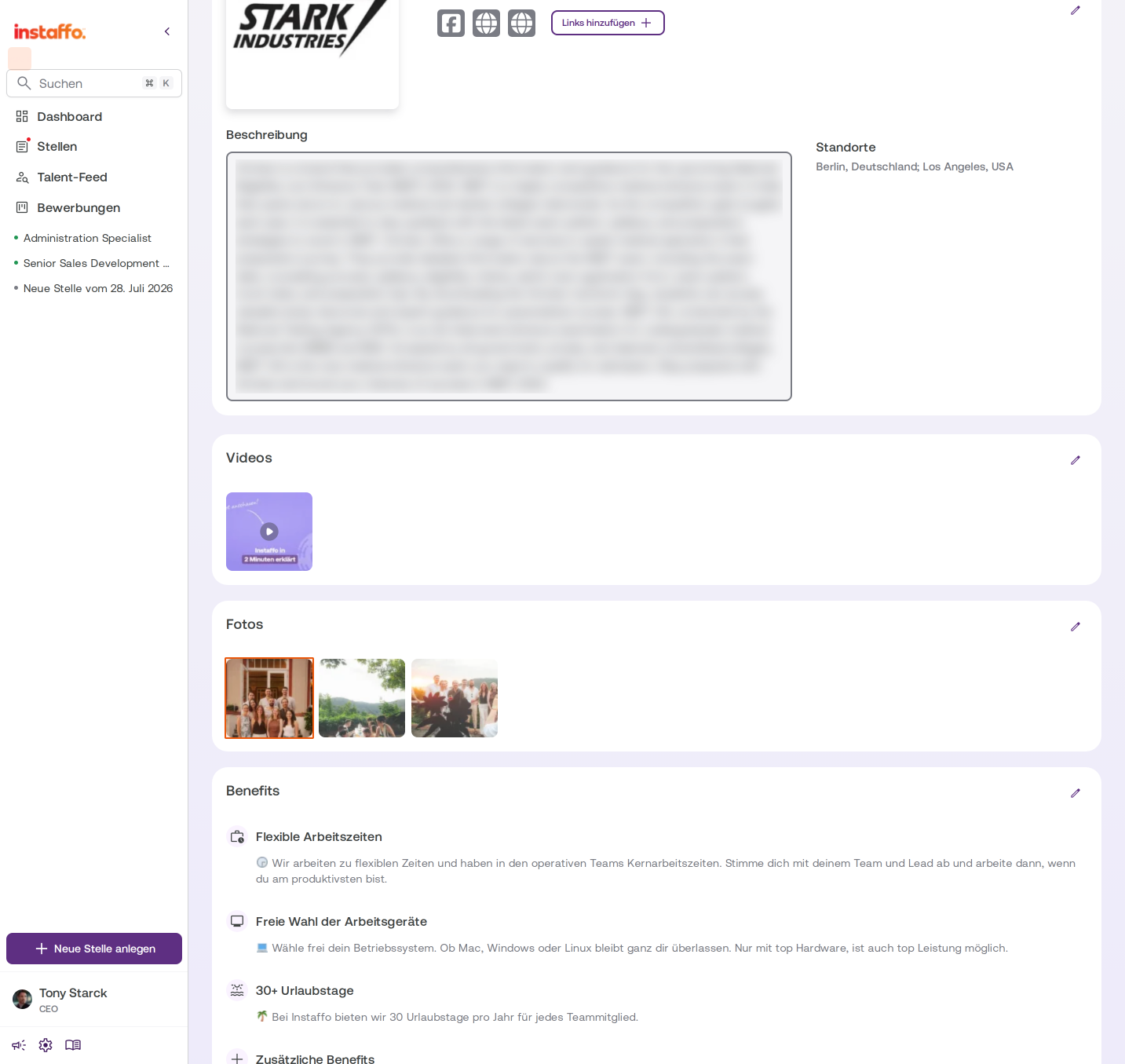
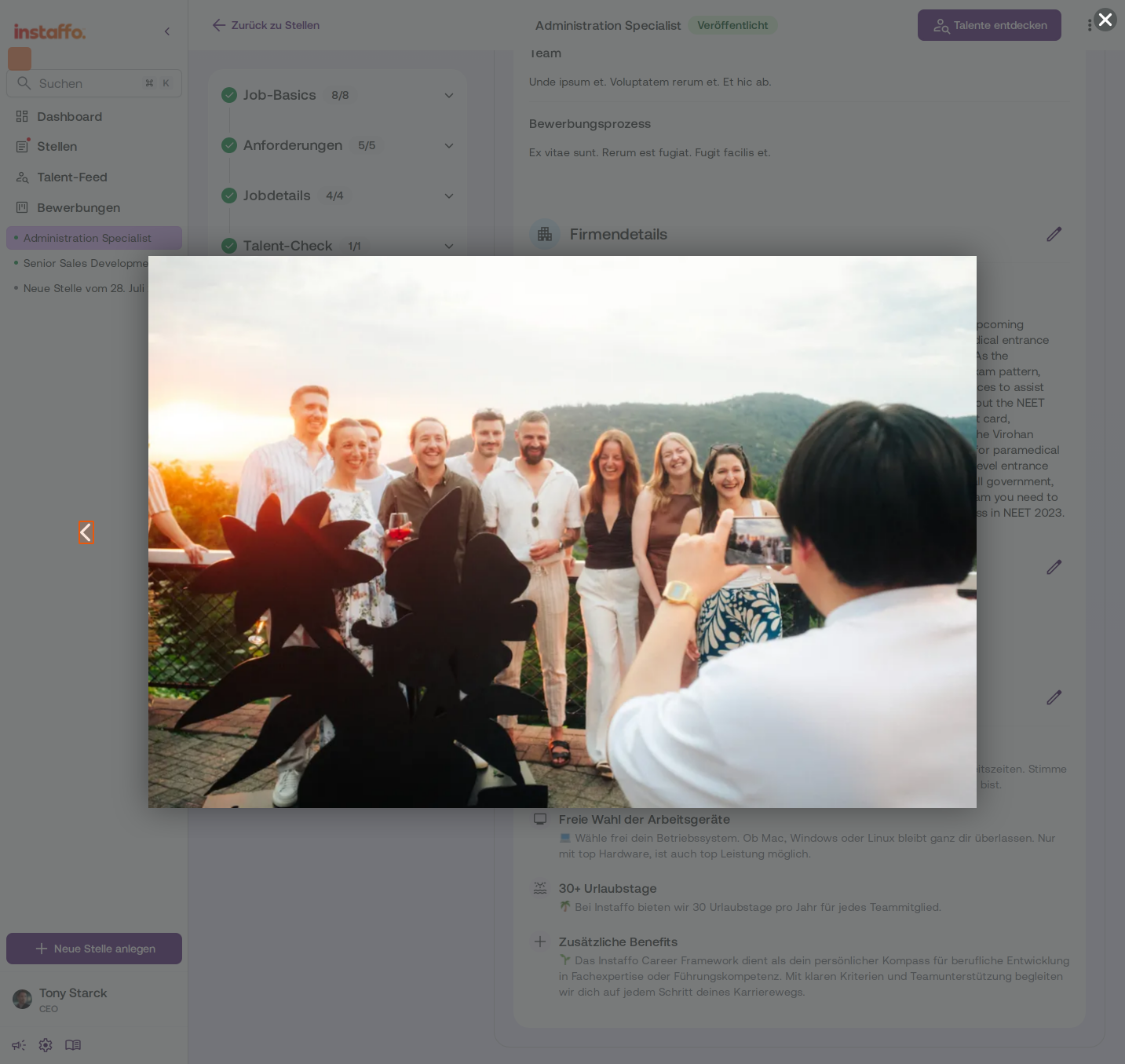
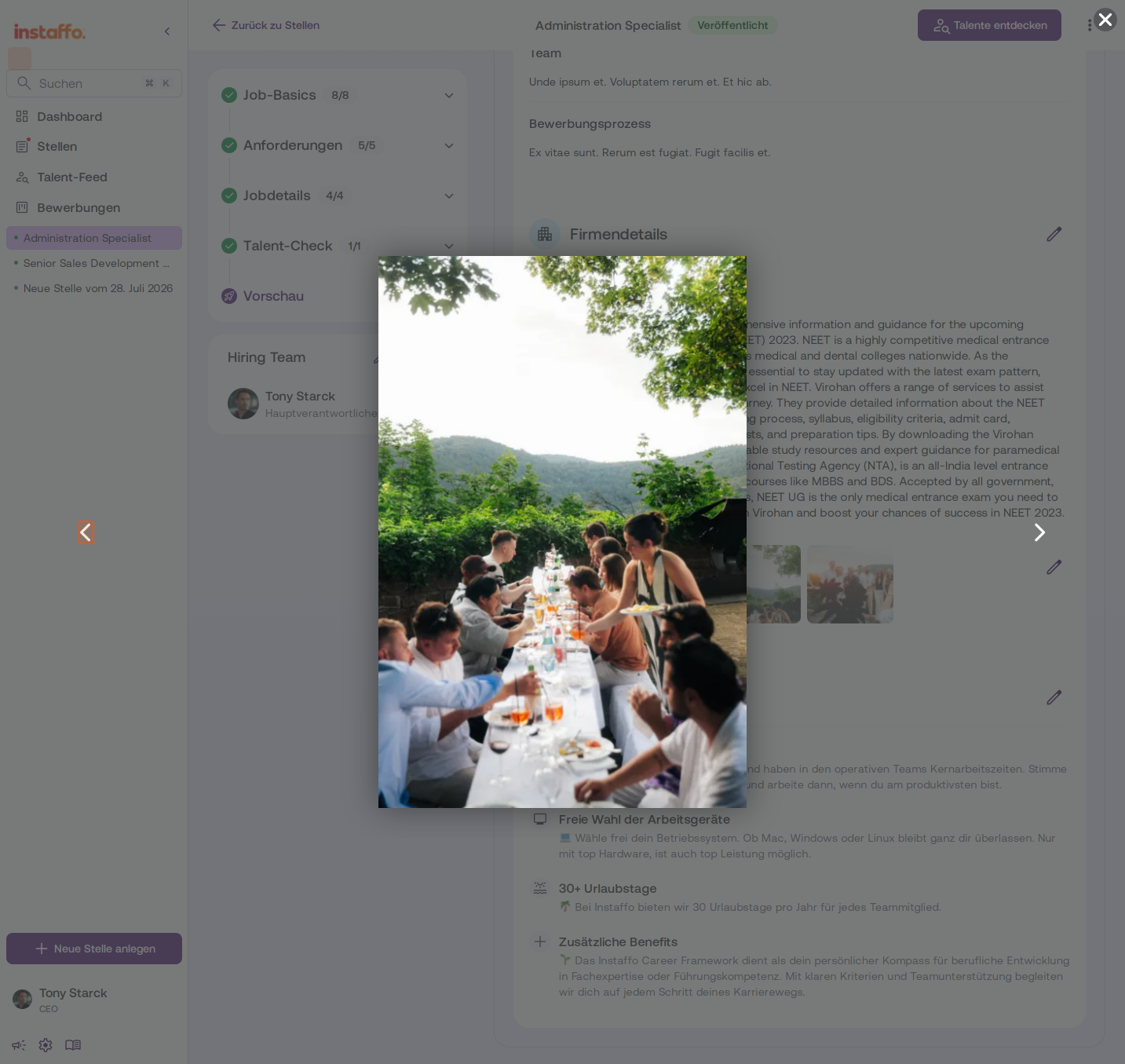
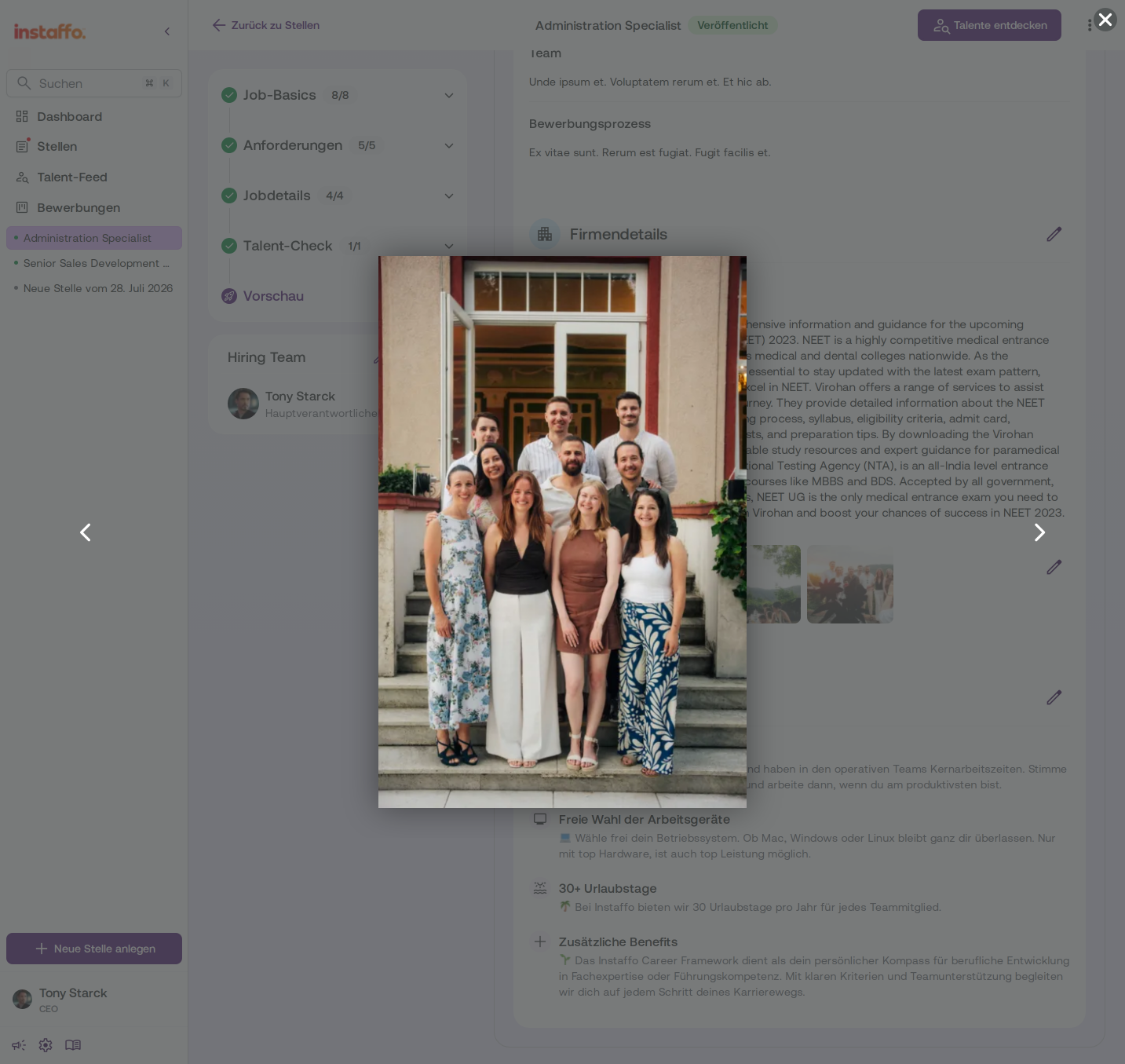
In the same editing window, you'll find the Photos section. Here you'll see recommendations for which images work best:- Use: Recognizable images, team photos
- Avoid: Company logos, images of empty offices
Click the upload area or drag your images into it. JPEG and PNG files up to 5 MB are supported.
-
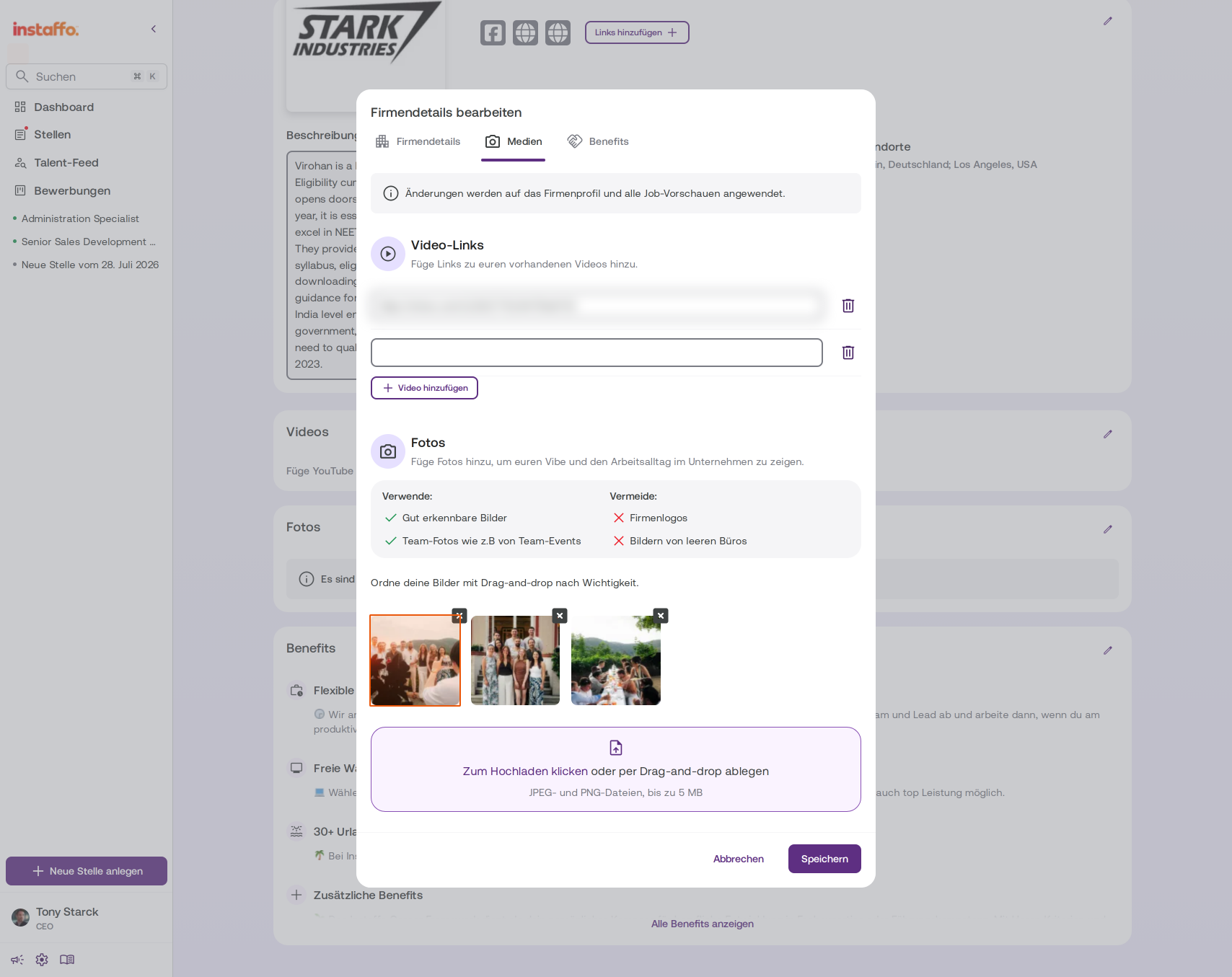
Adjust the order of your images
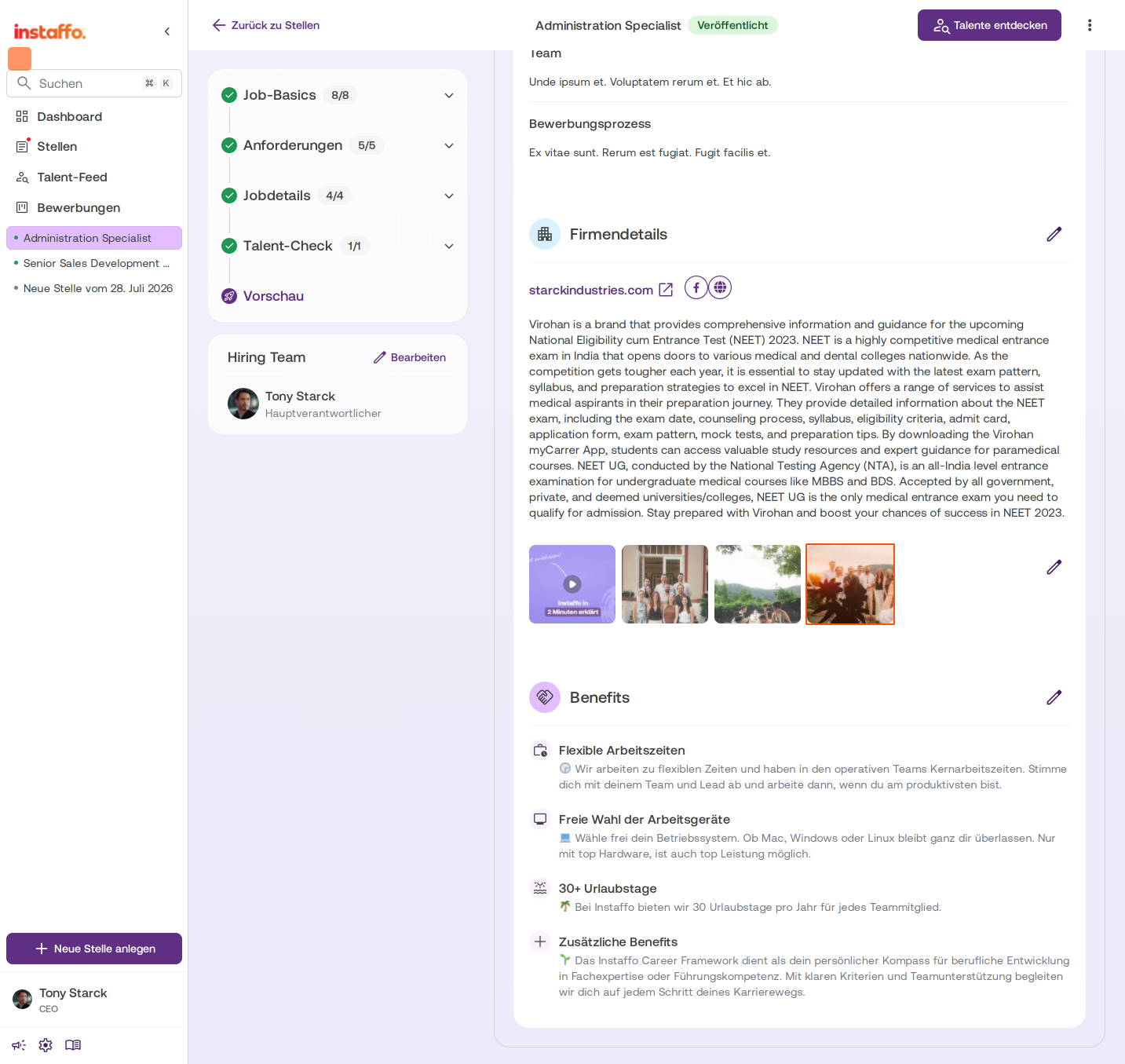
You can sort the uploaded photos by importance using drag and drop. Simply drag the images to the position you want in the sequence. -
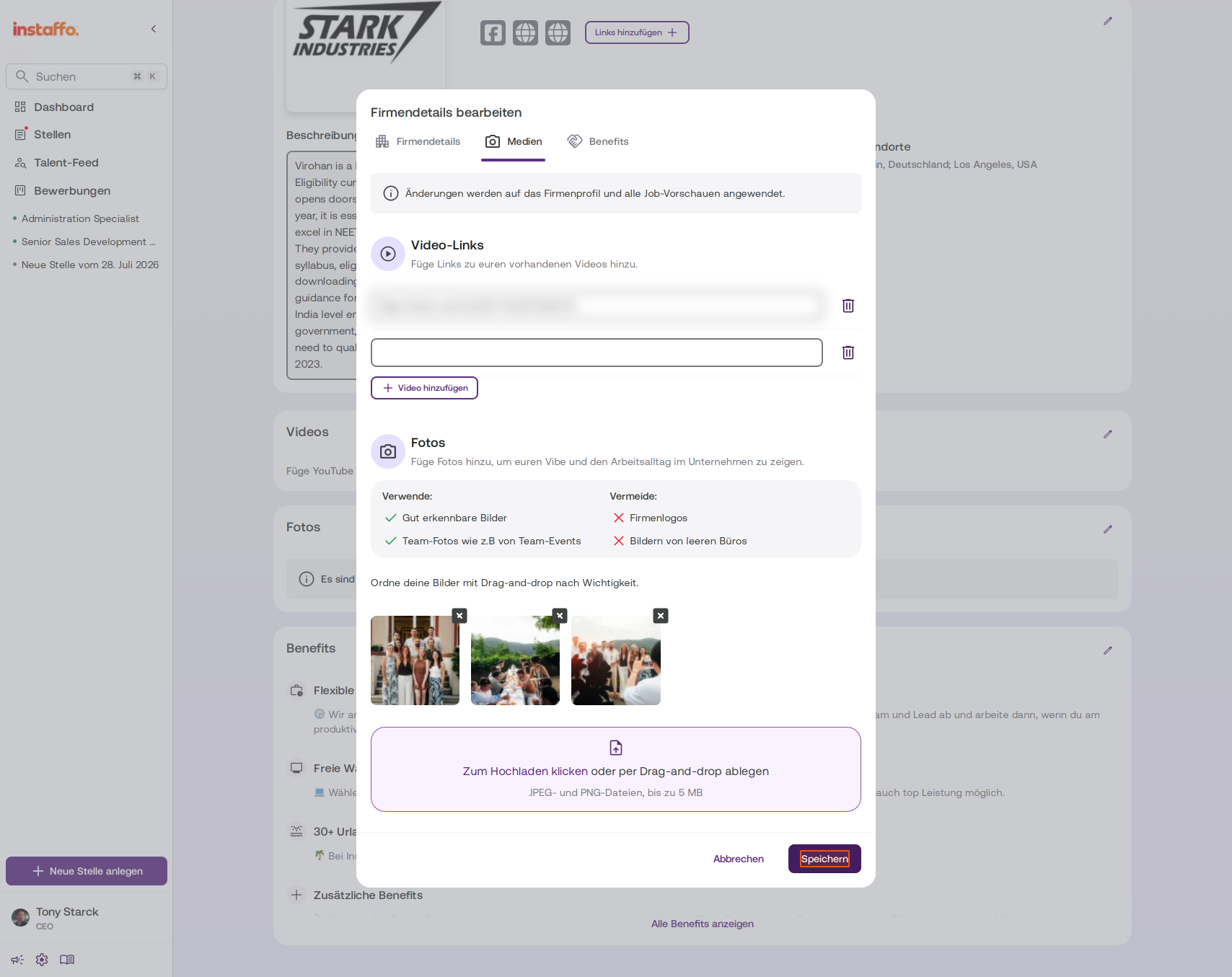
Save your media
Click Save to apply all changes to your videos and photos.
Display Profile in Job Listings
-
Check your company profile in the job listing preview
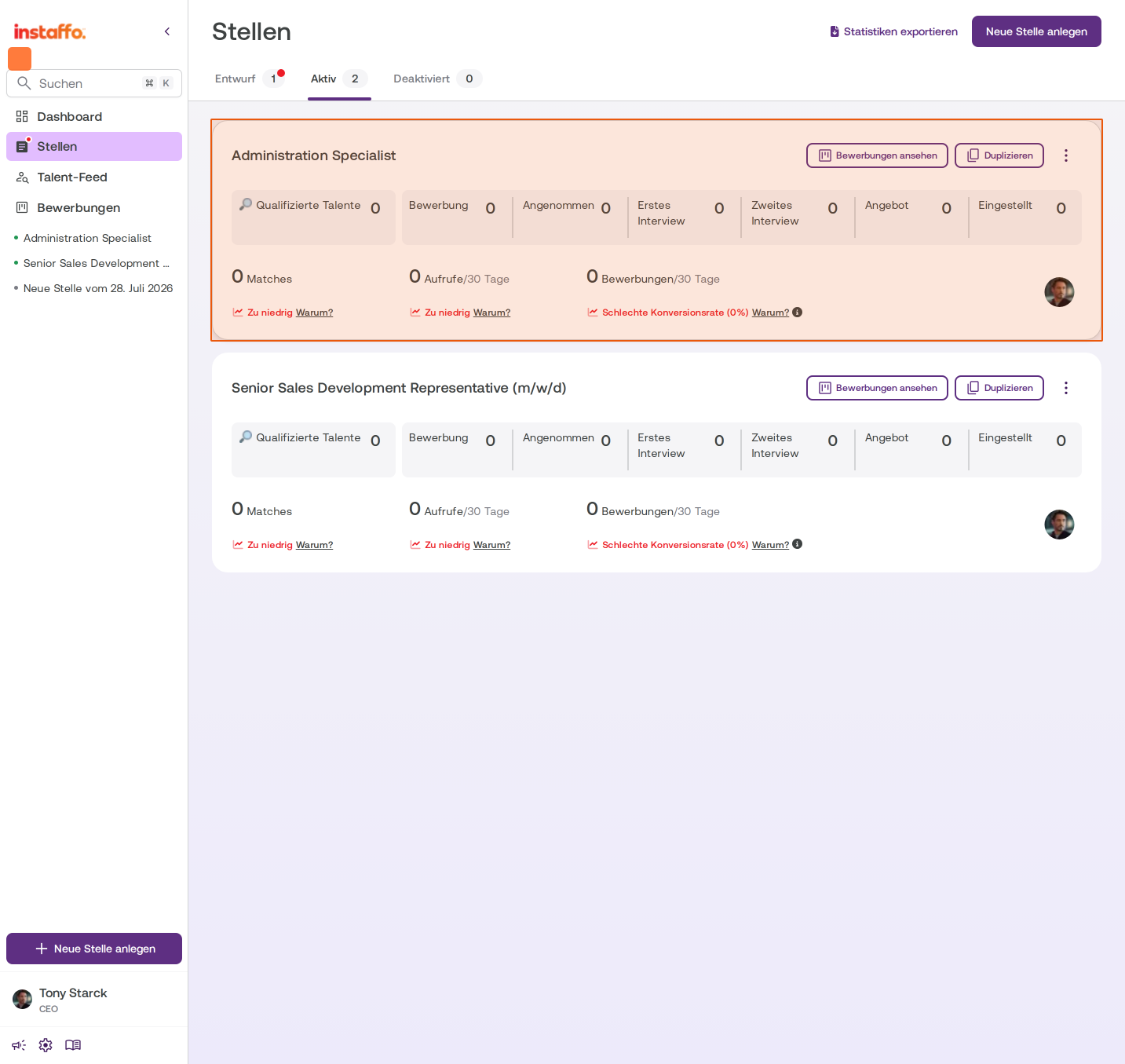
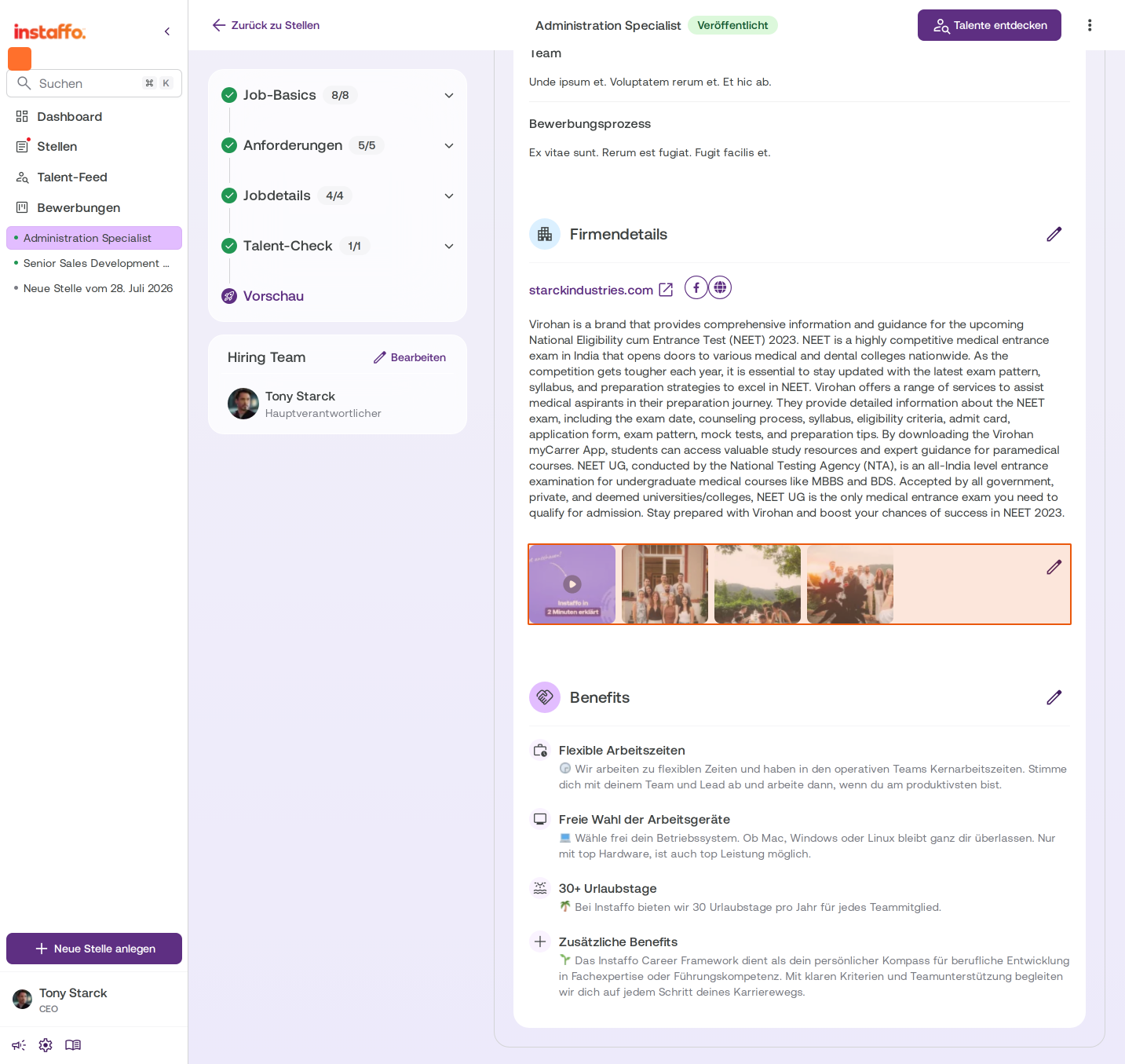
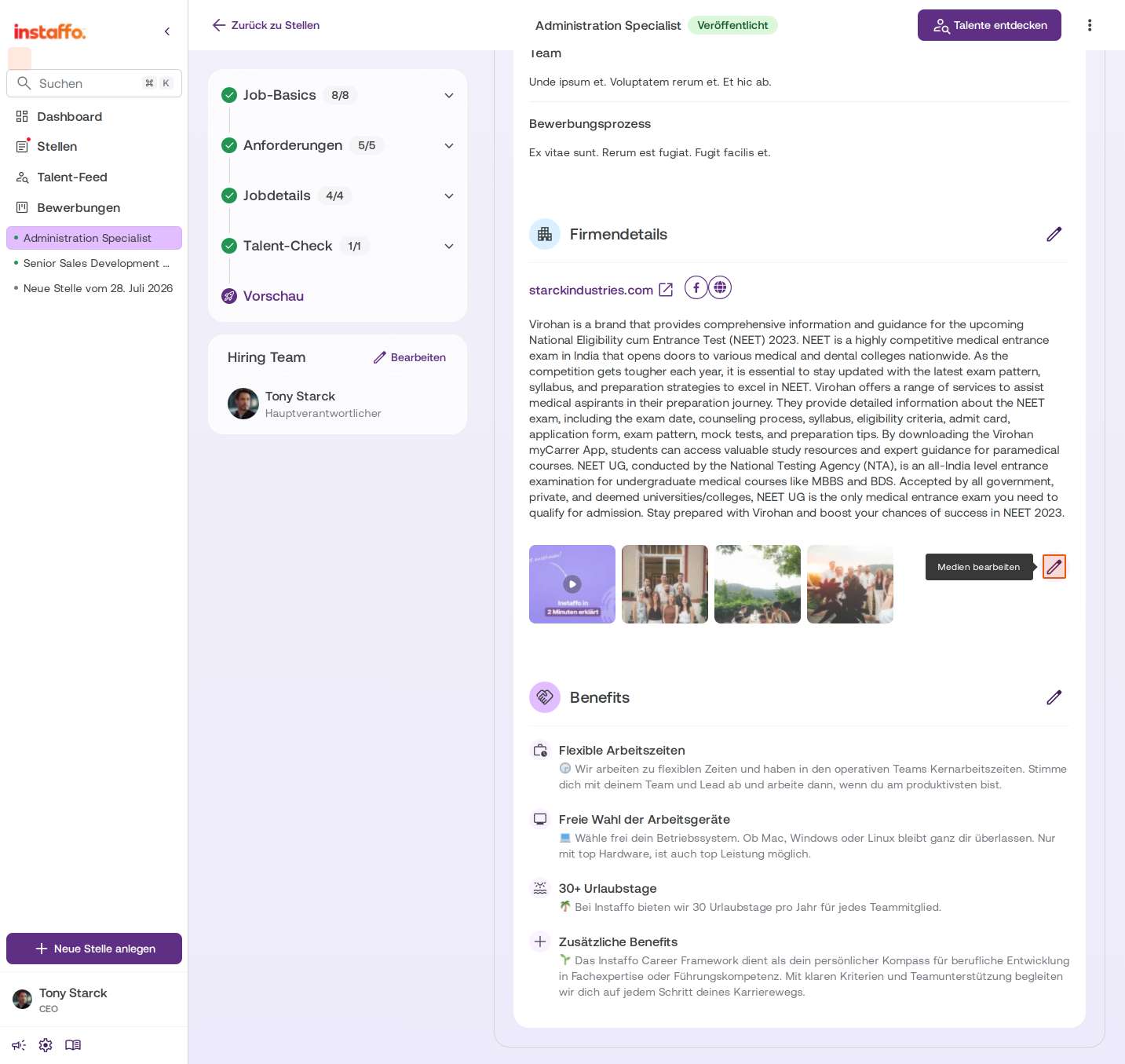
The information from your company profile - videos, images, text, and links - will be displayed in every job listing under Company Details. Navigate to Job Listings in the left sidebar and select an active job listing to see the preview. -
Edit media directly from the job listing preview
When you're viewing the preview of a job listing, you can also edit the media directly. Click Edit Media next to the images in the Company Details section. This way, you don't always have to go back to your profile settings.
Your company profile is now fully set up and will be presented to talent in your job listings.
 Powered by happysupport.ai