
What's the difference between a team member and a reviewer?
Invite team members with administrator or employee roles and request feedback from external reviewers in Instaffo without requiring accounts.
In this article, you'll learn about the different roles in Instaffo and how team members differ from reviewers. You'll also learn how to invite team members, assign roles, and request feedback from reviewers.

Overview of the roles
Instaffo has several different roles:
- Teammitglieder:
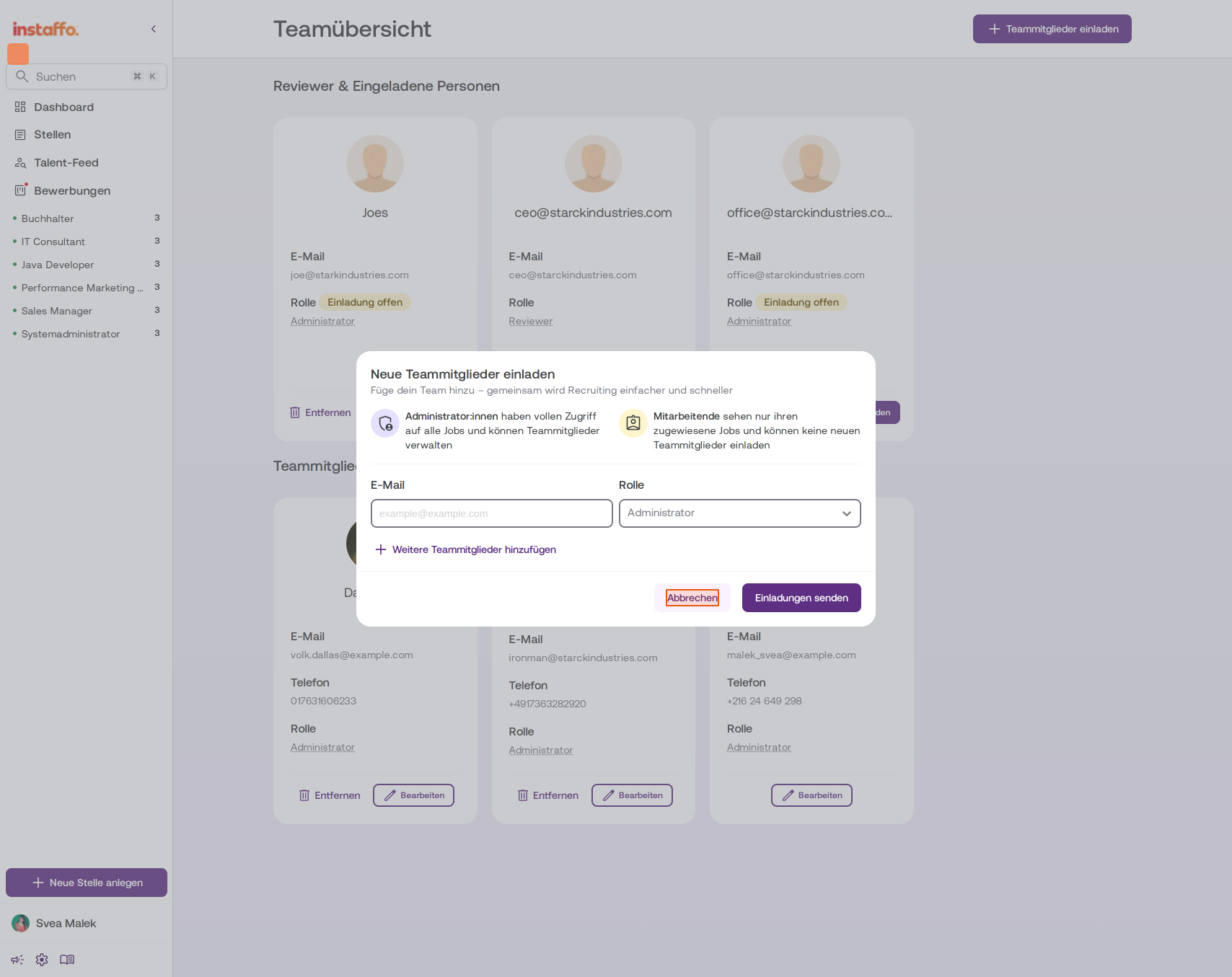
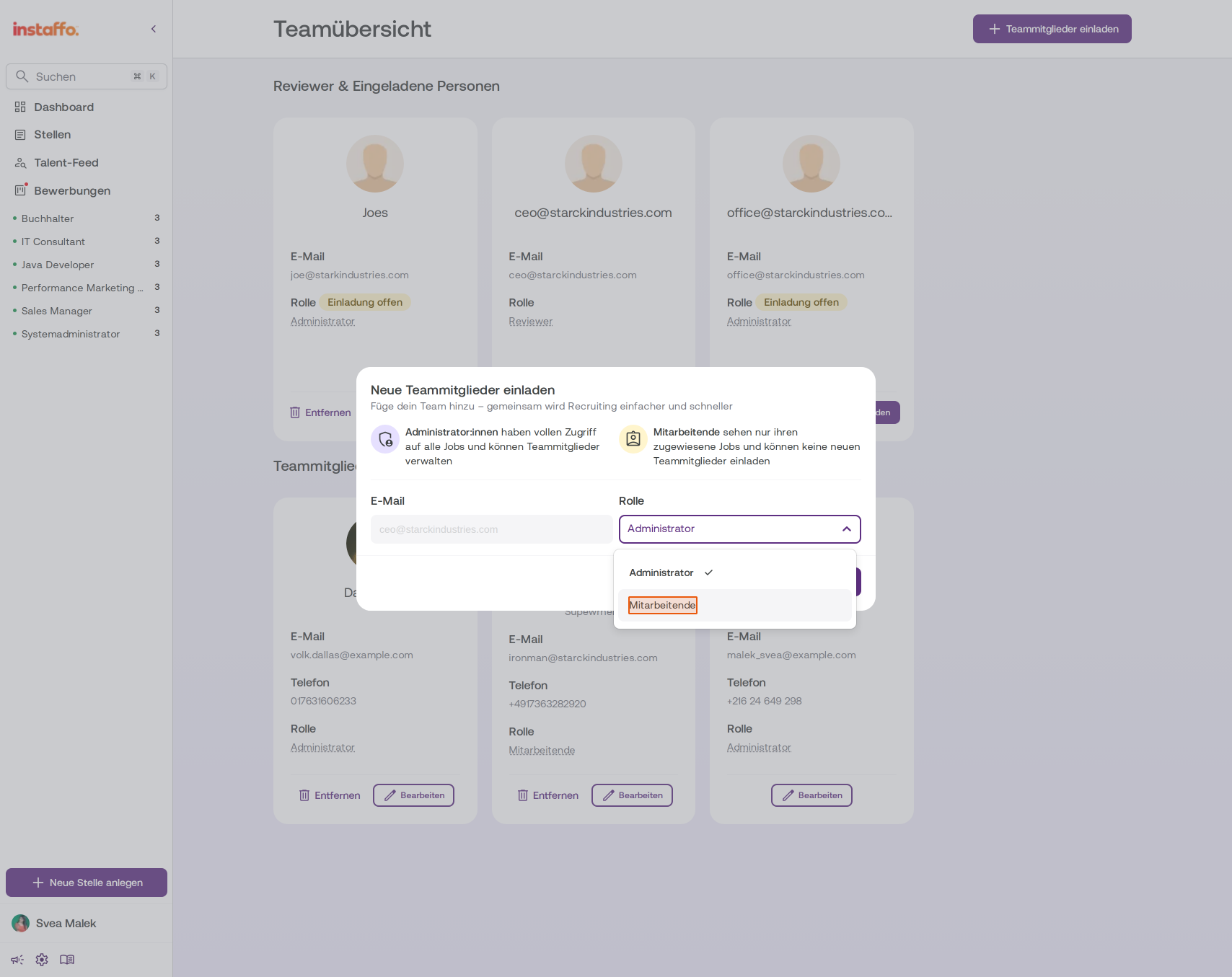
- Administrator:innen: Have full access to all jobs and can invite and manage team members.
- Mitarbeitende: Can only access the jobs they're assigned to. They can't invite other employees, but they can still edit company details. If someone asks you for feedback on a candidate, you'll automatically be added to the hiring team for that job. You won't receive notifications, but you can turn them on yourself.
- Find out how to invite team members
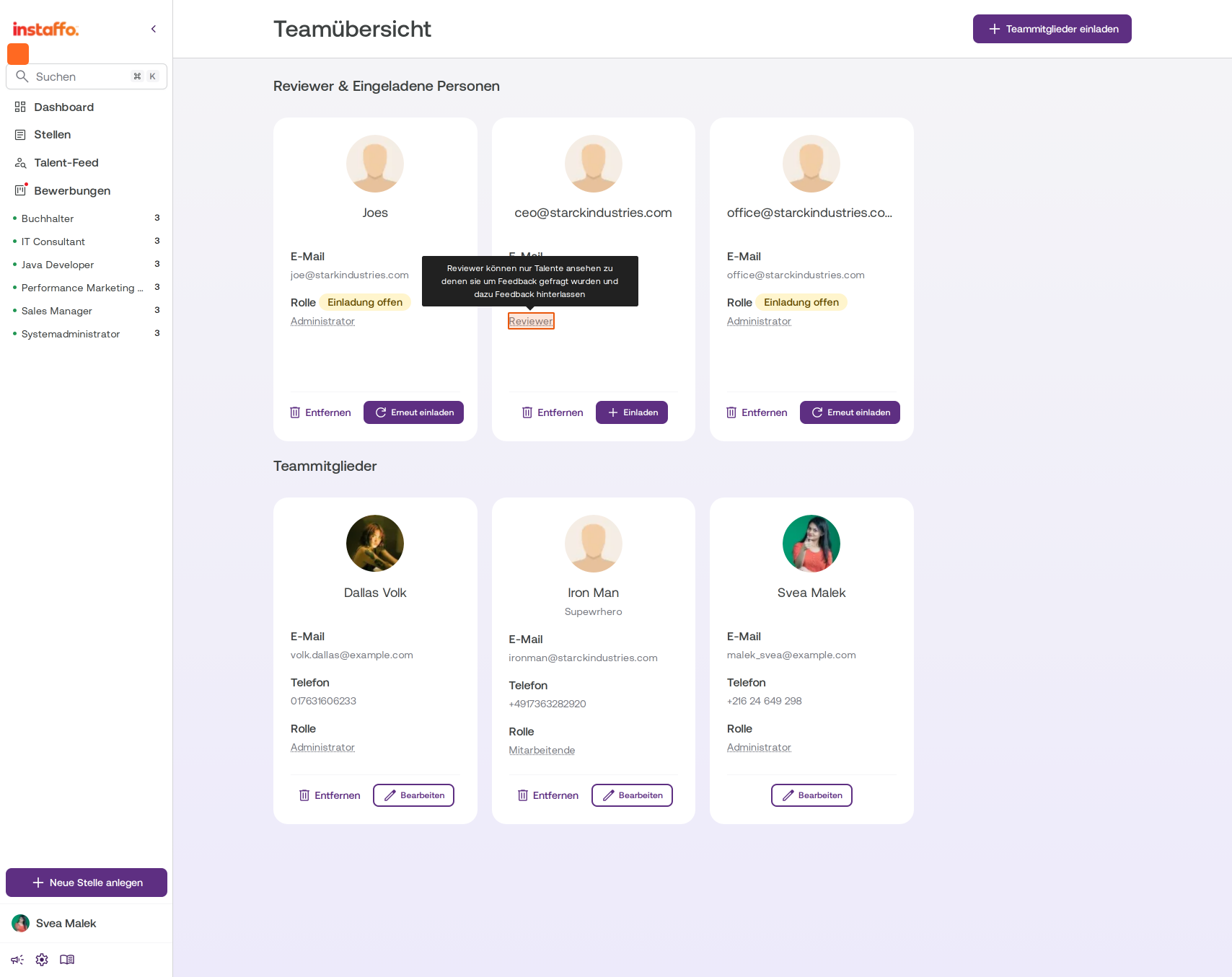
- Reviewer: Can only view candidates they've been asked to provide feedback on and can leave feedback. They don't have their own login.
Change a team member's role
-
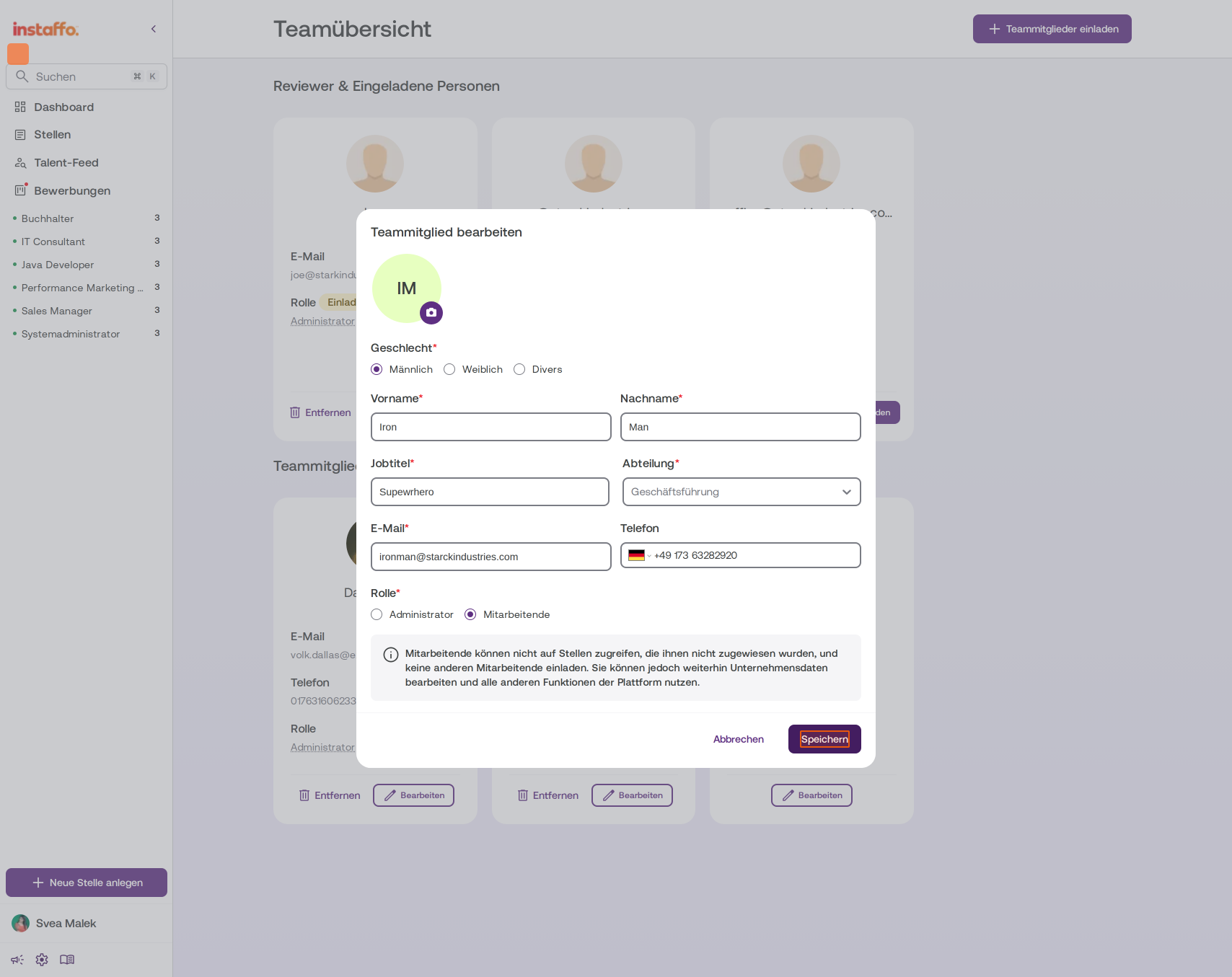
Open the edit dialog
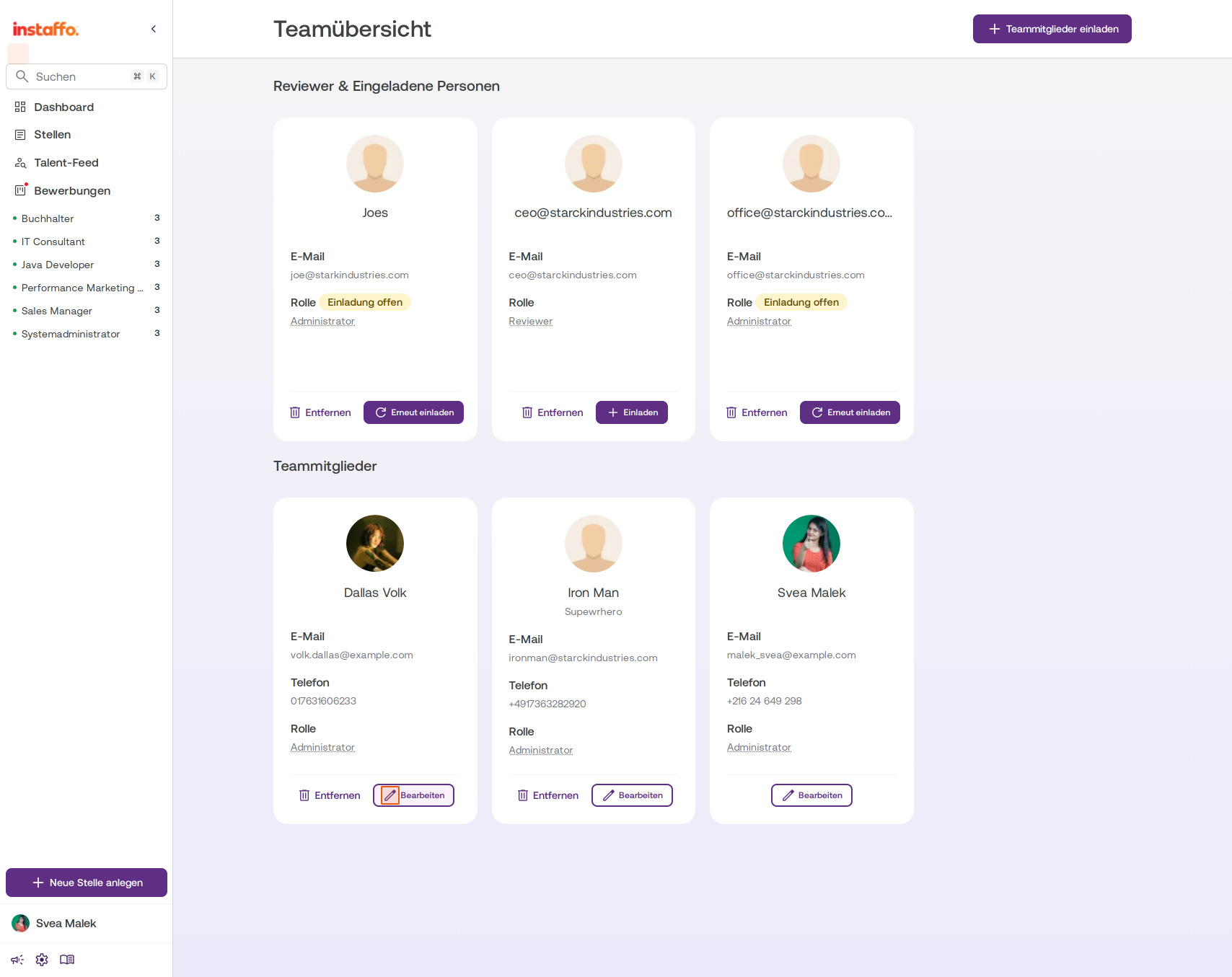
On the team overview, under Teammitglieder, click Bearbeiten next to the team member you want to update. -
Adjust the role
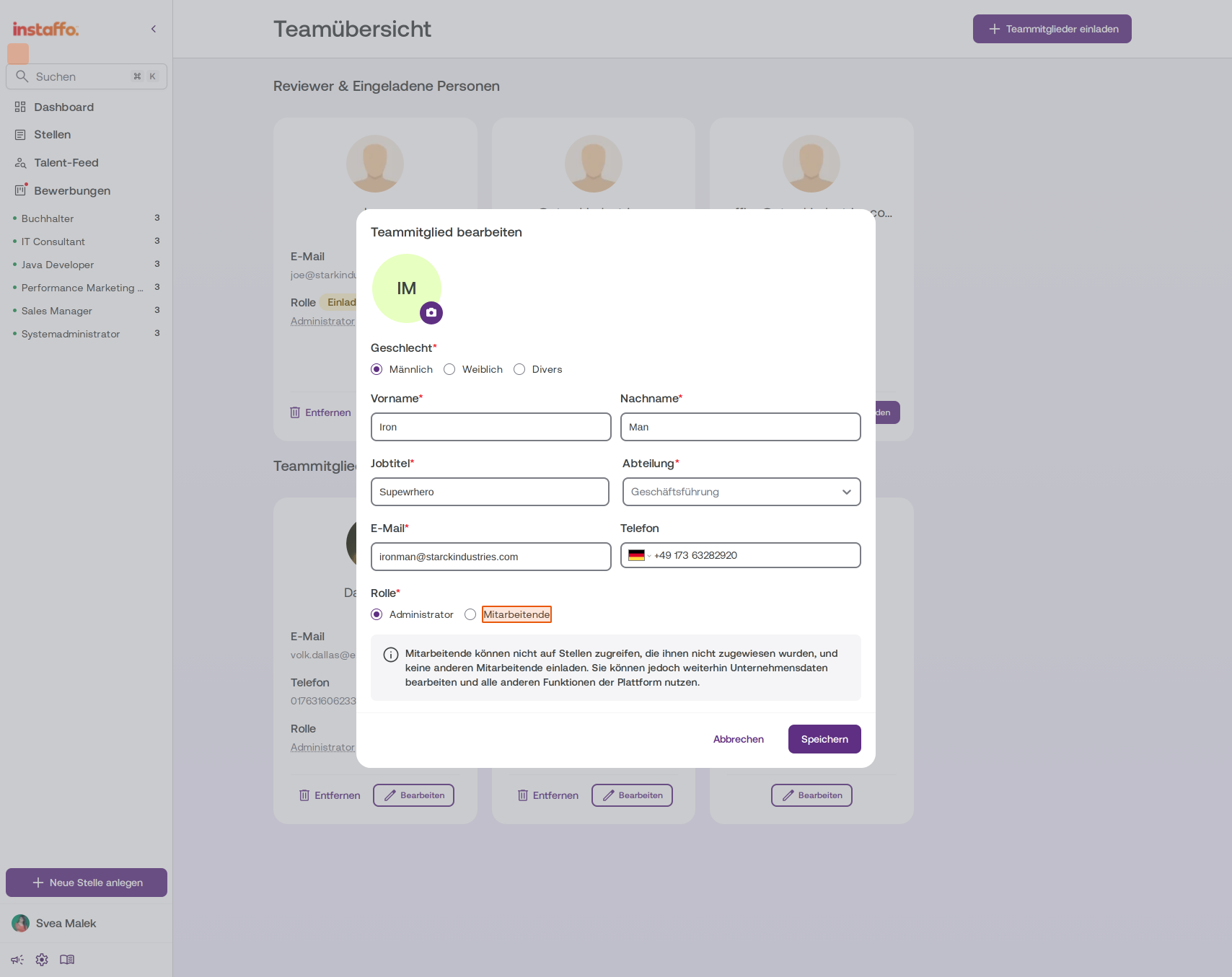
In the edit dialog, find the Rolle section. Choose between Administrator and Mitarbeitende. -
Save your changes
Click Speichern to apply the new role.
Request feedback from reviewers
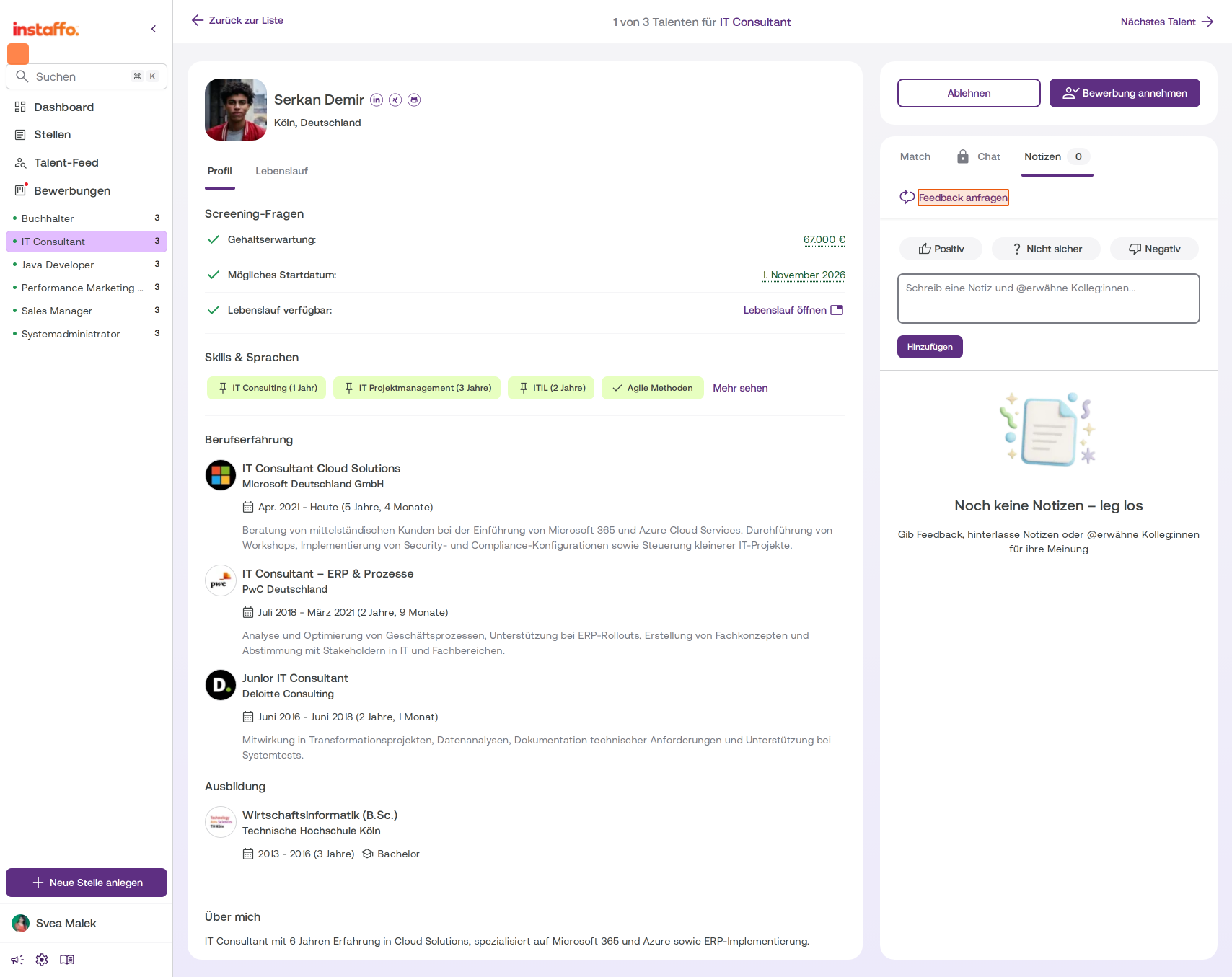
Reviewers are people who don't have their own Instaffo account. They'll receive a notification when you request feedback and can then view the application and provide feedback on a public page. This is especially useful if, for example, you need feedback from the hiring manager but don't want to create an account for them.
-
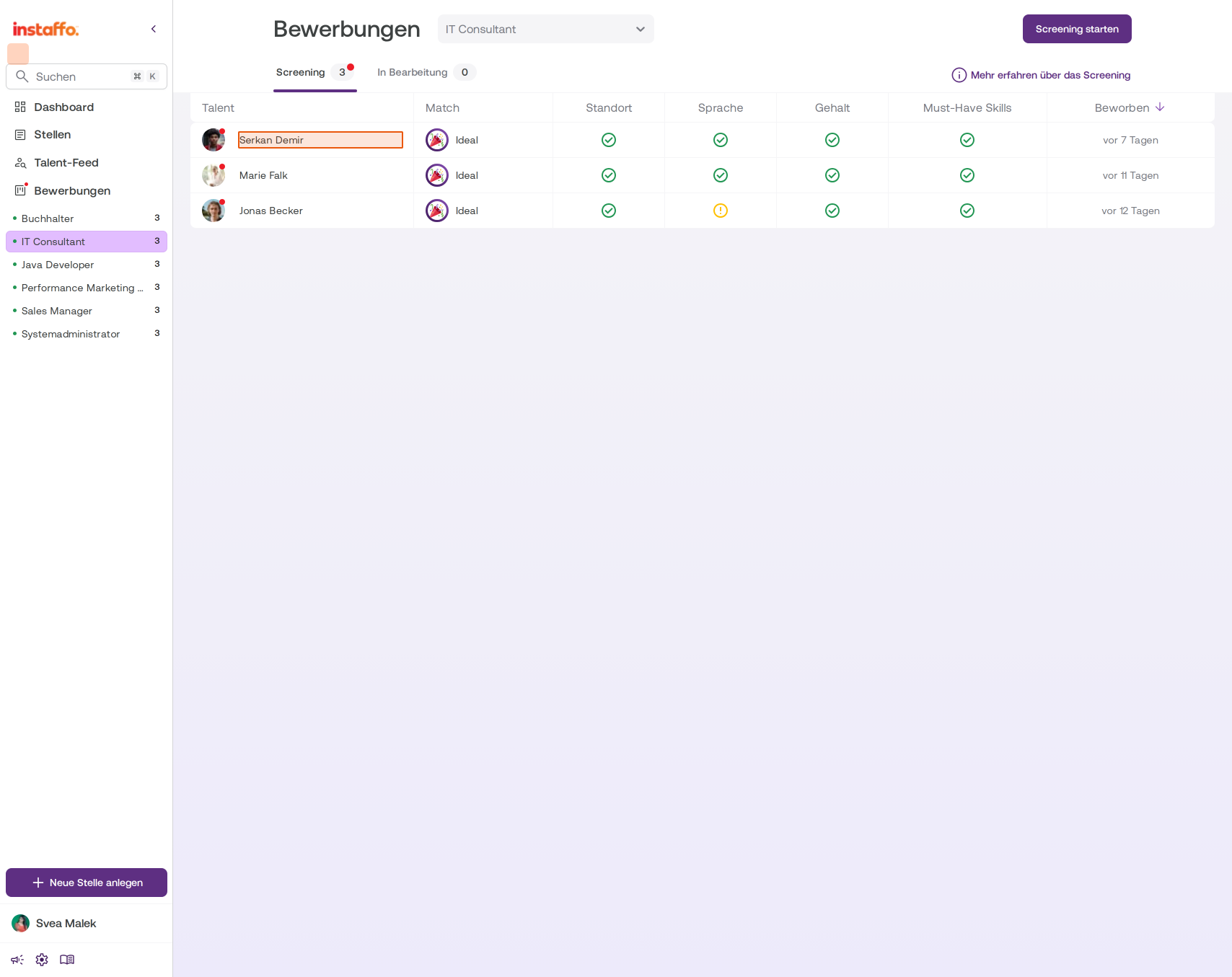
Open the application
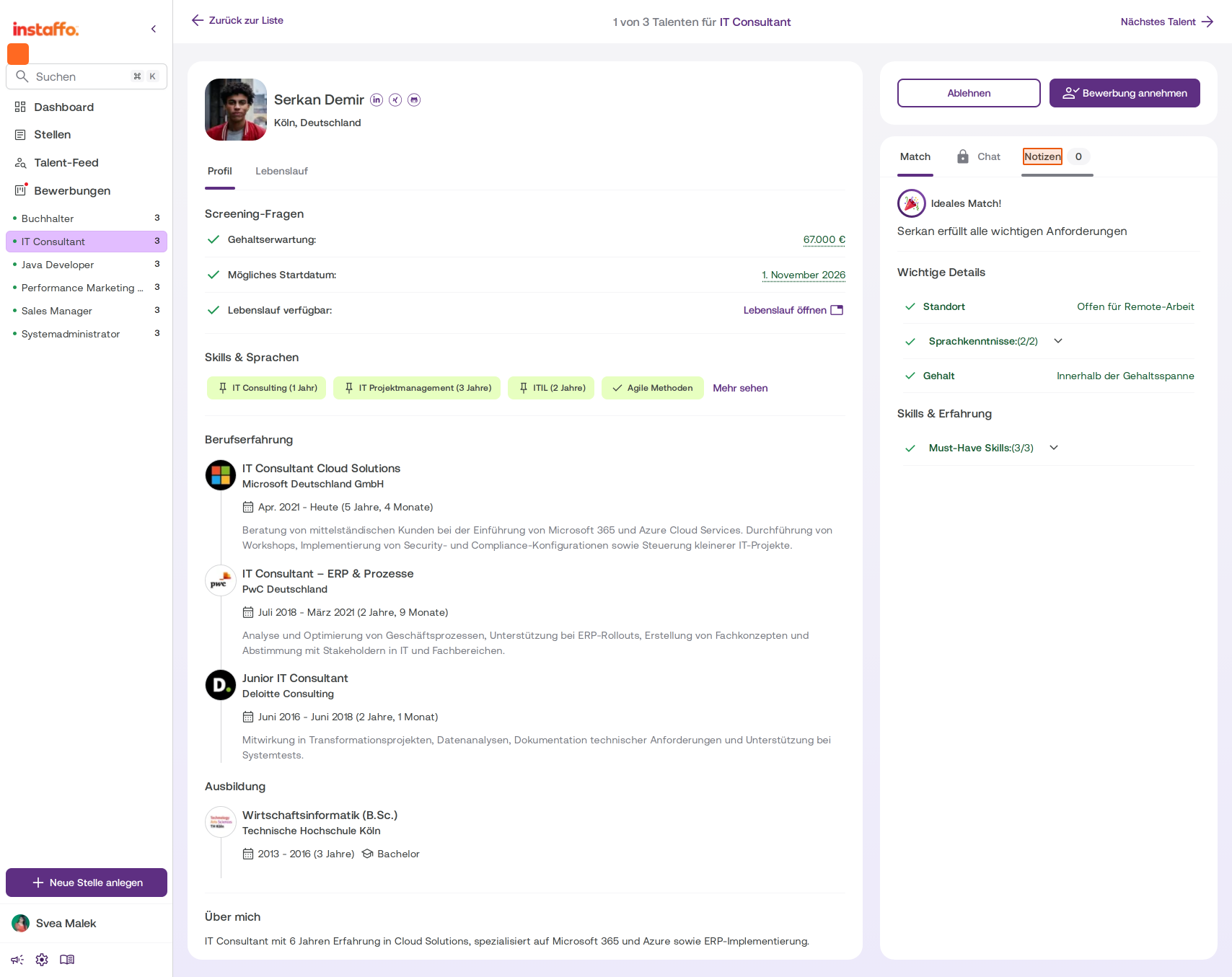
Go to Bewerbungen and select a job from the sidebar. Then click a candidate to open their profile. -
Start a feedback request
In the panel on the right, go to the Notizen tab and click Feedback anfragen.
-
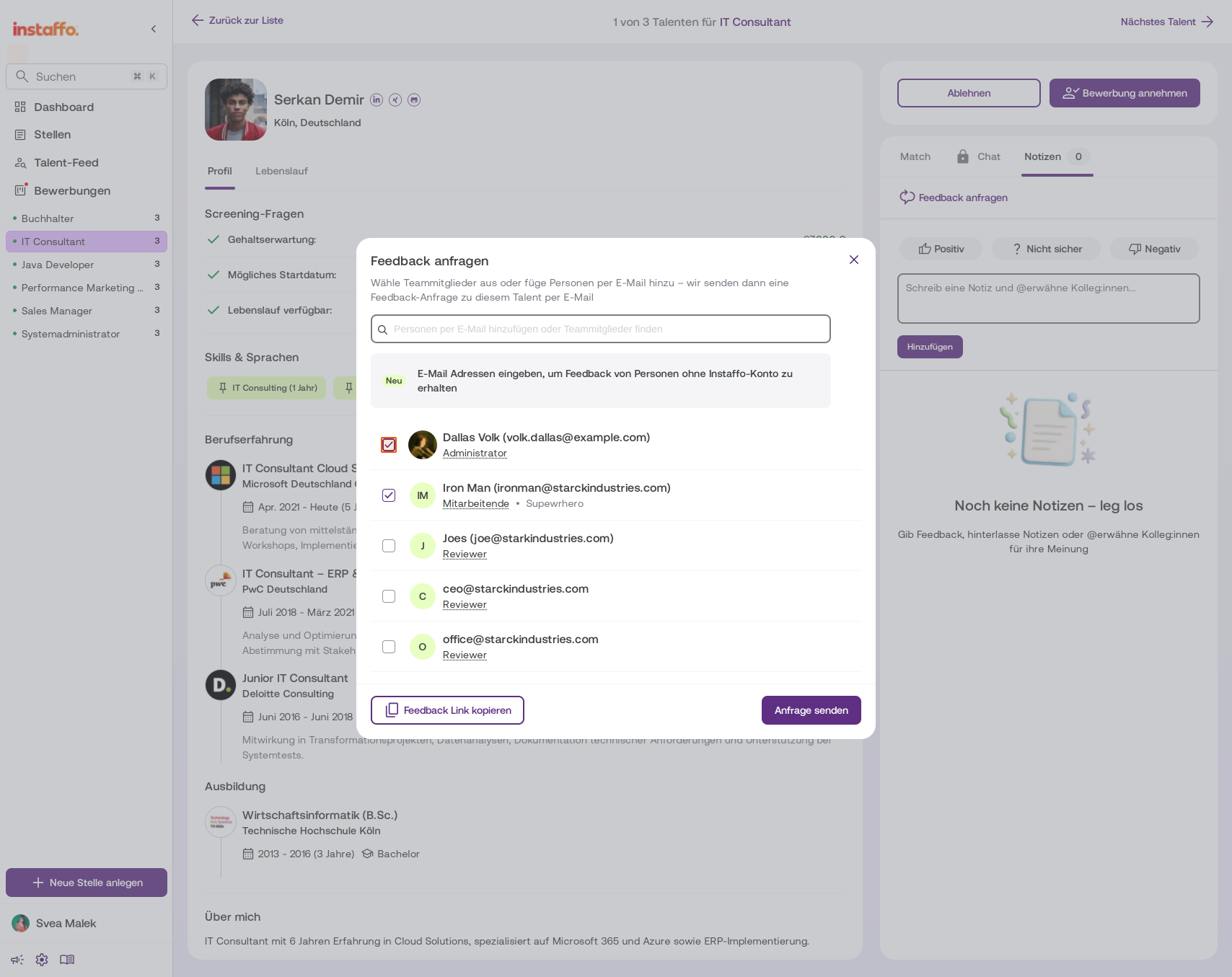
Select recipients
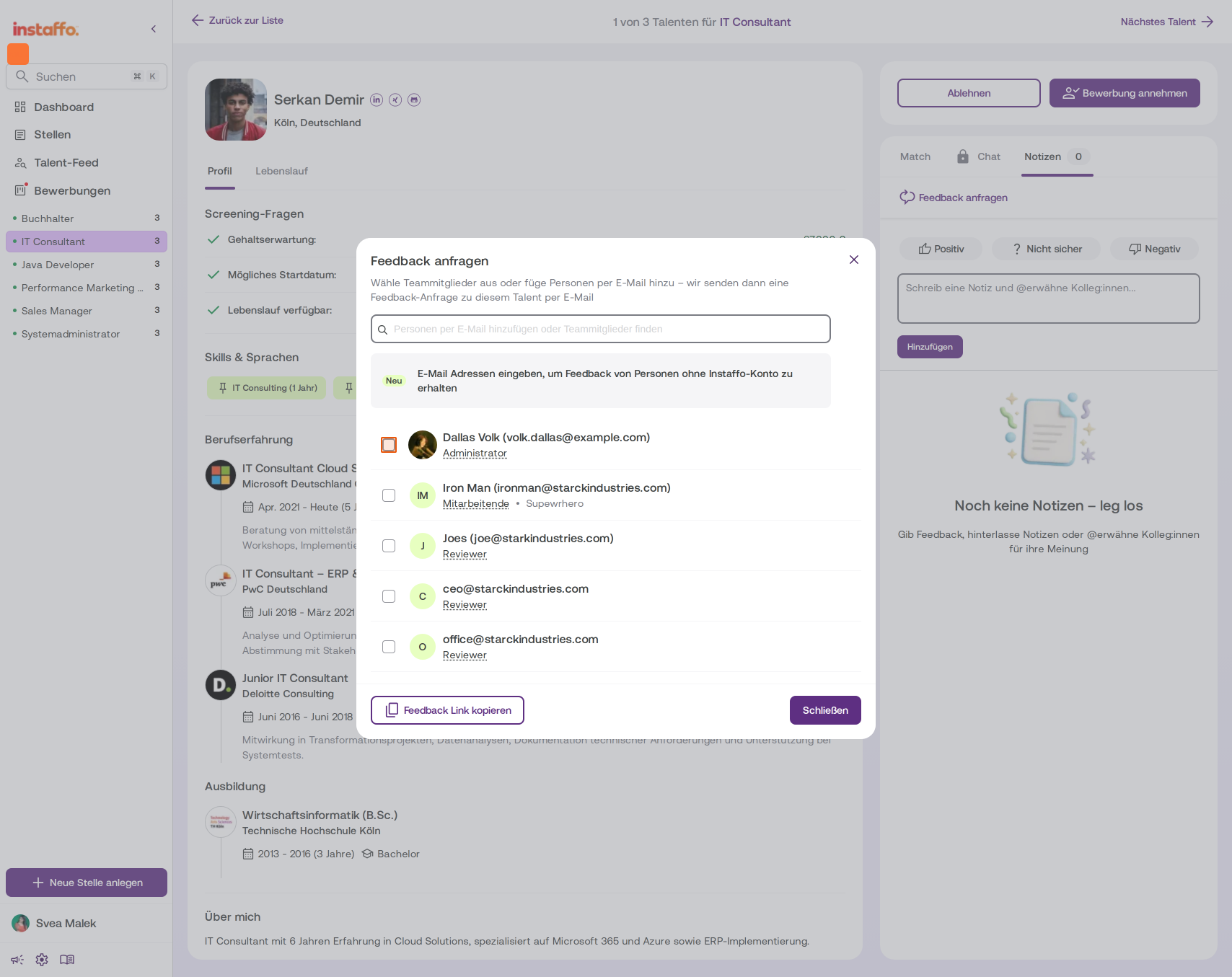
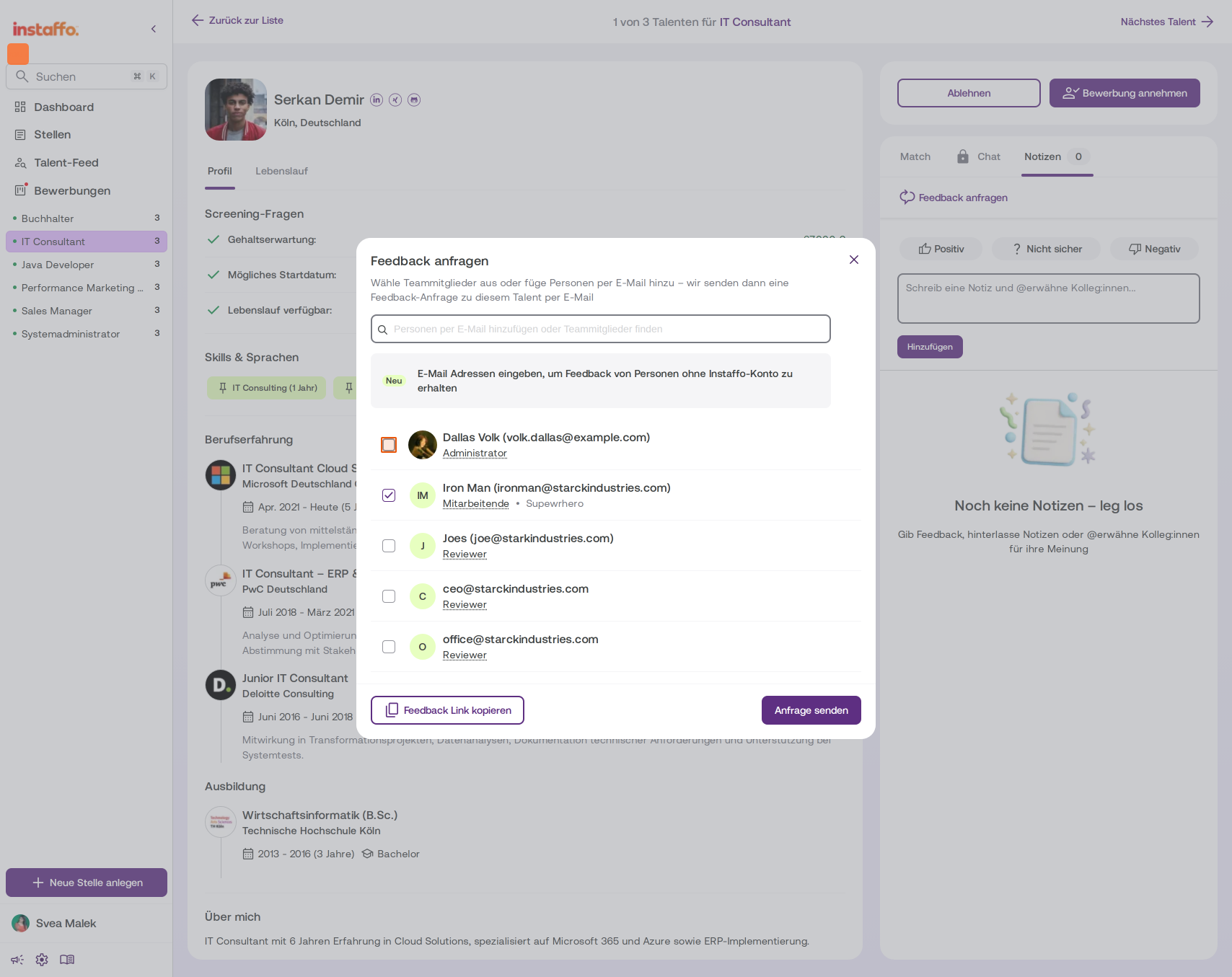
In the Feedback anfragen dialog, you can select team members using the checkboxes. Both administrators and employees can provide feedback. You can also enter the email addresses of people who don't have an Instaffo account. They'll be added as reviewers. -
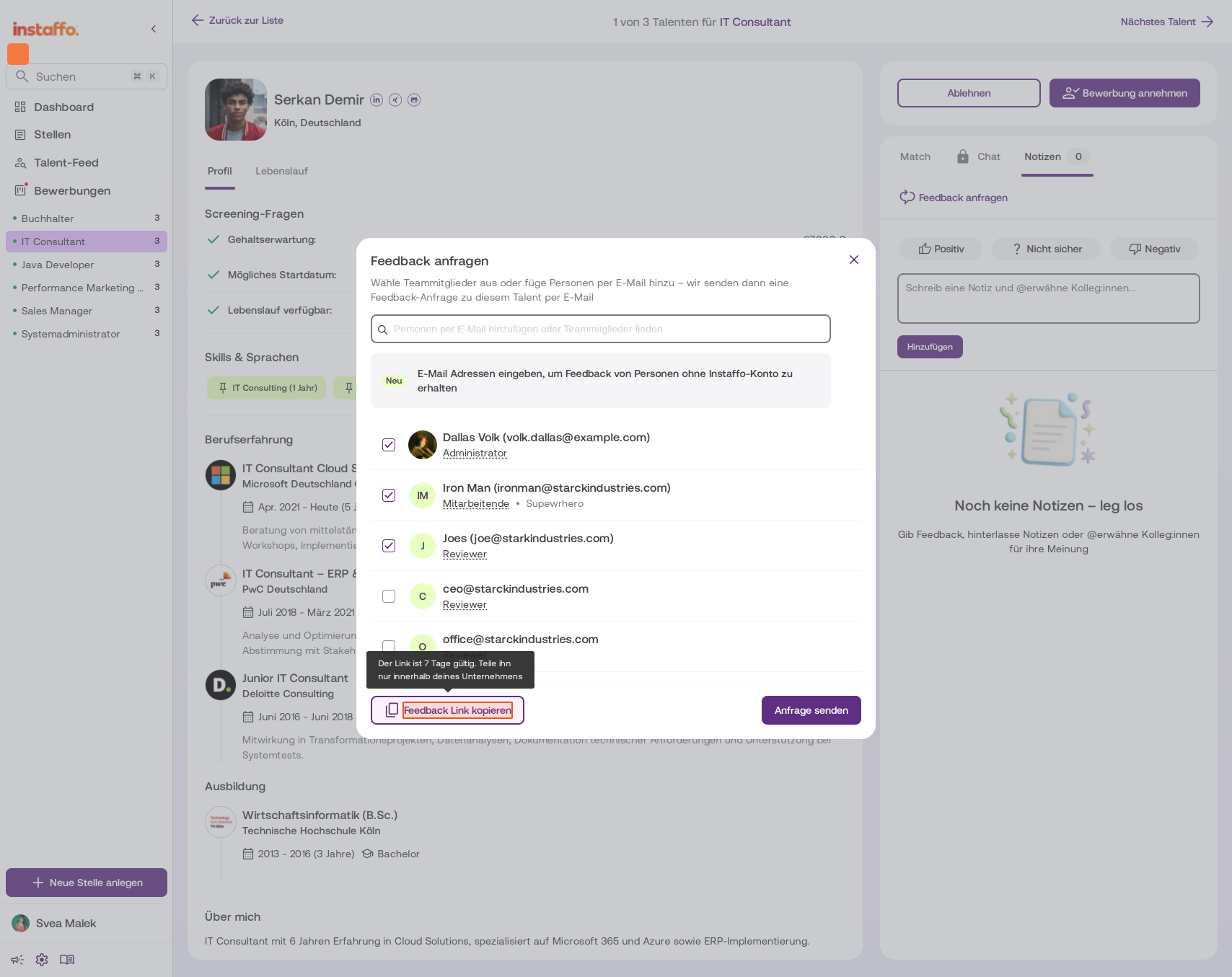
Share the feedback link or send a request
You have two options:- Feedback-Link kopieren: The link is valid for 7 days and can be shared within your company.
- Anfrage senden: Sends a direct email notification to the selected people.
-
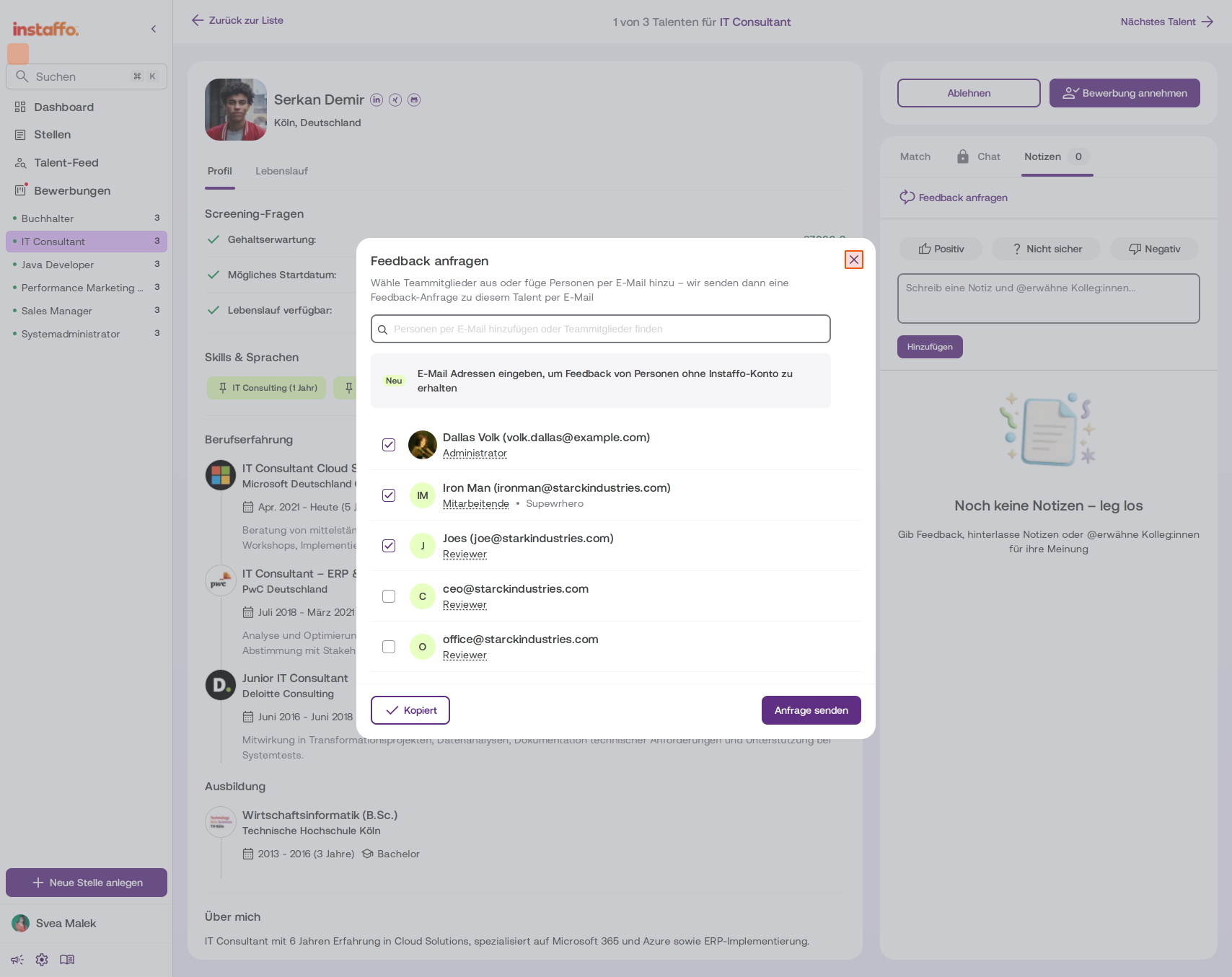
Close the dialog
Click the X in the top-right corner of the dialog to close it.
Add reviewers to your team
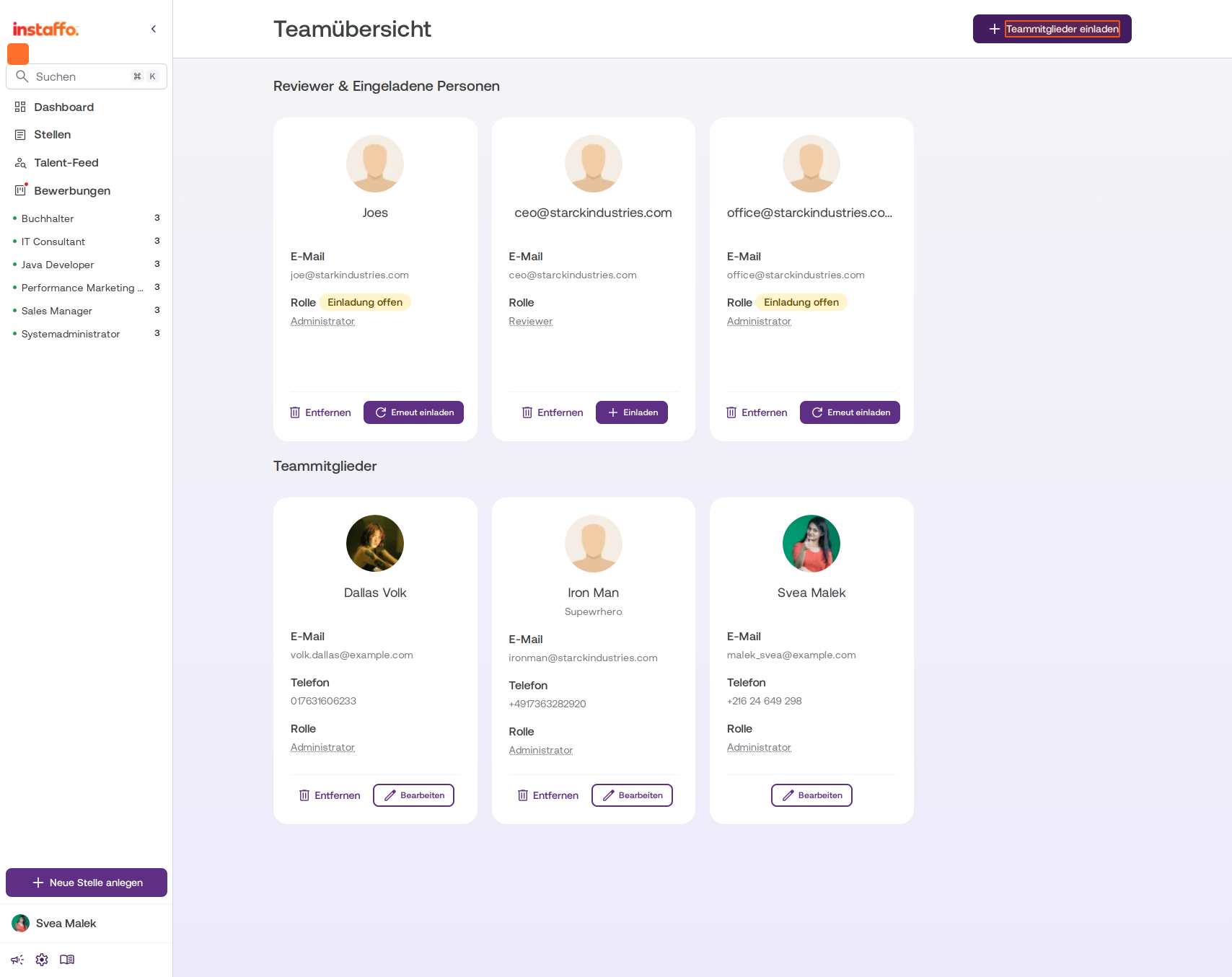
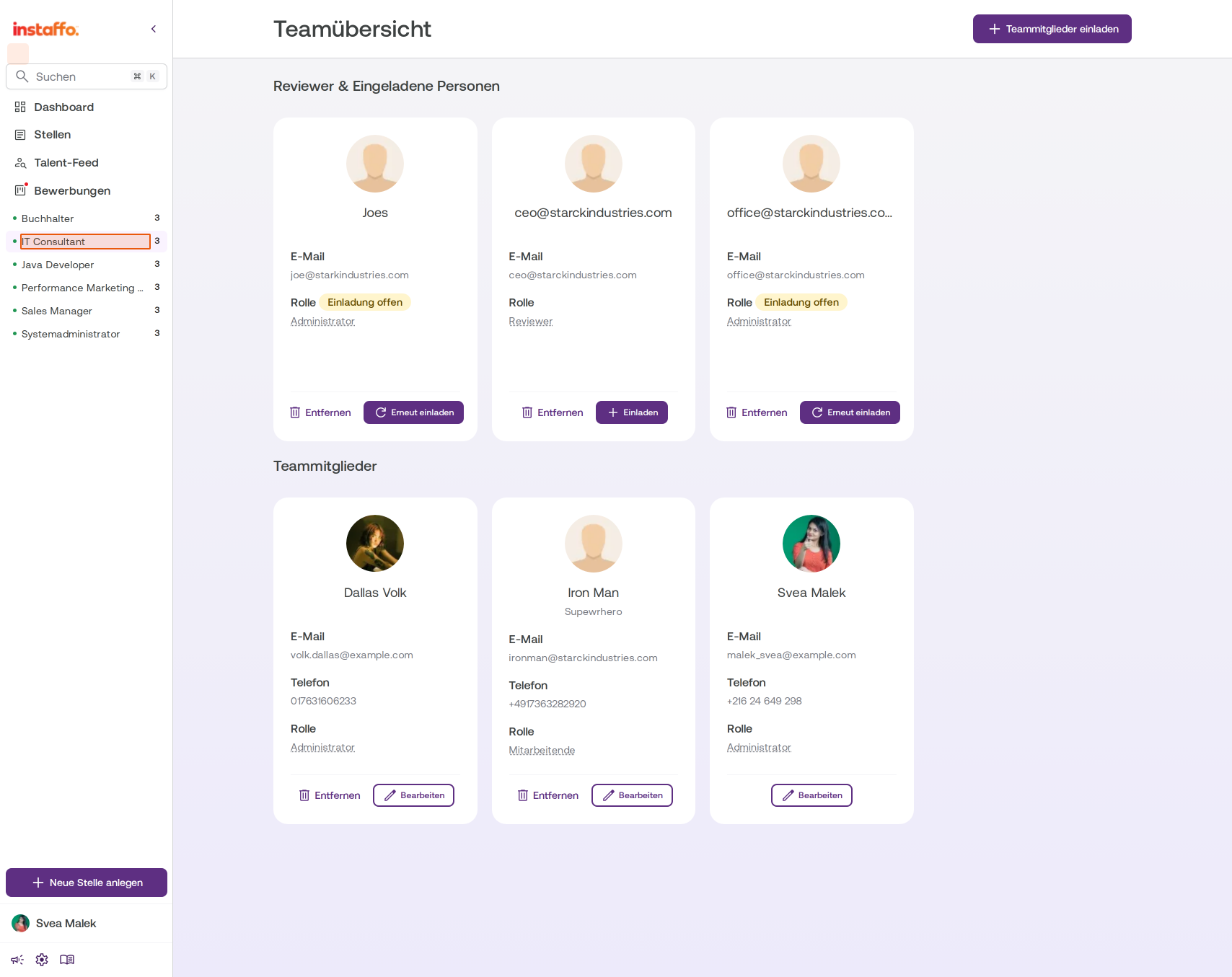
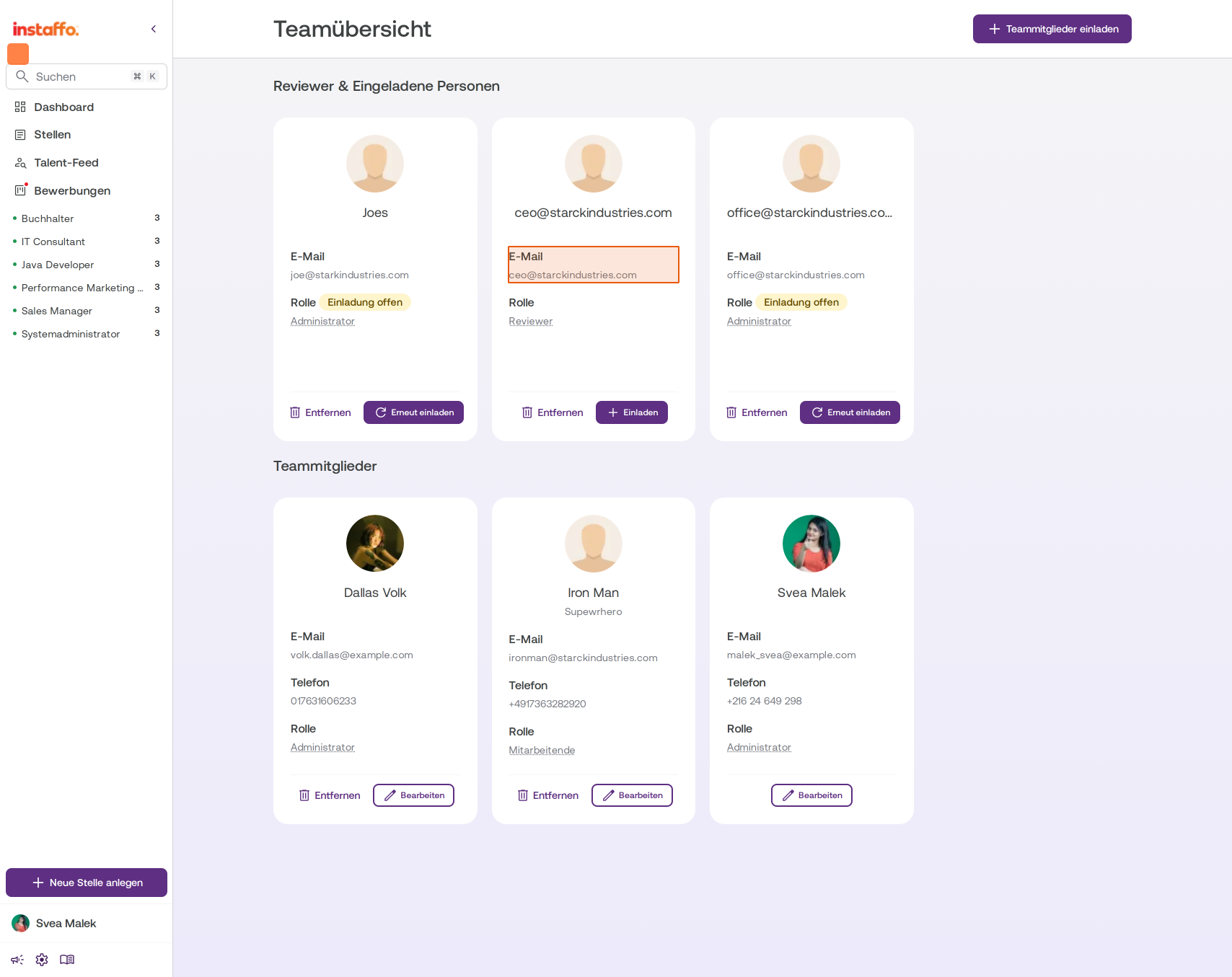
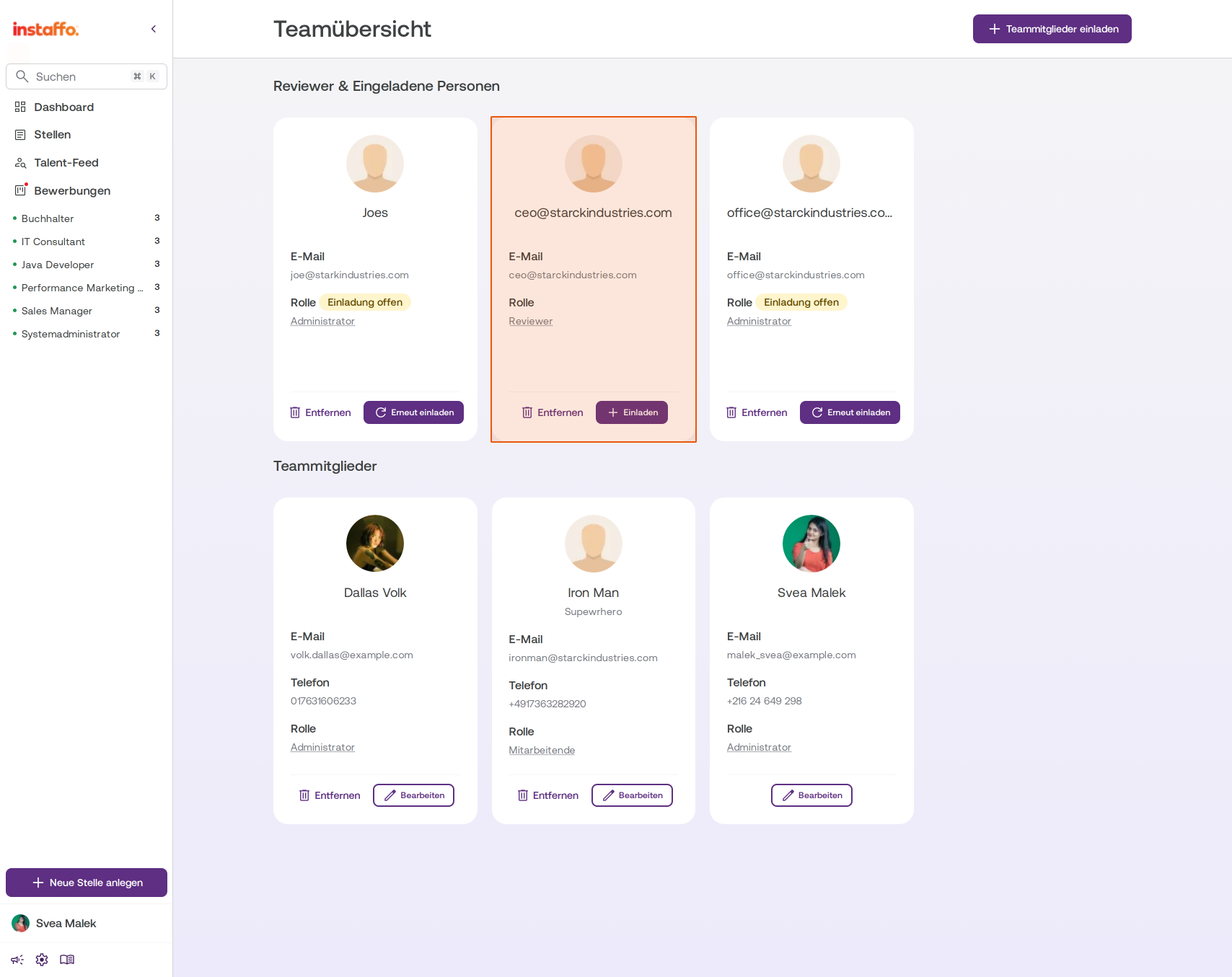
If you've added someone as a reviewer through a feedback request, they'll appear under Reviewer & Eingeladene Personen on the team overview.
-
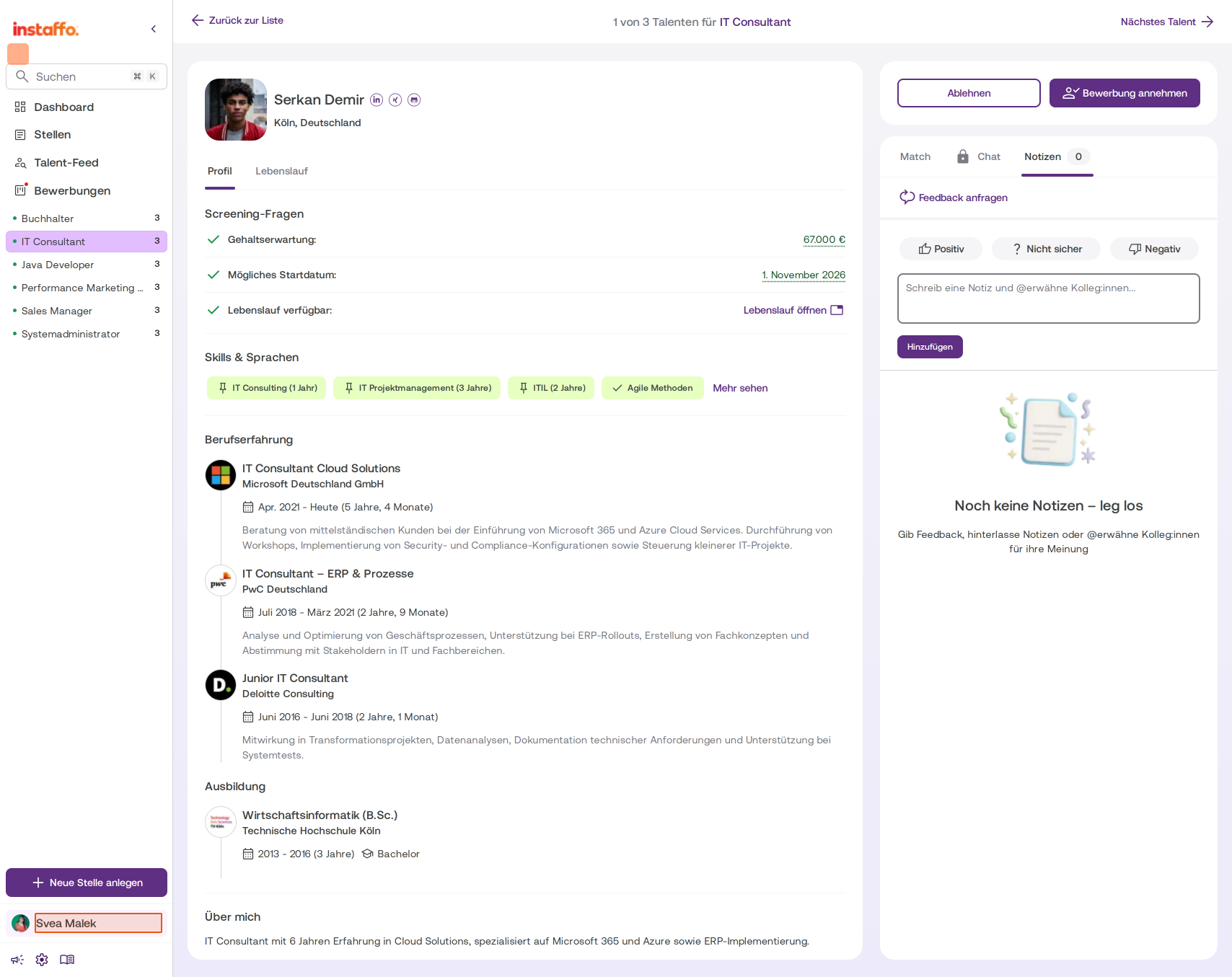
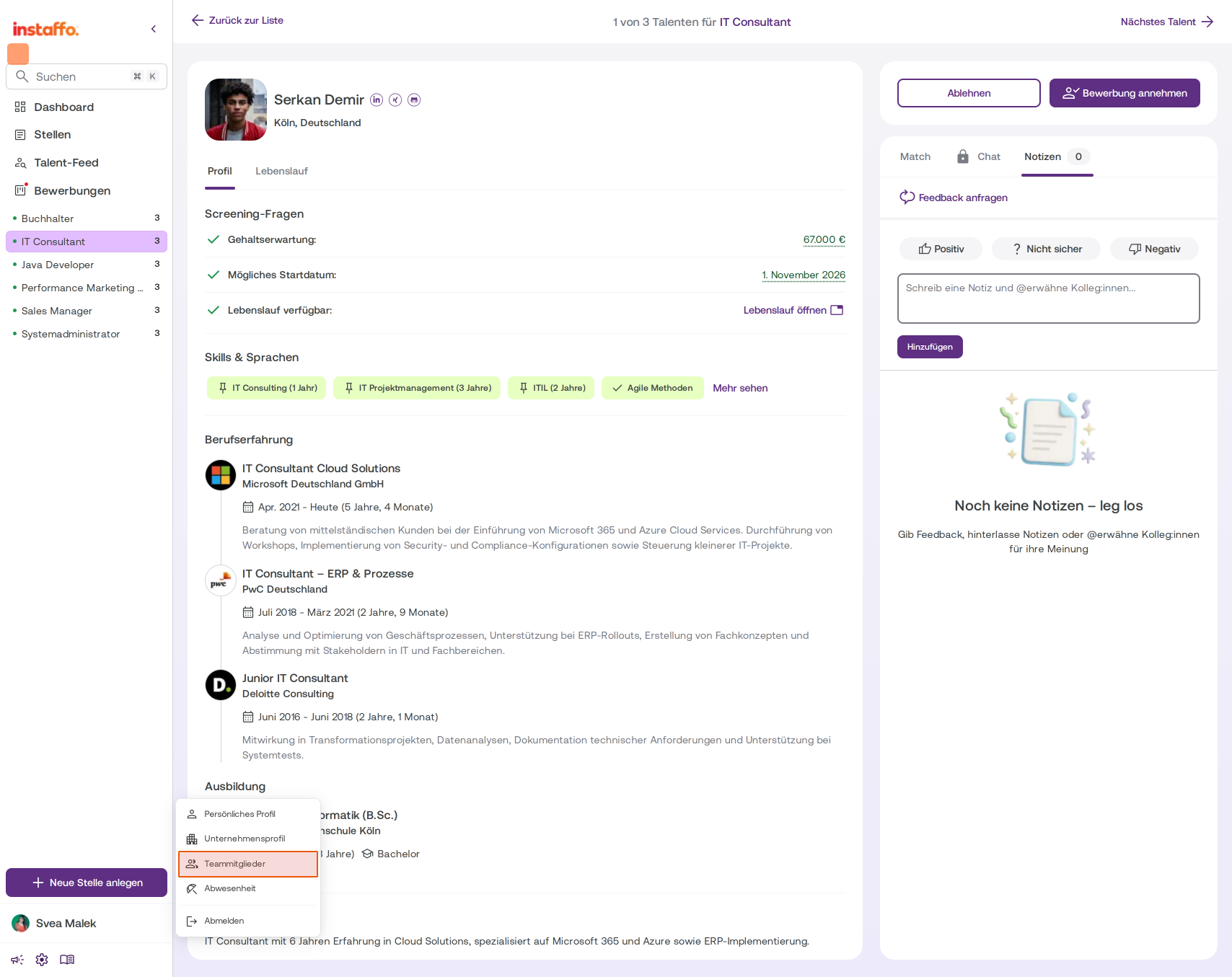
Find the reviewer
Open the Teamübersicht from the user menu at the bottom left of the sidebar. Click your name, then select Teammitglieder. -
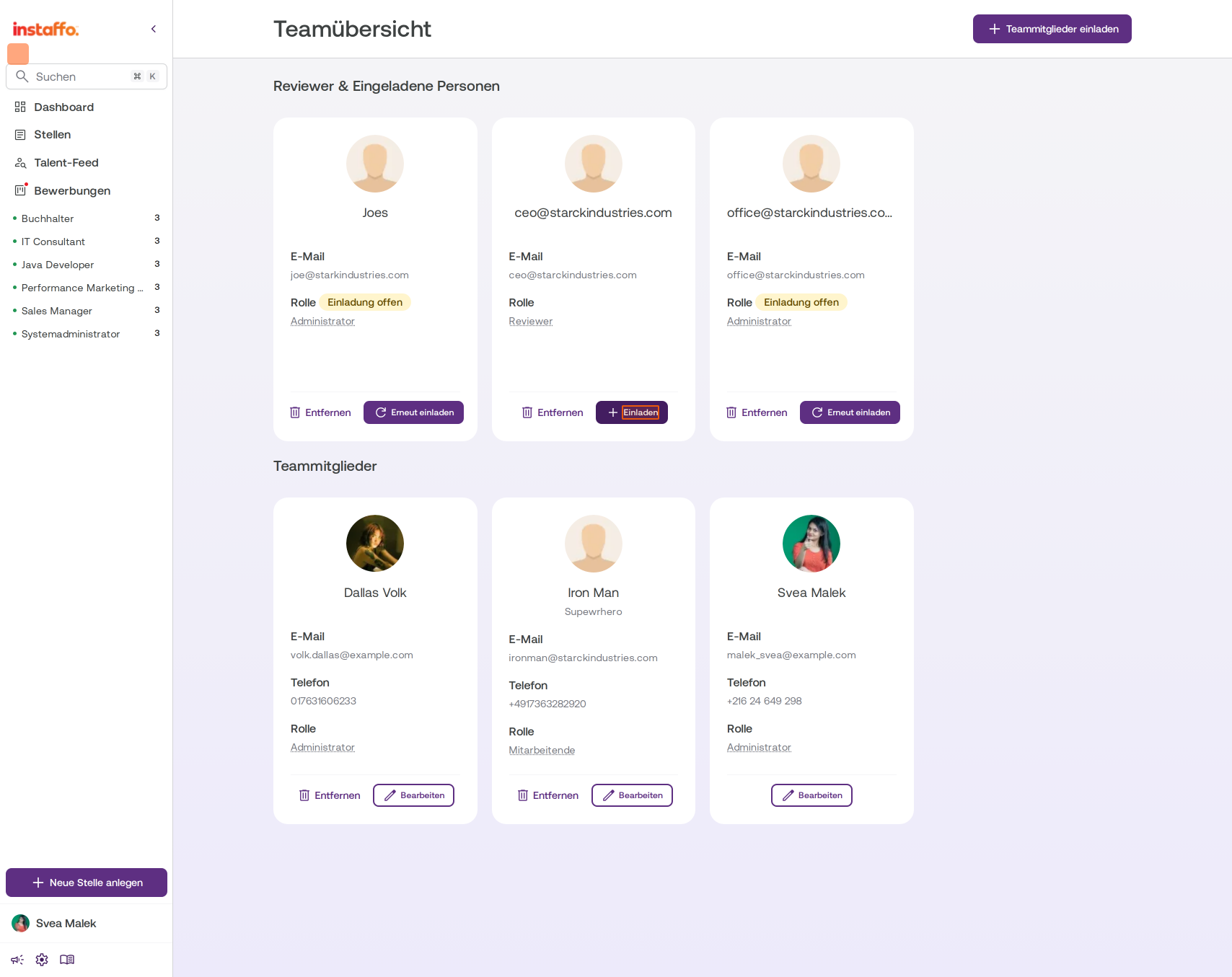
Invite them to the team
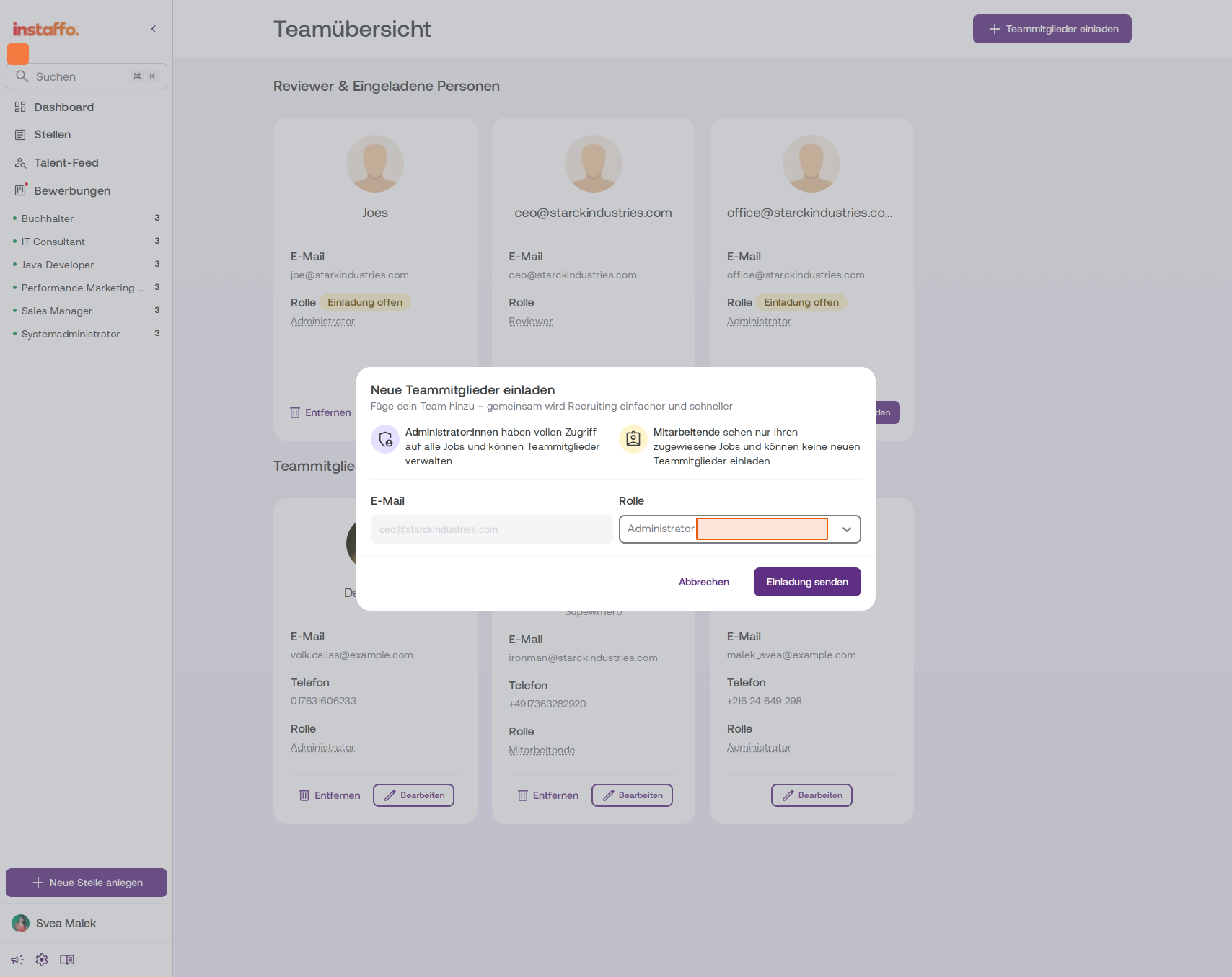
Reviewer cards have an Einladen button. Click it to open the invitation dialog. -
Choose a role and send the invitation
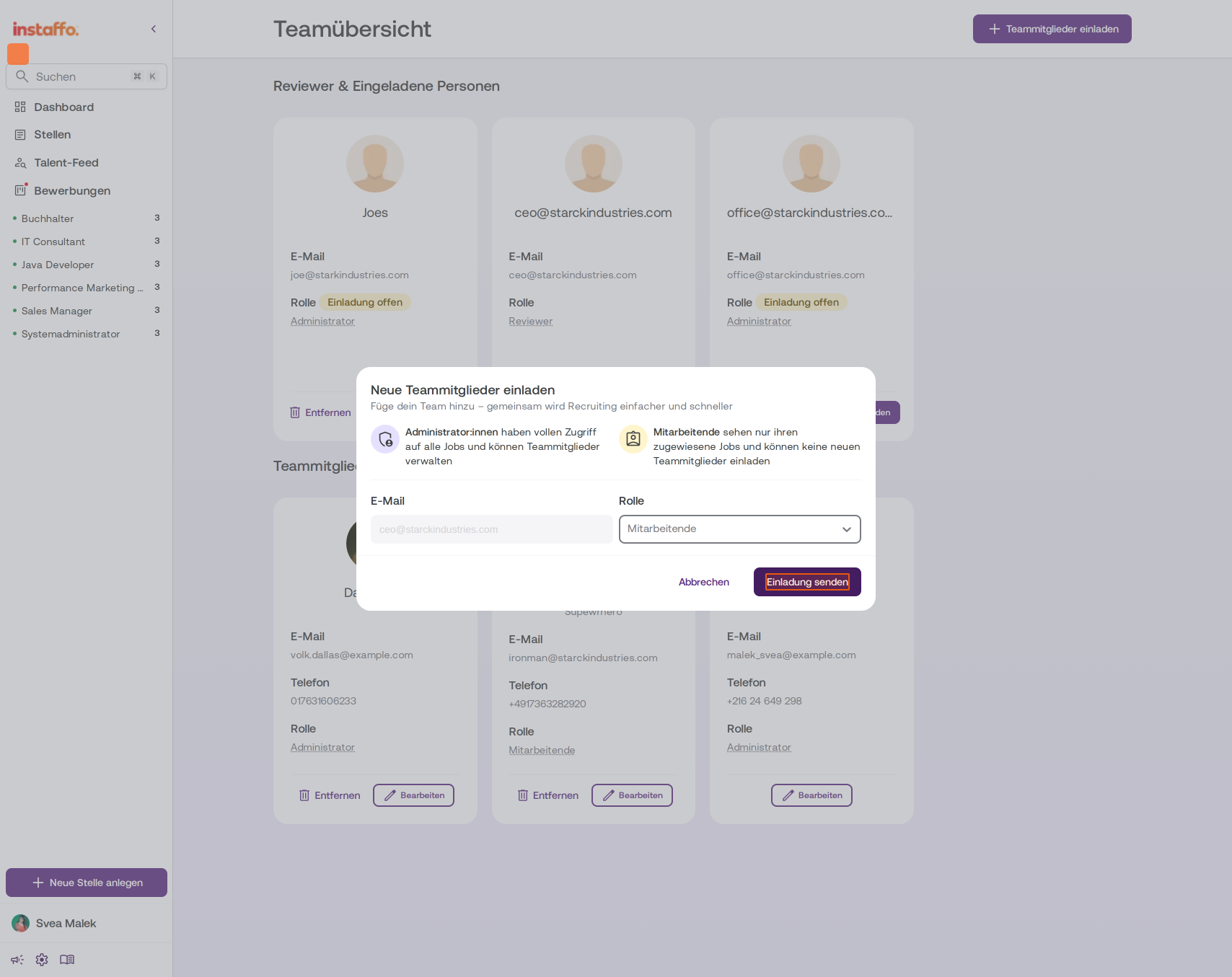
Select the role you want (Administrator or Mitarbeitende) from the dropdown, then click Einladung senden.
The key difference is that team members (administrators and employees) have their own accounts and can access applications depending on their role. Reviewers don't have their own login and can only access individual applications through feedback requests or the feedback link.
 Powered by happysupport.ai