
Activate Your Business Account
Activate your business account by setting a password, uploading your logo, and completing your company profile to start posting jobs
In this article, you'll learn how to activate and set up your business account with Instaffo. After completing these steps, you'll have set your password, completed your company profile, and be ready to create your first job posting.

Secure Your Account
-
Set Your Password
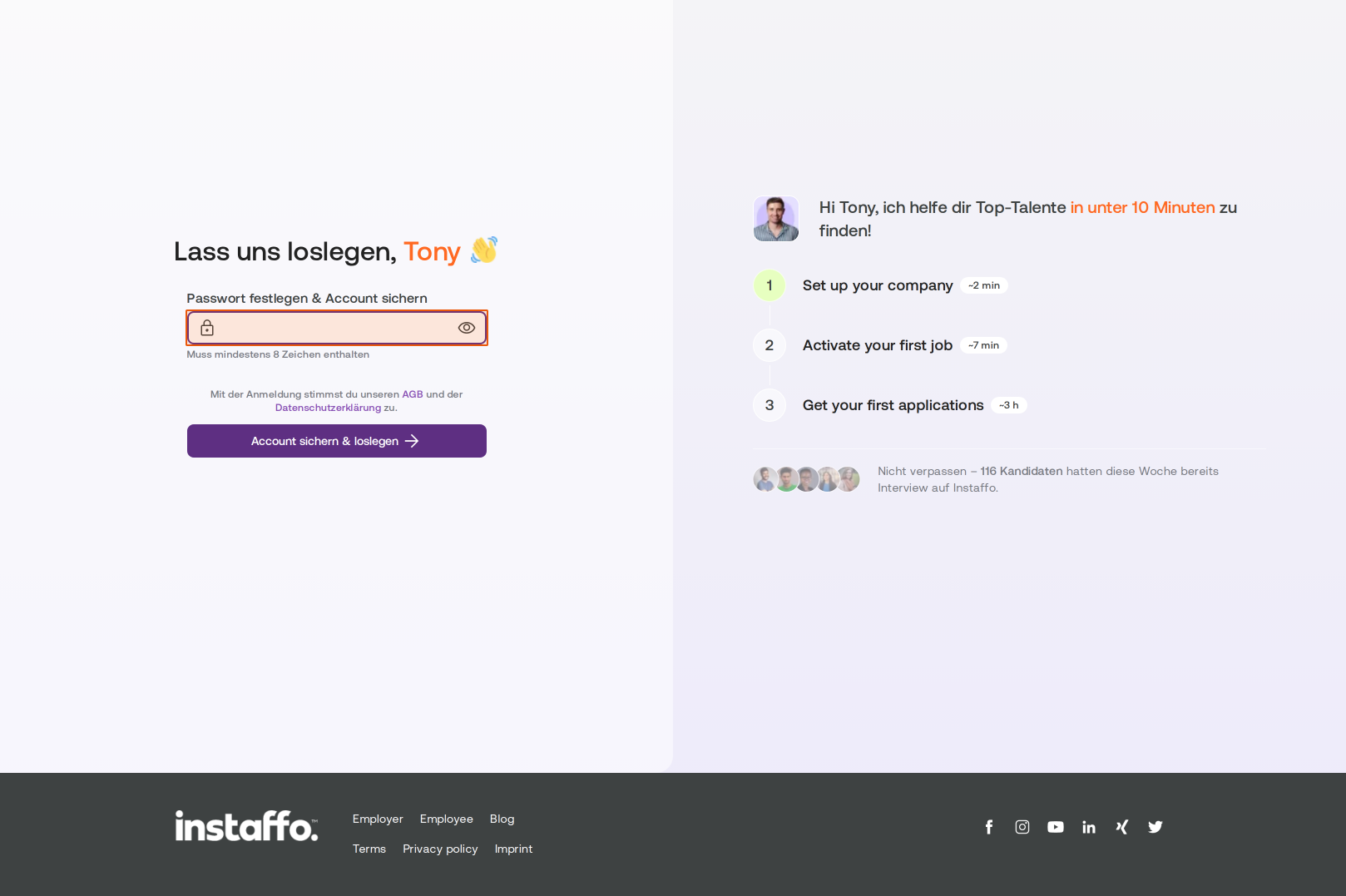
As a new company with Instaffo, you'll receive an activation link via email. When you click this link, your company onboarding will start. In the first step, you'll be asked to set a password. Click into the password field under "Set Password & Secure Account" and enter your desired password. Your password must contain at least 8 characters. You'll get a confirmation message saying "All set!" once your password meets the requirements. -
Confirm Your Account
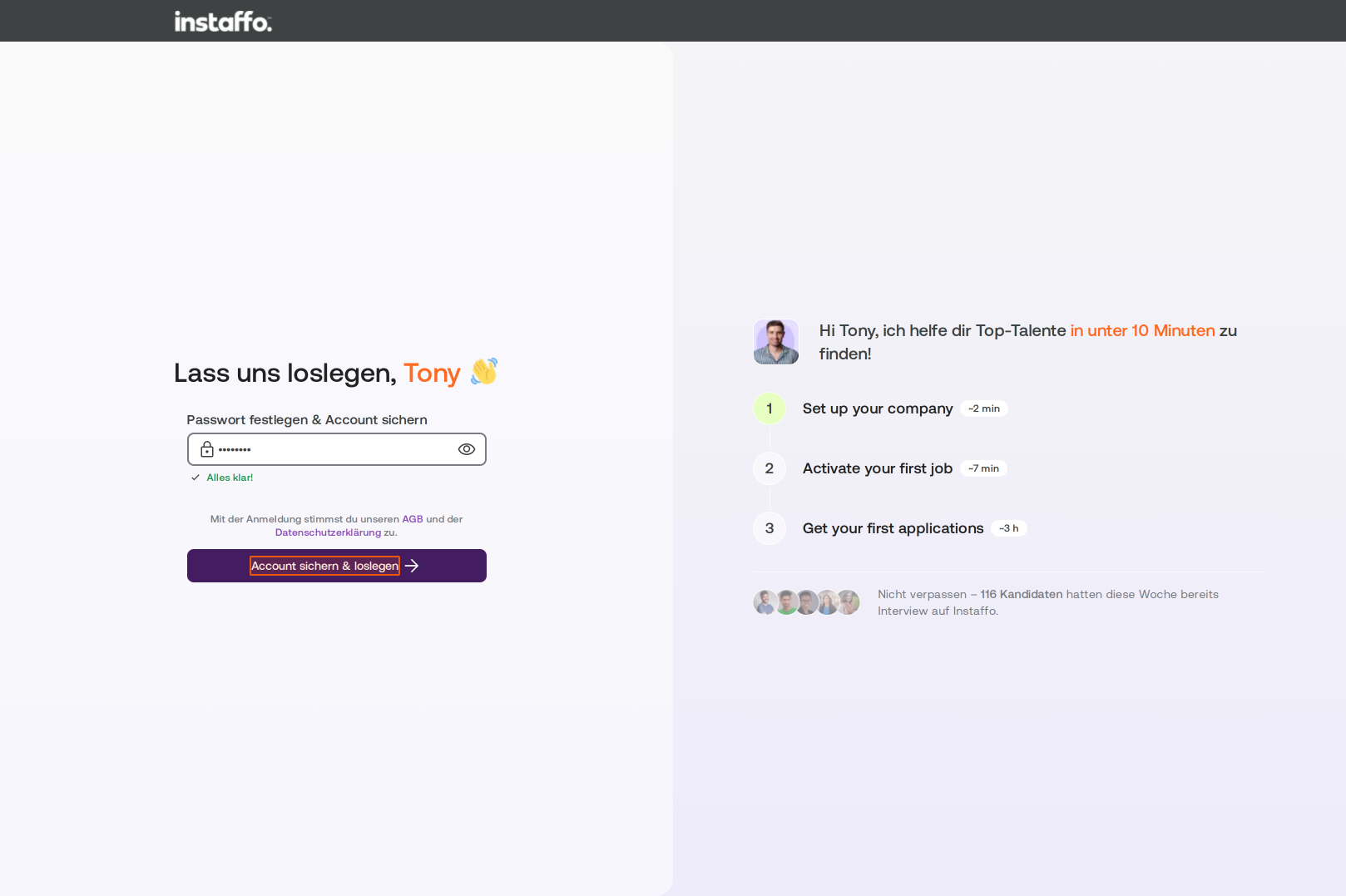
Click the Secure Account & Get Started button to save your password and move to the next step.
Complete Your Company Profile
-
Upload Your Company Logo
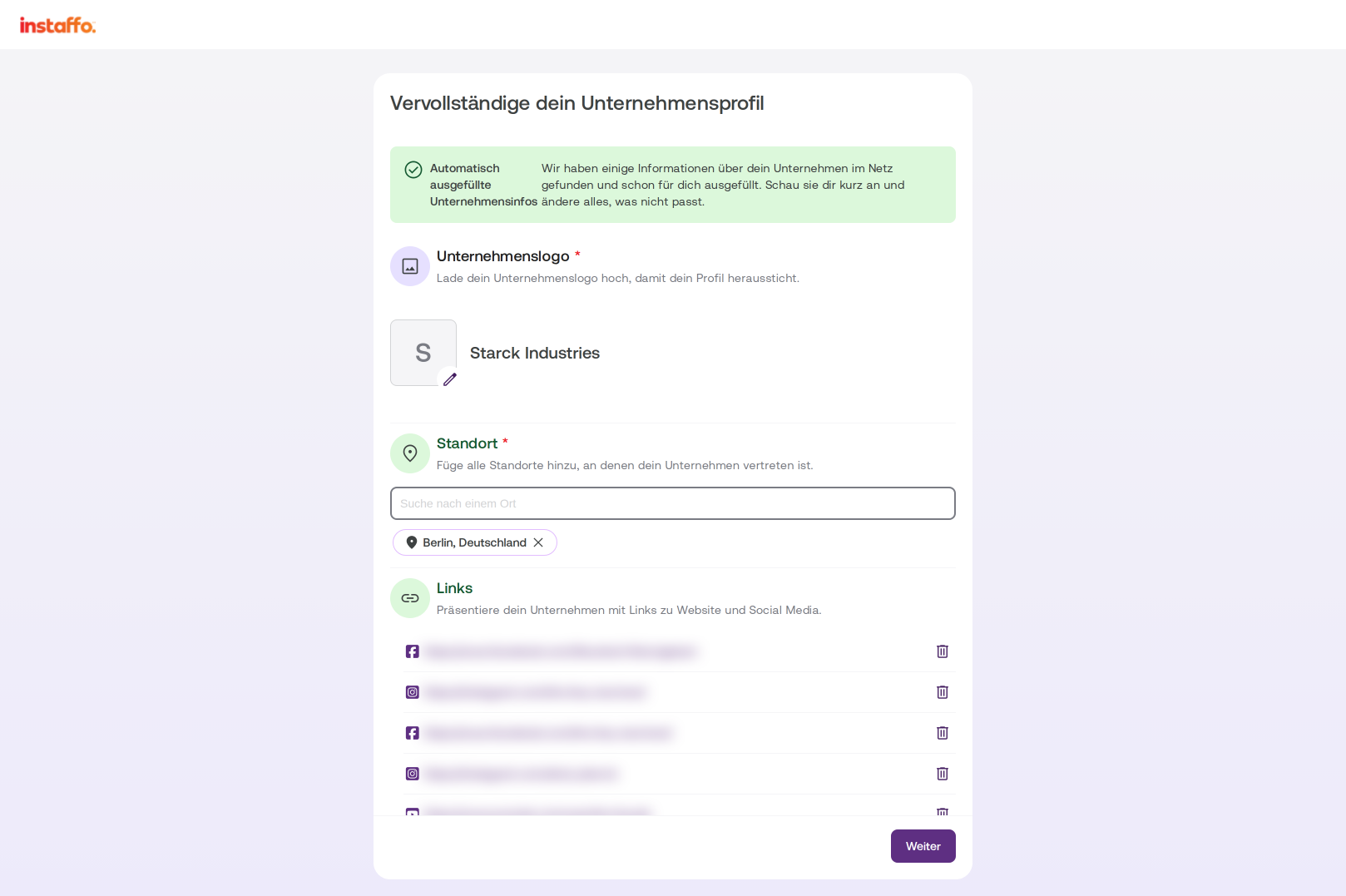
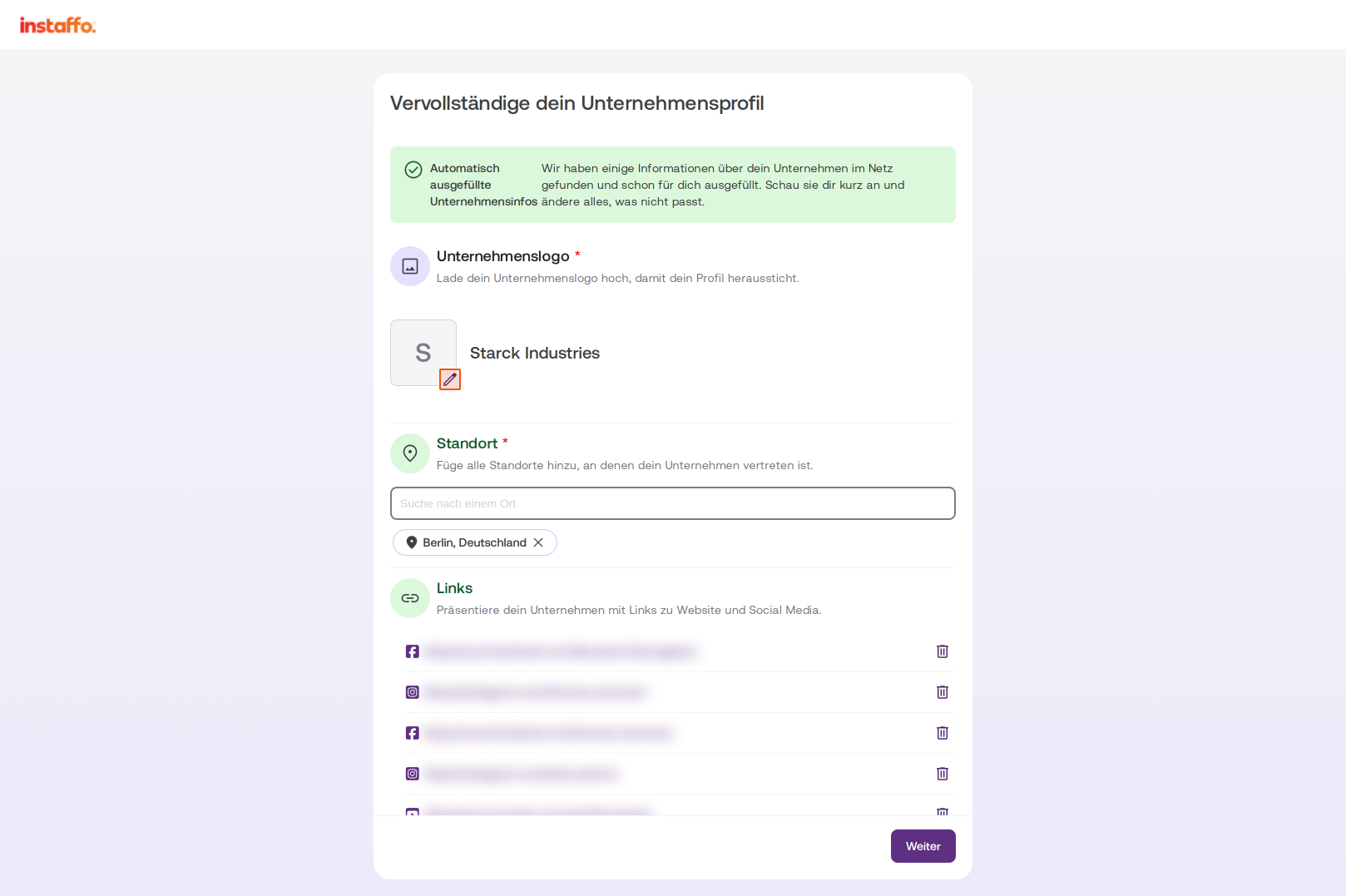
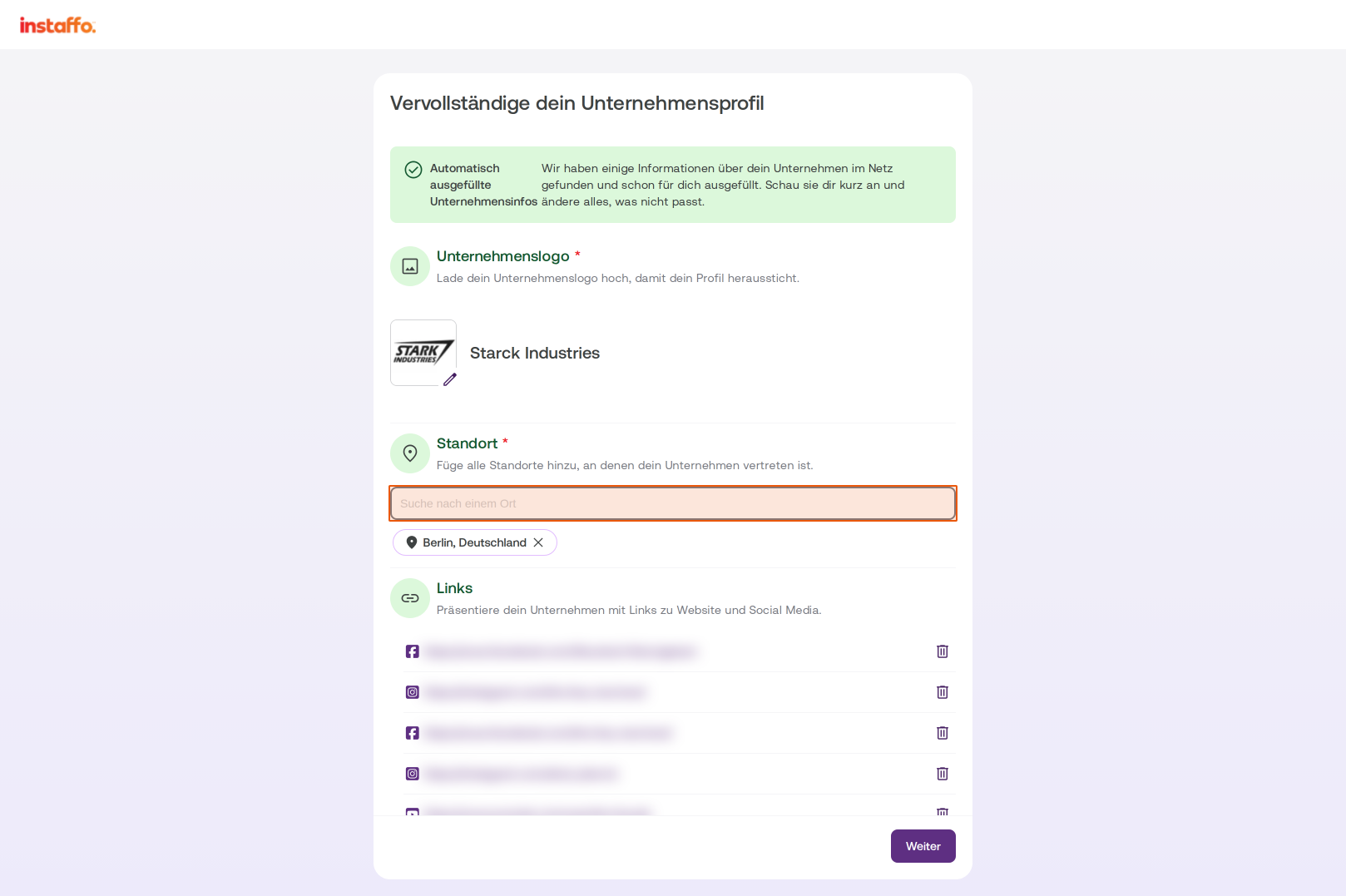
In the "Complete Your Company Profile" form, some company information will already be pre-filled automatically from online sources. Click on the logo placeholder field in the "Company Logo" section to add a new logo.
-
Select and Adjust Your Logo
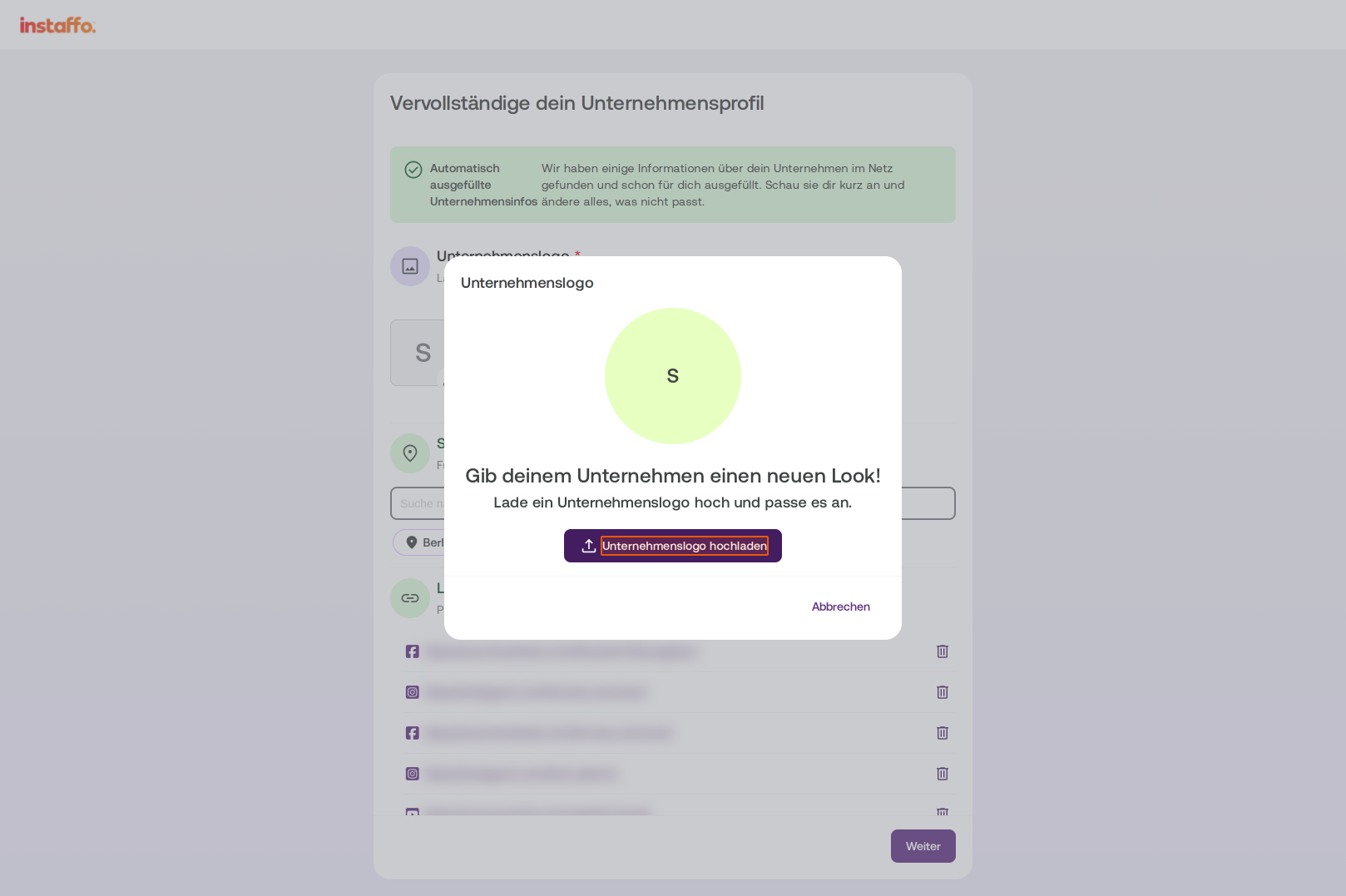
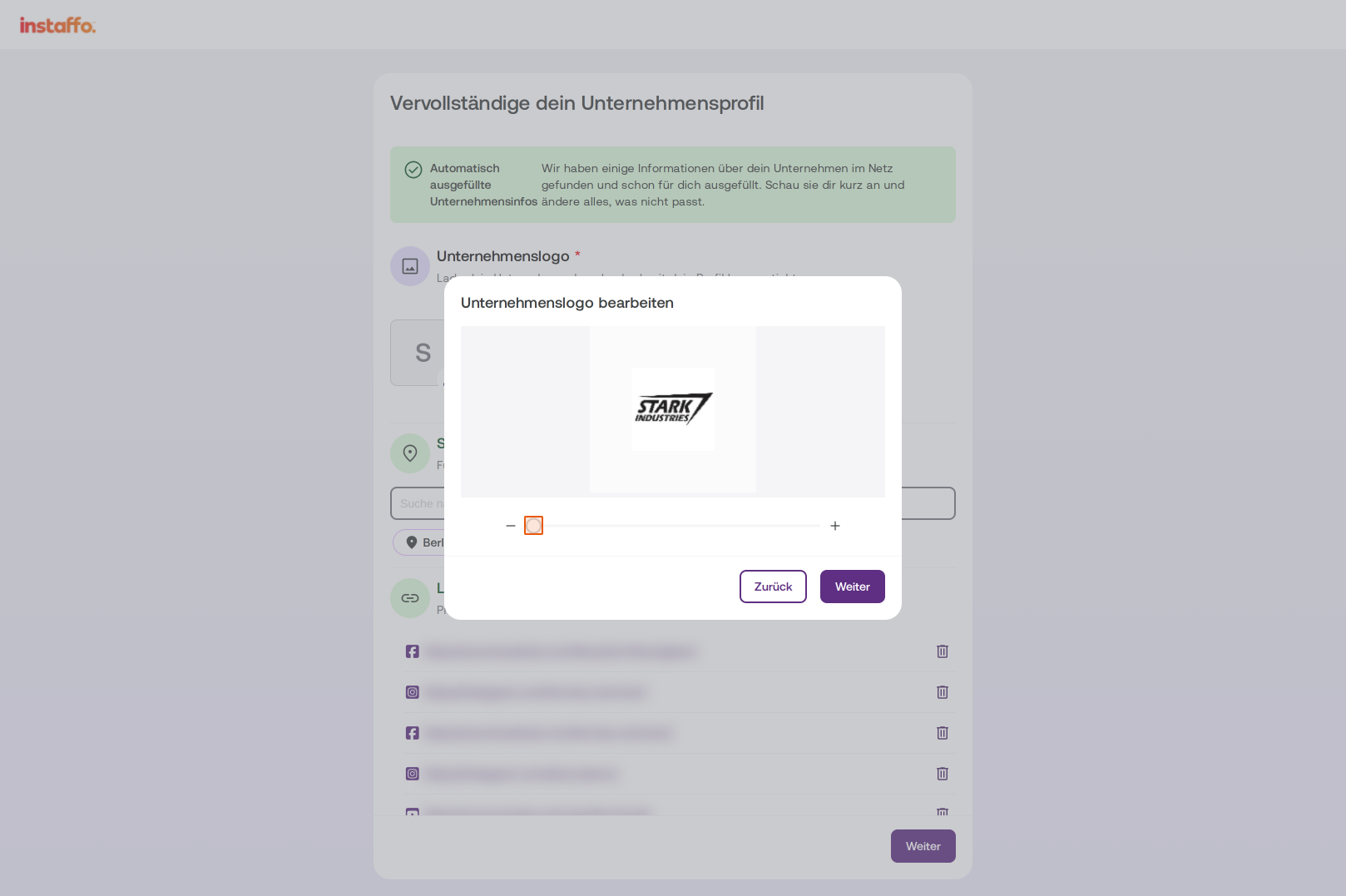
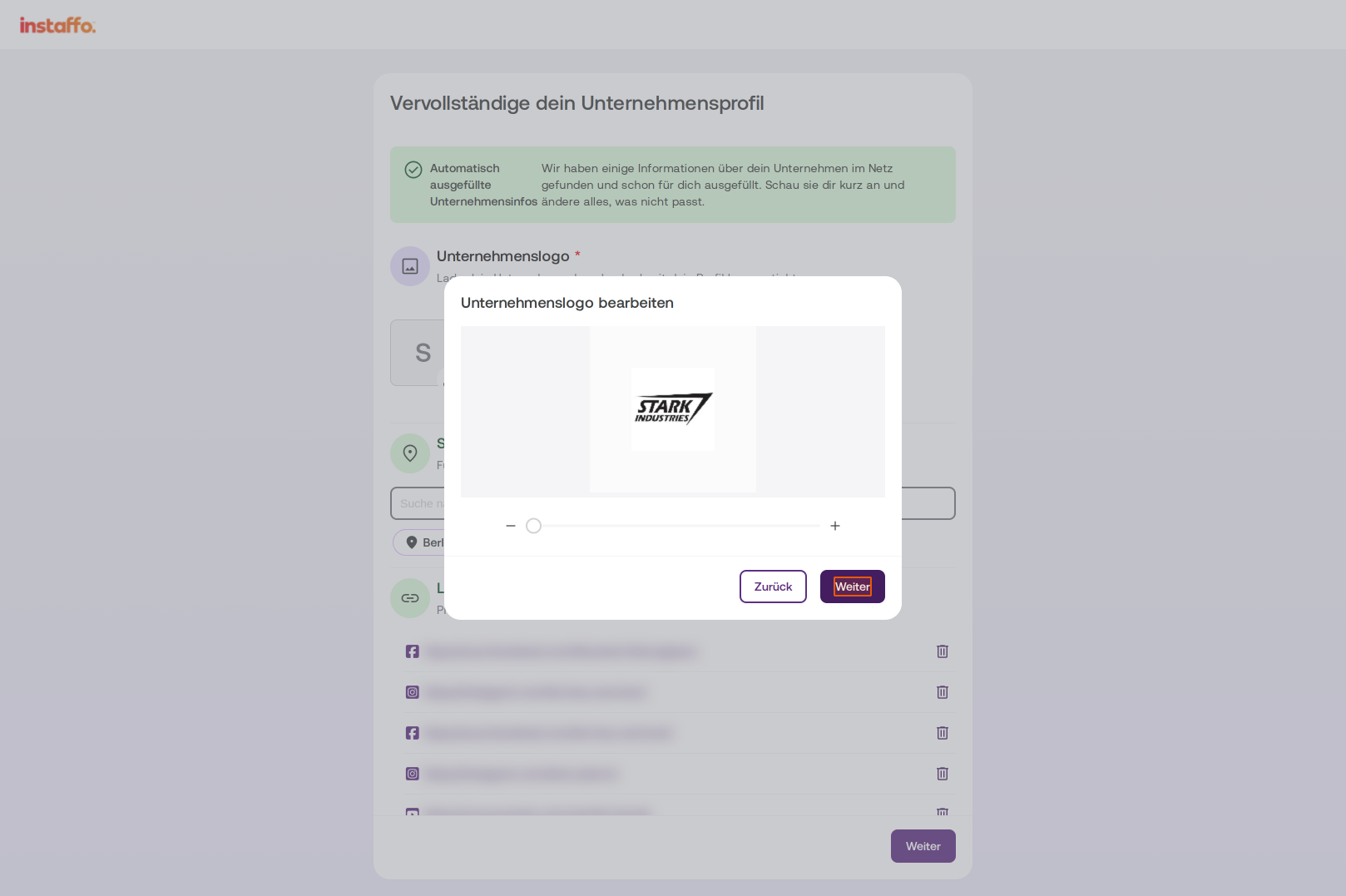
Click Upload Company Logo and choose your image. Ideally, the image should be square. After uploading, you can adjust the crop using the zoom slider to decide how much of your image should be visible. Click Next to see a preview. -
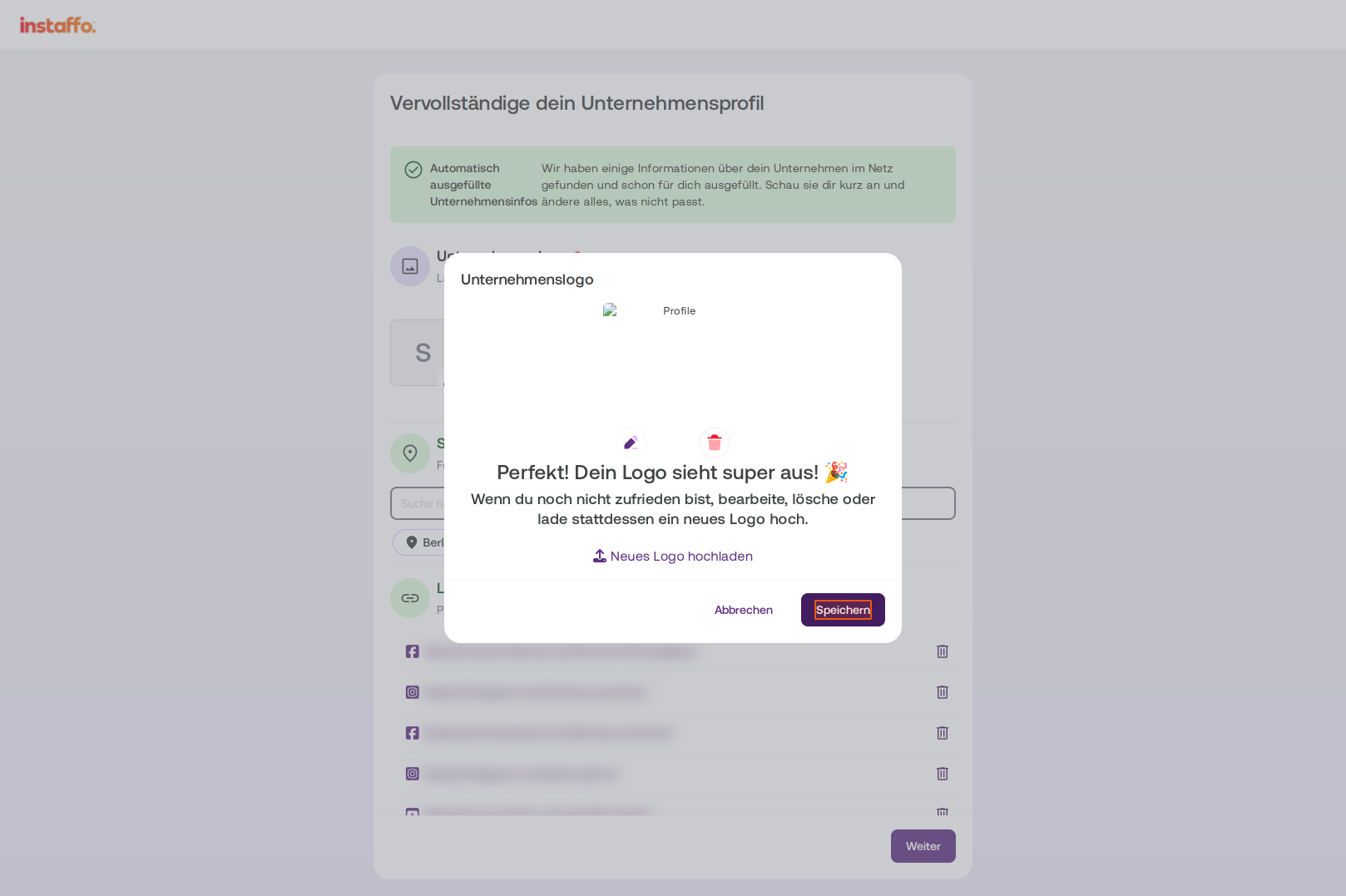
Save Your Logo
Review your logo preview. If you're happy with it, click Save to confirm the logo. If not, you can edit it, delete it, or upload a new one. -
Add Locations
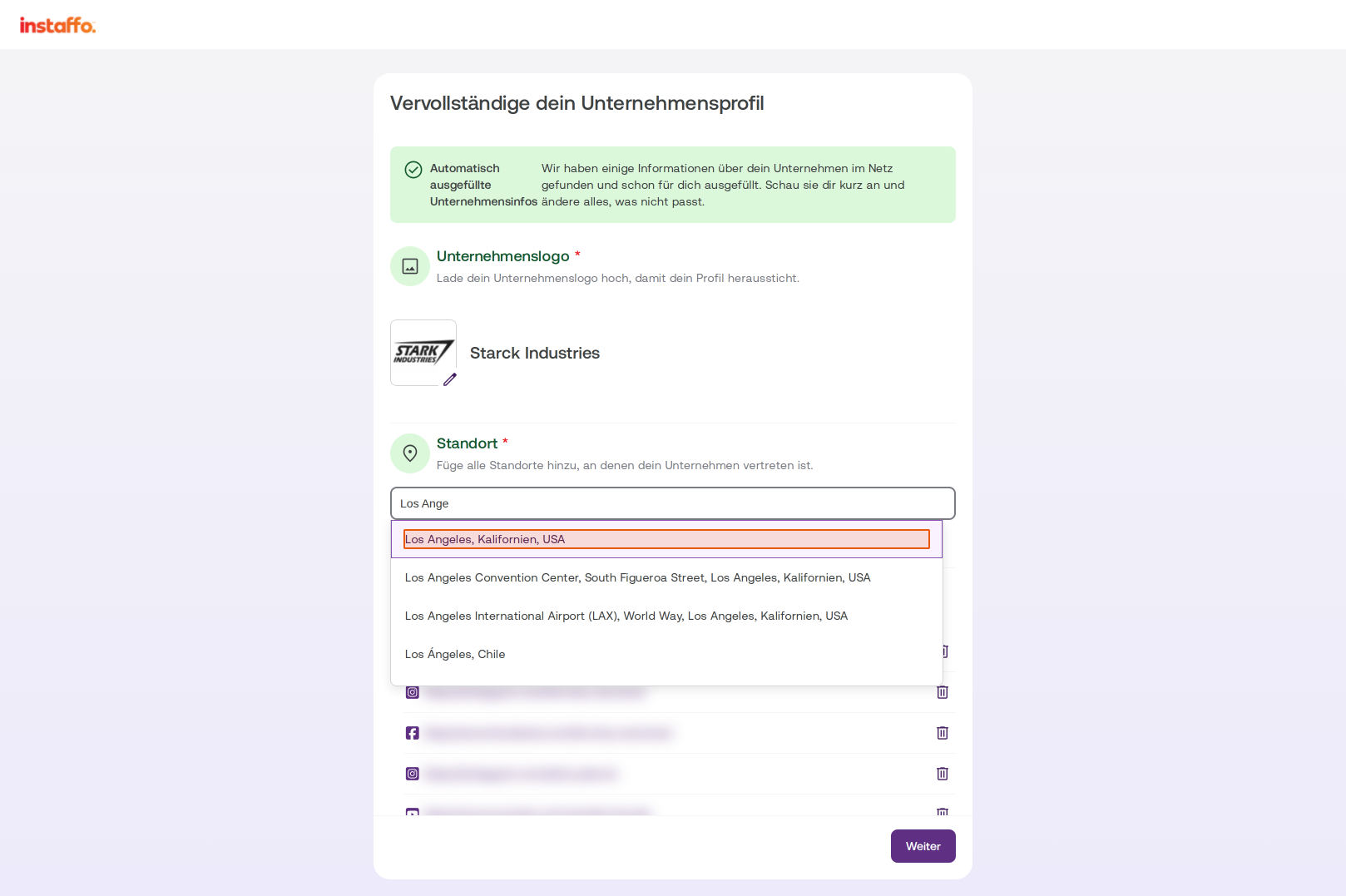
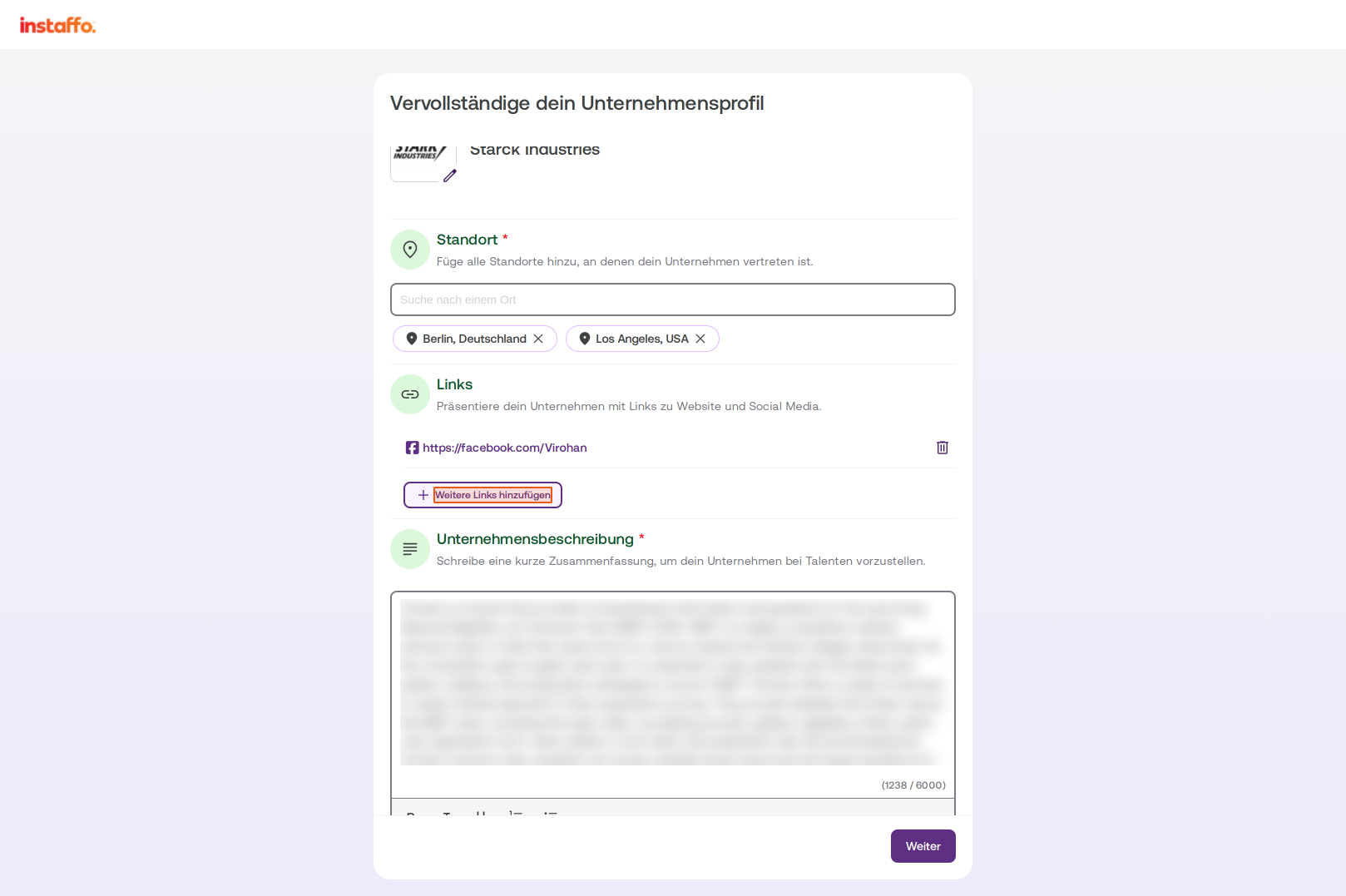
In the "Location" section, one location will be automatically added. If you have multiple office locations, click into the search field "Search for a location" and enter your desired location. Select the correct location from the suggestions to add it. -
Manage Links
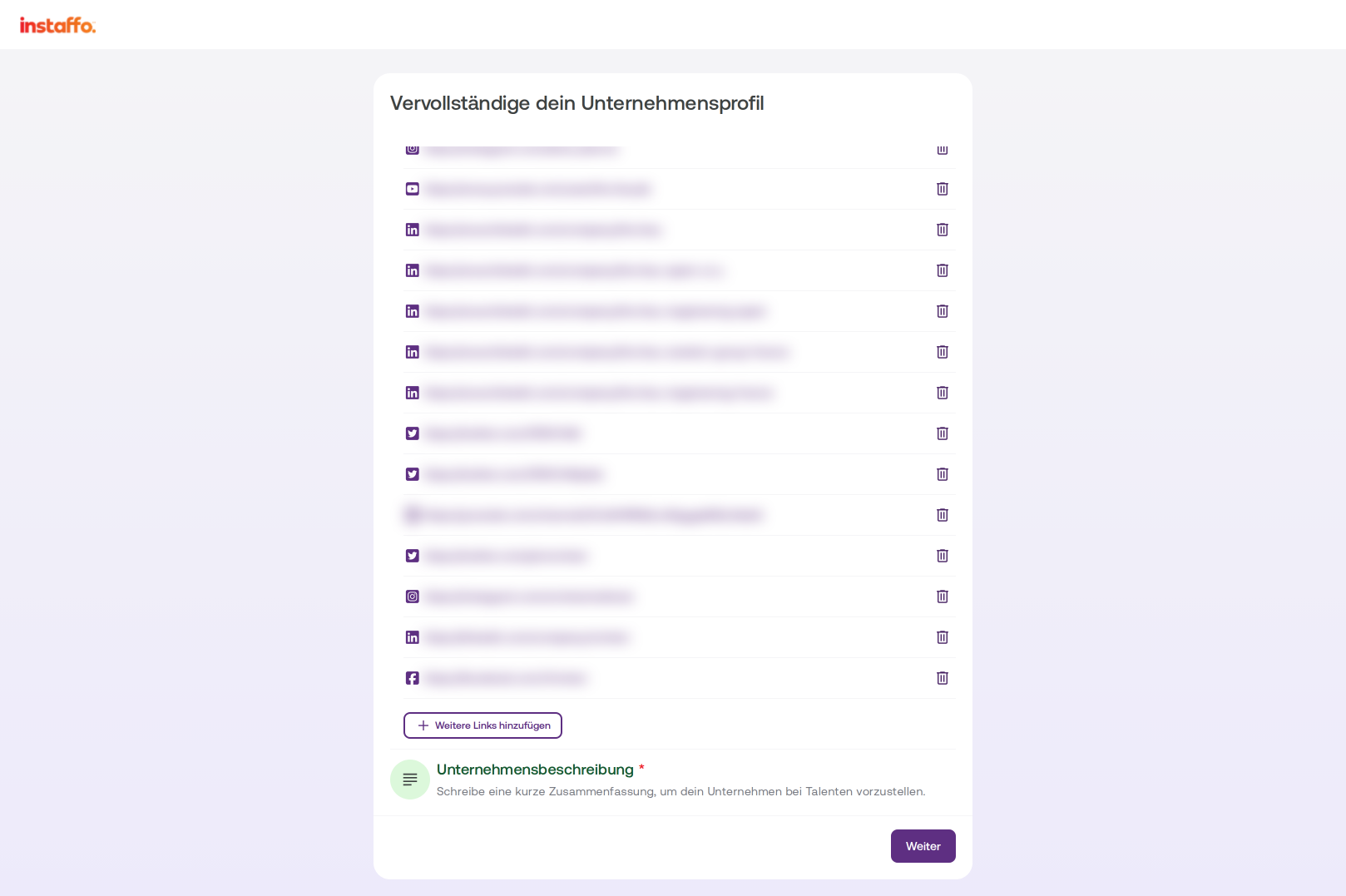
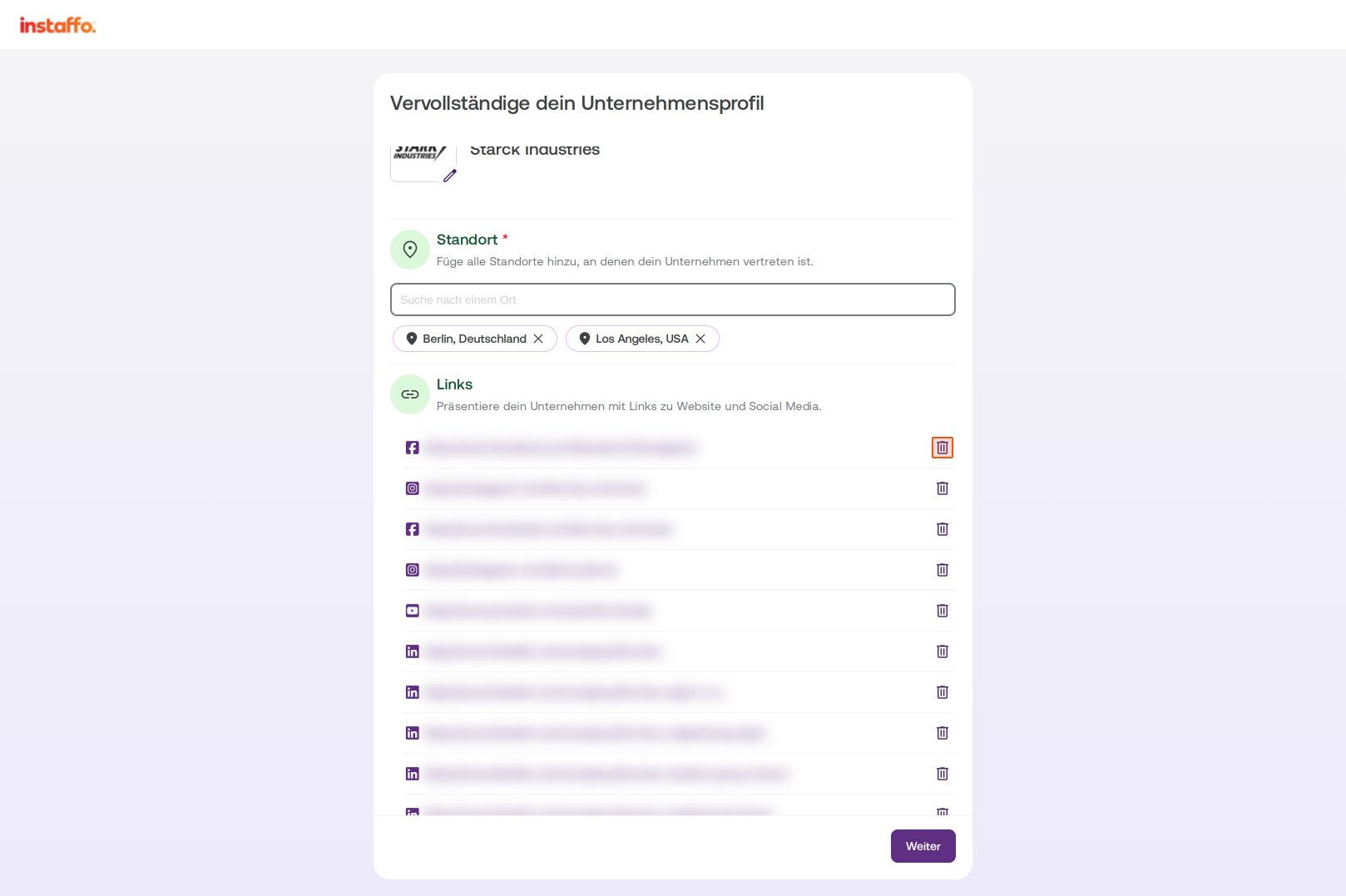
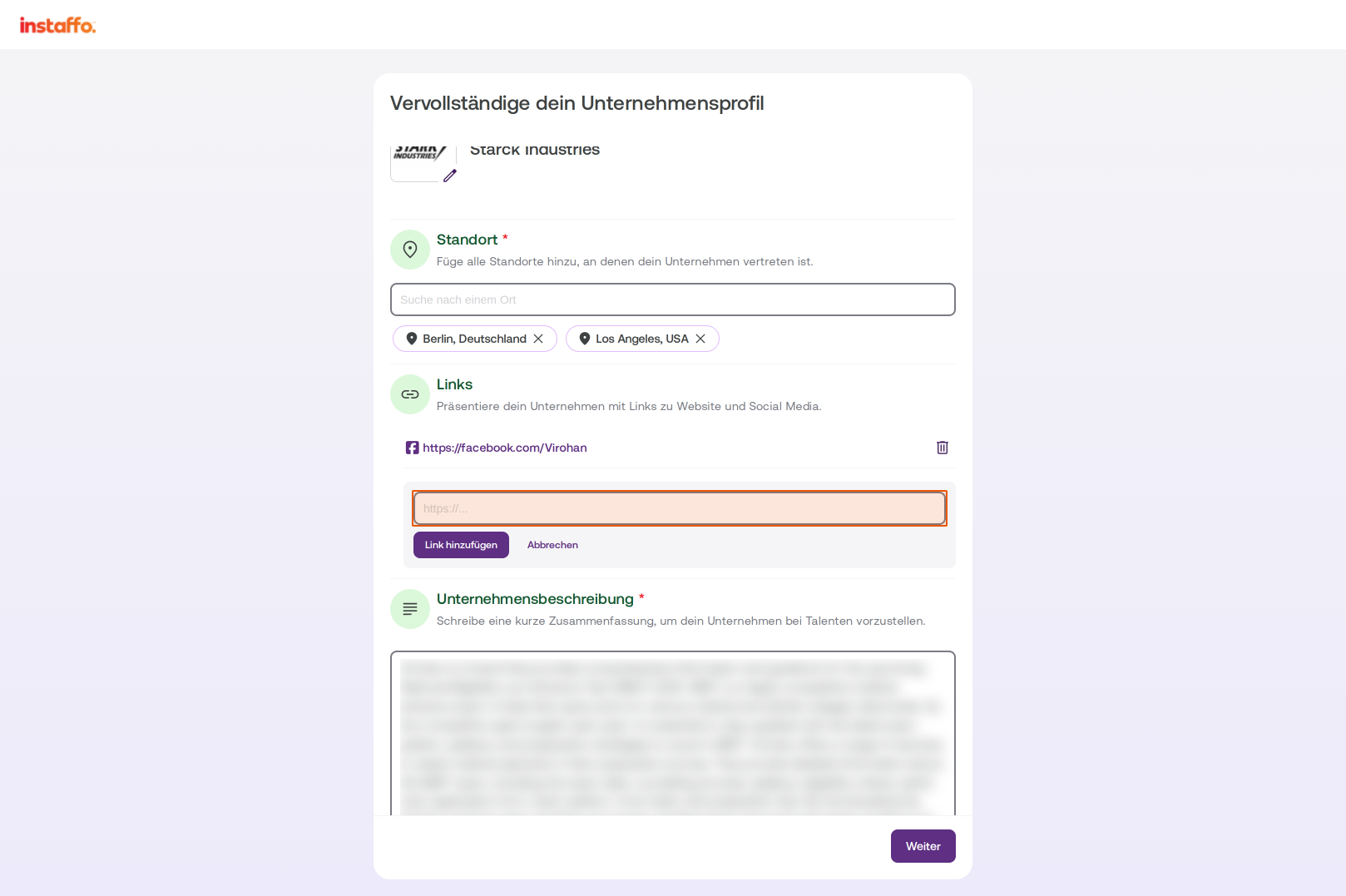
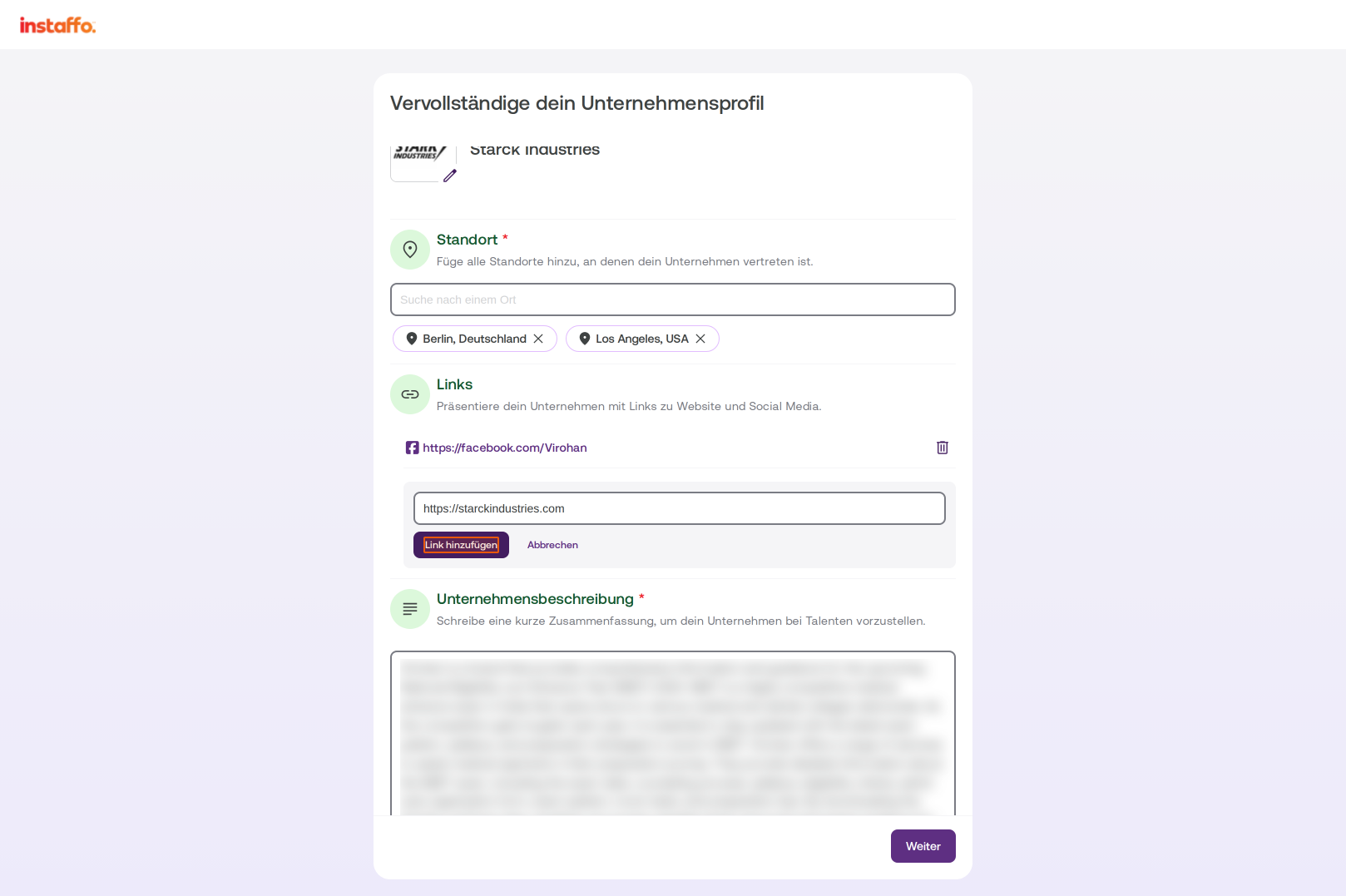
In the "Links" section, you'll find pre-filled social media links. You can edit these or remove them using the trash icon. To add new links, click Add More Links, enter the URL in the input field, and confirm with Add Link. -
Edit Your Company Description
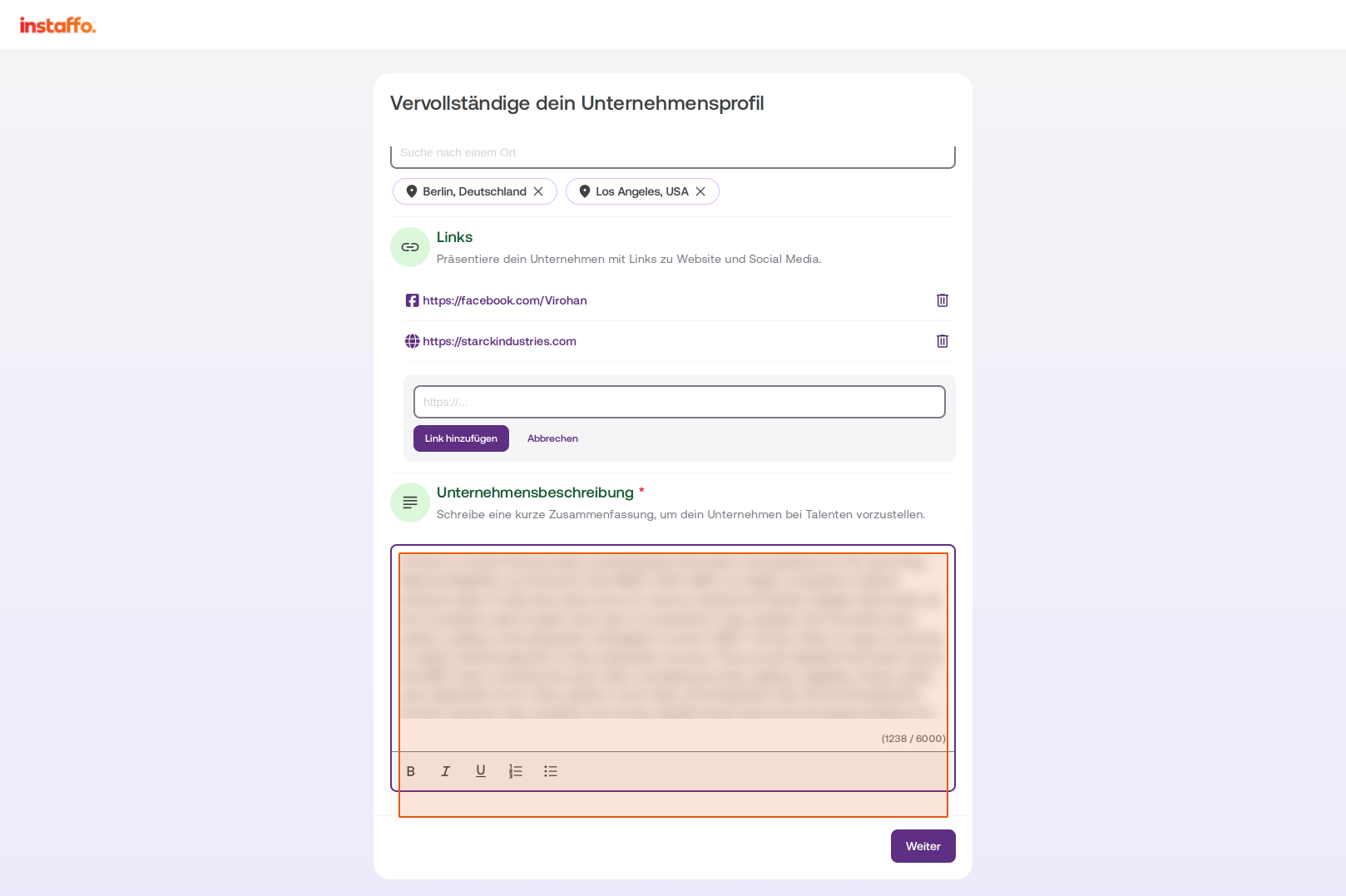
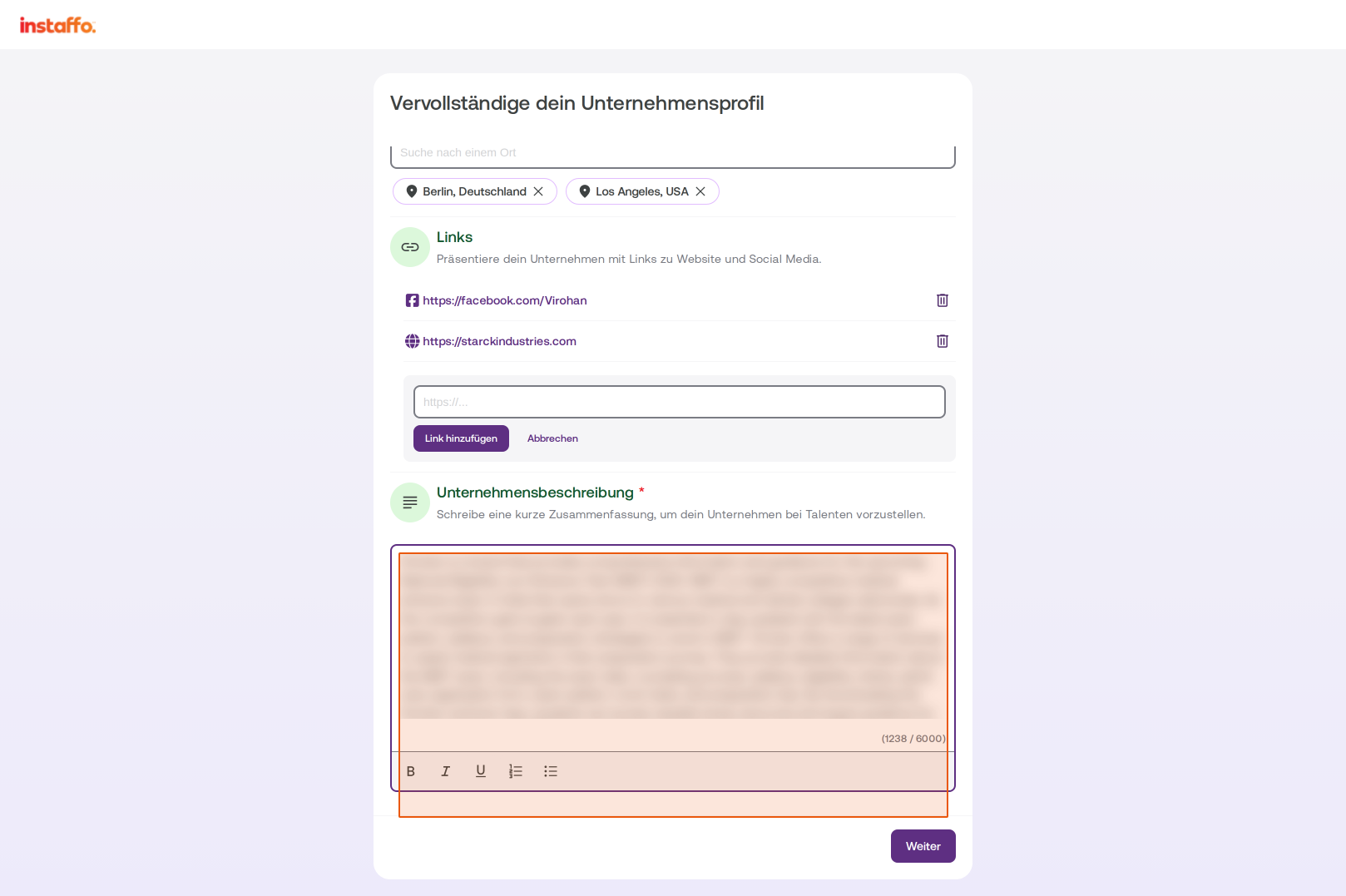
In the "Company Description" section, you'll find a pre-filled description. Click into the text field to read the description and adjust it if needed. You can change all this information later as well. -
Complete Your Profile
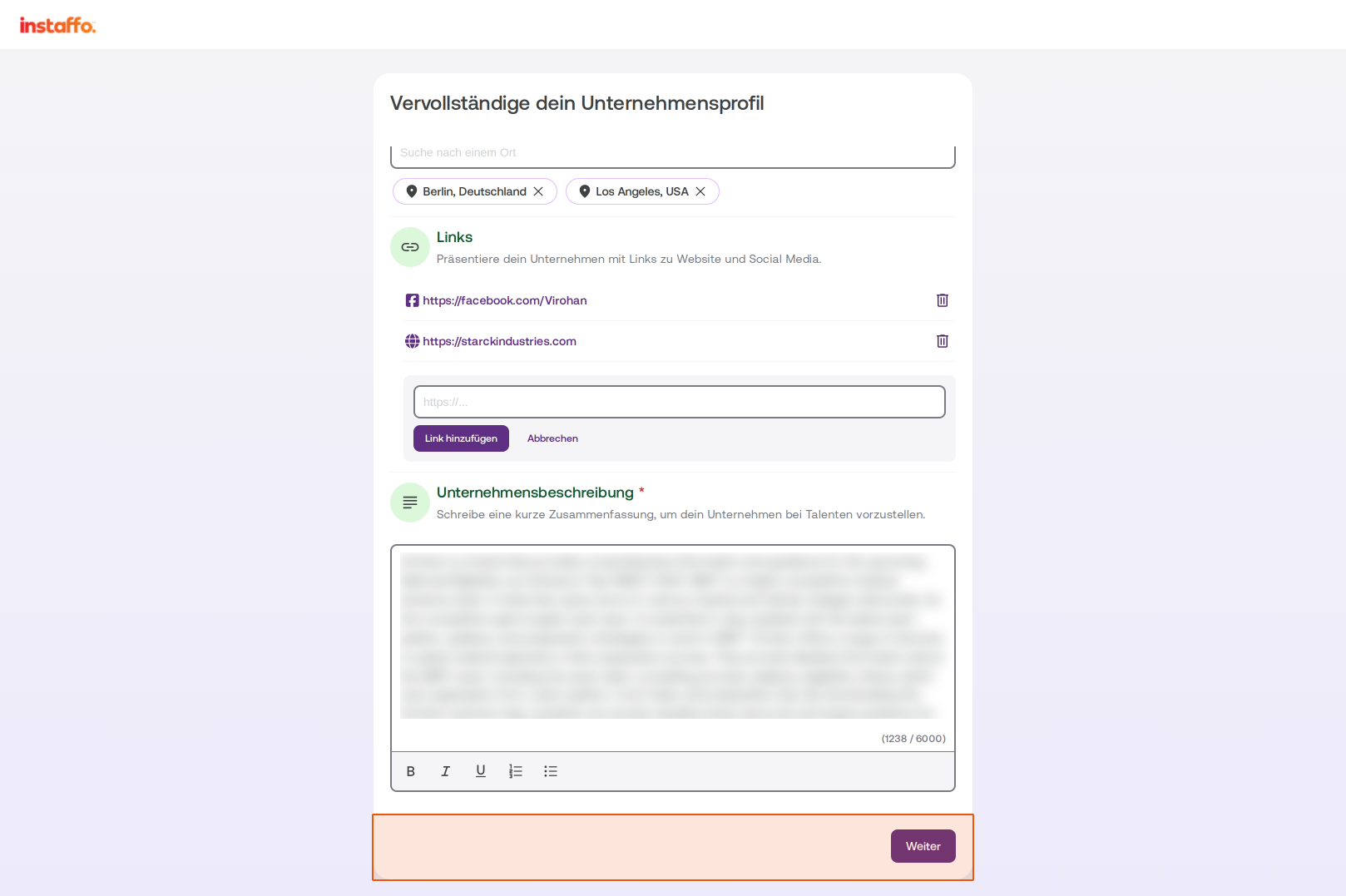
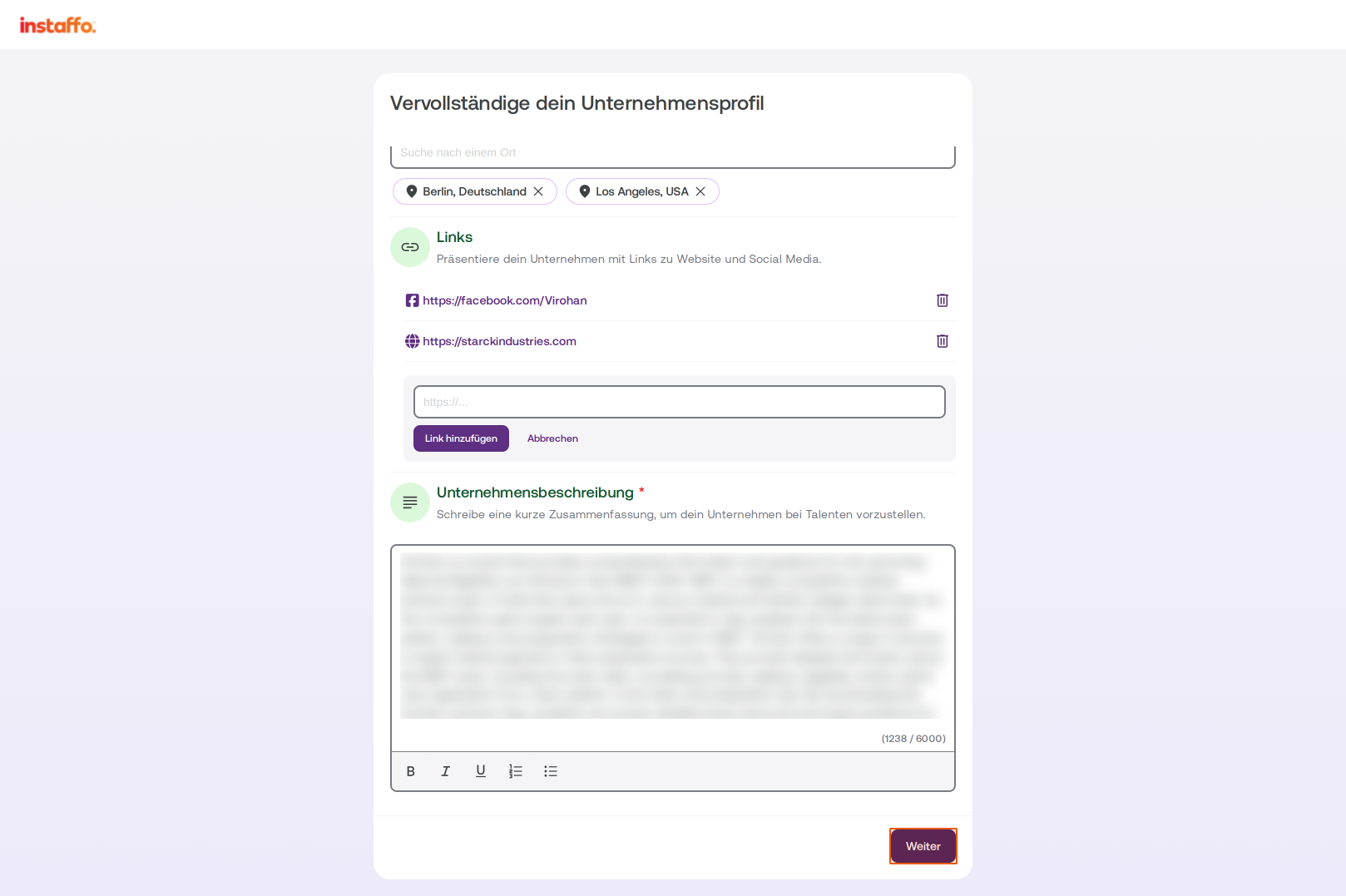
When you're satisfied with all your information, click Next to move to the next step.
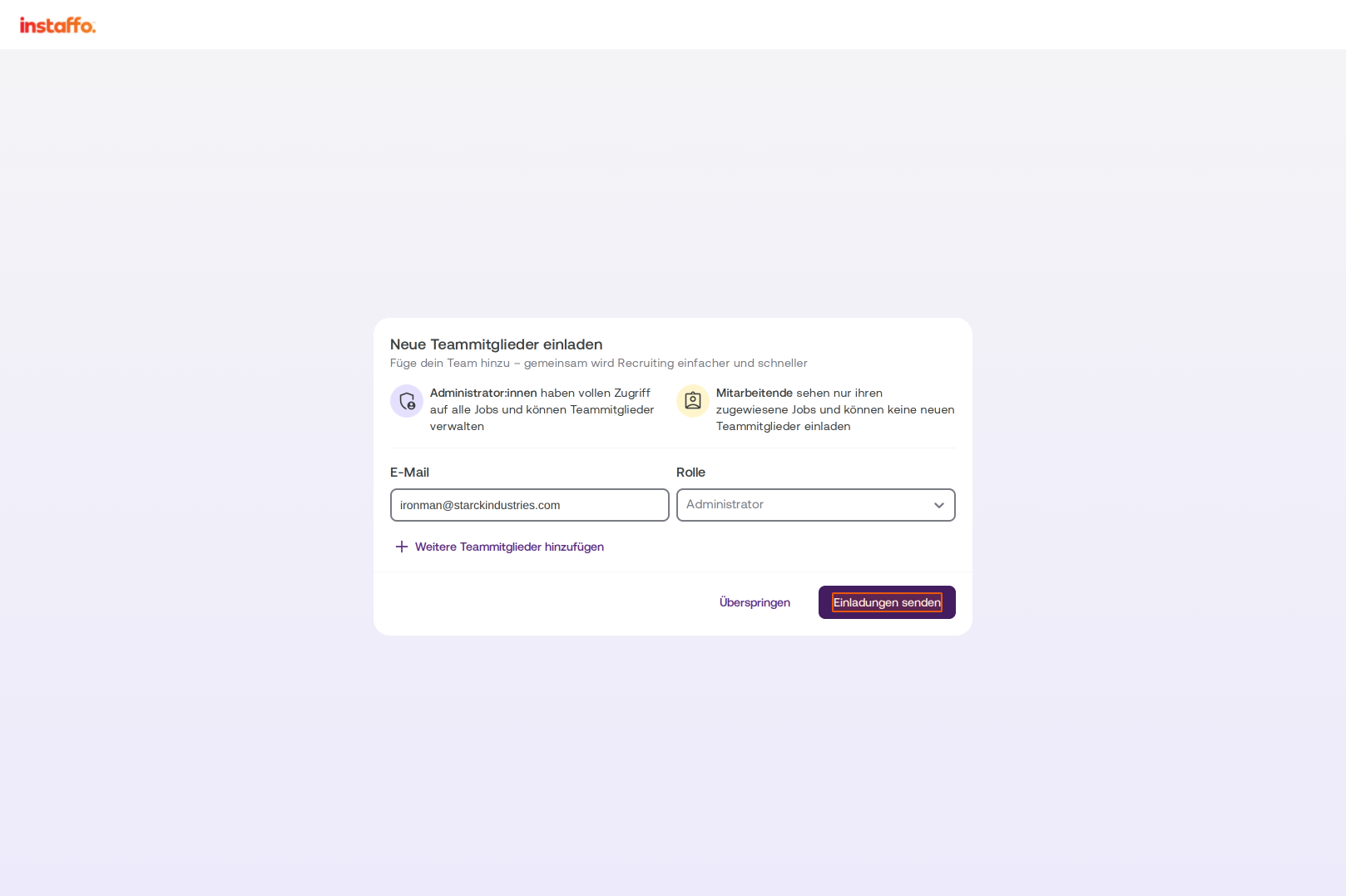
Invite Team Members
- Invite Team Members
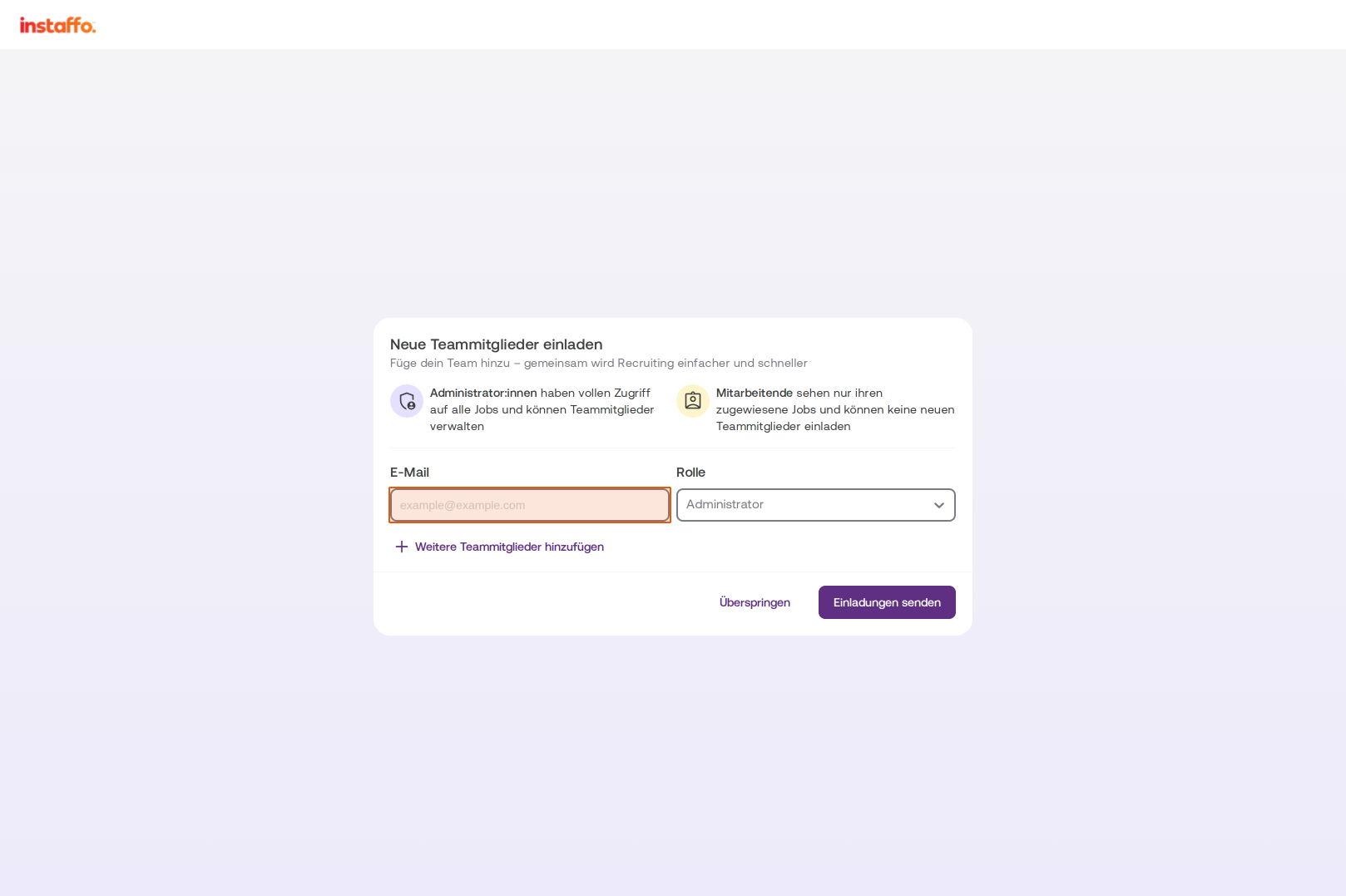
To help your team get started on the right foot, you can invite your team members here. This step is optional. You can add more team members to Instaffo for free at any time.
For more information, check out the article How can I invite team members to collaborate in Instaffo?
Create Your First Job Posting
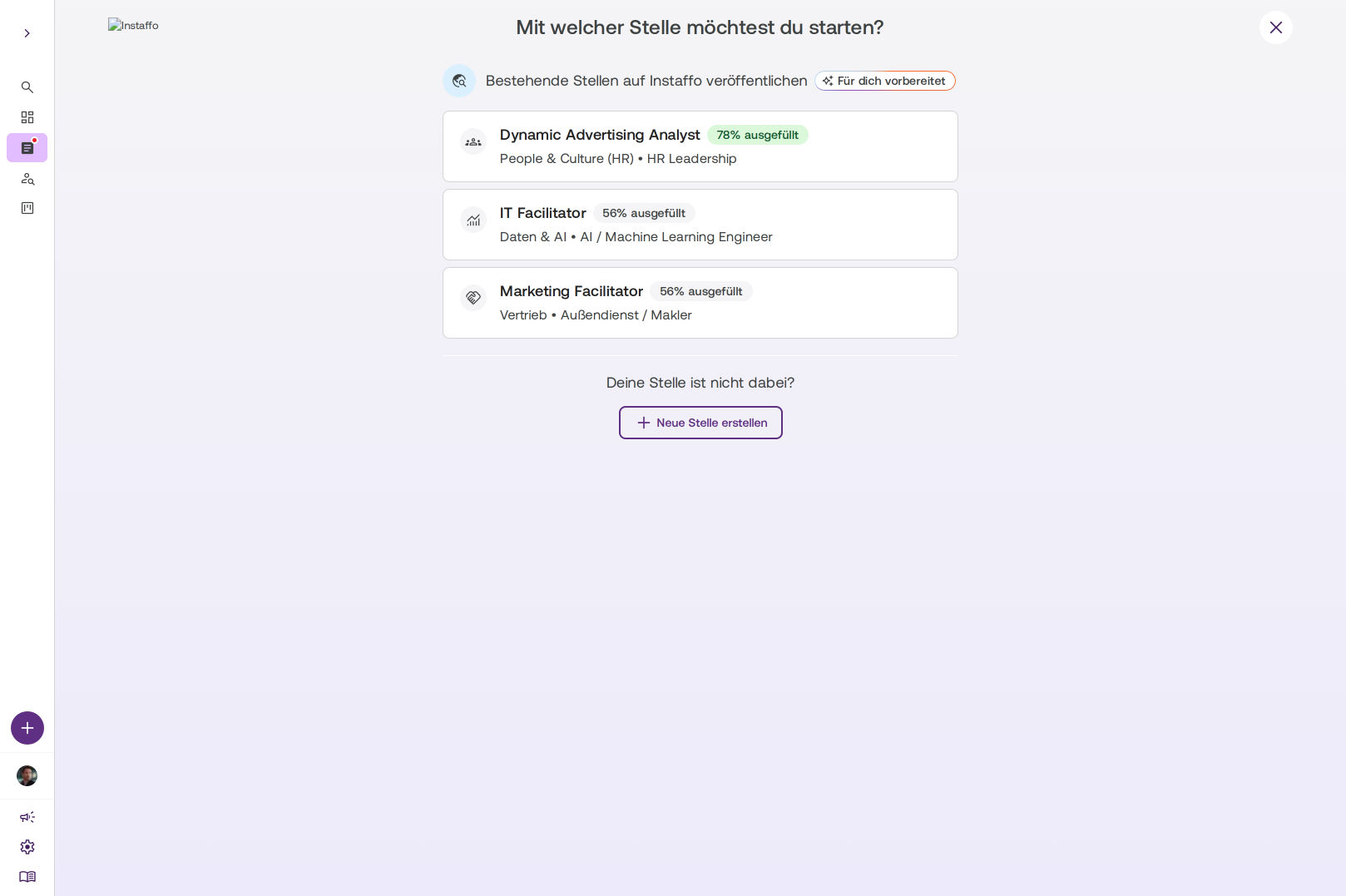
- Select or Create a New Job Posting
After onboarding, you'll go directly to creating your first job posting. You'll already see job postings that you've published in other locations and that have been prepared for you. You can select one of these existing postings or create a completely new one using Create New Job Posting. For more information, check out the article How do I create and publish a job posting on Instaffo?
Your business account is now activated and set up. You can now start creating and publishing your first job posting on Instaffo.
 Powered by happysupport.ai