
How do I use AI screening to review applications?
Use AI screening to automatically rank job applications by candidate match, with transparent scoring showing which profile sections support each assessment.
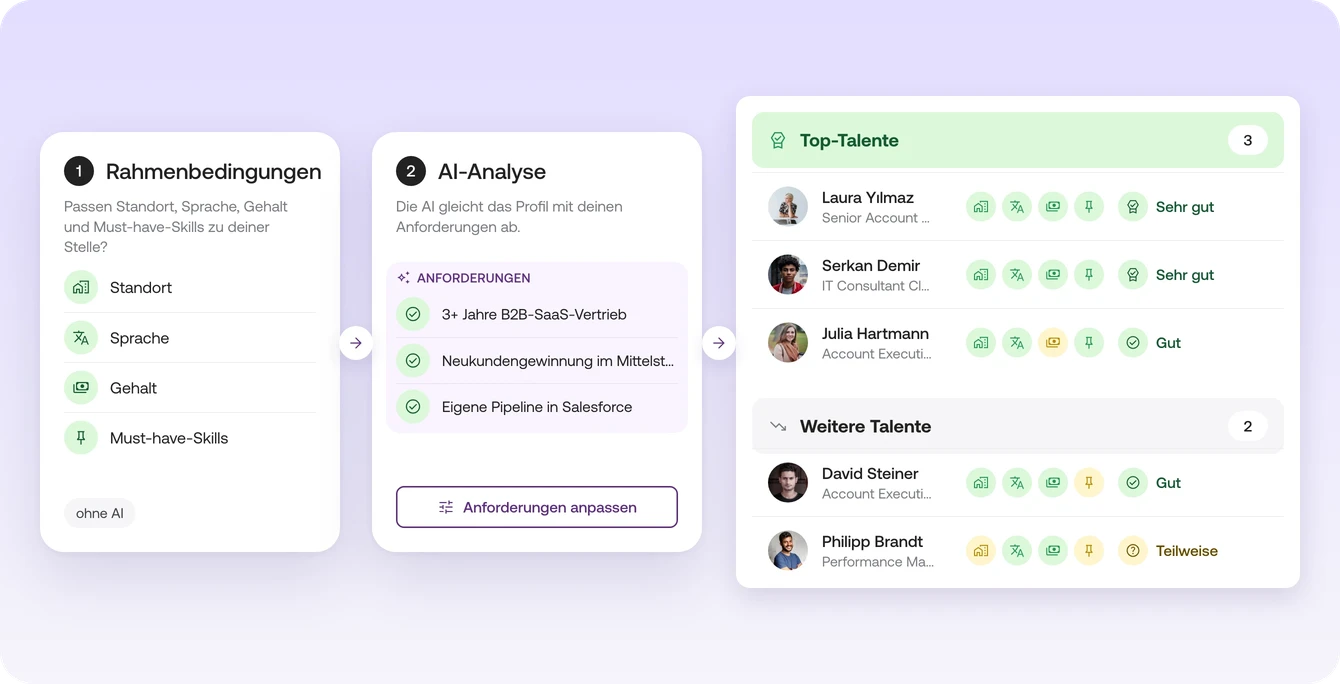
AI screening checks every application for your job against your requirements. The best-matching talent appears at the top of your screening list, regardless of when they applied. For each requirement, you can see whether it’s met and where in the profile the relevant information appears. You always make the final decision.
Overview
- Requirements: When you create a job, Instaffo suggests requirements based on your job description. You can add, edit, or delete them at any time.
- Short titles: After you save each requirement, it automatically gets a short title, even if you wrote or edited it yourself. This makes the list easier to scan. The full text is always used for the assessment.
- Analysis: The AI checks each talent profile against your requirements. It uses the profile, including work experience, and the answers provided with the application.
- Pre-sorted list: Talents who meet the basic criteria and match your requirements well appear at the top under
Top-Talente. You’ll find everyone else below underWeitere Talente. - Transparent results: For each assessment, a number shows which part of the profile it’s based on.
Every new application is analyzed automatically and free of charge. Our Fair Use Policy applies to new analyses after you change your requirements.
Requirements
- You have an active job with applications.
- In the left sidebar, you’ve opened an individual job under Stellen and selected the Screening tab. If you have multiple jobs, you’ll see the basic table without AI screening.
Instructions
-
In the left sidebar, open your job under Stellen, then select the Screening tab.
-
Click
Anforderungen anpassenabove the list. The Deine Anforderungen für diese Stelle window opens. A red dot on the button indicates that you haven’t reviewed the suggested requirements for this job yet. It disappears once you save or clickAbbrechenwithout making any changes. -
Review the suggested requirements. Add anything that isn’t in the job ad, and make any overly general points more specific. Click
Anforderung hinzufügento add more. -
Click
Speichern & Bewerbungen analysieren. The analysis runs in the background, so you can keep working.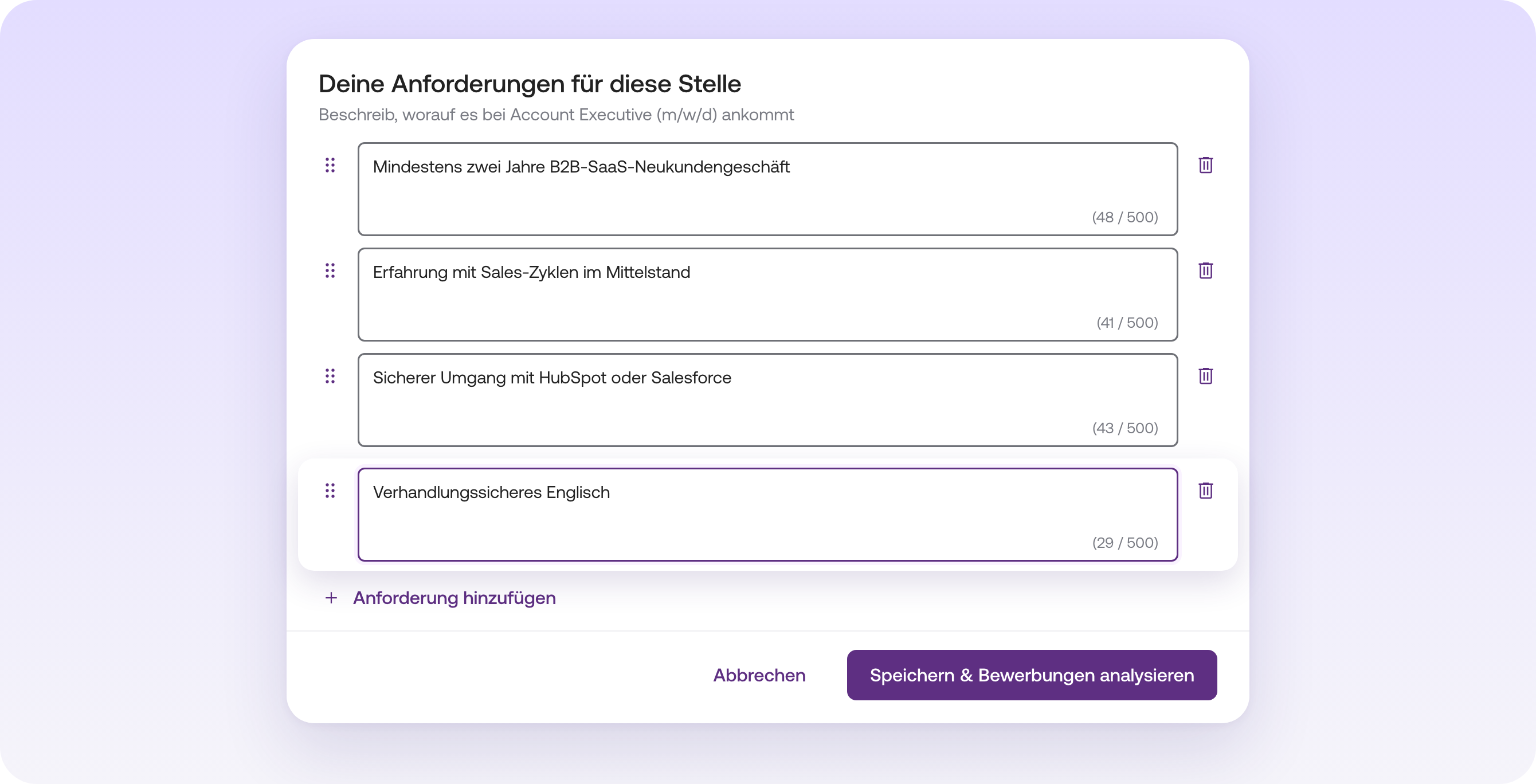
-
Start at the top with
Top-Talente. In the Match column, you can see at a glance how well a talent meets your requirements. Hover over the match to see the assessment for each requirement, along with its short title.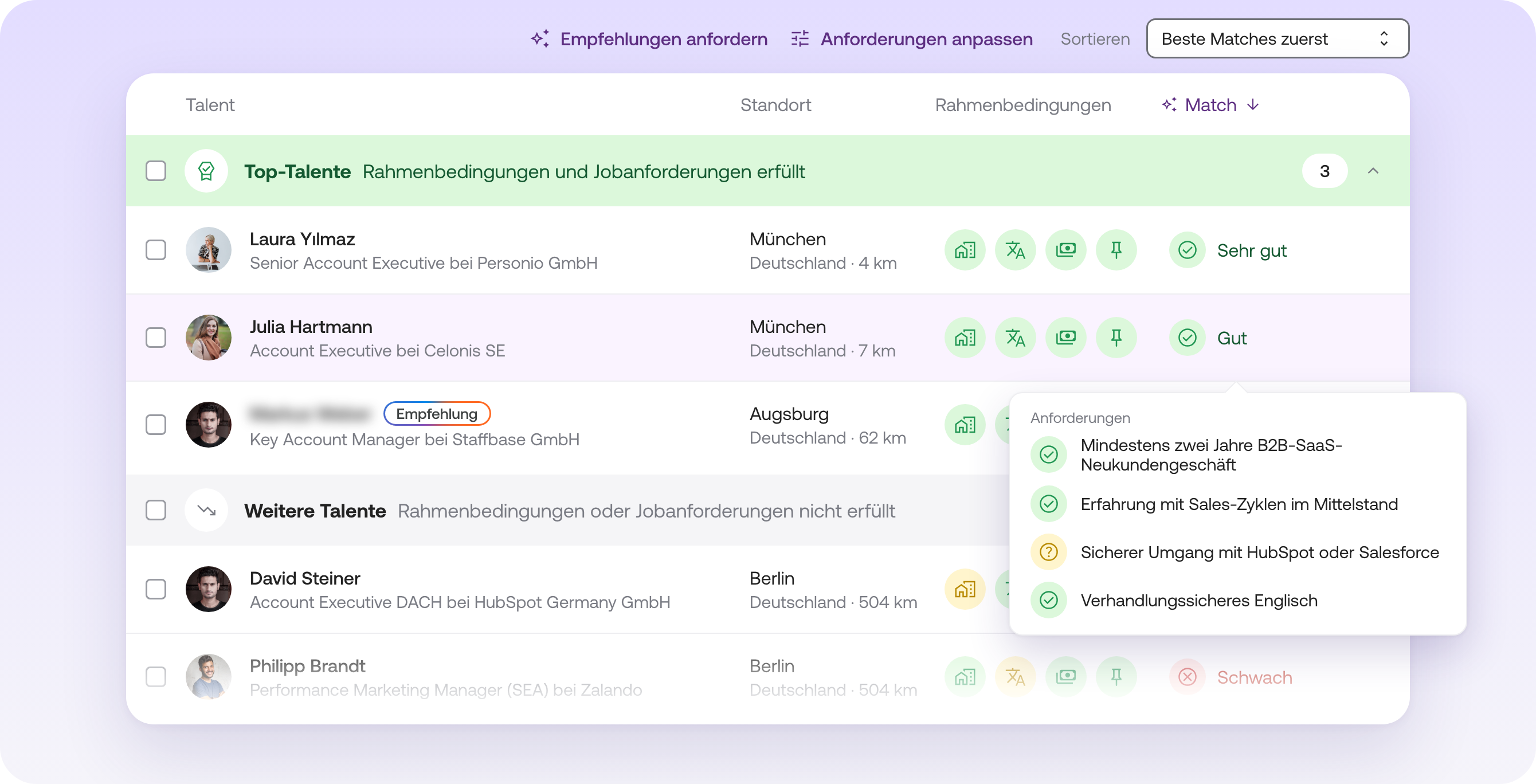
-
Open an application. Below the match summary, you’ll see each requirement as a short title, along with its assessment and explanation. Hover over a short title to see the full text. Click the number next to the explanation to jump straight to the relevant part of the profile.
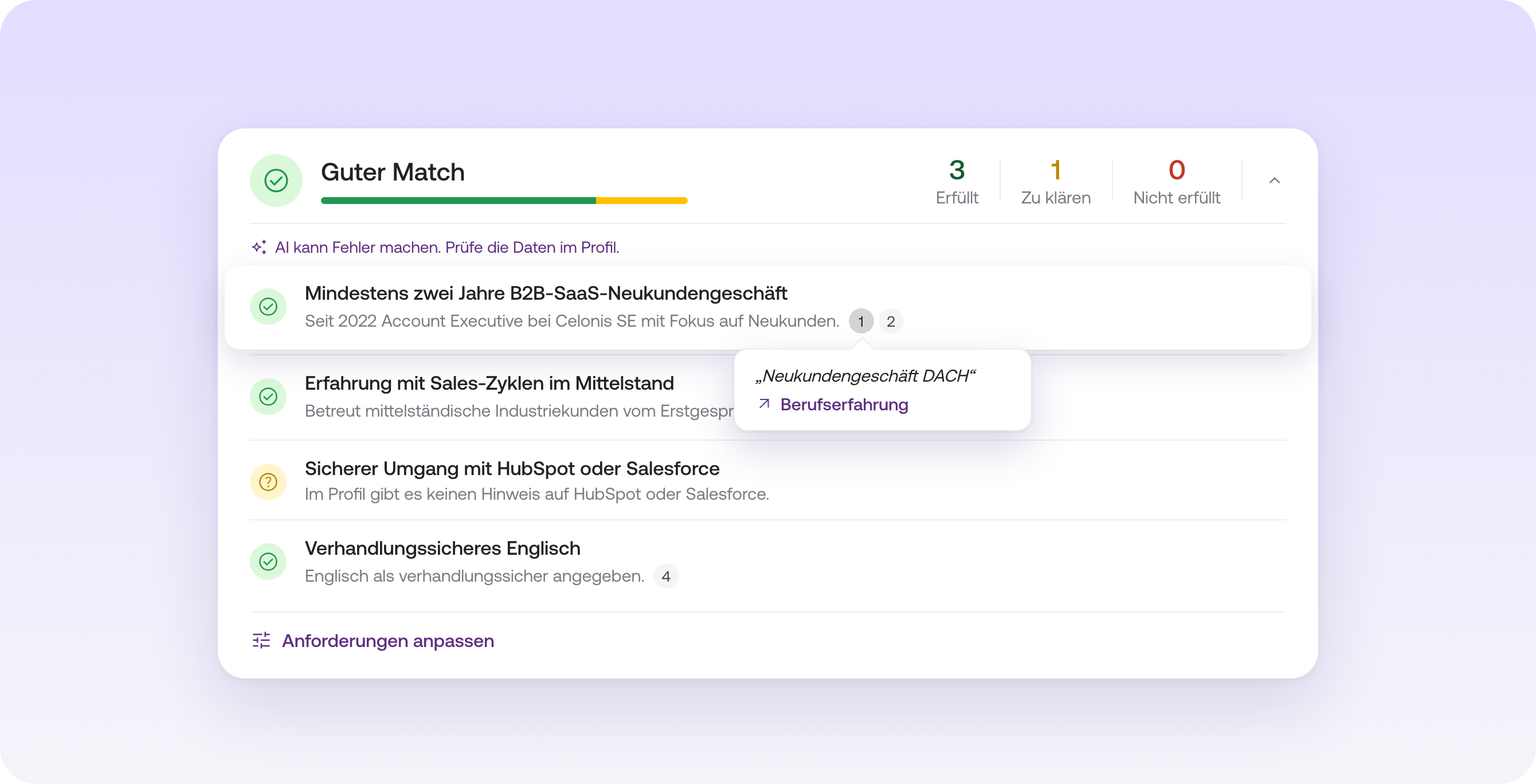
-
Make your decision as usual by clicking
AnnehmenorAblehnen. If a requirement doesn’t look right, clickAnforderungen anpassenbelow the list in the details view and refine it.
How to interpret the results
Match for each application (shown in the list as: Sehr gut, Gut, Teilweise, Schwach)
| Label | Meaning |
|---|---|
| Sehr guter Match | All requirements are met. |
| Guter Match | At least half of the requirements are met, and more are met than not met. |
| Teilweise passend | Some requirements are met, but many are still unclear. Take a closer look at the profile. |
| Schwacher Match | At least half of the requirements are clearly not met. |
Assessment for each requirement
| Assessment | Meaning |
|---|---|
| Erfüllt | The profile provides evidence that the requirement is met. |
| Teilweise erfüllt | The profile offers some indication, but no clear evidence. Ask about it in an interview. |
| Nicht erfüllt | The profile clearly indicates that the requirement isn’t met. |
| Unbekannt | The profile doesn’t say anything about it, or the analysis isn’t finished yet. Ask about it in an interview. |
| Nicht bewertet | The requirement violates our guidelines. It isn’t assessed and doesn’t count toward the match. |
Teilweise erfüllt and Unbekannt count neither for nor against the talent.
AI can make mistakes. It may miss something or interpret information incorrectly. Always check the assessment against the profile. You make the decision on every application.
Check that it worked
- The Match column shows a result for each application instead of
Noch nicht analysiert. - In the details view, you can see an assessment for each requirement, with a reference to the relevant part of the profile.
- If you’ve changed any requirements, the
Veraltetnotice next to the match disappears once the new analysis is complete.
Frequently asked questions
Does AI screening cost anything?
No. Every new application is analyzed automatically and free of charge. If you change your requirements, applications are analyzed again. Our Fair Use Policy applies. If you reach the monthly limit for a job, analyses will resume on the first day of the next month.
What data does the AI use?
The talent profile, including work experience, the answers provided with the application, and your requirements.
Can the AI make mistakes?
Yes. That’s why you can see the explanation and the relevant part of the profile for each assessment. The AI pre-sorts applications, but you make the decision.
What do “Teilweise erfüllt” and “Unbekannt” mean?
For Teilweise erfüllt, the AI finds some indication in the profile, but no clear evidence. For Unbekannt, the profile doesn’t say anything about it. Neither counts against the talent. Clarify the point in chat or during an interview.
Where do the short titles come from?
The AI summarizes each requirement in a few words. The full text is always used for the assessment; the short title is just a label. If a short title isn’t available yet, you’ll see the full text.
Can I assign different weights to requirements?
Currently, all requirements count equally. You can change their order in the window for your own convenience.
What happens if I change my requirements?
After you save, applications are analyzed again against the updated requirements. Until then, Veraltet appears next to the match for affected applications.
Why is a talent marked Empfehlung in my list?
This isn’t an application. It’s a talent from the Instaffo pool who matches your requirements well. Learn more about recommendations in the screening list
Troubleshooting
| Notice in the app | What you can do |
|---|---|
Analyse läuft in the Match column | Wait a moment. The results will appear automatically. |
Veraltet next to the match | Your requirements have changed, and the analysis is running again. Wait a moment. |
Fehler next to the match | The latest analysis failed, so you’re seeing the previous results. Reload the page later. If the notice is still there, click Frage stellen in the bottom-left corner. |
Limit erreicht next to the match | You’ve reached the monthly analysis limit for this job. Your changes will be saved, and analyses will resume on the first day of the next month. |
Wird noch analysiert or Konnte nicht analysiert werden for a requirement | Wait a moment or reload the page later. Until then, the requirement is marked as Unbekannt and doesn’t count against the talent. |
Nicht bewertet | Rephrase the requirement in neutral terms, for example, without referring to age, gender, or origin. |
| Almost all applications have a good match | Your requirements are too general. Make them more specific, for example, “At least two years of new business sales in B2B SaaS” instead of “Sales experience.” |
 Powered by happysupport.ai