
How to Use the Talent Feed the Right Way?
Filter candidates in the Talent Feed by position, location, salary match, job role, and skills to find suitable matches faster
The Talent Feed shows you a clear and pre-filtered selection of suitable candidates for your open positions. Here you'll learn how to filter strategically and work efficiently with profiles - so you can find the right people faster. 🚀
✨ Your Benefits at a Glance:
- Access to candidates who are actively searching
- Average 30% response rate
- Up to 5x higher chance of hiring compared to traditional applications

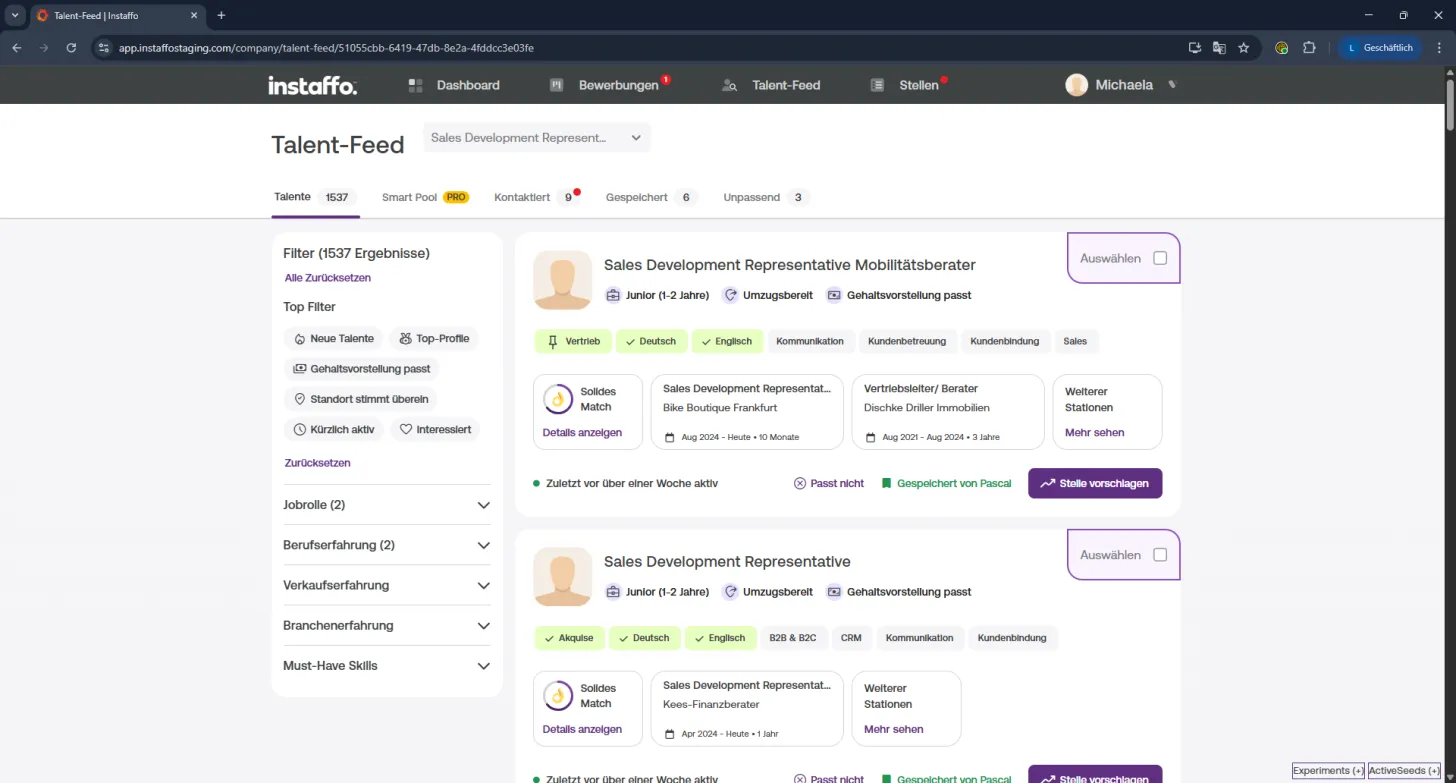
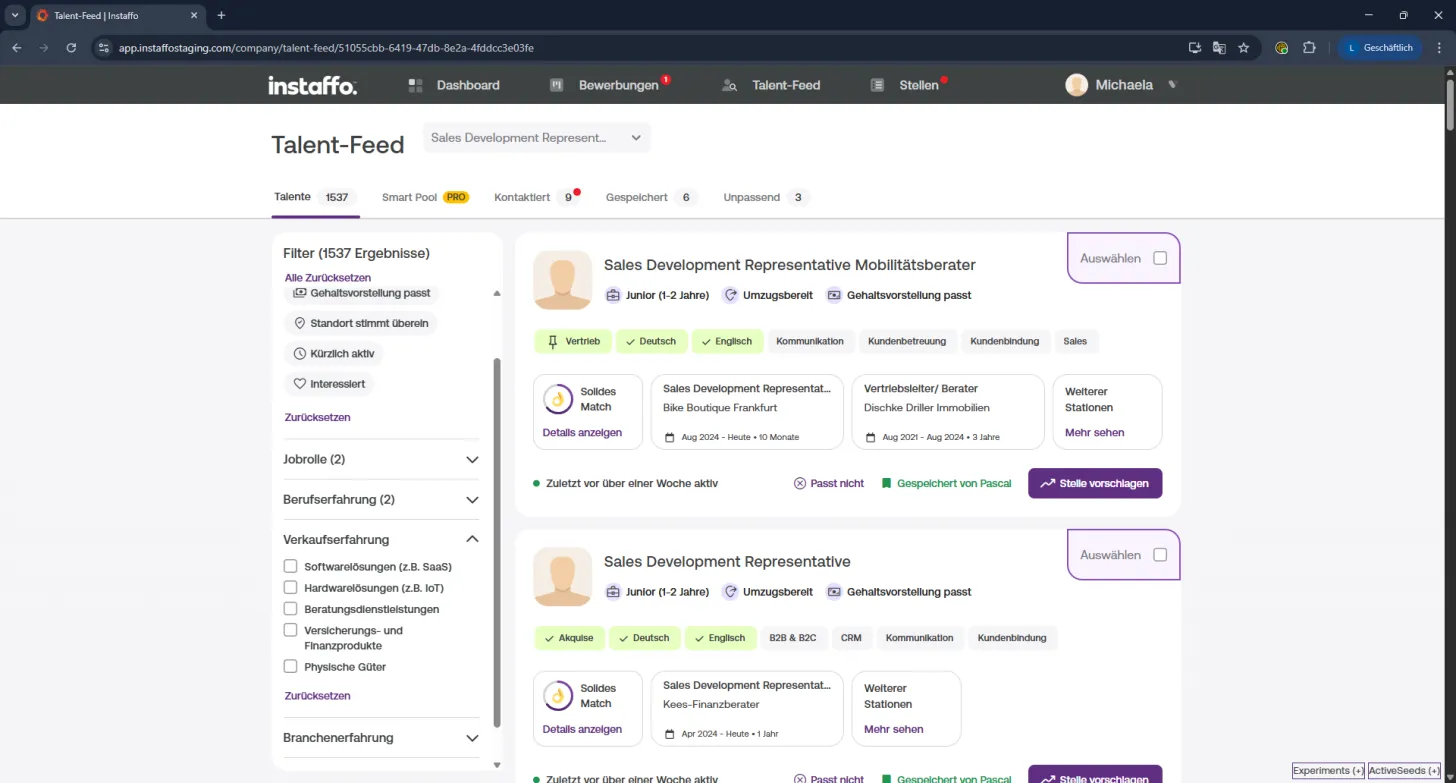
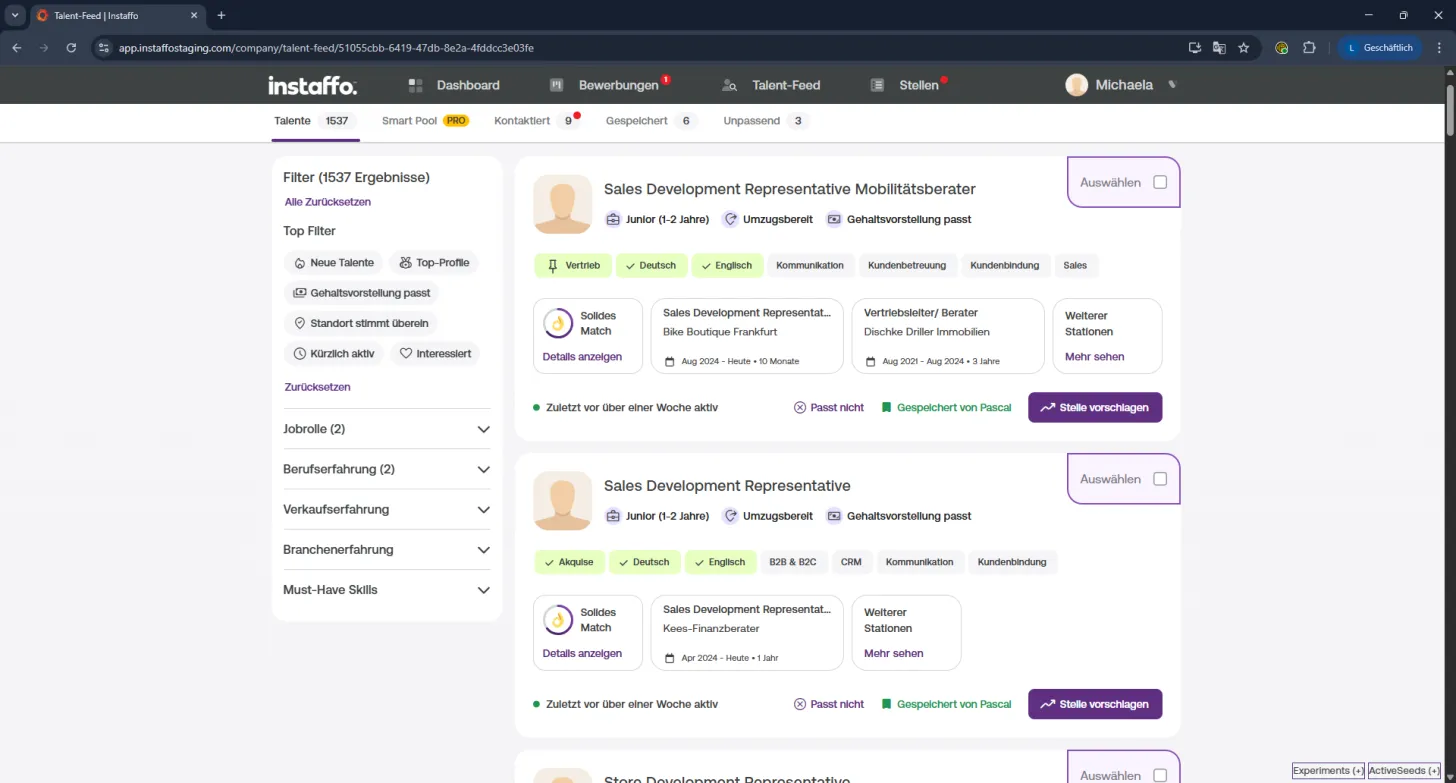
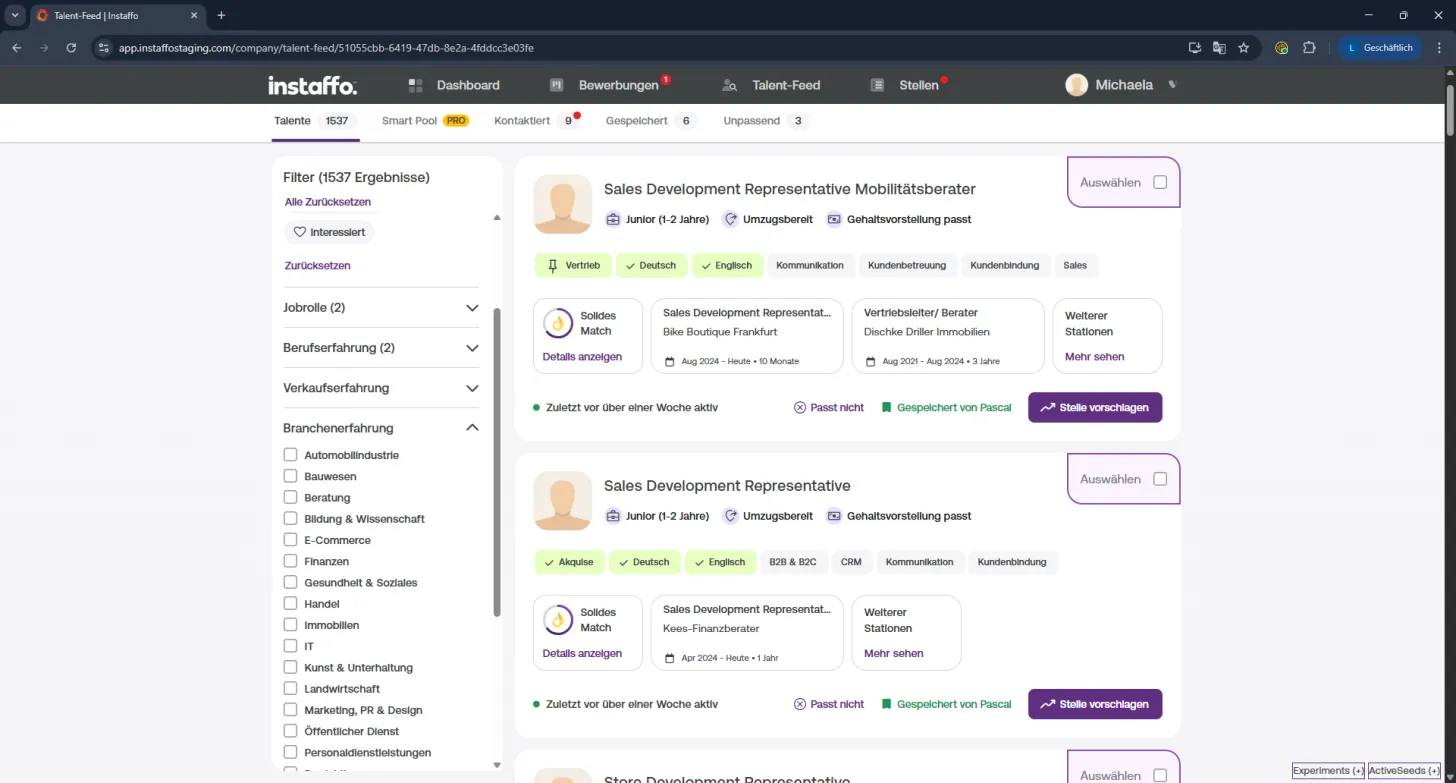
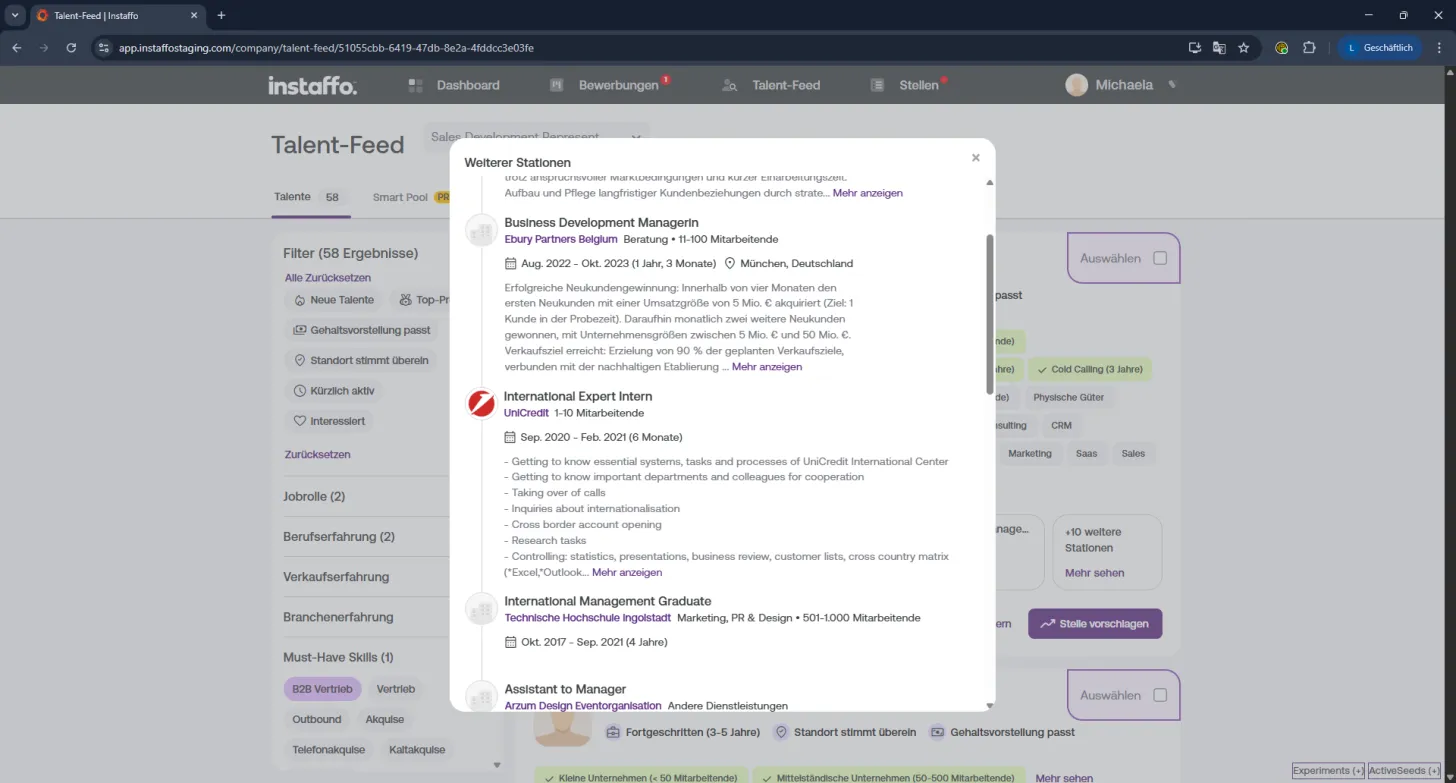
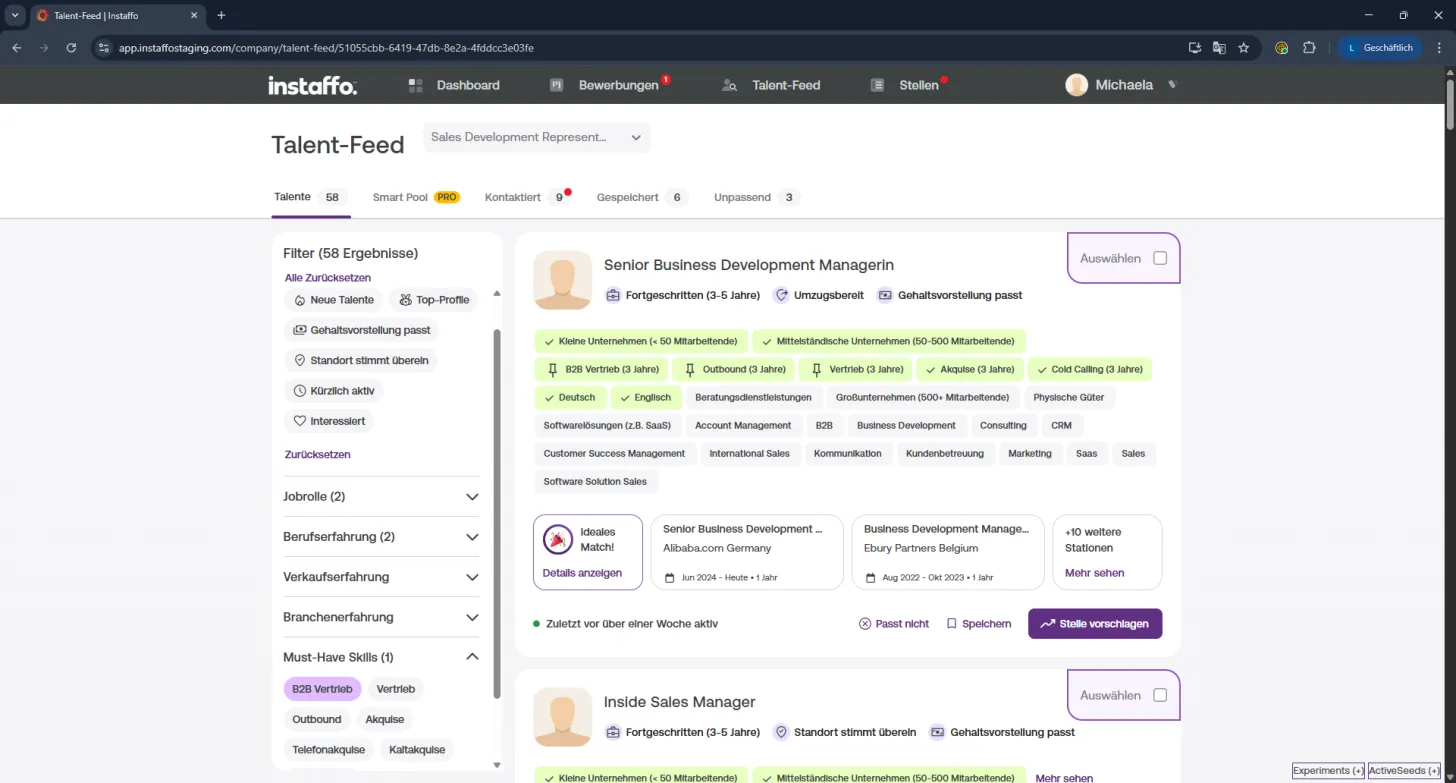
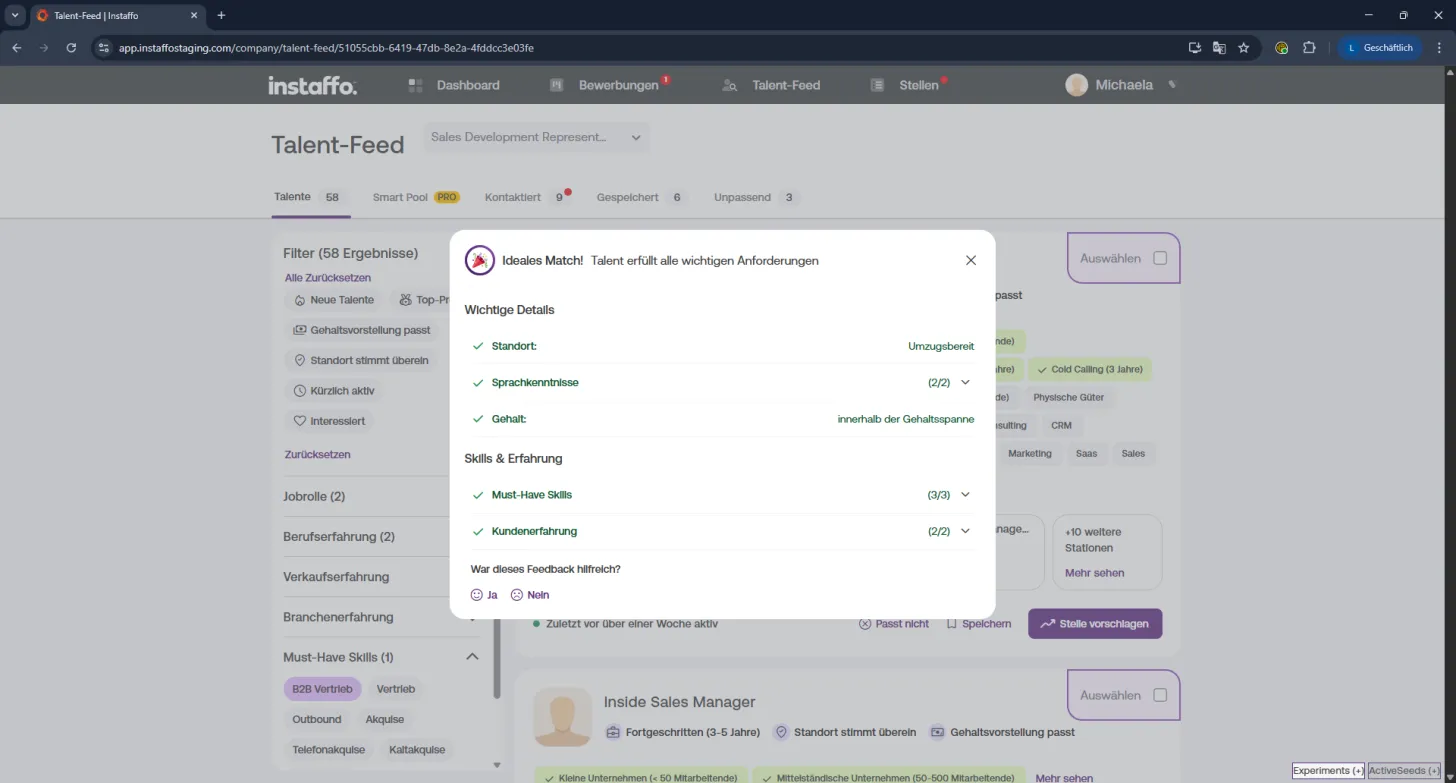
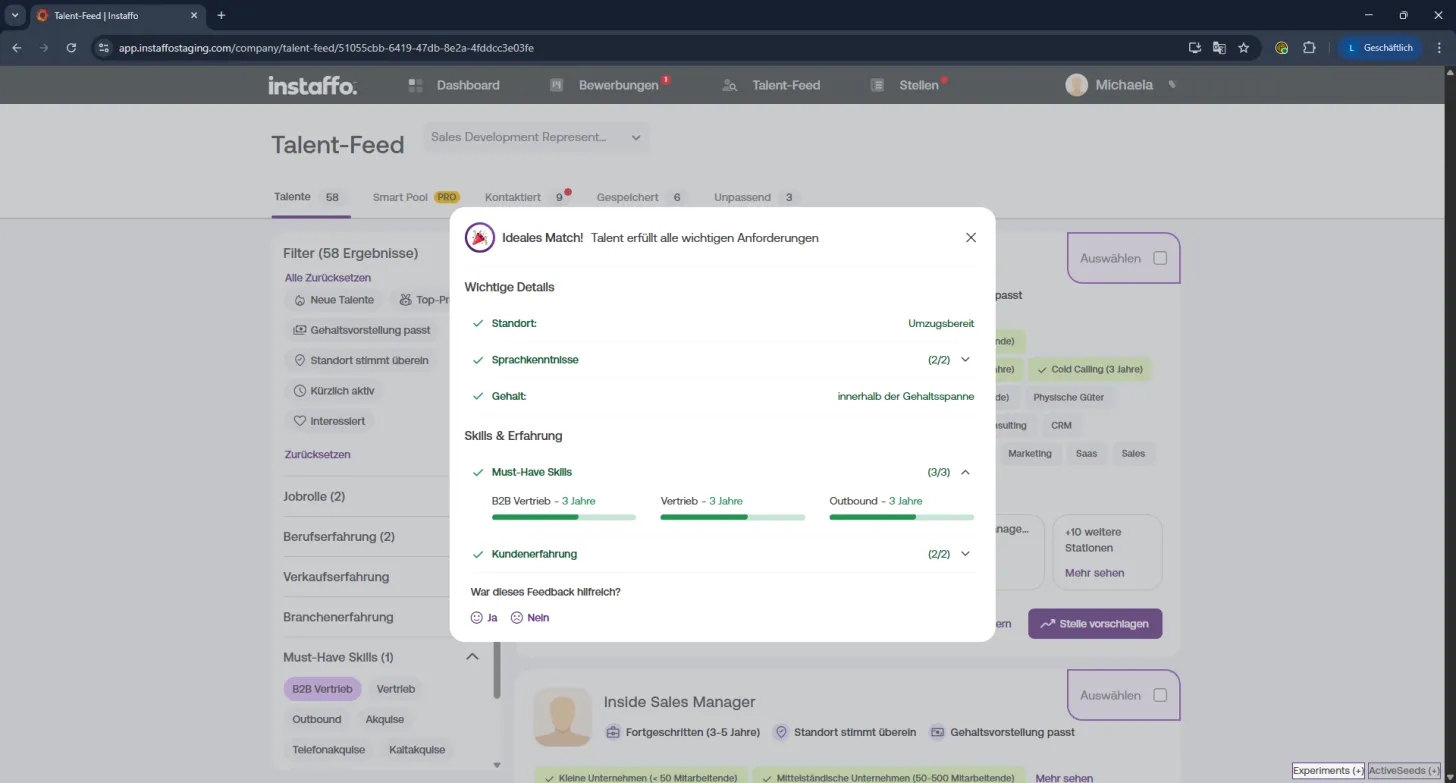
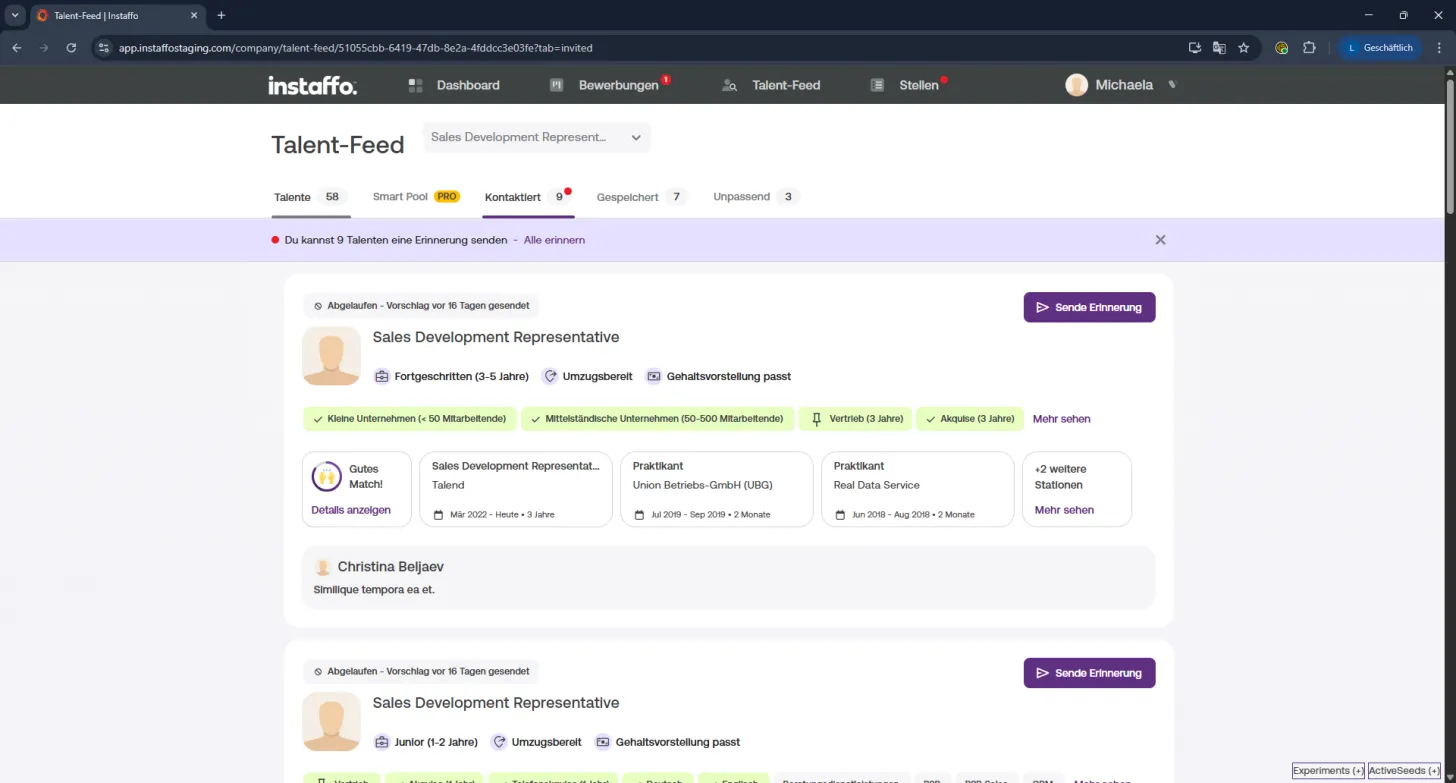
🧑💼 Select a Position
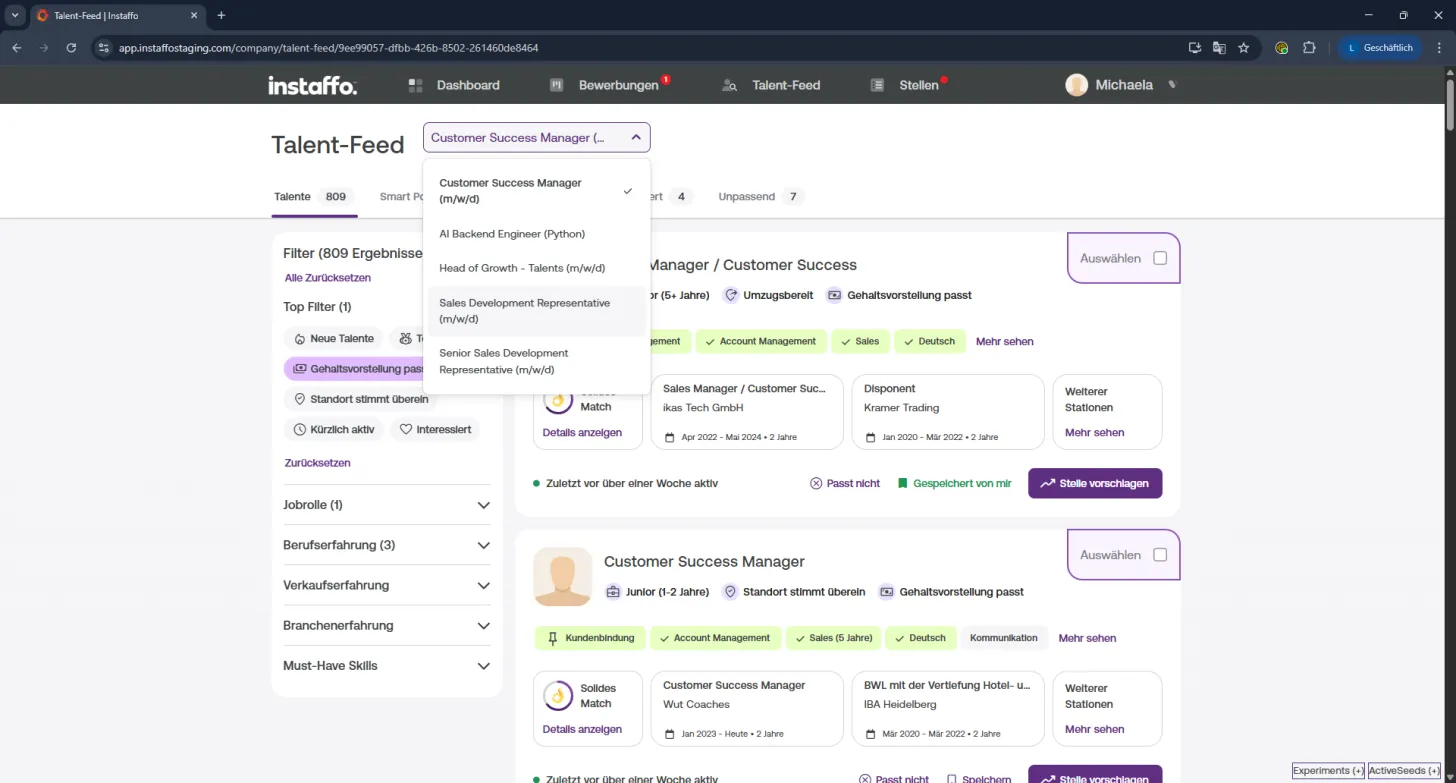
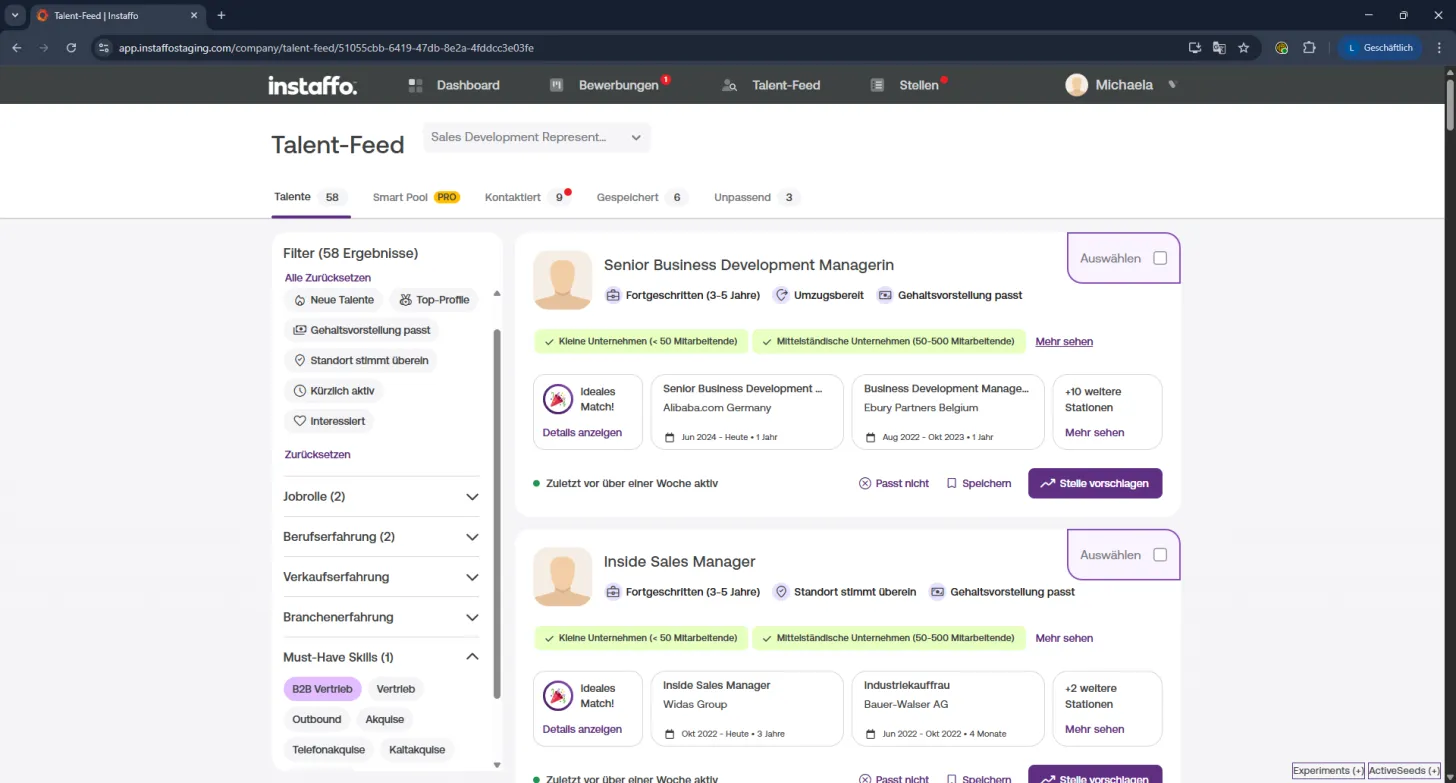
Before you get started, choose the position you're looking to fill:
- Click the dropdown menu at the top of the Talent Feed
- Select the right position, for example "Sales Development Representative"
⚡ Use Quick Filters
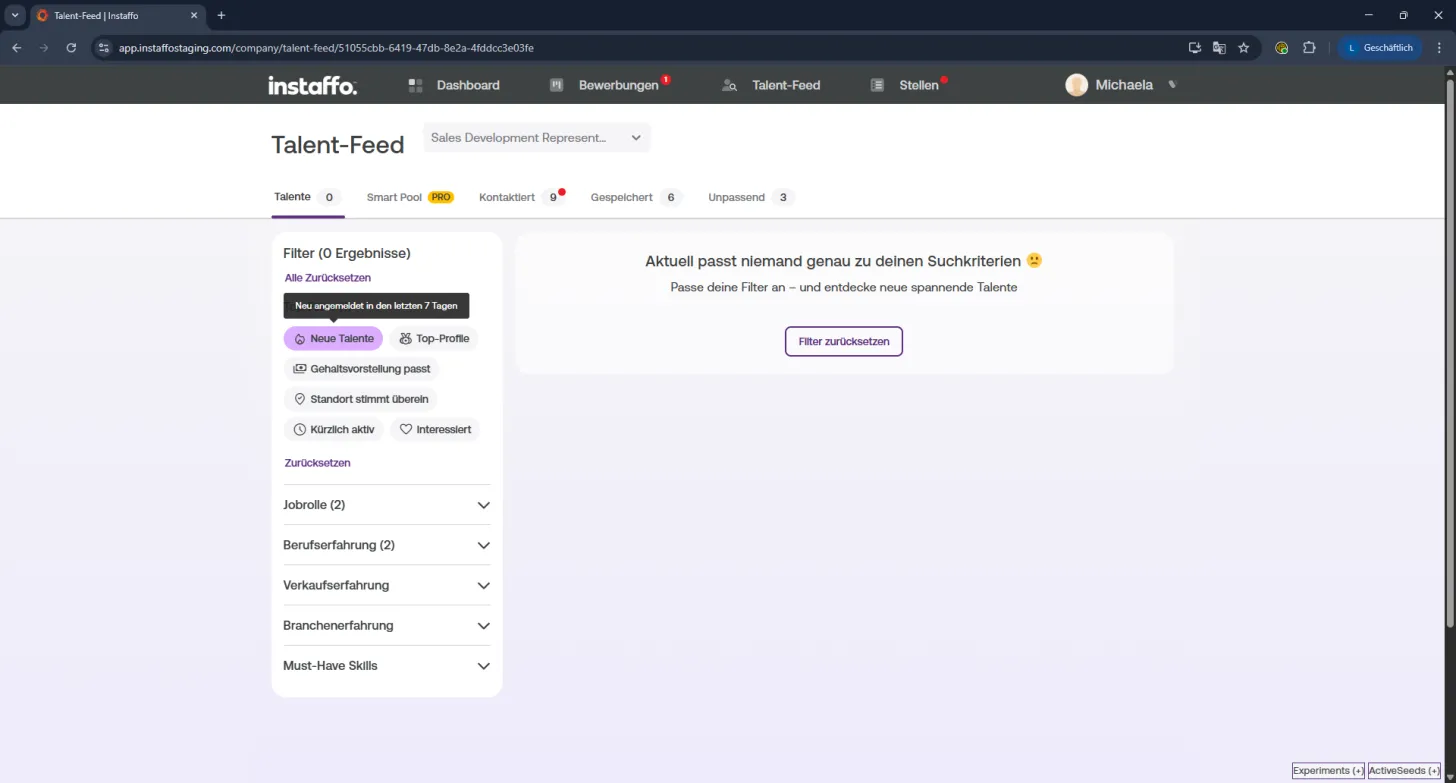
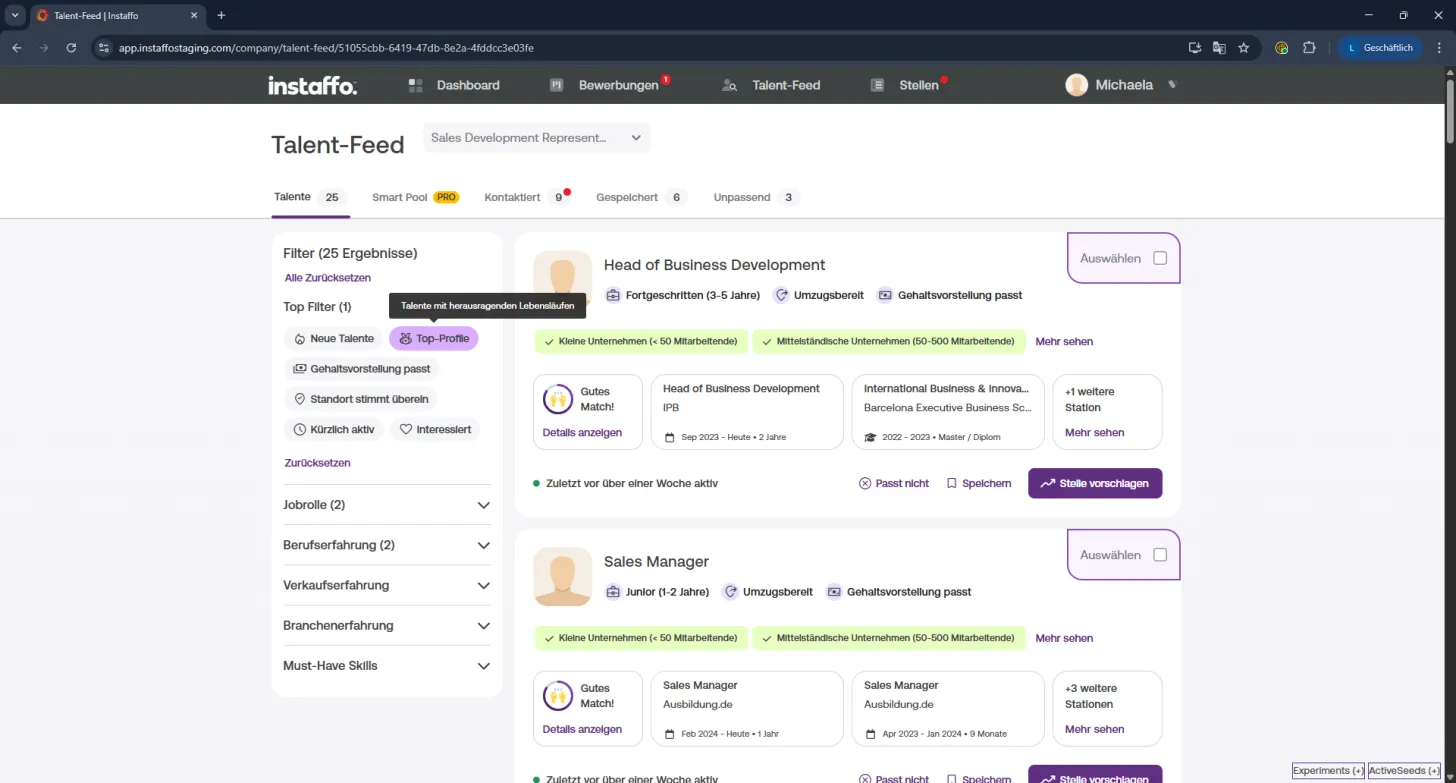
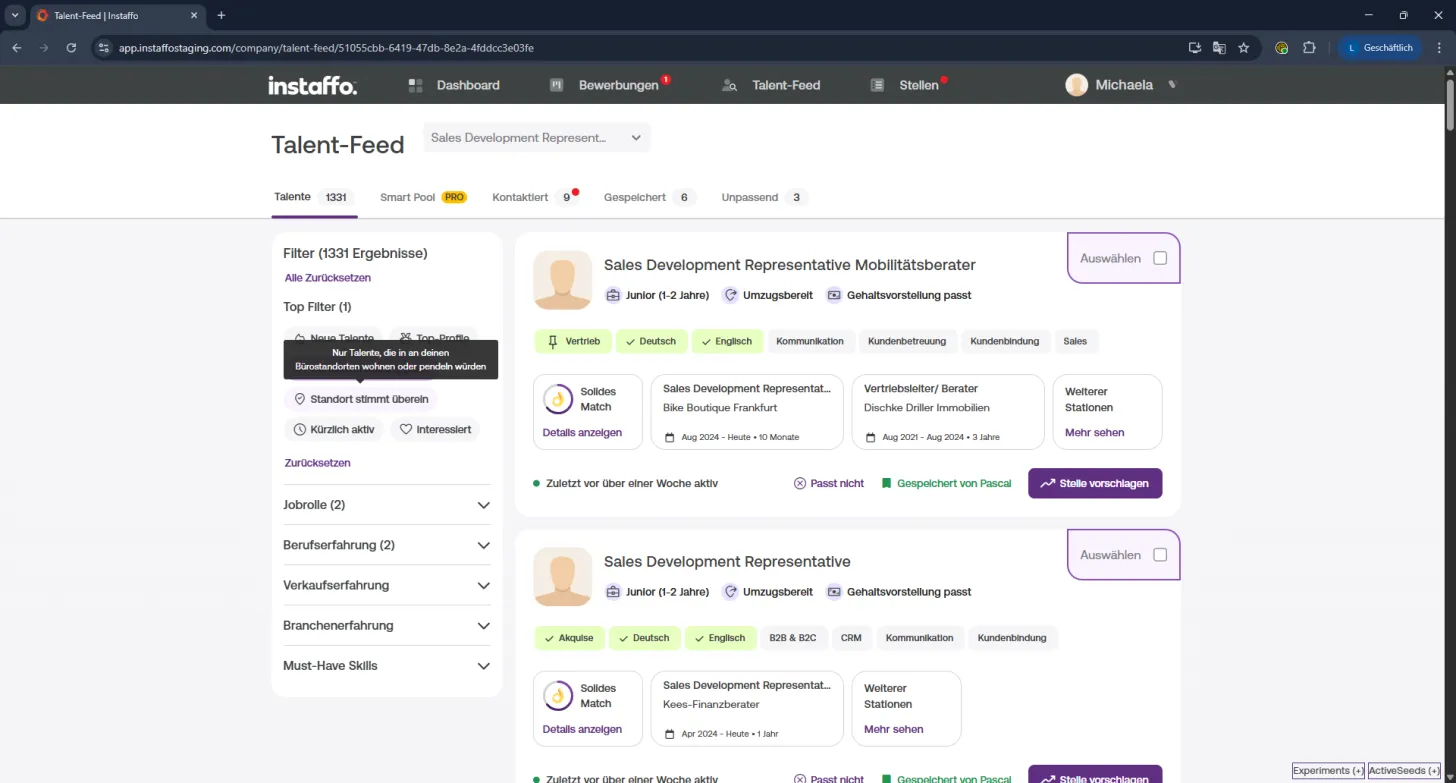
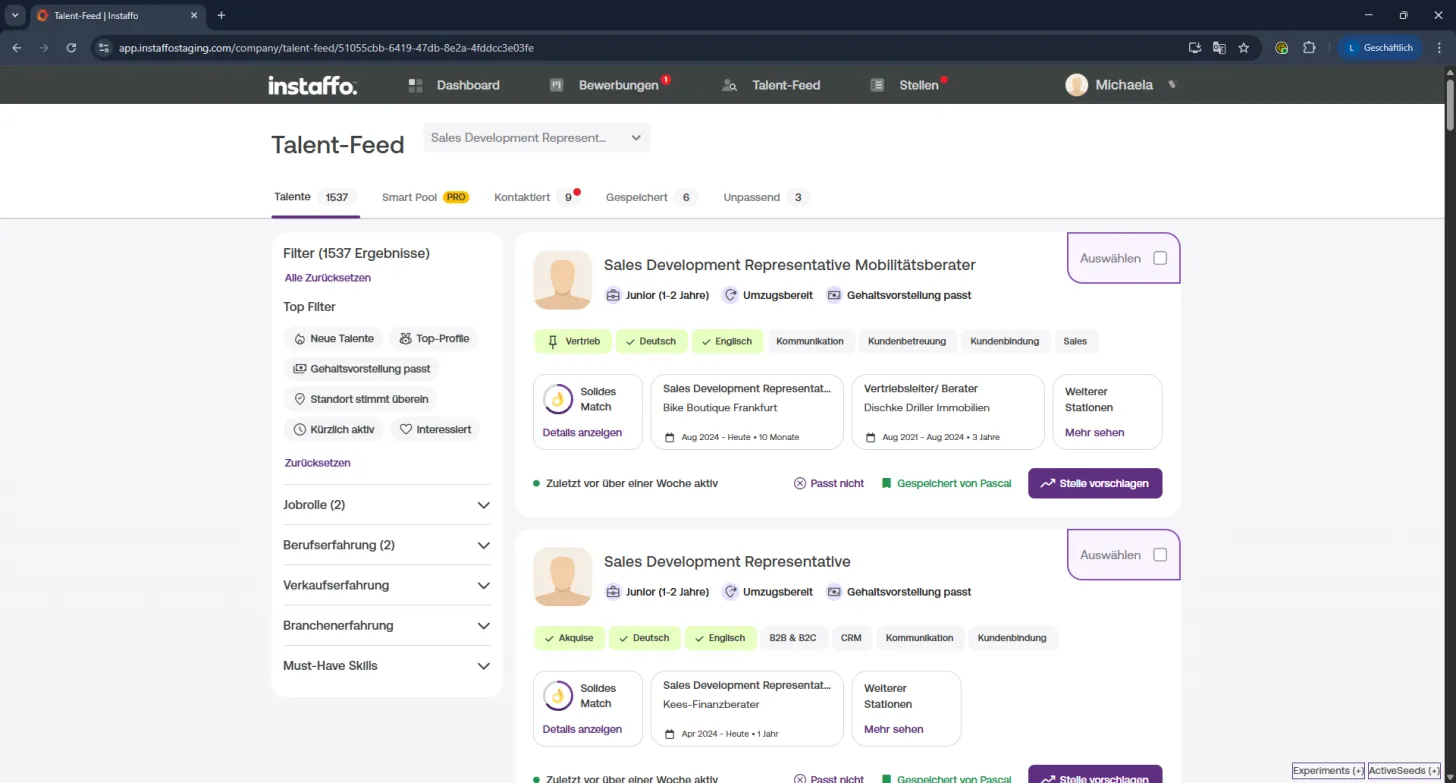
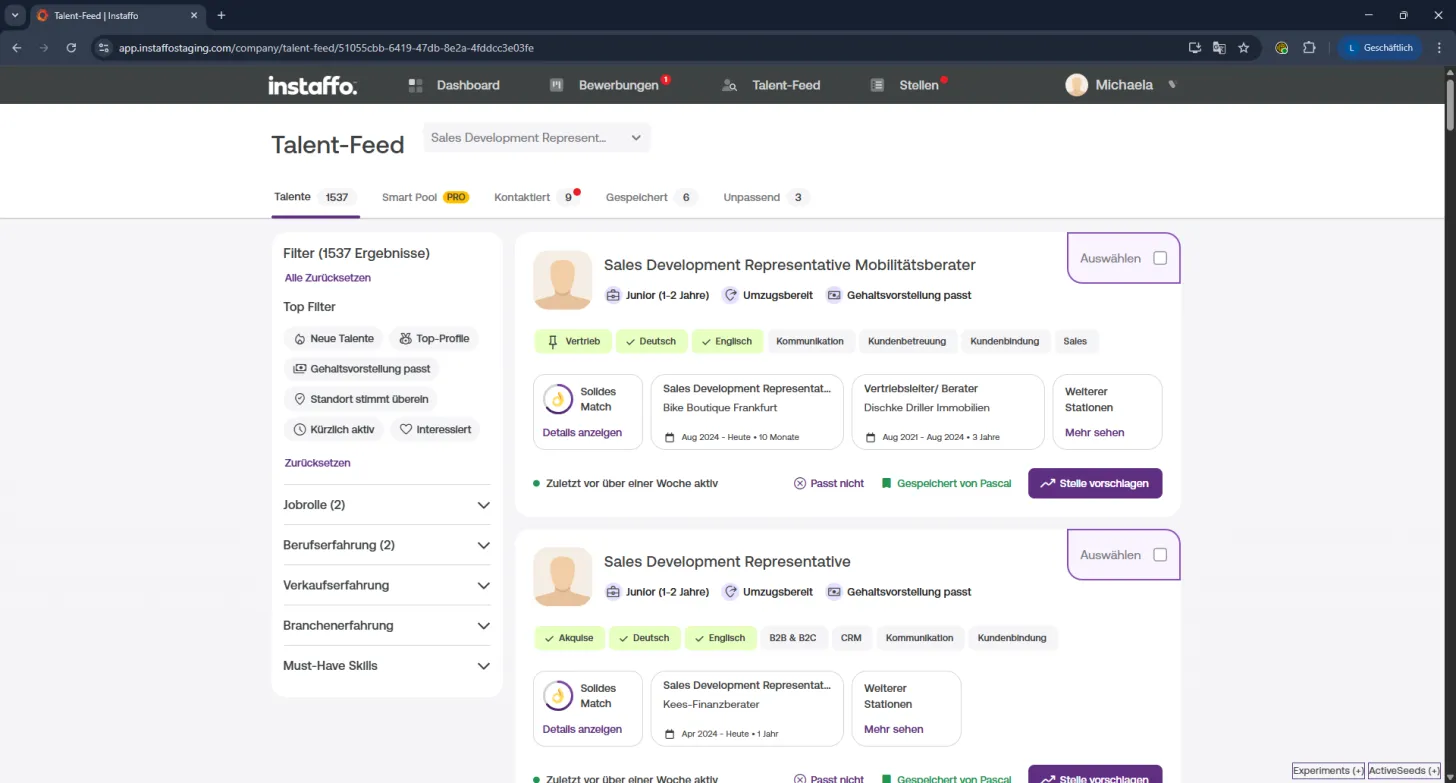
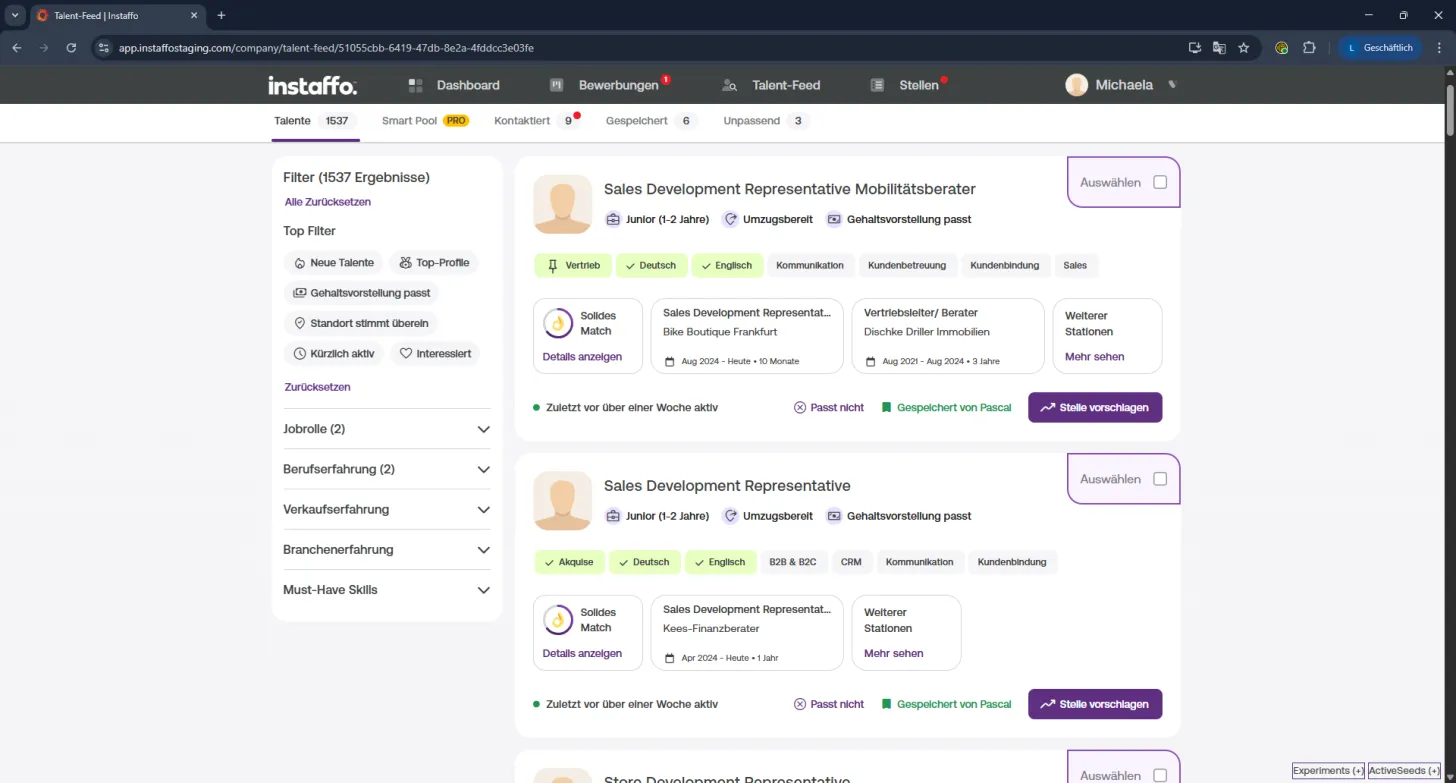
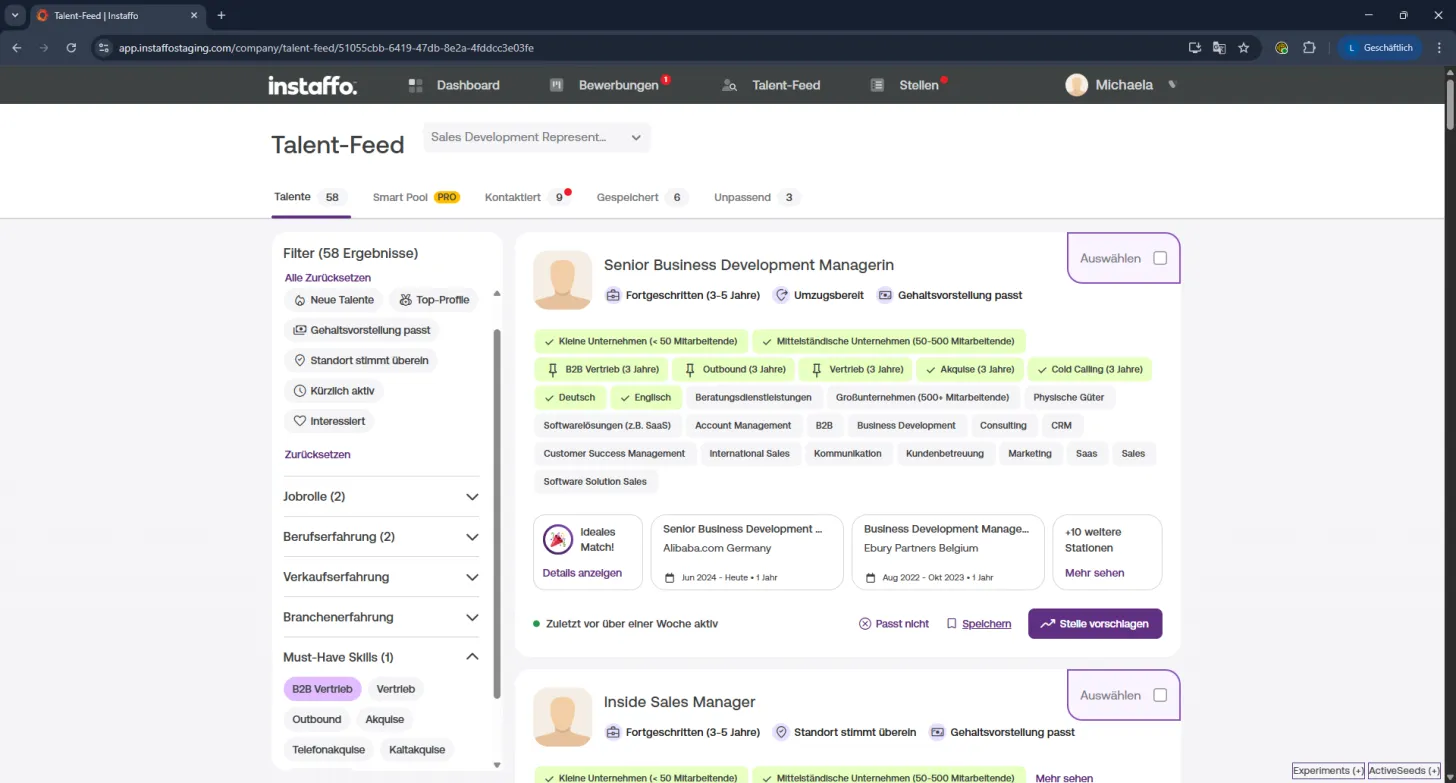
The quick filters give you a direct overview of particularly relevant candidates:
- New Talent: Freshly registered candidates from the last 7 days
- Top Profiles: Particularly well-maintained and complete profiles
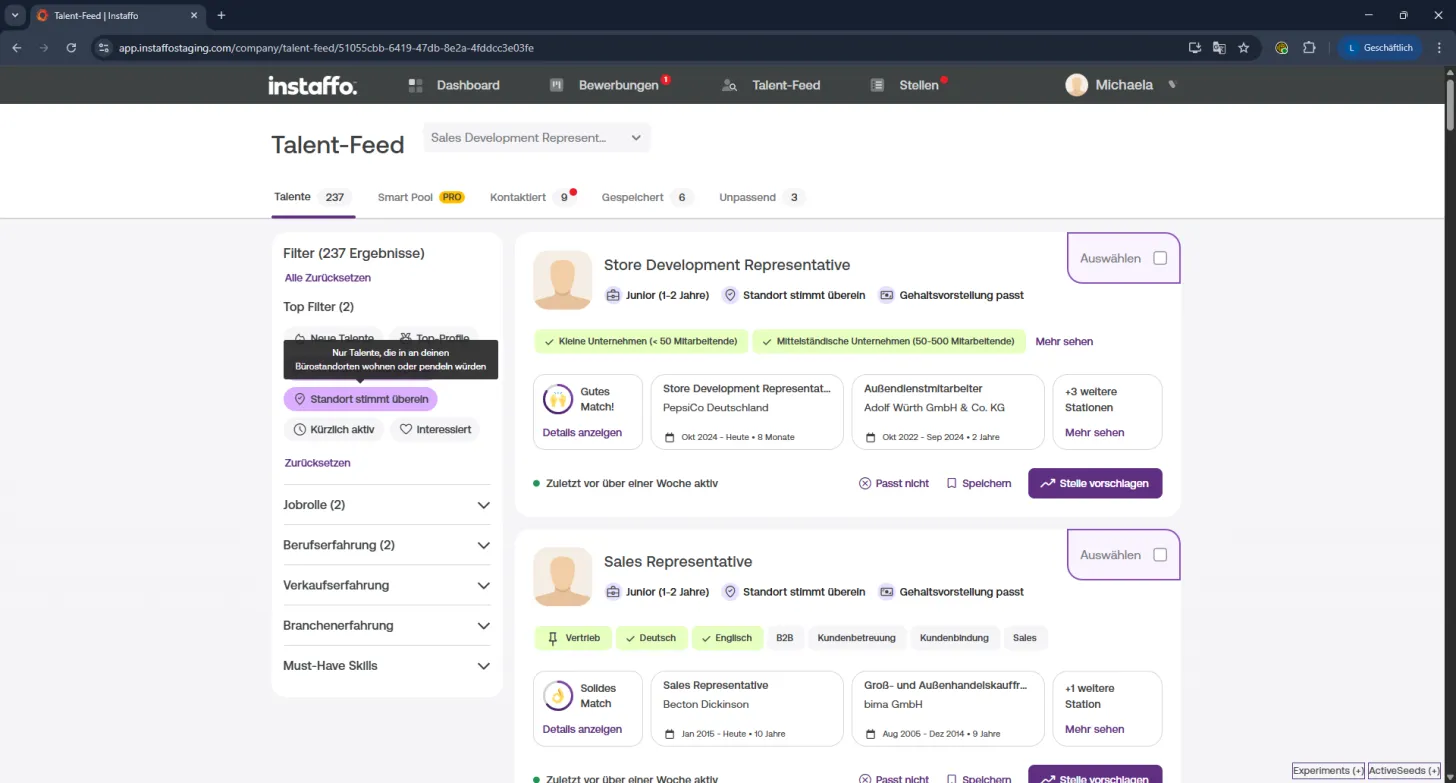
- Location Matches: Candidates who are geographically suitable for the position. For on-site roles, candidates within a 50 km radius are shown; for positions with national relocation willingness, those within 25 km in the same country are displayed. The exact filter logic depends on whether the position is listed as remote, on-site, or hybrid.
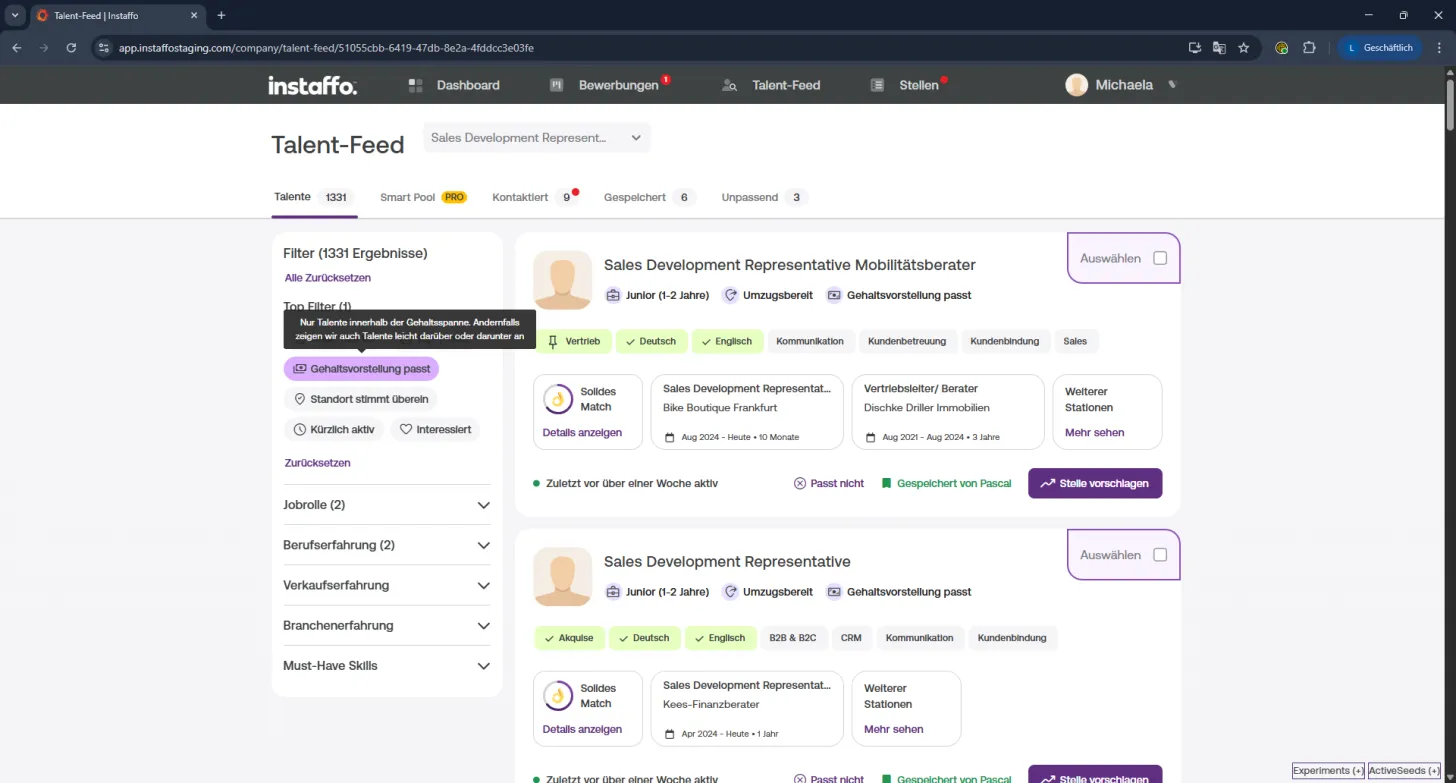
- Salary Expectations Match: Shows only candidates whose desired salary falls within your range (up to 15% above if the filter is disabled)
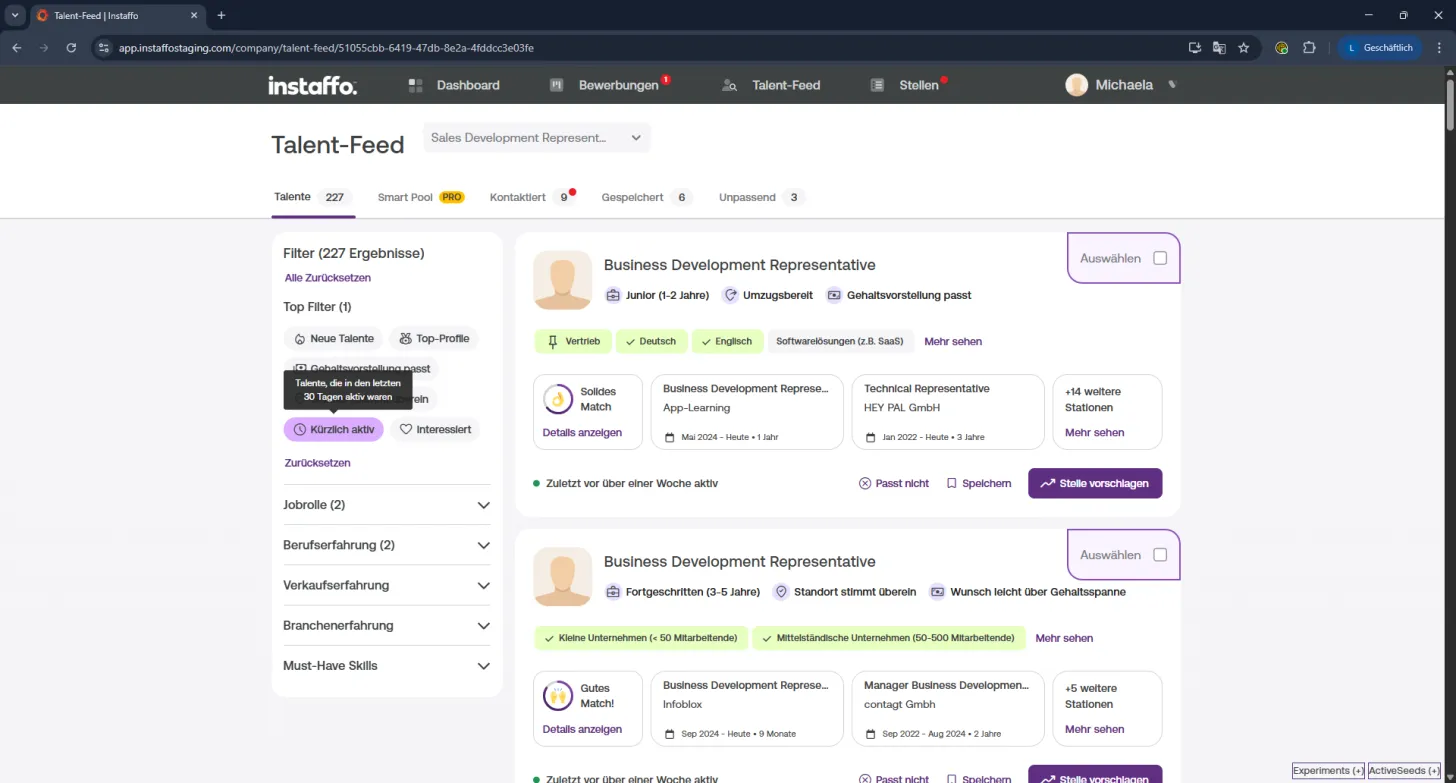
- Recently Active: Candidates who were active in the last 30 days
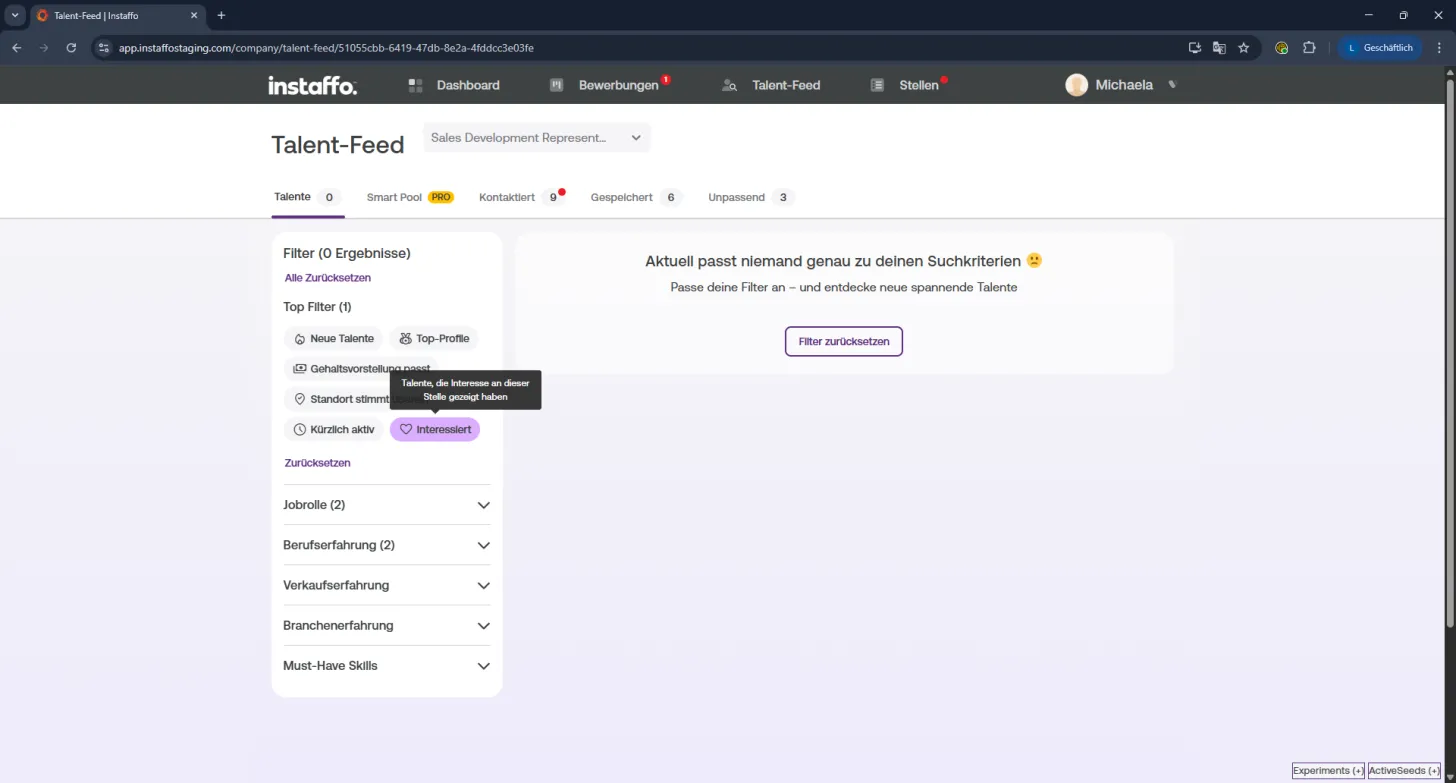
- Interested: Candidates who have already saved your position
🎯 Advanced Filter Options
With advanced filters, you'll find candidates that truly match your needs:
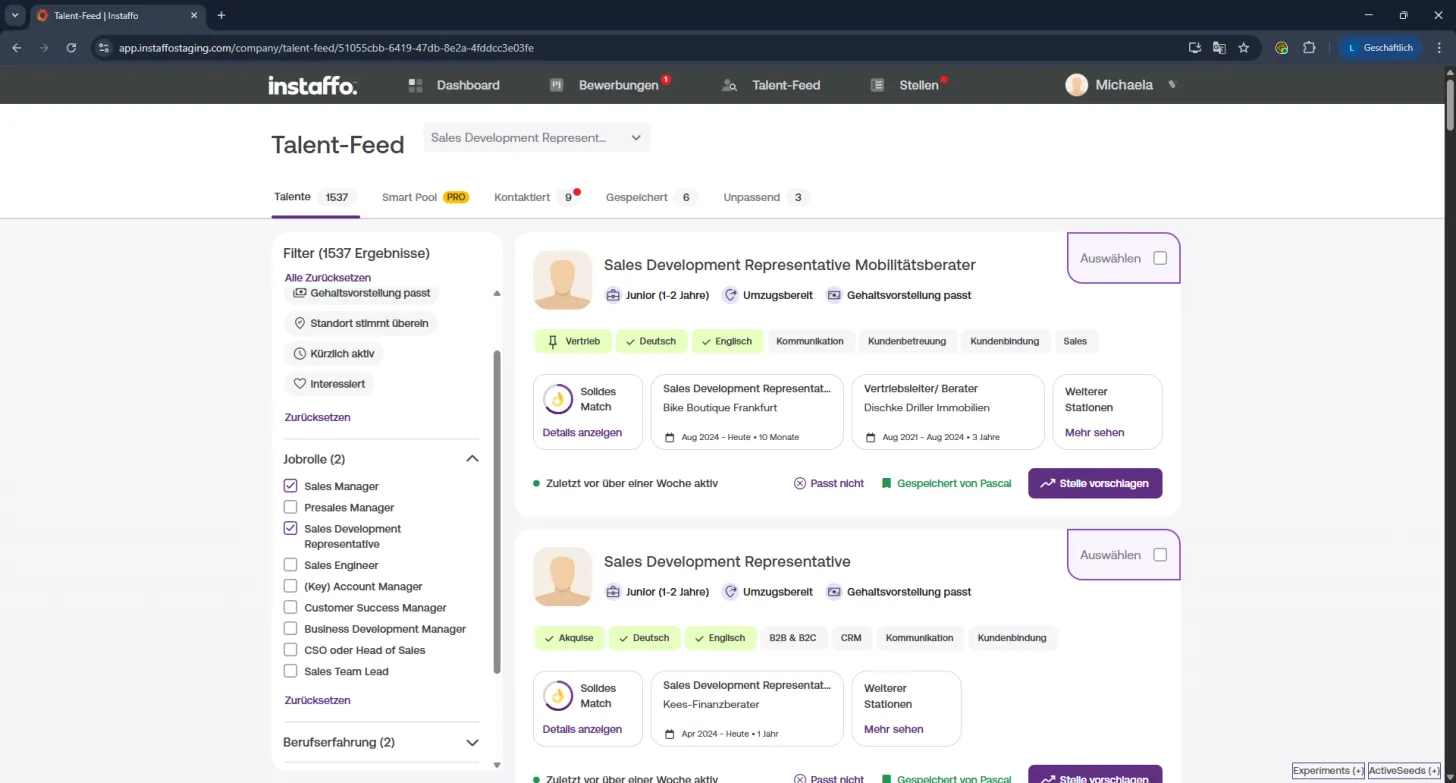
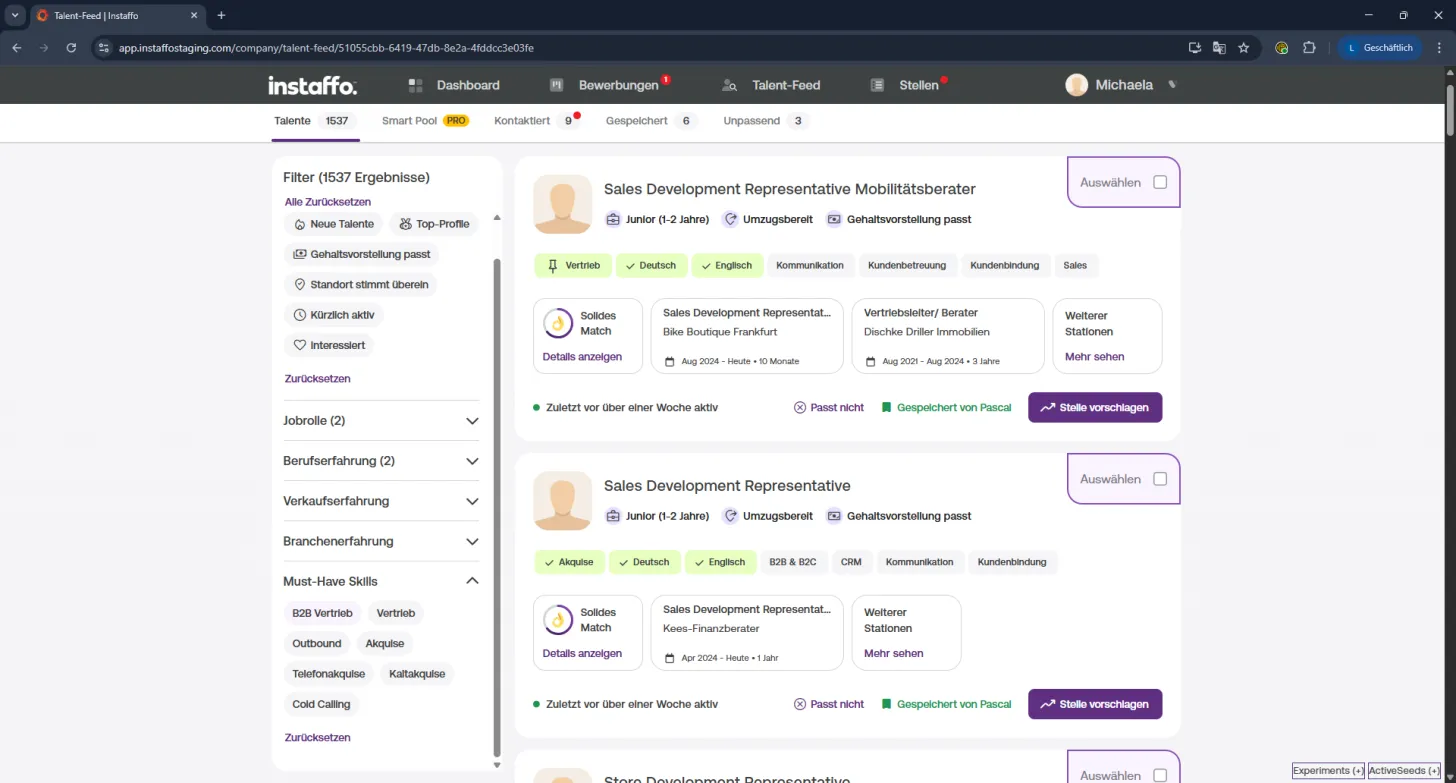
- Job Role: Select one or multiple roles
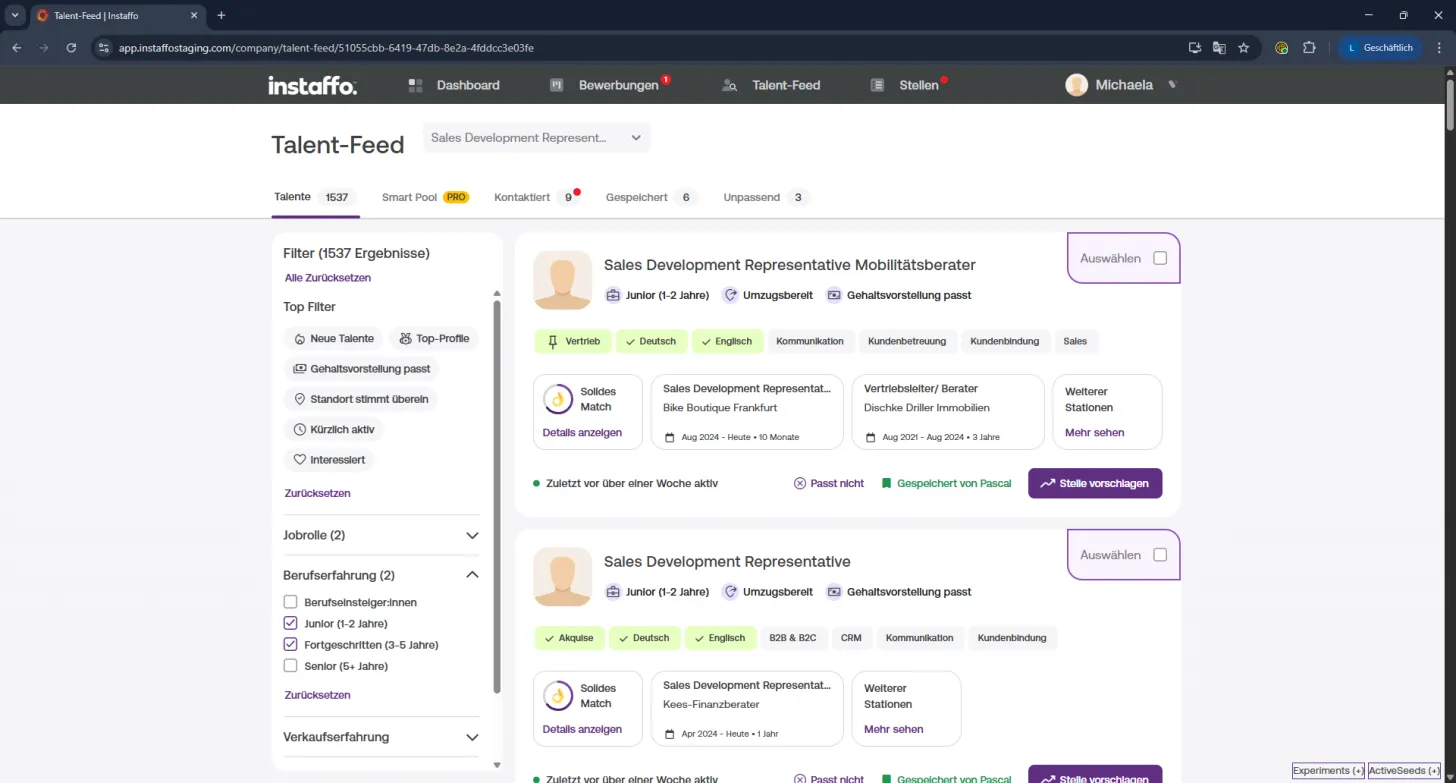
- Work Experience: For example, "3-5 years" or "5+ years"
- Sales Experience: For example, "SaaS sales" or "hardware solutions"
- Industry Experience: Filter by industry expertise
- Must-Have Skills: Shows only candidates with exactly this skill in their profile
💡 Tip: Only exact skill names are recognized
(for example, "B2B sales" is not the same as "sales" + "B2B")
👀 Working with Candidate Profiles
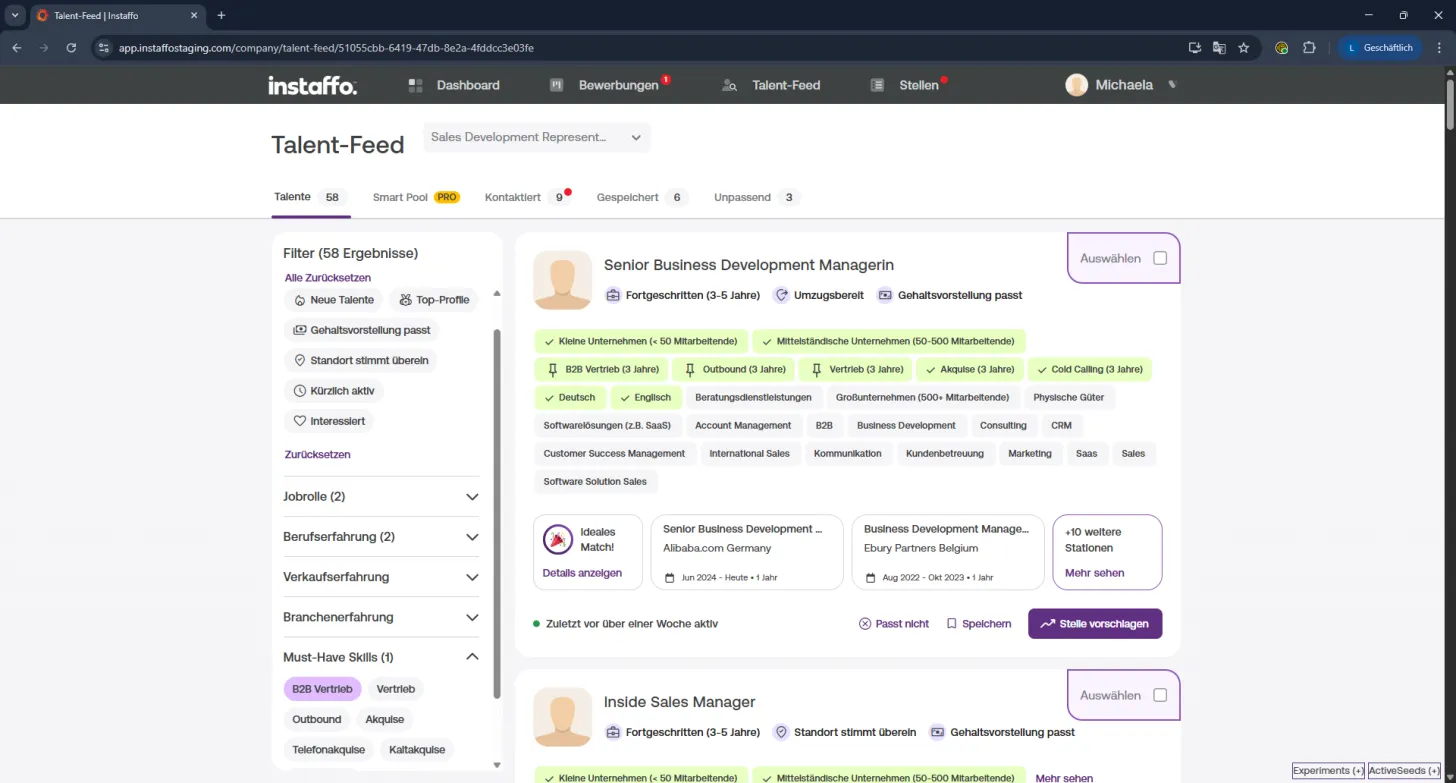
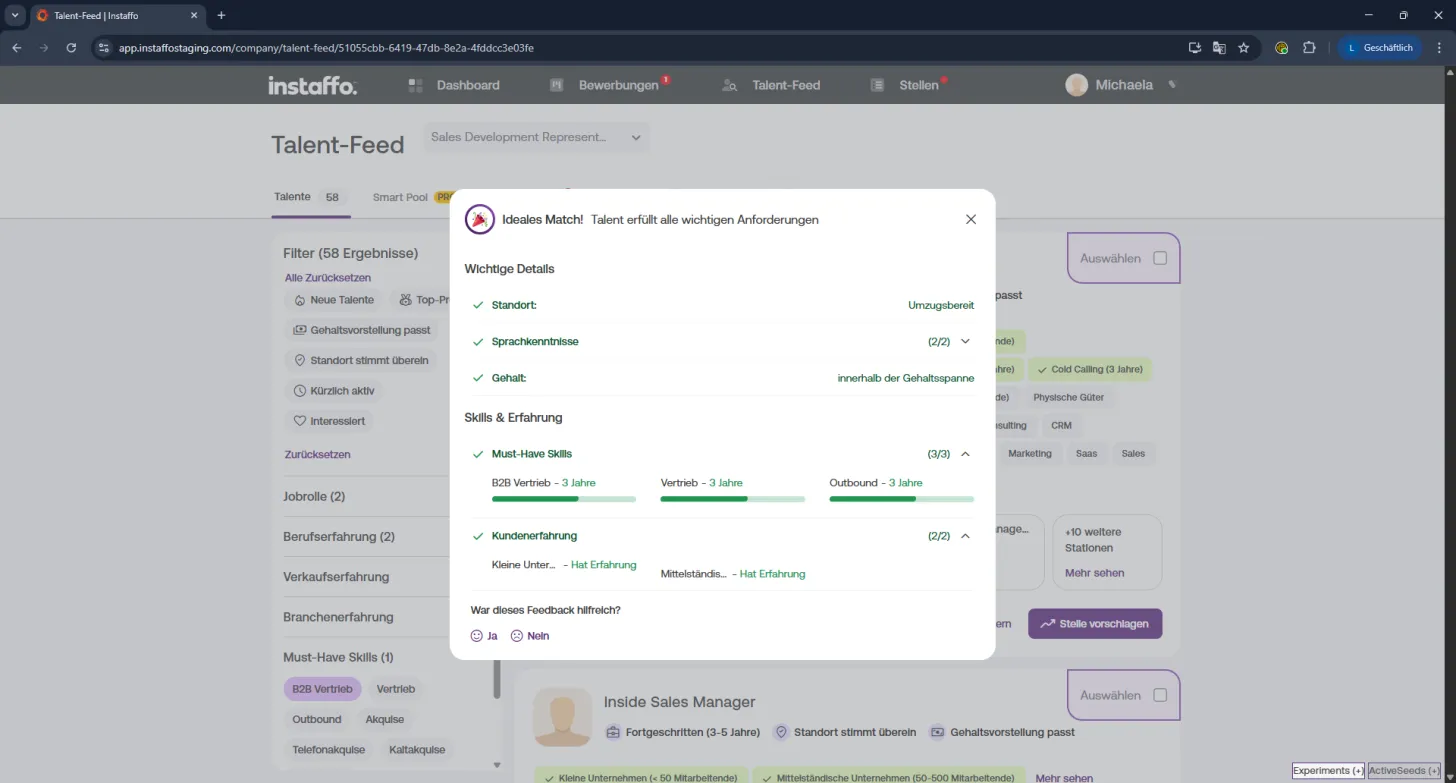
Use the information in the profile to quickly see if a candidate is right for your position:
- Green Skills = match the advertised position
- Gray Skills = additional qualifications
Here's How to Proceed:
-
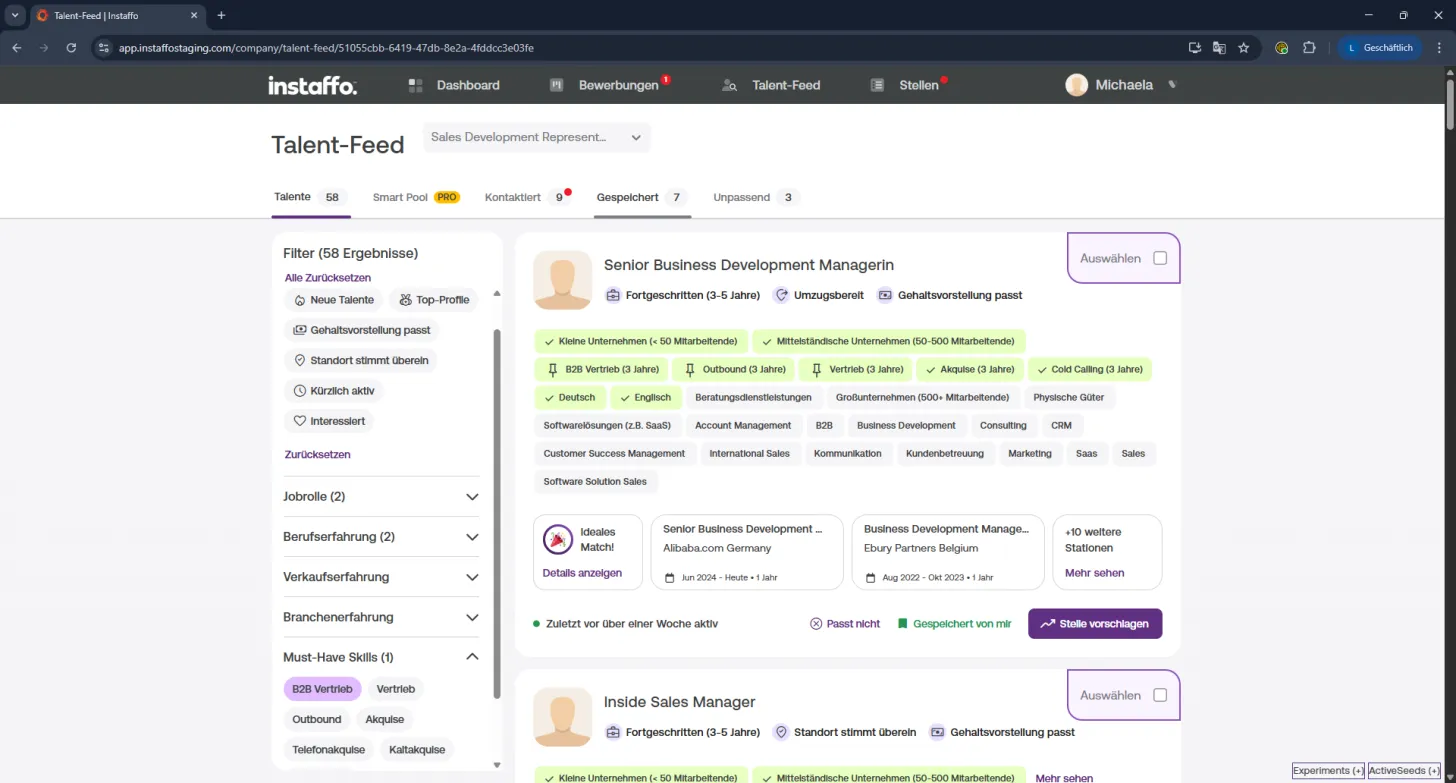
Save Candidates:
Click "Save" to mark candidates of interest.
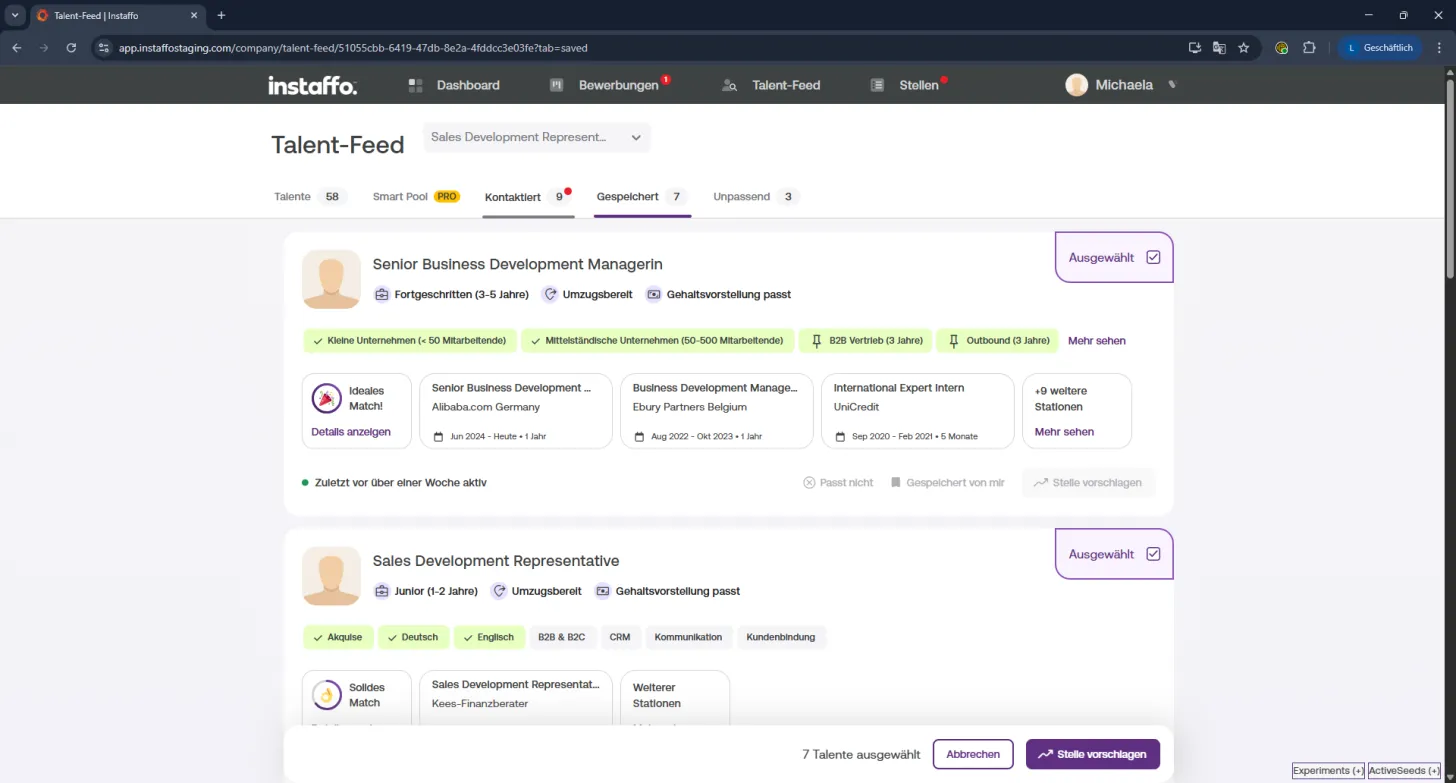
You'll find them later in the "Saved" tab - perfect if you want to suggest the position to multiple people. -
Suggest the Position:
Click "Suggest Position" to reach out directly.
Three tips for your message:- Keep it short (3-5 lines is enough)
- Don't repeat the job description - the candidate can see it
- Introduce yourself personally and show that you're open to a conversation
-
Manage Contacts:
In the "Contacted" tab, you'll see all candidates you've reached out to in the last 30 days.
⏳ After 3 days, you can send a reminder. -
Back to Overview:
Use the "Talent" tab to return to the overview for your selected position anytime.
With the Talent Feed, you'll find the people who truly fit your team in a targeted way -
and make recruiting simple again. 💪
 Powered by happysupport.ai