
Screen new applications and make your first decisions
Review new applications in the Screening tab, filter by job and skills, then accept or reject candidates to move matches into conversations faster.
During screening, you review new applications and decide which candidates to accept and which to reject. This helps you stay on top of things and get suitable candidates into a conversation sooner. 🚀
Go to screening
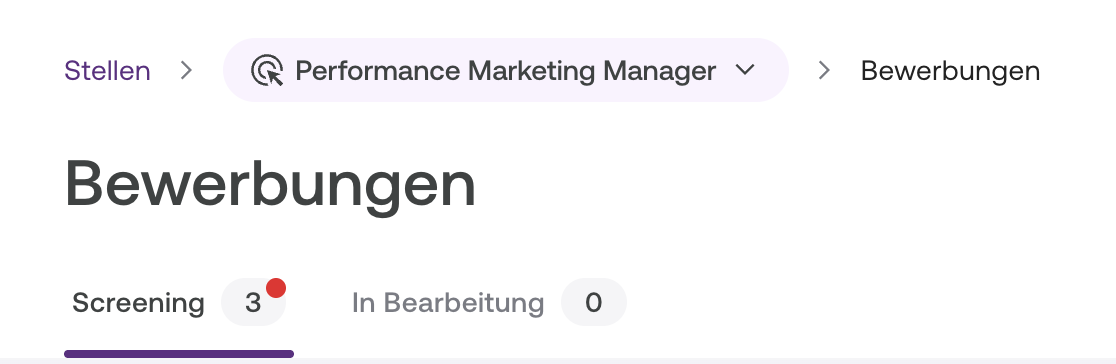
In Bewerbungen, open the Screening tab.
Here you’ll find all new applications with the status Bewerbung, meaning applications that haven’t been screened yet.
Get an overview of new applications
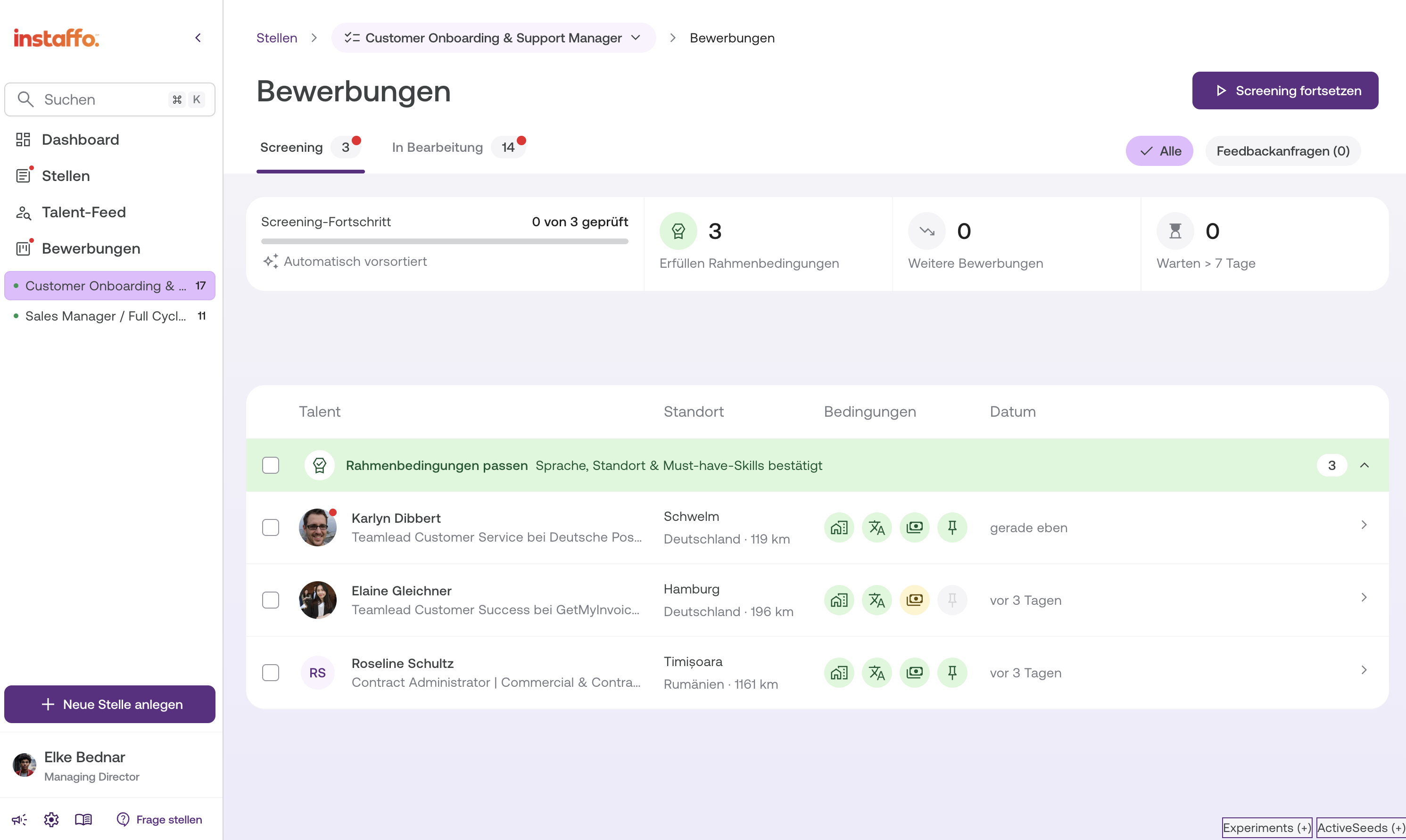
- Applications with a red dot haven’t been reviewed yet.
- At the top, you can switch between jobs or filter the list.
- If you select a single job, the list is split into two groups: Rahmenbedingungen passen and Nicht alle Rahmenbedingungen passen. The groups are based on language, location, and, if your job has them, must-have skills.
- For must-have skills, a candidate can stay in the first group as long as they fully meet at least one skill. If they don’t meet any of them, they’ll appear in the second group. Skills you added to the job after the candidate applied don’t count for that candidate.
- If all applications meet the requirements, you’ll see only one group. The second group won’t appear.
- When you select multiple jobs, the list stays in its usual simple table format.
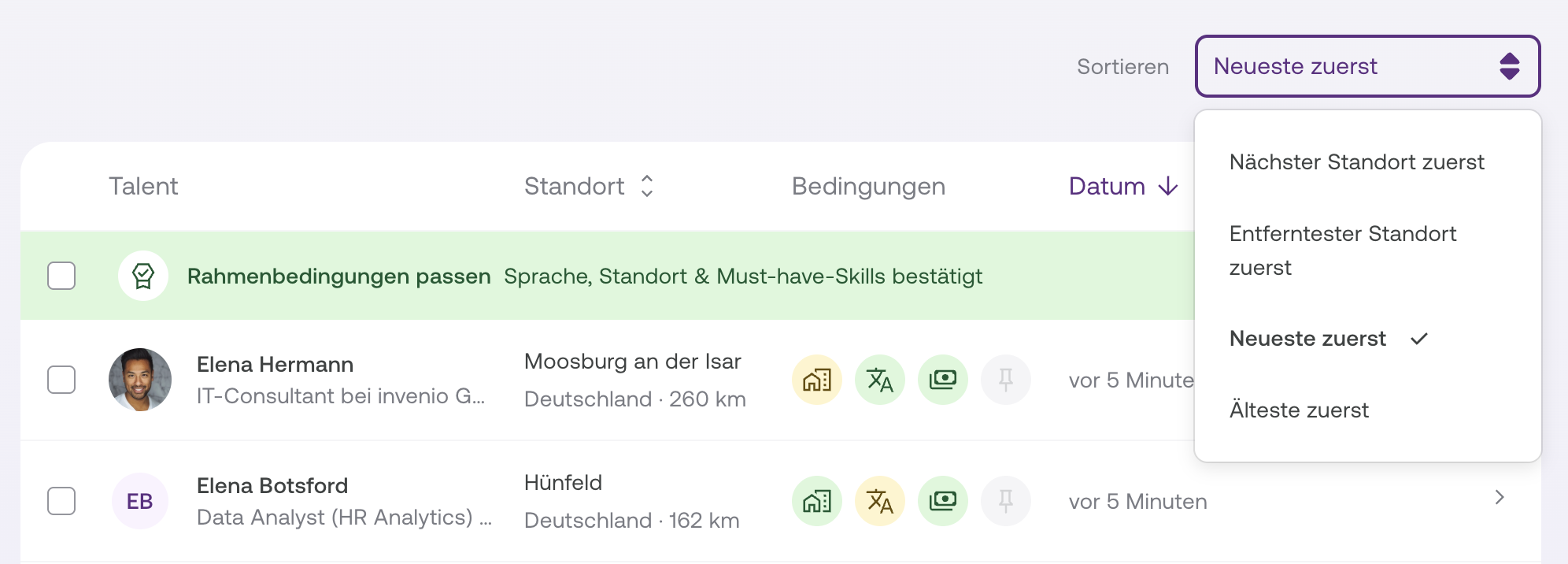
- Use Sortieren above the table to choose the order, for example, “Newest first.”
- Select Nächster Standort zuerst to see candidates who live closest to the job first. You can also do this by clicking the Standort column. Candidates without a location are always listed at the end.
💡 Tip: Review new applications regularly. The sooner you respond, the sooner you can connect with suitable candidates.
Important information at a glance
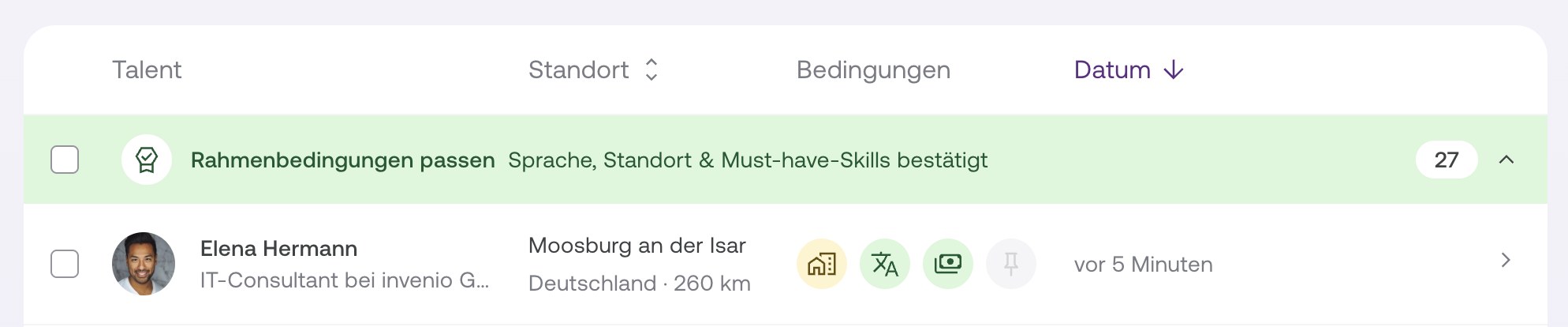
The table has four columns:
- Talent: Name, current position, and company
- Standort: City, country, and distance to the nearest location for the job. A moving truck icon means the candidate would relocate for the job.
- Bedingungen: Icons for salary, language, and location. If your job has must-have skills, a fourth icon appears, for example, “2/3 Must-have skills.” Green means met, yellow means partially met or borderline, red means not met, and gray means not relevant. Hover over an icon to see the details. For must-have skills, this includes which skills are missing and how many years of experience the candidate listed.
- Datum: How long the application has been waiting. After seven days, the text turns orange.
This makes it easy to see who’s a particularly good fit.
The status bar above the table shows your screening progress, along with the number of applications that meet the requirements, the number of other applications, and the number that have been waiting for more than seven days.
The progress bar counts the decisions you’ve made in the current browser tab. If you open the job in a new tab, the count starts at zero again, but your decisions are still saved. Only Annehmen and Ablehnen count. Moving on to the next candidate doesn’t.
Start screening
Click „Screening fortsetzen“ in the top right to start with the first application.
Or select an individual application to start with that one.
Screening is always tied to a specific job and follows the order in the table, from top to bottom.
Review multiple applications at once
Use the checkboxes on the left to accept or reject multiple candidates at once, up to 20 per action. The checkbox in a group row selects all loaded candidates in that group.
Once you’ve selected candidates, a bar appears above the table with Auswahl aufheben, Ablehnen, and Annehmen.
- Annehmen: Works the same as accepting an individual candidate. You confirm the privacy notices and, if needed, write a first message.
- Ablehnen: Confirm your decision in a pop-up window. Select Nachricht hinzufügen to send all selected candidates a personalized rejection message. Their names will be inserted automatically.
The candidates will be notified of the rejection and will disappear from your screening list. You can’t undo this action.
Review candidate details
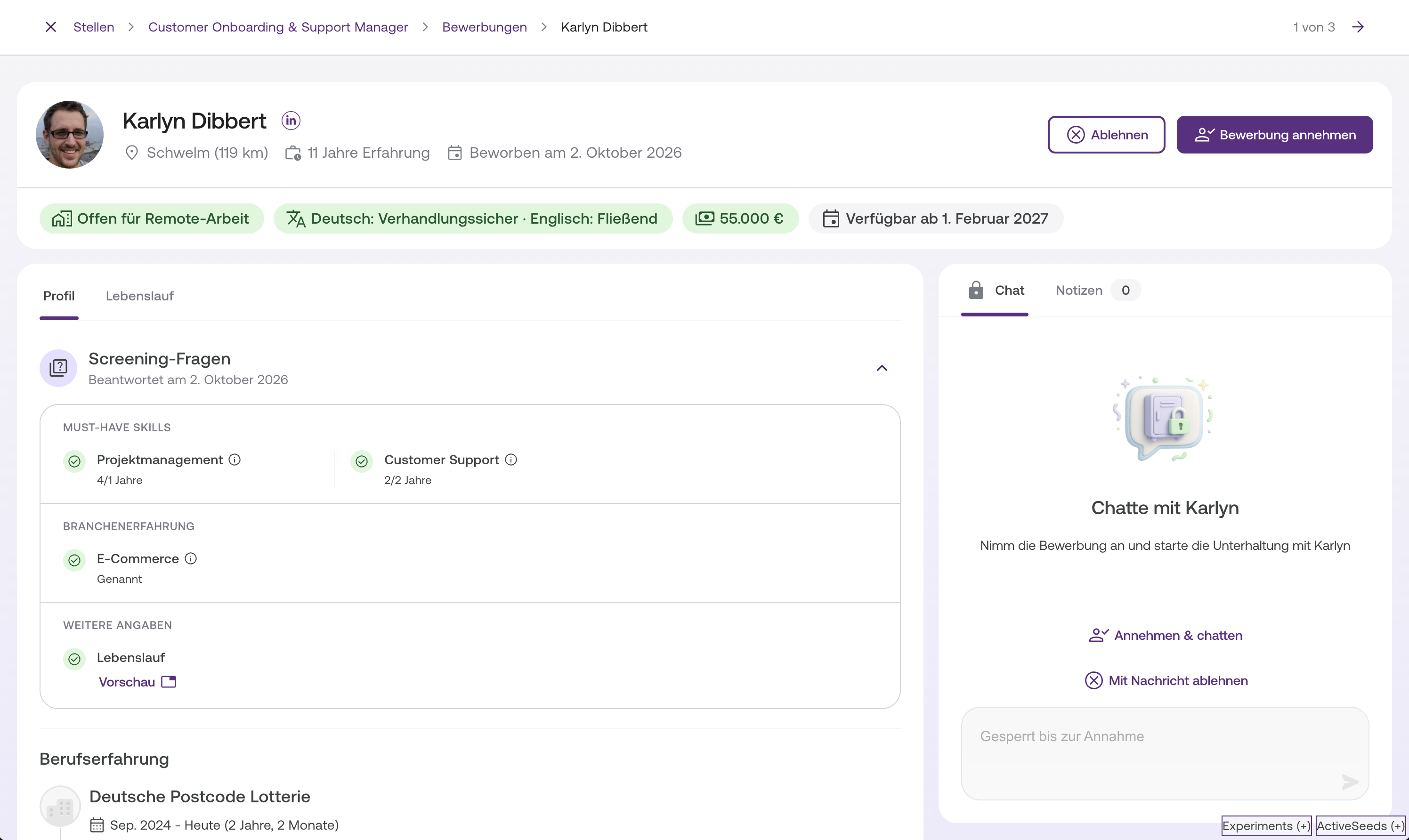
The details view opens in full screen. The left navigation is hidden so you can focus on the candidate.
At the top, you’ll find:
- An X to close the view. You’ll return to exactly where you were in the list.
- The path job title › Screening › candidate name. The job title and Screening are links that you can open in a new tab.
- A counter such as “3 von 14”, with an arrow to the next candidate on the right. A progress bar directly below shows how far you are through the list.
Below that, you’ll see:
- The candidate’s city beneath their name and the requirements as colored tags, with the same information as in the table. For salary, you’ll see the candidate’s salary expectation right away, for example, “€60,000.” Hover over it to see how it compares with the salary range for your job. You’ll also see the earliest start date and years of work experience.
- The screening questions: all the answers the candidate provided when applying, such as their years of experience with your must-have skills, industries, customer types, and your own question. Each answer has its own icon: ✓ met, ◐ partially met, ✕ not met, ? unknown, usually because you added the question after the candidate applied.
- The full candidate profile: About me, work experience, education, skills and languages, industry experience, and customer experience
- The résumé, if available, in a separate tab
💡 Click the candidate’s photo to view it larger. You can also accept their application directly from there.
The familiar panel on the right stays visible. It contains the buttons to accept or reject the candidate, as well as the Chat and Notizen tabs.
⚙️ You can move to the next candidate at any time using the arrow, without making a decision right away.
Add notes during screening
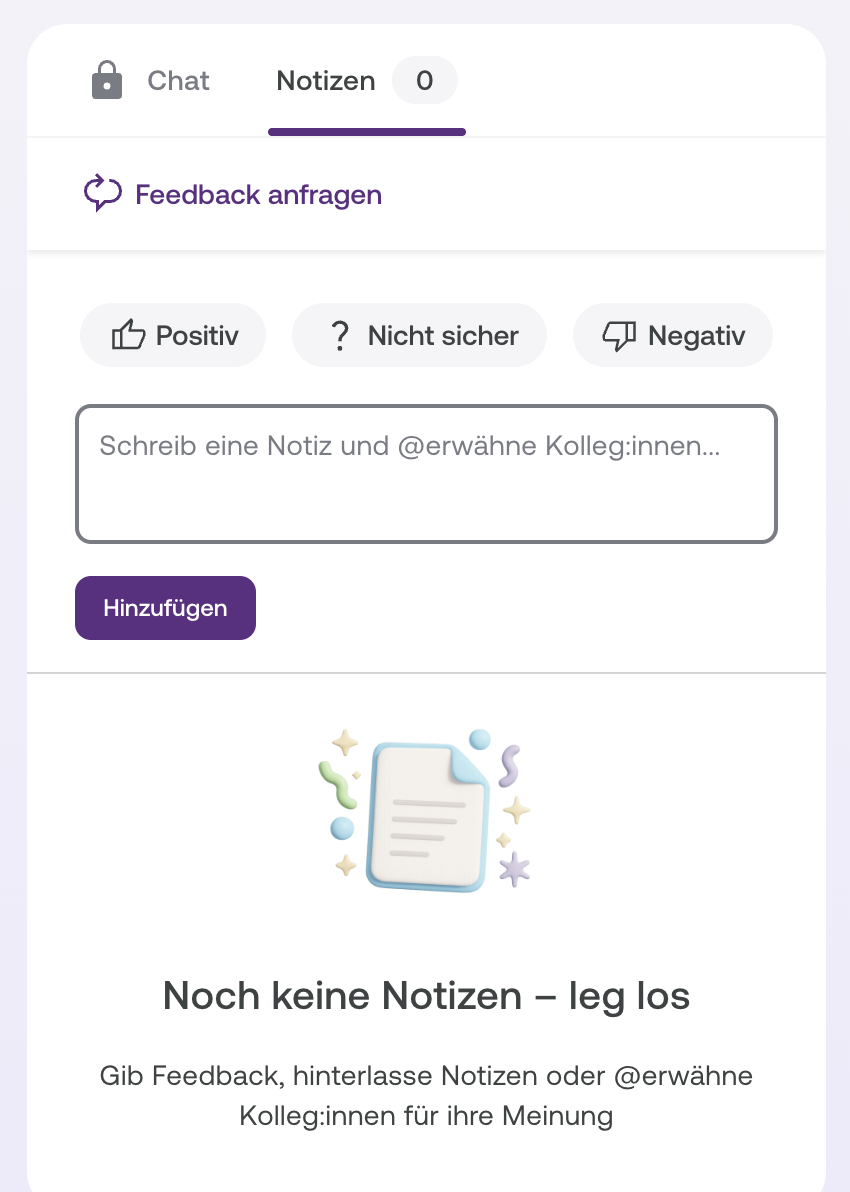
During screening, you can save personal notes directly to a candidate’s profile. This helps you record feedback and keep everyone on your hiring team up to date.
Open the Notizen tab in the panel on the right. There, you can:
- Write a note
- Select a sentiment (positive, neutral, or negative)
- Mention team members with
@Name - Turn notifications for mentions on or off
💡 You can save a note without selecting a sentiment, or select a sentiment without writing a note. You just need to fill in one of the two fields.
All notes are shown in chronological order, with the author’s name, date and time, and sentiment.
You’ll also find earlier activities related to the application at the bottom.
Make a decision
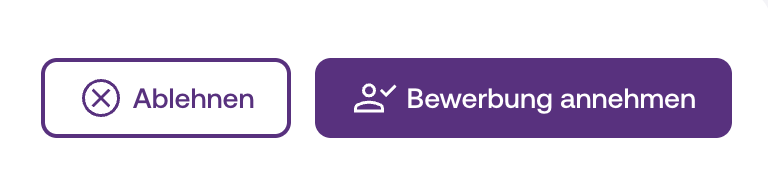
The panel on the right has two buttons:
- Annehmen: The candidate is a good fit and moves on to the next step.
- Ablehnen: The candidate isn’t a good fit and is moved to the Abgelehnt status.
If you haven’t decided yet, use the arrow in the top right to move to the next candidate. The candidate will remain in screening.
After screening
- Accepted candidates go to the In Bearbeitung tab.
- Rejected candidates also appear there, with the Abgelehnt status.
- Skipped candidates stay visible in Screening.
Once you’ve screened the last candidate for a job, you can:
- Continue with the next job, or
- Return to the screening list to keep an overview.
Tips & notes
💡 Teamwork
You work together with your hiring team during the initial review. This is where you align on decisions and prepare for interviews.
💡 Best practice
Set aside dedicated time for screening to keep your process fast, transparent, and fair.
✨ Recommendations in the screening list
You may also find recommendations for top candidates in your screening list. Find out more here
ℹ️ Definitions
- Screening: The initial review and evaluation of new applications
- Angenommen: Candidates who are a potential fit for the job. You can now get in touch with them and ask the relevant department for feedback.
Summary
During screening, you make the first decisions in the application process in a structured, efficient, and clear way.
This helps you quickly identify who’s a good fit and connect your hiring team with suitable candidates early on. 🙌
 Powered by happysupport.ai