
How to navigate Instaffo using the sidebar
Navigate Instaffo's persistent left sidebar to access your jobs, applications, Talent-Feed, and account settings from any page
Use Instaffo’s persistent left sidebar to access your jobs and their applications, the Talent-Feed, and your account settings from anywhere.
Every page in Instaffo has the same left sidebar, giving you constant access to your job listings, applications, and account settings, wherever you are on the platform. The active section is always highlighted, so you can see where you are at a glance. On your smartphone, open the sidebar using the hamburger menu at the top of the screen. It slides out as a drawer and offers the same features as on desktop.
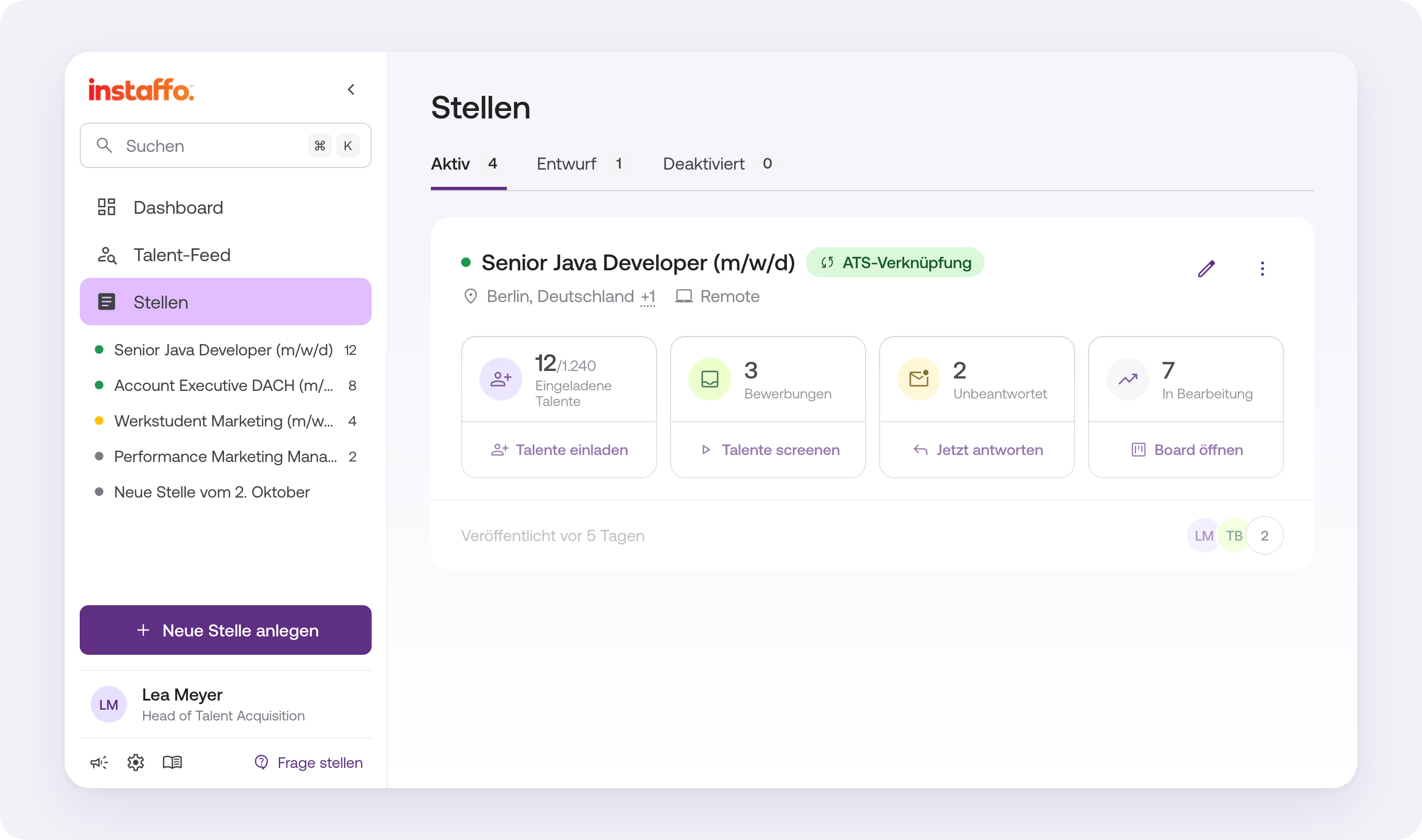
Main menu items
The top section of the sidebar contains three navigation destinations:
- Dashboard: Your starting point, with an overview of recent activity across all your job listings.
- Talent-Feed: Discover candidates who match your open positions and send them direct messages.
- Stellen: A complete overview of every job listing created with your account. From here, you can open any job and view all its applications.
There is no longer a separate Bewerbungen menu item. You can find applications directly within each job: new applications are in the Screening tab, and ongoing processes are in the In Bearbeitung tab.
See job listing statuses at a glance
Each job listing in the sidebar has a colored status dot, so you can see its status without opening it:
- 🟢 Green: Active job listing. The number next to it shows how many active applications are currently waiting for you.
- 🟡 Yellow: Hidden job listing (Talent-Feed only). The listing isn’t publicly listed, but candidates can still see it in the Talent-Feed. The number shows how many open applications remain.
- ⚪ Gray: Deactivated job listing or draft. For deactivated listings, the application count remains visible as long as there are open applications to review.
Clicking an active, paused, or deactivated job opens its page, with the Jobdetails, Screening, and In Bearbeitung tabs. If there are new applications, you’ll go straight to the Screening tab. Otherwise, you’ll land on Jobdetails. Clicking a draft opens Jobdetails, so you can pick up where you left off.
Create a new job listing
The Stellenanzeige erstellen button is above your user profile at the bottom of the sidebar. Click it anytime to start creating a job listing. You don’t need to leave what you’re currently doing.
Quick search
Press Cmd K on a Mac or Ctrl K on Windows to open global search from anywhere on the platform. You can also click directly in the search field in the sidebar. The results show up to five matching job listings and up to five matching application processes, each sorted by recency. You can scroll through the dropdown to access all results.
Collapse and expand the sidebar
Click the arrow icon at the top of the sidebar to collapse it into a compact toolbar. This gives you more horizontal space for content-heavy views such as the application board or the Talent-Feed. You can still access all navigation sections through their icons when the sidebar is collapsed. Click the arrow again to restore the full sidebar.
Profile menu and quick access icons
At the bottom of the sidebar, you’ll find your user card. Click your avatar to open the profile menu, which gives you access to:
- Persönliche Einstellungen: Update your name, email, and notification settings.
- Unternehmenseinstellungen: Opens the Settings page, where you can access company and personal settings.
- Mitglieder hinzufügen: Invite more recruiters or hiring managers to your account.
- Abwesenheit: Set an out-of-office period so candidates and team members know you’re unavailable.
- Abmelden: Sign out of your account.
There are three quick access icons next to your avatar:
- ⚙️ Einstellungen: Go straight to your account and company settings.
- ❓ Hilfe-Center: Open the Instaffo Help Center without leaving the platform.
- 🎉 Was ist neu?: Browse the latest product releases and feature updates.
The Settings page has anchor navigation on the left. Click an item to jump to the relevant section. As you scroll, the active section is highlighted automatically.
Navigating on your smartphone
On smartphones, the sidebar is hidden by default to save screen space. Tap the hamburger menu icon in the top bar to open the sidebar as a full-height drawer. It contains the same sections and features as on desktop.
Frequently asked questions
Where can I find applications for multiple jobs at once?
Open any job and click the job name in the breadcrumb navigation at the top. Below your list of jobs, you’ll find Meine Jobs, which shows applications for all jobs you’re involved in. If you’re an admin, you’ll also see Alle Jobs, with applications from across your entire company.
How can I quickly switch to another job?
Click the name of the current job in the breadcrumb navigation at the top, then select another one. You’ll stay on the same tab. For example, if you’re currently on the In Bearbeitung tab, you’ll land on that tab for the new job too.
Which drafts appear in my sidebar?
As an Mitarbeiter:in, you’ll see drafts from the last 14 days if you either created them or are part of the hiring team. As a Unternehmens-Admin, you’ll see all drafts across your company, regardless of who created them or when.
 Powered by happysupport.ai