
How do I deactivate a job?
Deactivate a job on the Stellen page using the three-dot menu to close it completely, stop accepting applications, and remove it from the talent feed
This article explains how to fully deactivate a job in Instaffo. Once deactivated, the job will no longer accept new applications and will be removed from the talent feed.

Start the deactivation process
-
Open the more options menu
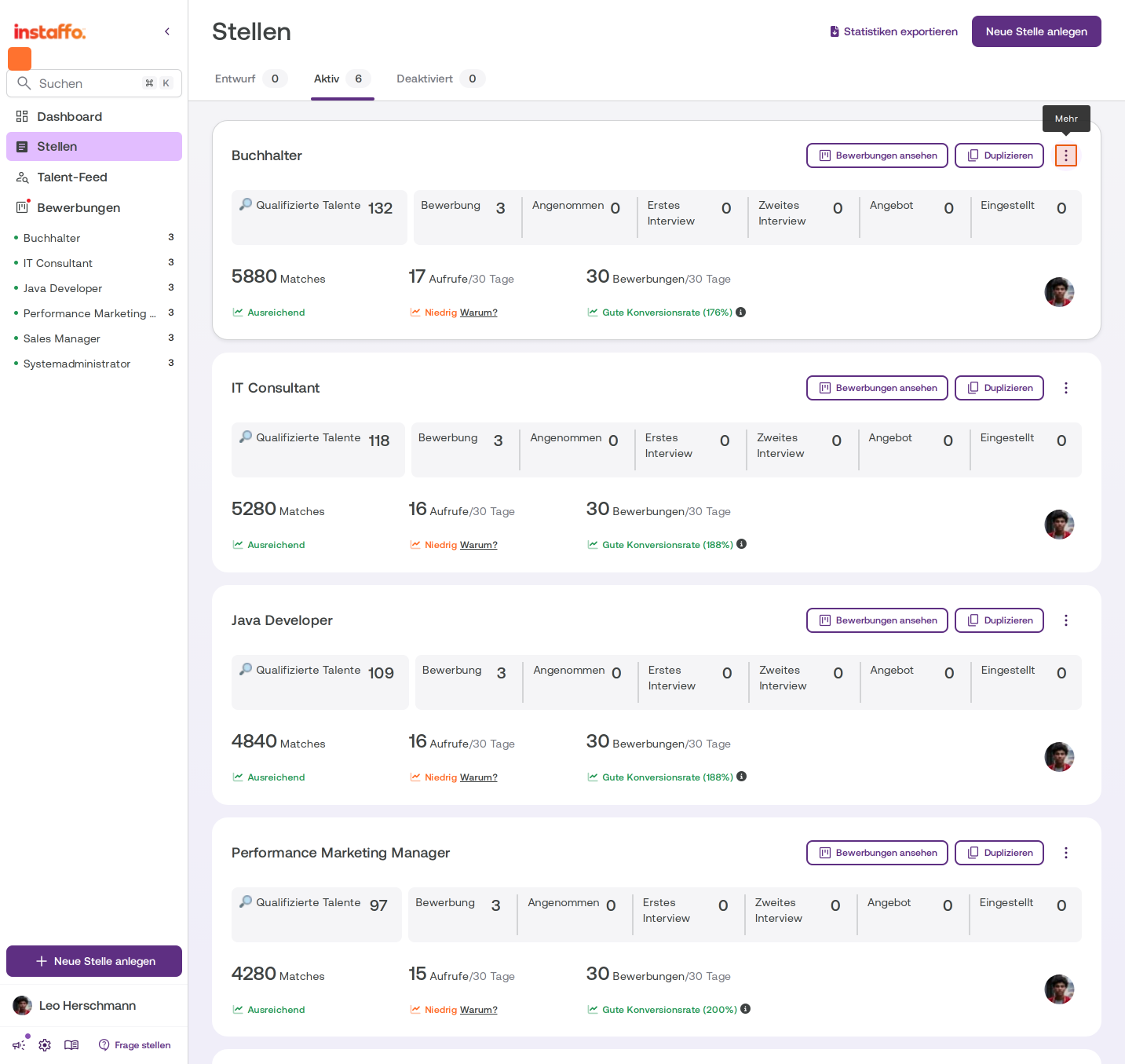
Go to the Stellen page and make sure the Aktiv tab is selected. Click the three-dot menu (⋮) on the right side of the job card. -
Select the deactivation option
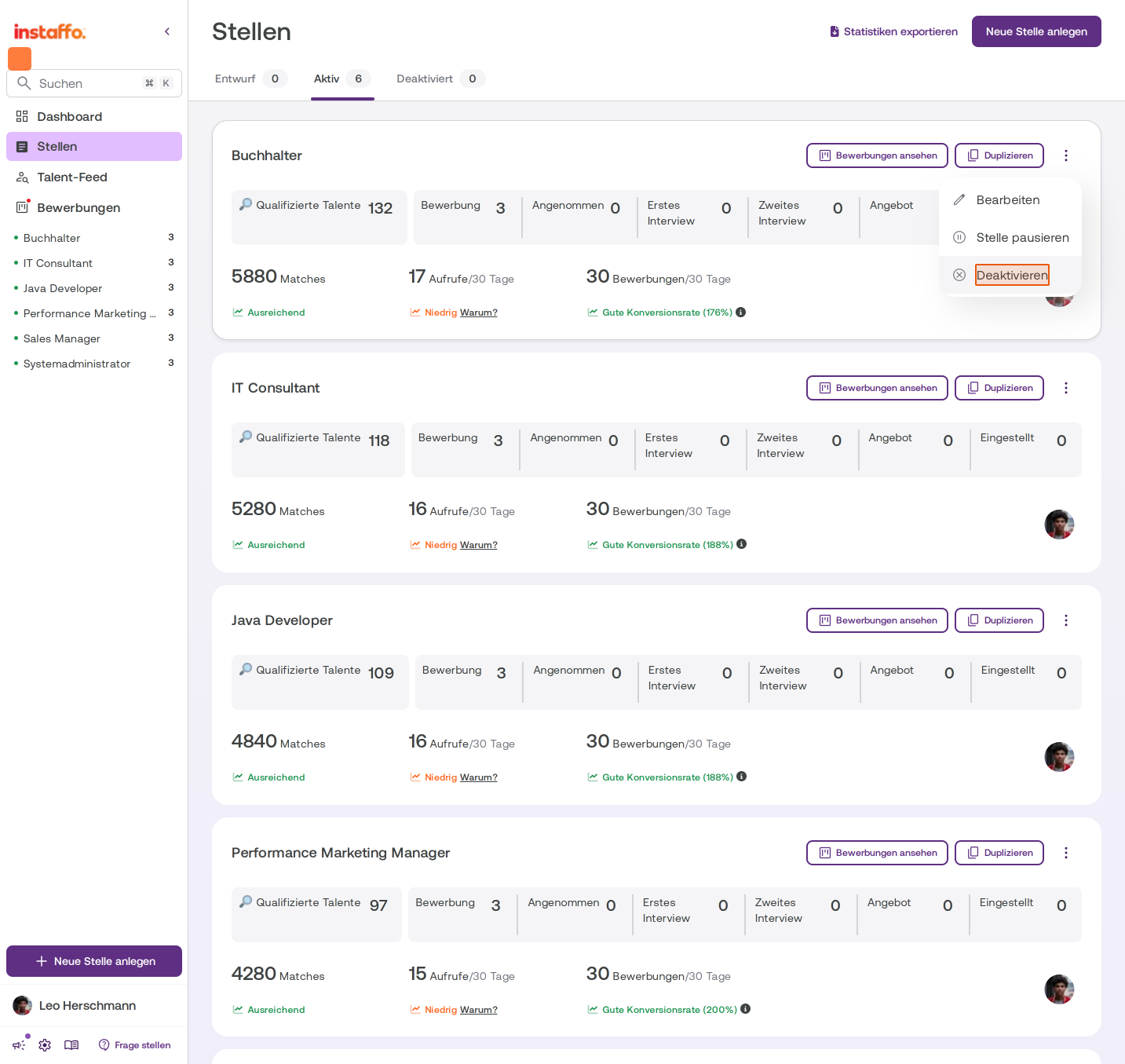
In the dropdown menu, you’ll see the options Stelle duplizieren, Stelle pausieren, and Stelle deaktivieren. Click Stelle deaktivieren to start the deactivation process. To edit the job, use the pencil icon next to the menu.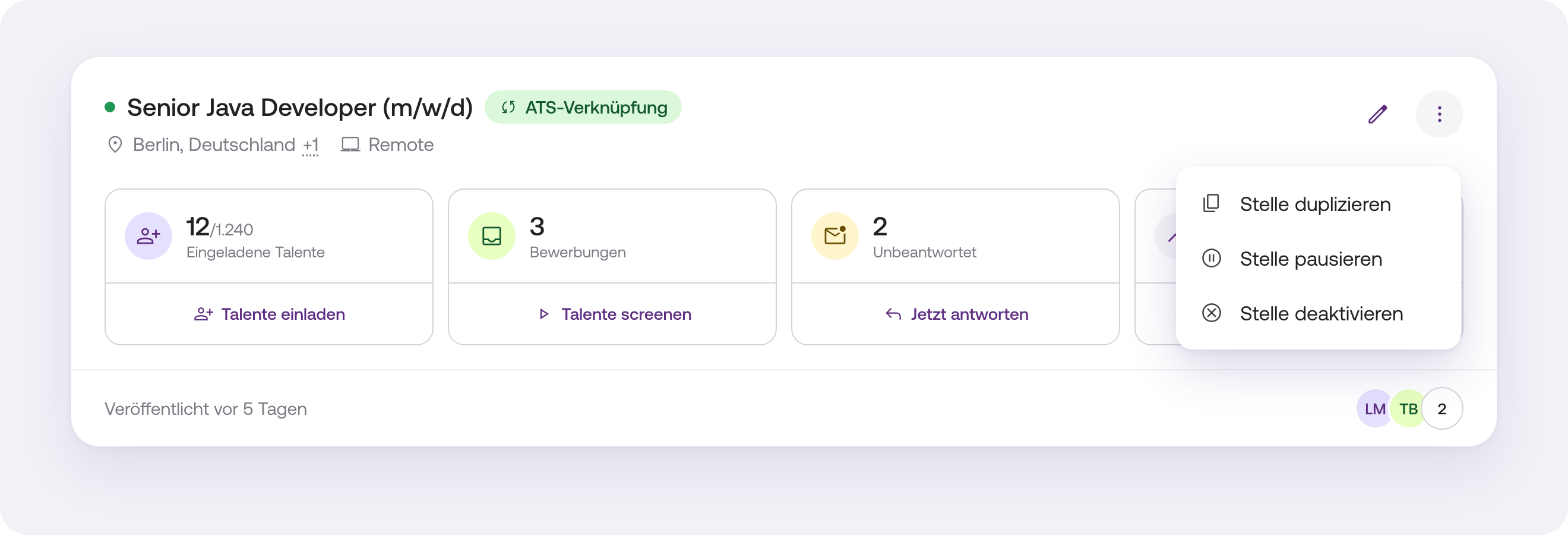
Choose deactivation options
-
Choose between pausing and deactivating
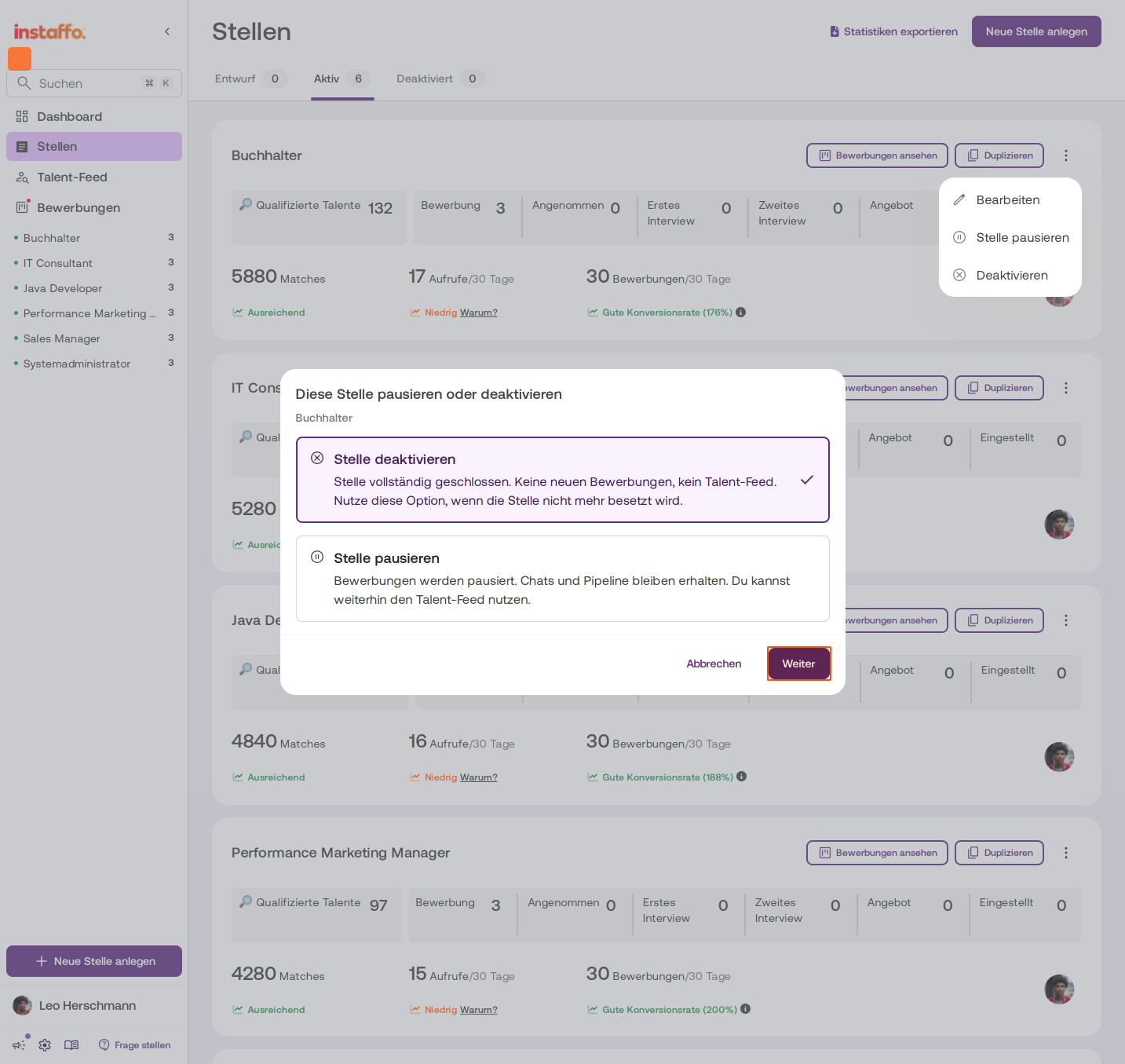
A dialog titled Diese Stelle pausieren oder deaktivieren will appear. Choose the appropriate option:- Stelle deaktivieren: The job will be closed completely. It will no longer accept new applications and will no longer appear in the talent feed. Choose this option if you no longer want to fill the position.
- Stelle pausieren: Applications will be paused, but chats and the pipeline will remain available. You can still use the talent feed.
Select Stelle deaktivieren and click Weiter.
-
Say whether the position was filled through Instaffo
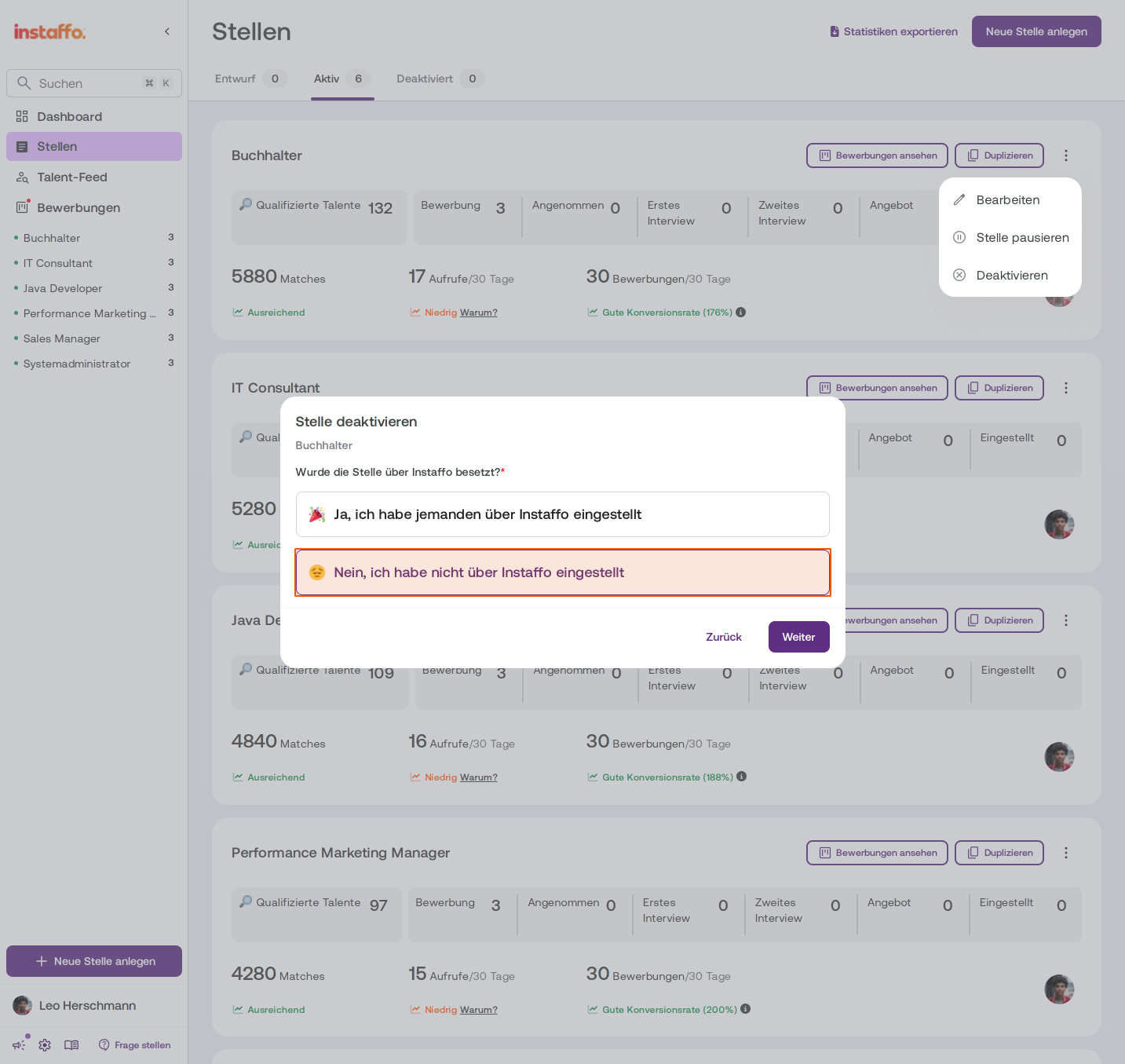
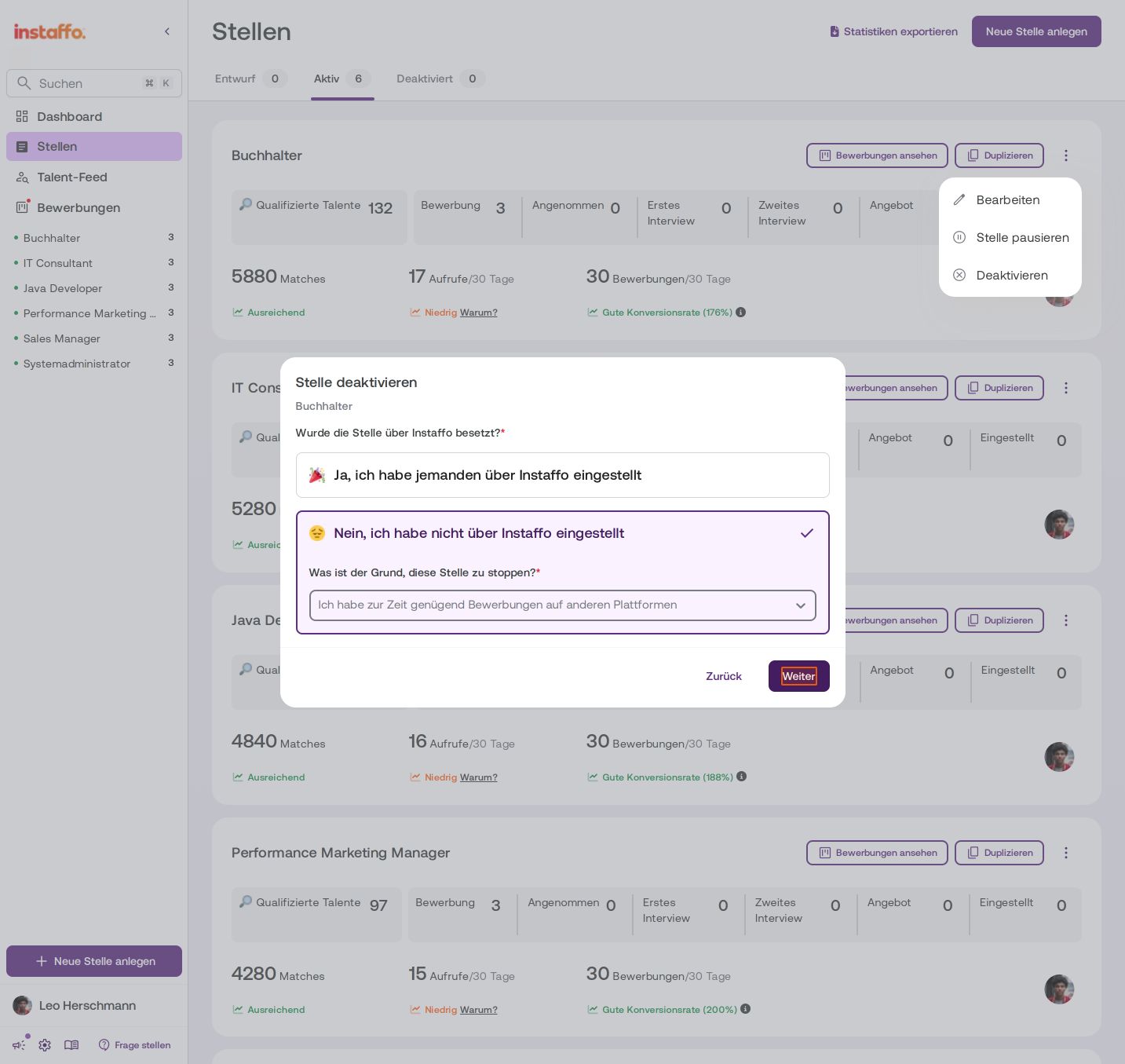
You’ll be asked: “Wurde die Stelle über Instaffo besetzt?” Choose the answer that applies:- Ja, ich habe jemanden über Instaffo eingestellt
- Nein, ich habe nicht über Instaffo eingestellt
If you select Nein, an additional required field will appear. Choose a reason for deactivating the job from the dropdown menu (for example, “Ich habe zur Zeit genügend Bewerbungen auf anderen Plattformen”). Then click Weiter.
-
Share feedback about your experience
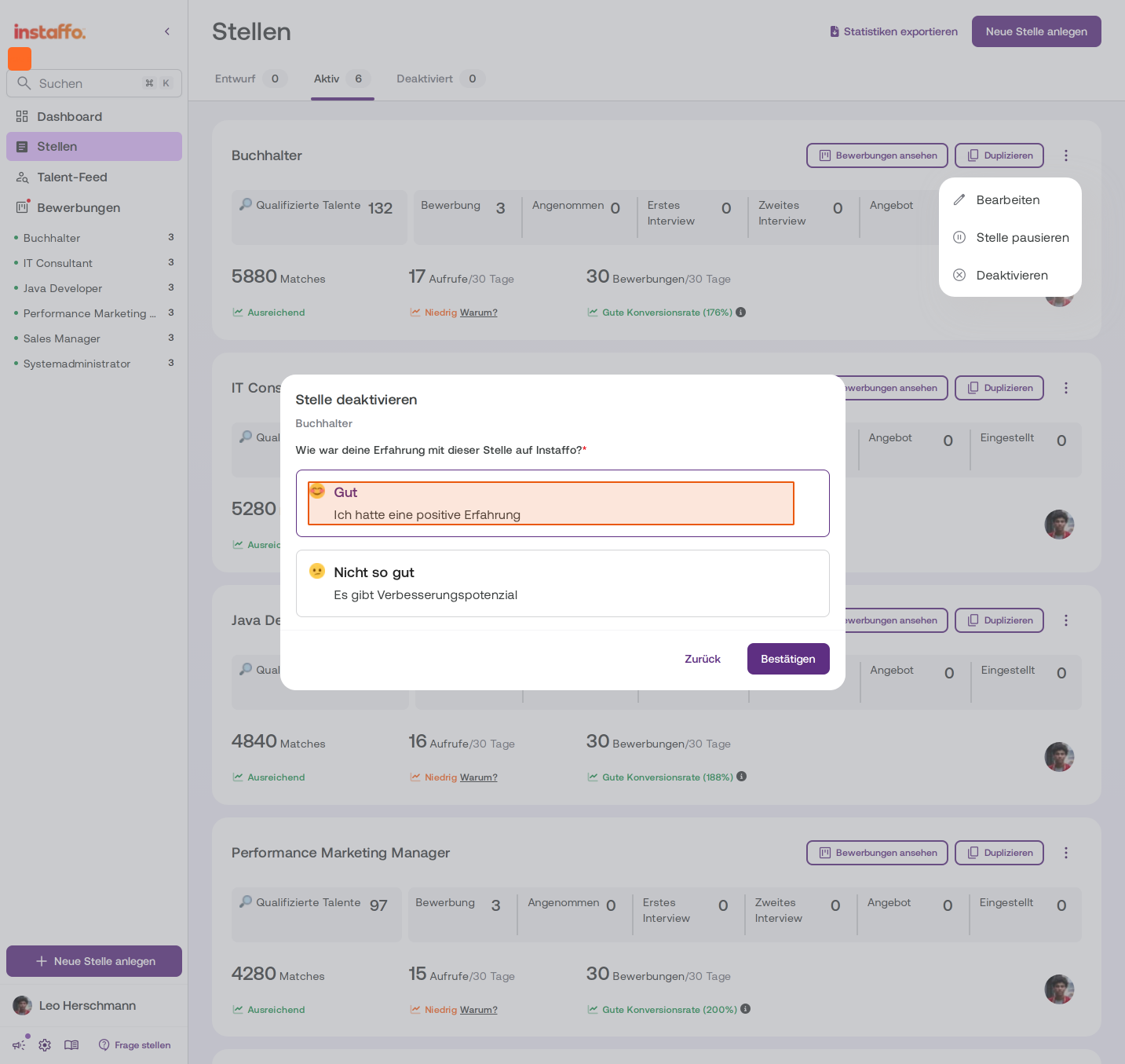
Finally, you’ll be asked: “Wie war deine Erfahrung mit dieser Stelle auf Instaffo?” Choose one of the two options:- Gut – “Ich hatte eine positive Erfahrung”
- Nicht so gut – “Es gibt Verbesserungspotenzial”
Manage open applications
-
Reject or skip open applications
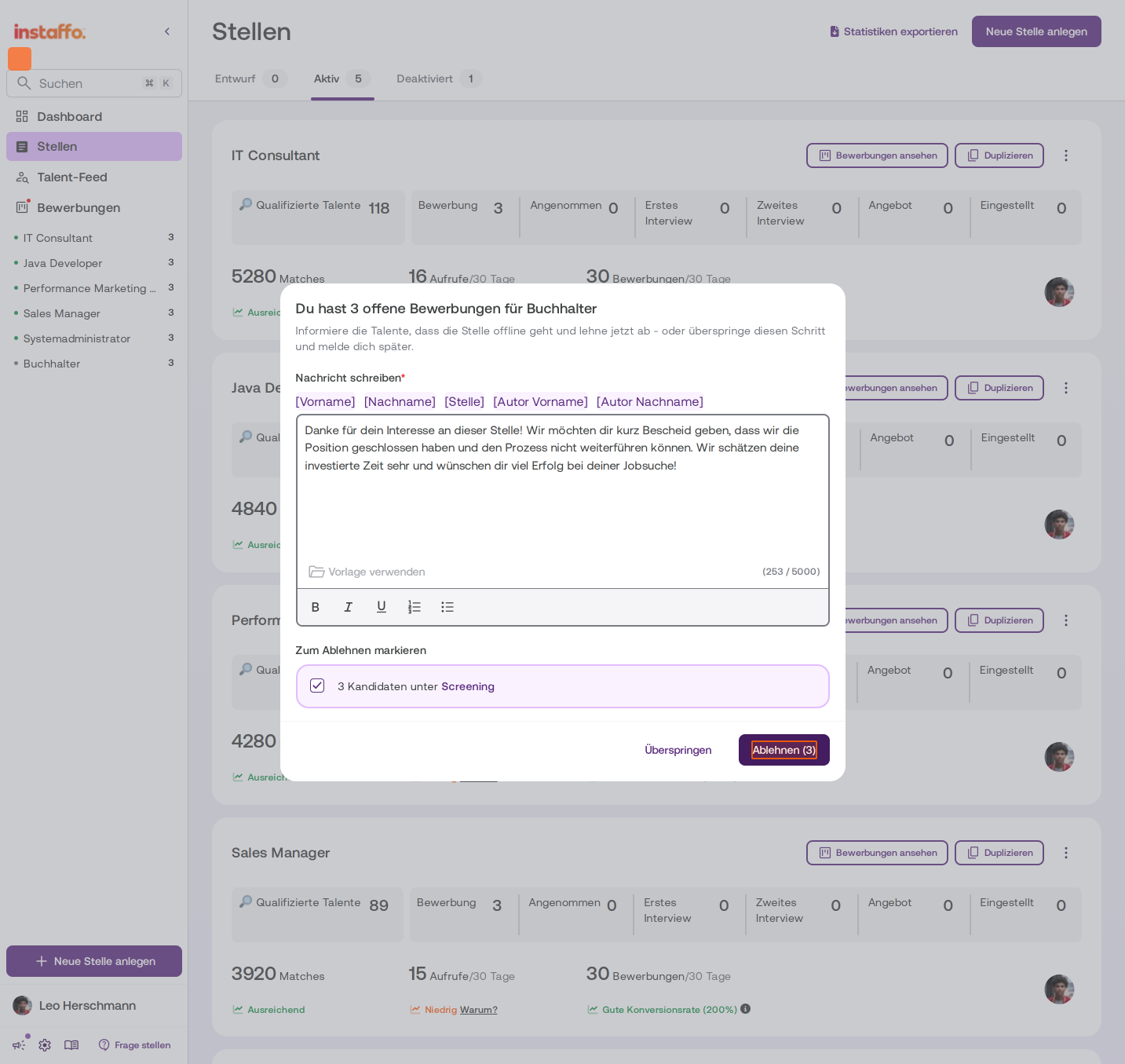
If there are still open applications for this job, another dialog will appear. Here, you can send the candidates a rejection message. The message is prewritten and lets them know that the job has been closed. You can edit it or use a template if needed. Click Ablehnen to reject the selected candidates, or Überspringen to take care of this step later.
Check the deactivated job
-
View deactivated jobs
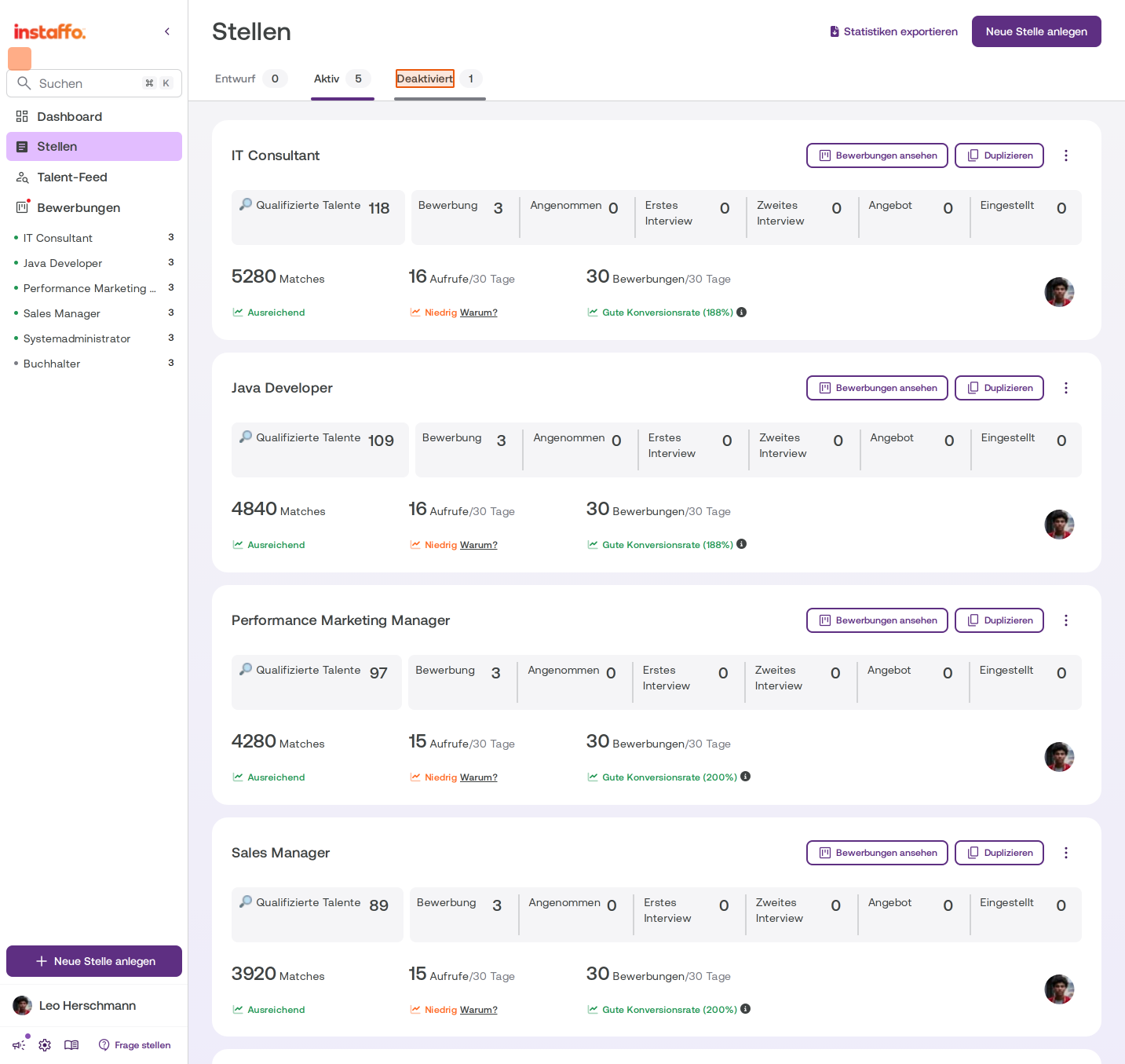
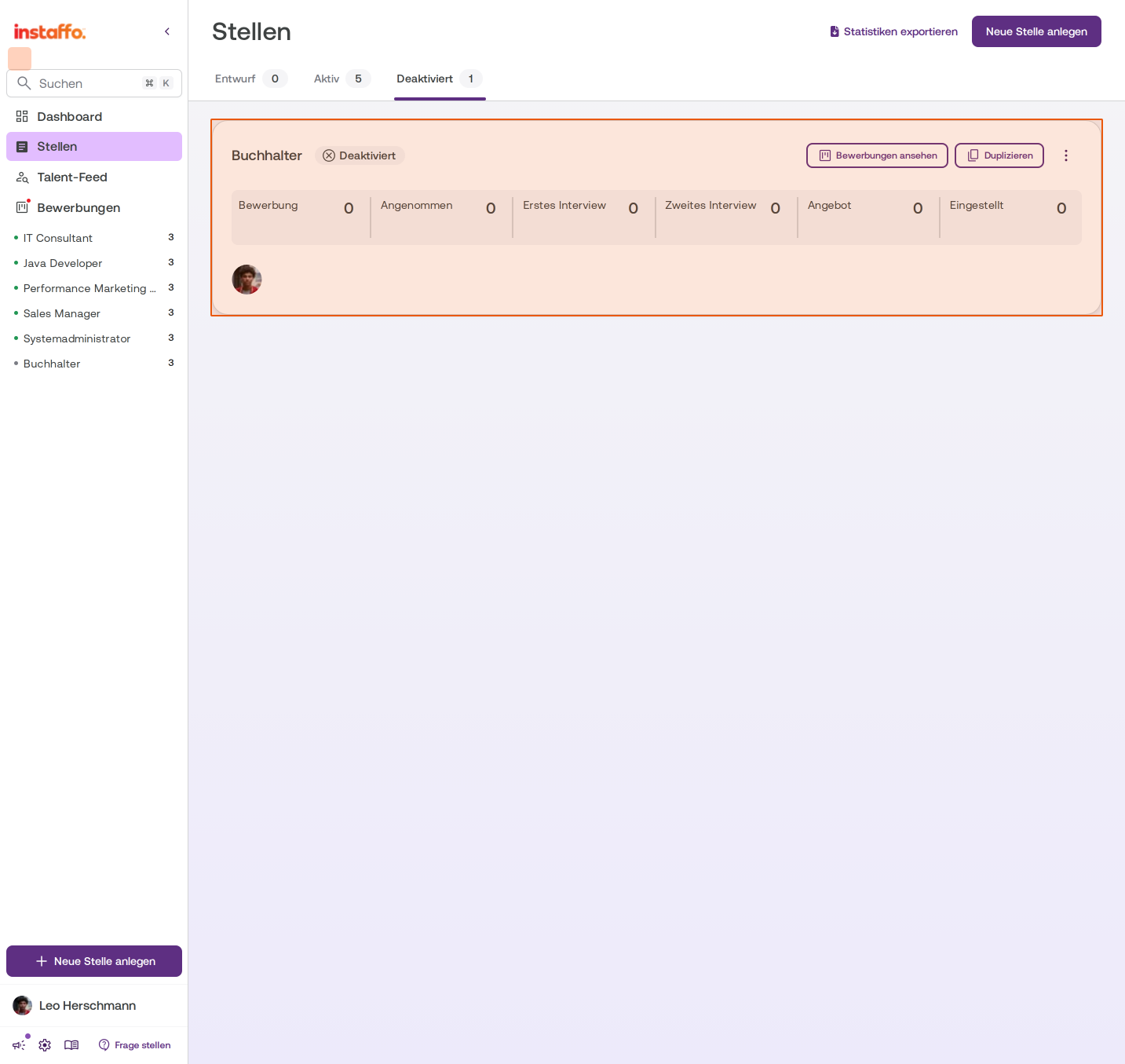
To see your deactivated jobs, click the Deaktiviert tab on the Stellen page. The number of deactivated jobs appears next to the tab. -
Open a deactivated job
In the Deaktiviert tab, you’ll see all your deactivated jobs. Each job card shows the status Deaktiviert next to the job title. You can still open the applications using the board icon on the card. In the three-dot menu (⋮), you’ll find Stelle duplizieren to copy the job and Stelle veröffentlichen to publish it again.
The job is now deactivated and appears in the Deaktiviert tab on your jobs overview page. It will no longer accept new applications.
 Powered by happysupport.ai