
Activate your company account
Activate your Instaffo company account by setting your password, confirming your account, uploading your logo, and completing your profile
This article explains how to activate and set up your company account on Instaffo. Once you’ve completed these steps, you’ll have set your password, completed your company profile, and be ready to create your first job posting.

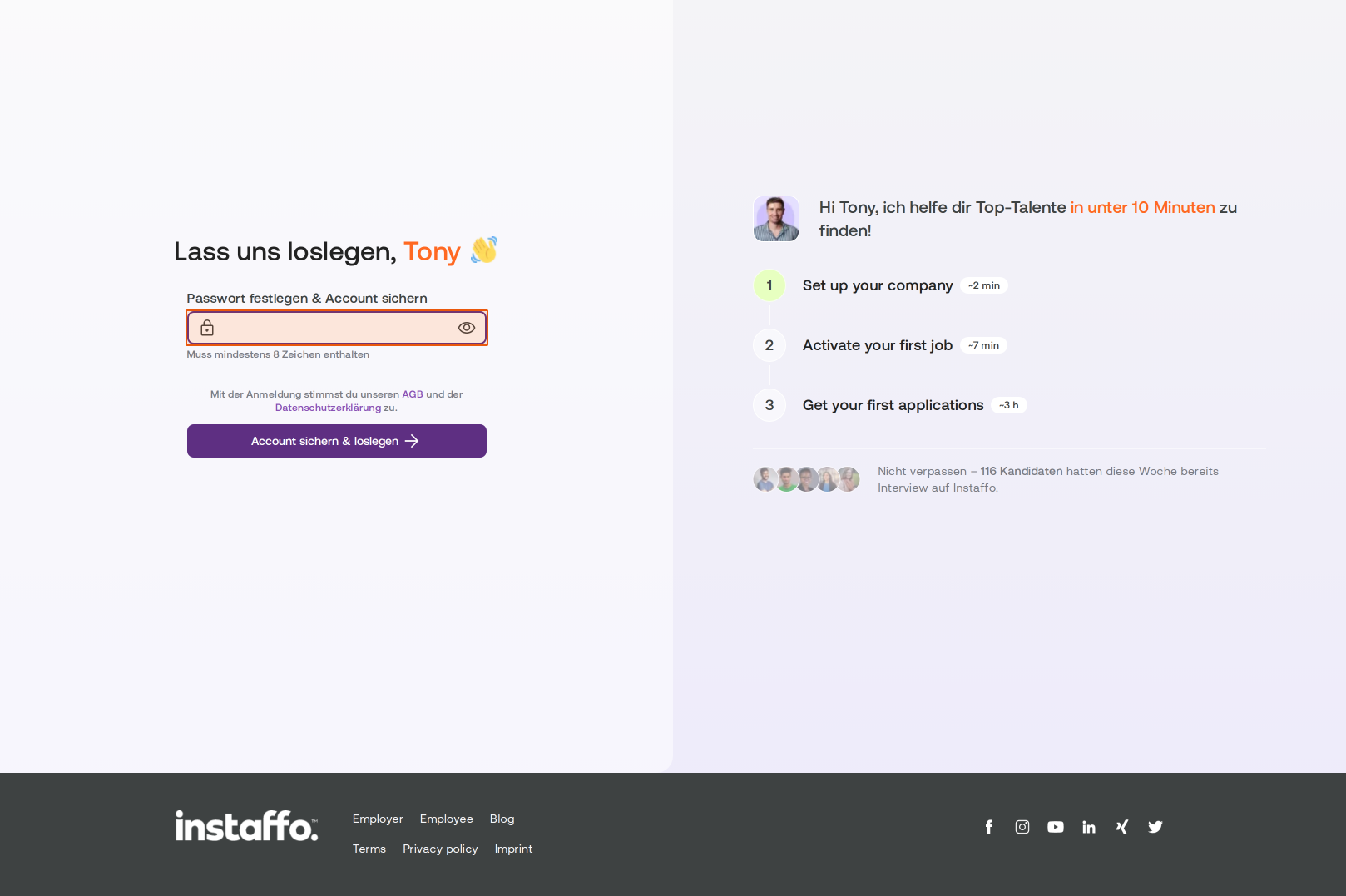
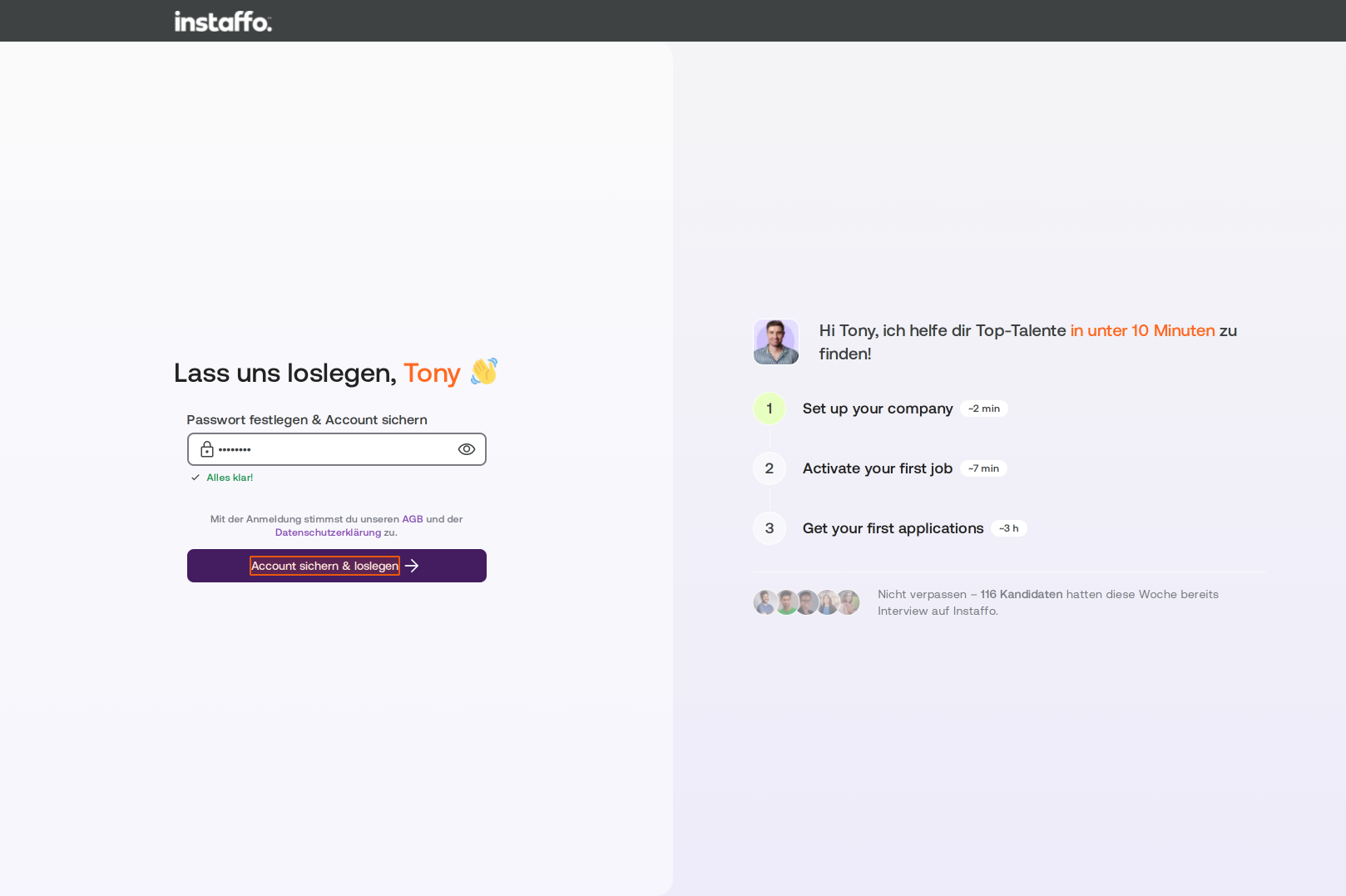
Secure your account
-
Set a password
As a new company on Instaffo, you’ll receive an activation link by email. Clicking this link starts your company onboarding. The first step asks you to set a password. Click the password field under “Passwort festlegen & Account sichern” and enter the password you want to use. Your password must be at least 8 characters long. You’ll see the message “Alles klar!” when it meets the requirements. -
Confirm your account
Click Account sichern & loslegen to save your password and continue to the next step.
Has your activation link expired?
The link in your activation email is valid for 7 days. We’ll send you a reminder with a new link after 3 days and again after 6 days. The link in the previous email will no longer work, so always use the latest email.
If your link is no longer valid, you’ll see a notice on the login page when you click it. Here’s how to get a new link:
- Click „Neuen Link anfordern“ in the notice.
- Enter your email address and click „Link zusenden“.
- You’ll receive a new activation email. The new link is valid for another 7 days.
You can request a new link once per hour. Haven’t received an email? Check your spam folder and make sure you used the email address your company registered with on Instaffo.
Were you invited by a colleague? Then see the article How do I accept an invitation as a team member?. Your invitation is valid for 14 days.
Complete your company profile
-
Upload your company logo
In the “Vervollständige dein Unternehmensprofil” form, some company information is already filled in automatically using online sources. Click the logo placeholder in the “Unternehmenslogo” section to add a new logo.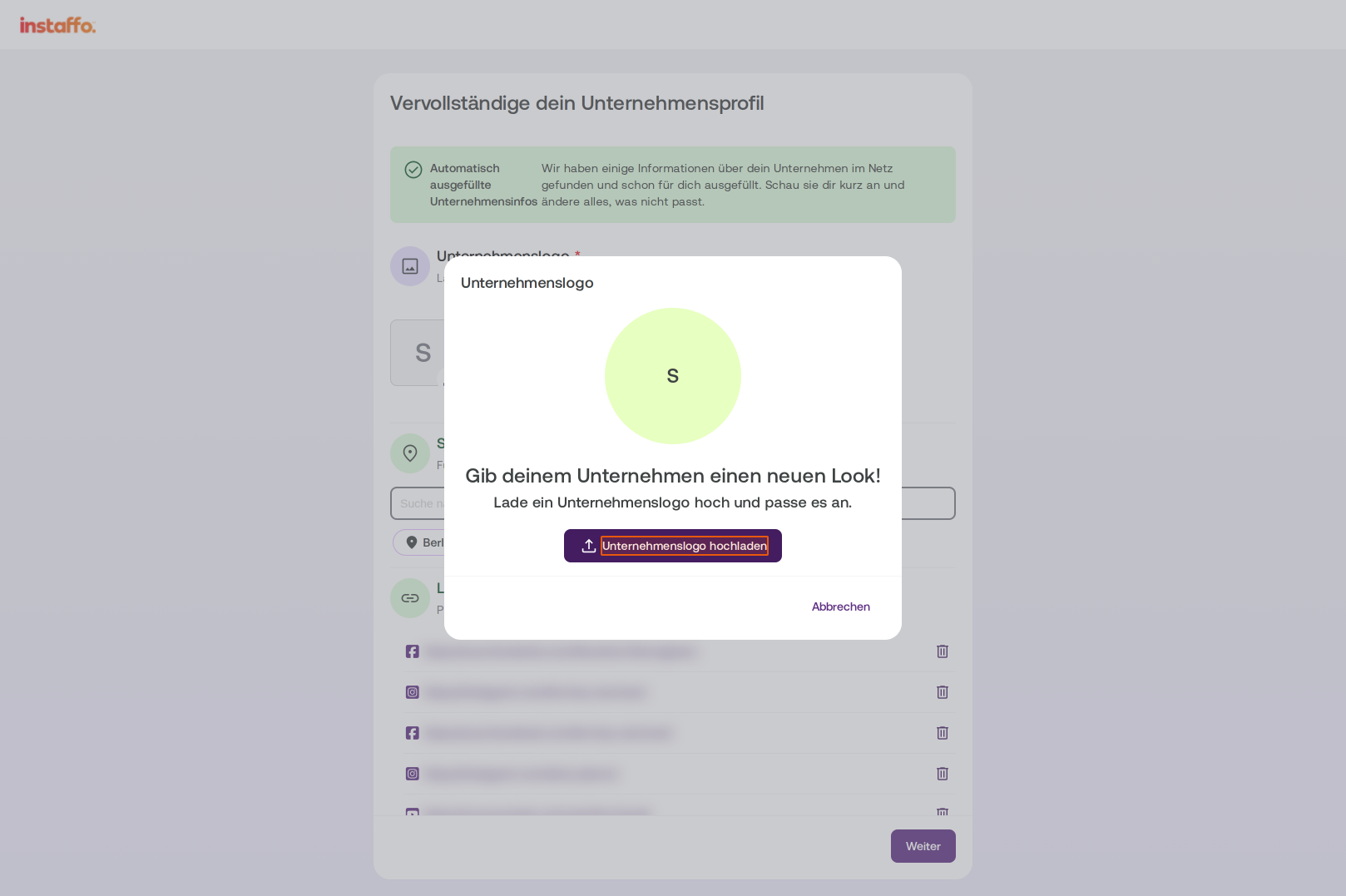
-
Choose and adjust your logo
Click Unternehmenslogo hochladen and select your image. Ideally, the image should be square. After uploading it, you can adjust the crop using the zoom slider to choose how much of the image should be visible. Click Weiter to preview it. -
Save your logo
Check the logo preview. If you’re happy with it, click Speichern to confirm. If not, you can edit or delete it, or upload a new logo. -
Add locations
A location is added automatically in the “Standort” section. If your company has multiple locations, click the “Suche nach einem Ort” search field and enter the location you want. Select the right location from the suggestions to add it. -
Manage links
The “Links” section already contains some social media links. You can edit them or remove them using the trash icon. To add new links, click Weitere Links hinzufügen, enter the URL in the field, and confirm by clicking Link hinzufügen. -
Edit your company description
The “Unternehmensbeschreibung” section contains a description that’s already been filled in. Click the text field to read it and make any changes you need. You can also update all of this information later. -
Complete your profile
Once you’re happy with all the details, click Weiter to continue to the next step.
Invite team members
- Invite team members
To help your team get off to a good start, you can invite your team members here. This step is optional. You can add more team members to Instaffo for free at any time.
For more information, see the article How can I invite team members to collaborate on Instaffo?
Create your first job posting
- Select or create a job posting
After onboarding, you’ll go straight to the page for creating your first job posting. You’ll already see job postings you’ve published elsewhere that have been prepared for you. You can select one of these existing postings or create a new one from scratch by clicking Neue Stelle erstellen. For more information, see the article How do I create and publish a job posting on Instaffo?
Your company account is now activated and set up. You can now create and publish your first job posting on Instaffo.
 Powered by happysupport.ai