
Inviting Team Members to Instaffo
Invite team members to your Instaffo account, assign them roles and positions, and they'll receive a registration email valid for 14 days
In this article, you'll learn how to invite new team members to your Instaffo account. You have two options:
- Via the central team overview or
- When editing a Hiring Team for a specific position
Invited people will receive an email with a registration link. The invitation is valid for 14 days, and a reminder will be sent automatically.

Inviting Team Members via the Team Overview
-
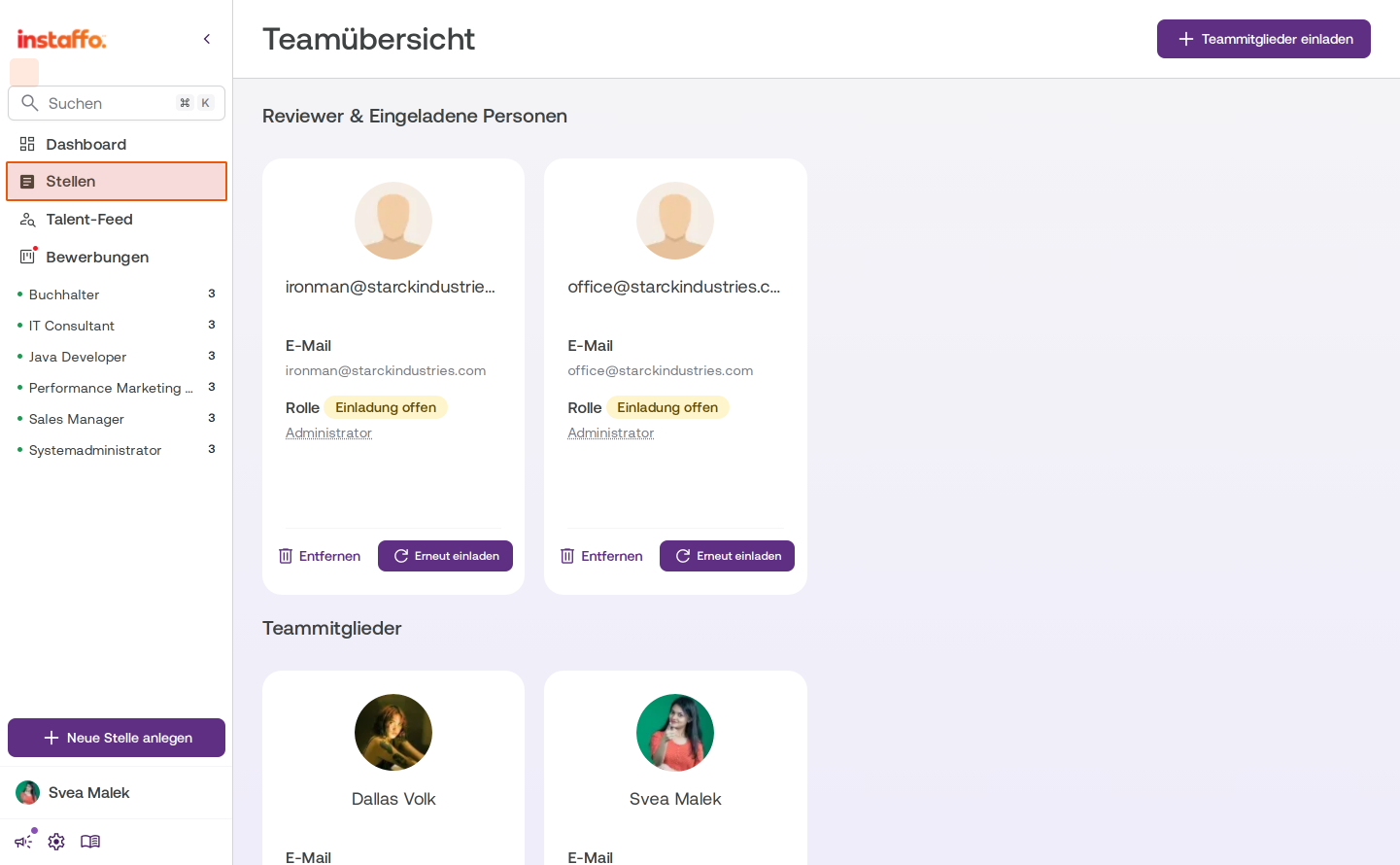
Open the team overview
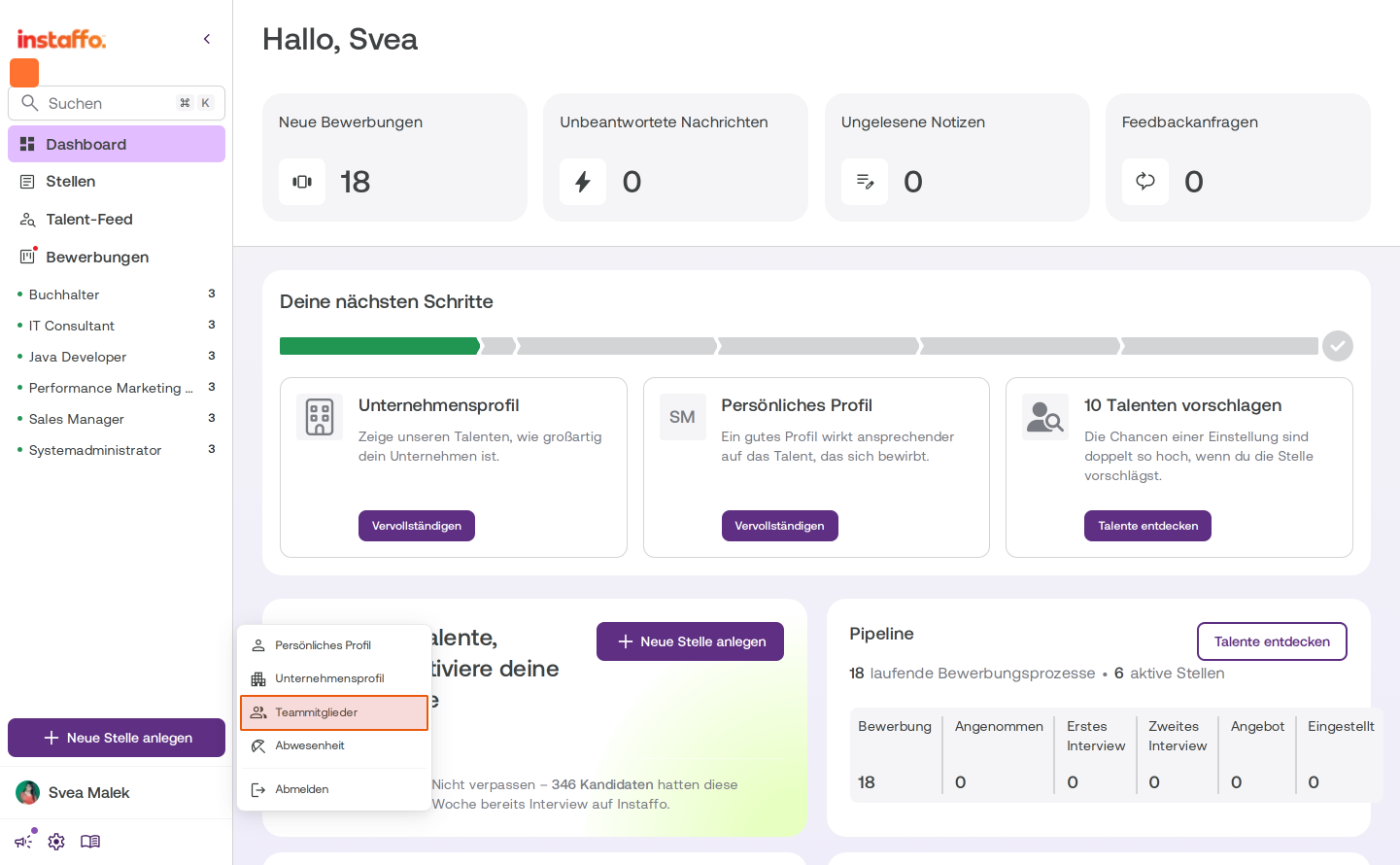
Click on your profile area at the bottom left of the sidebar, where your name is displayed. In the dropdown menu that appears, select Team Members. -
Start the invitation dialog
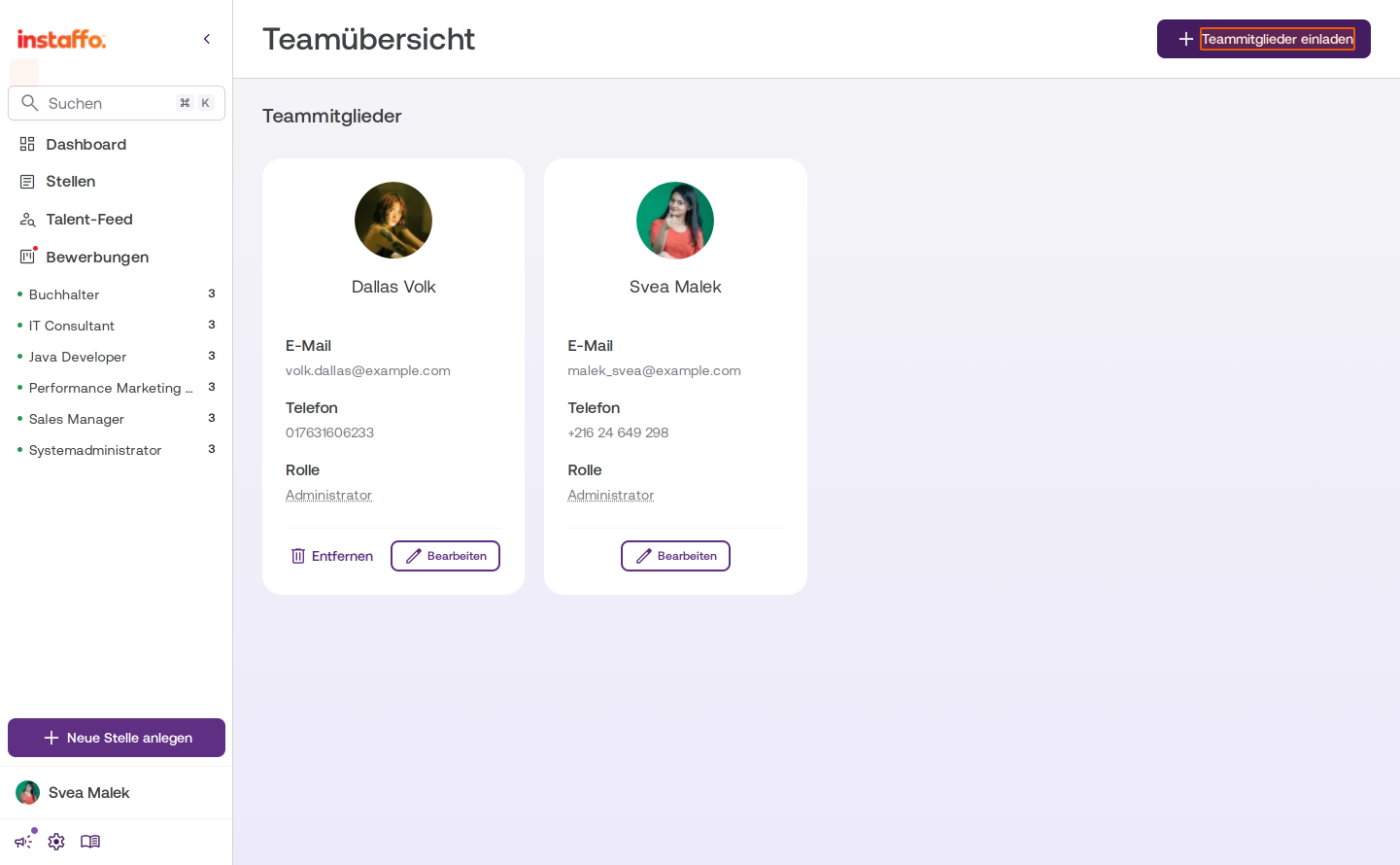
On the team overview page, click the Invite Team Members button at the top right.
-
Enter invitation details
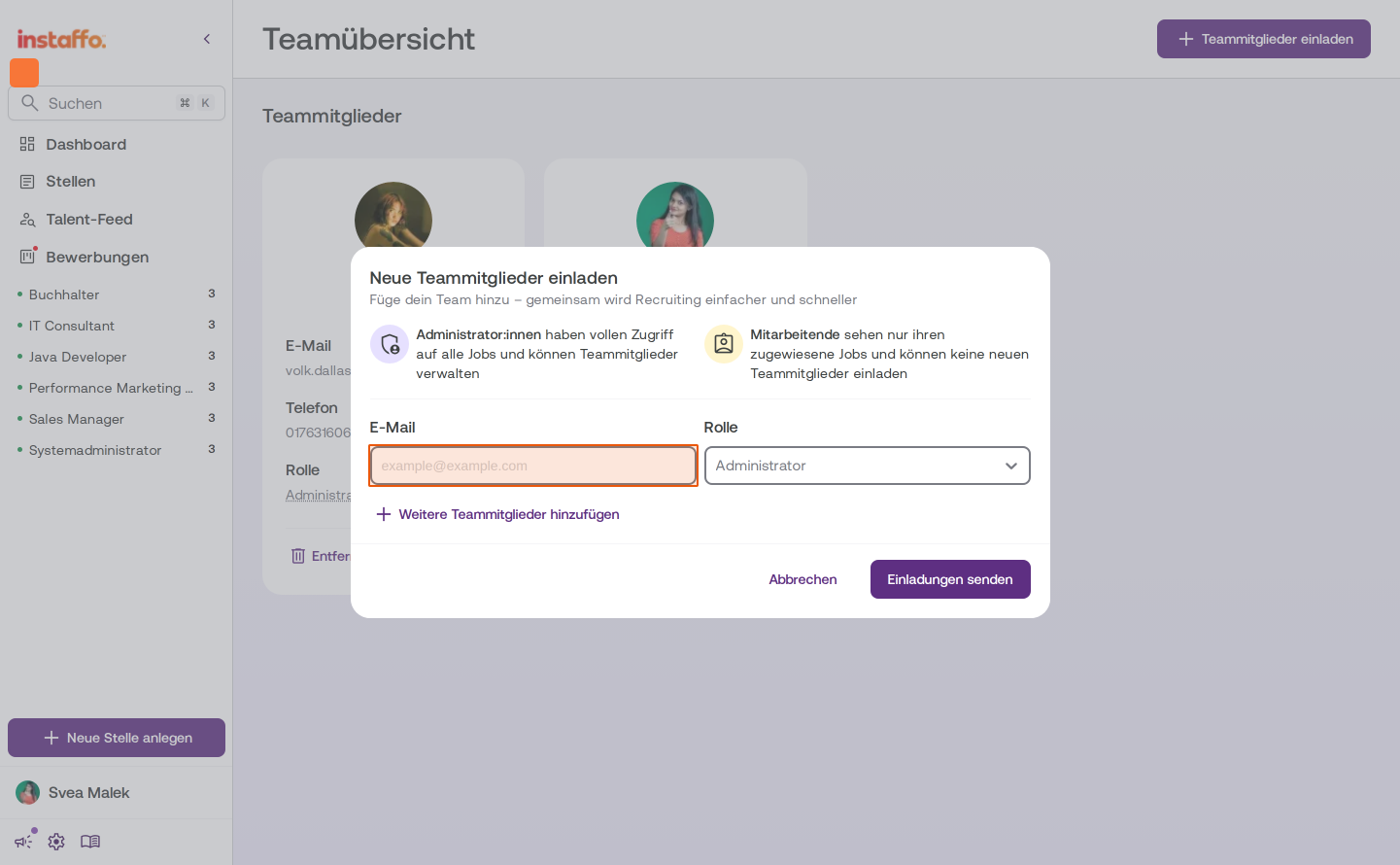
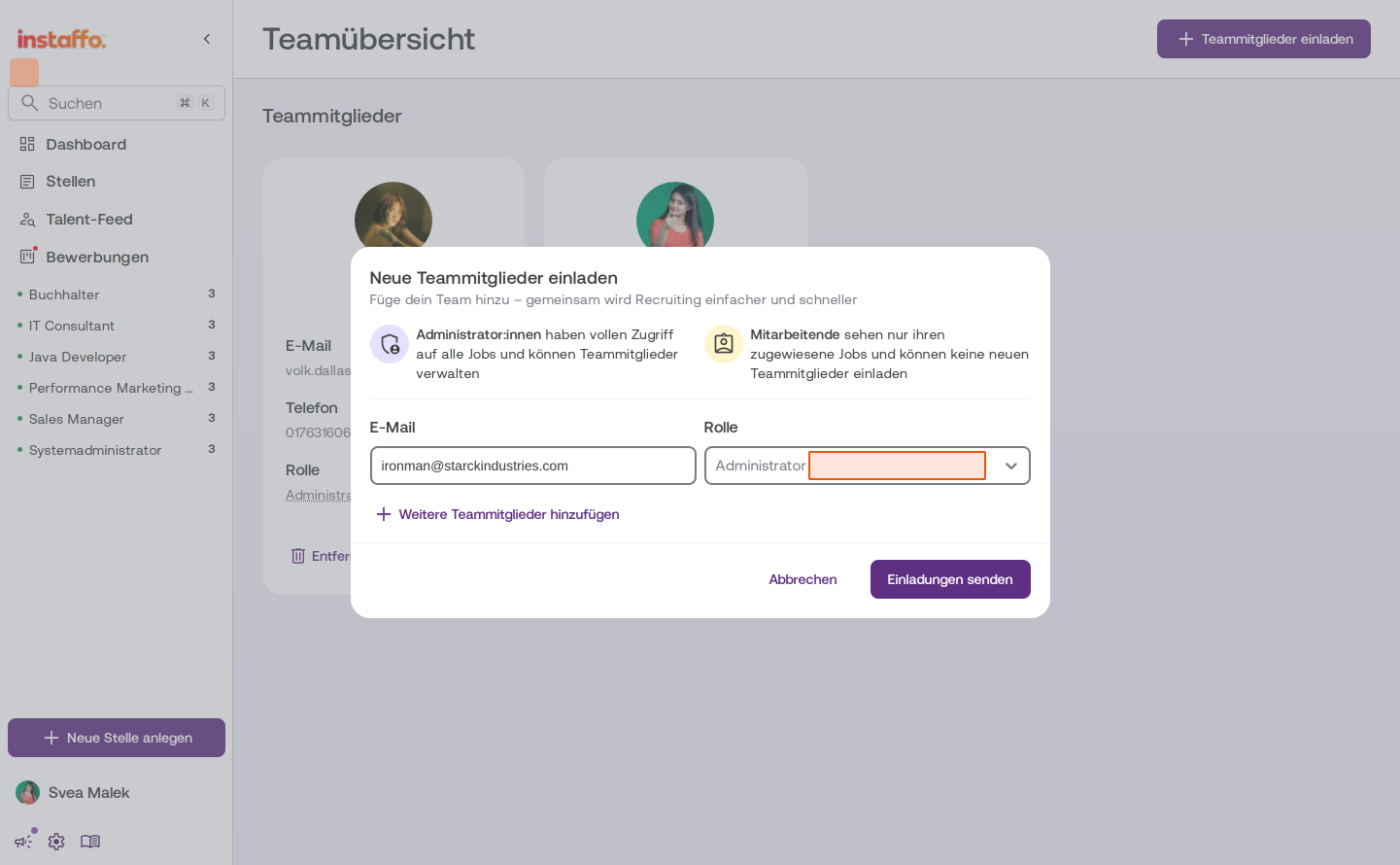
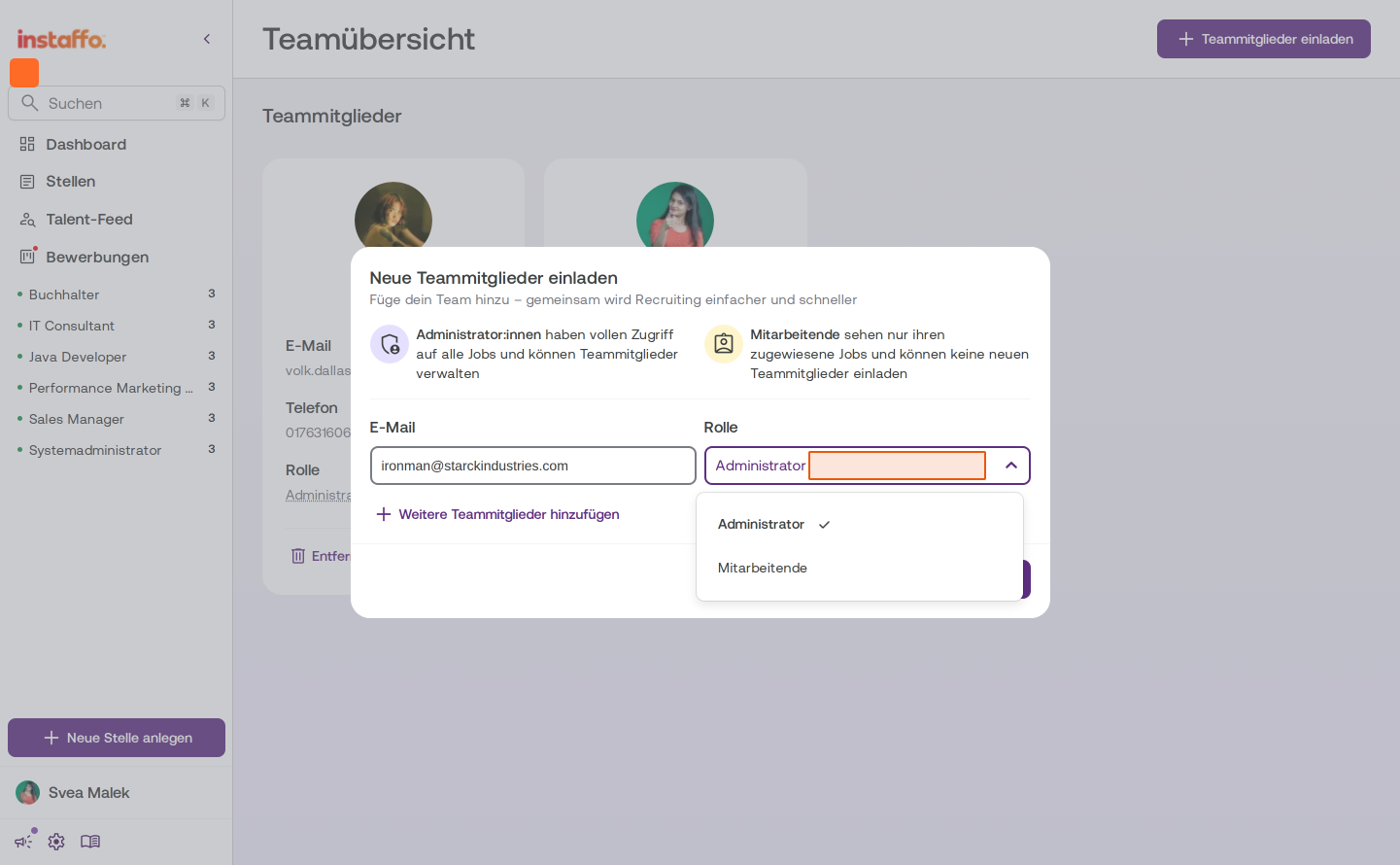
In the Invite New Team Members dialog, enter the following information:- Email: Enter the email address of the person you want to invite
- Role: Select the appropriate role from the dropdown:
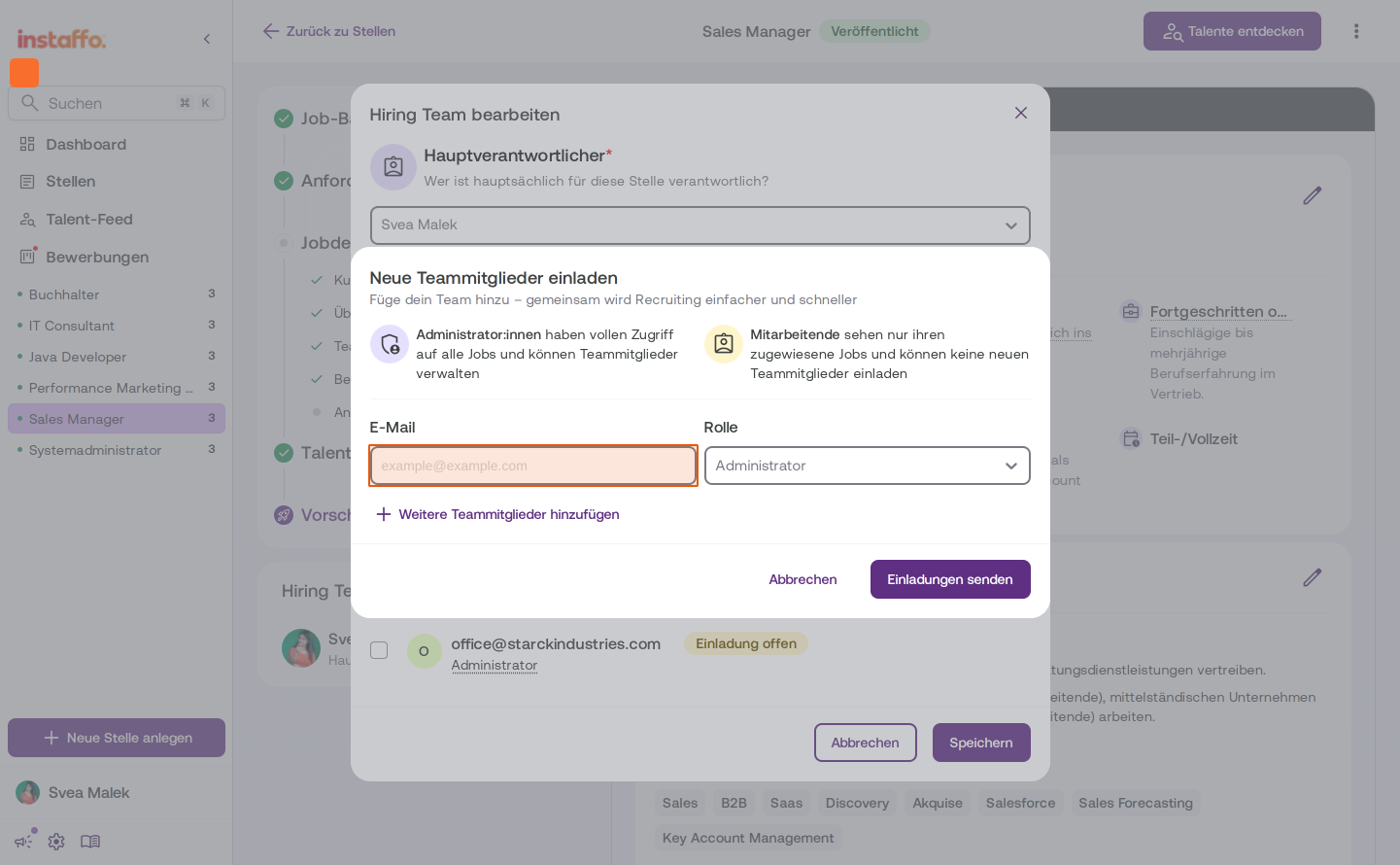
- Administrator: Has full access to all positions and can manage team members
- Employee: Only sees assigned positions and cannot invite new team members
-
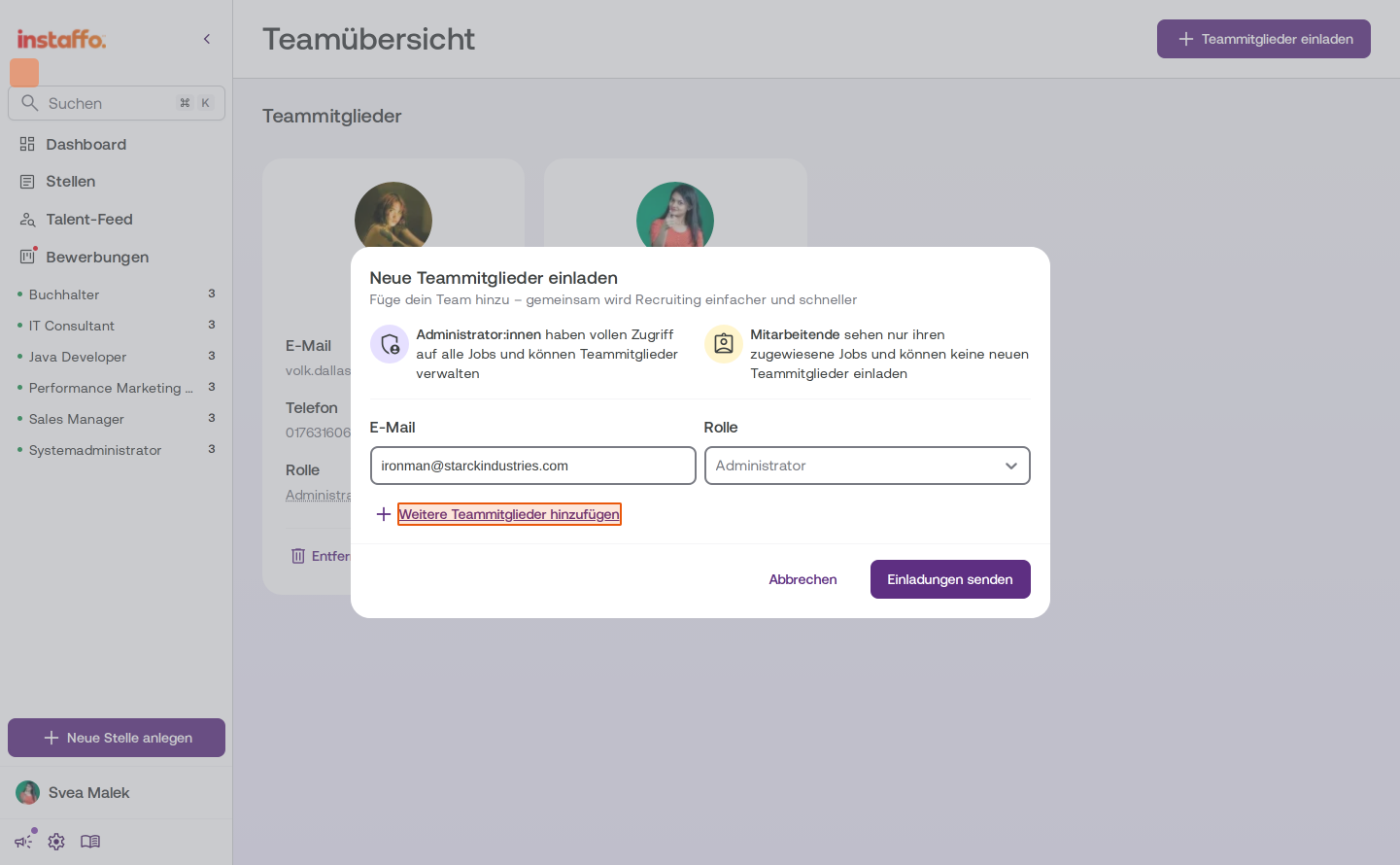
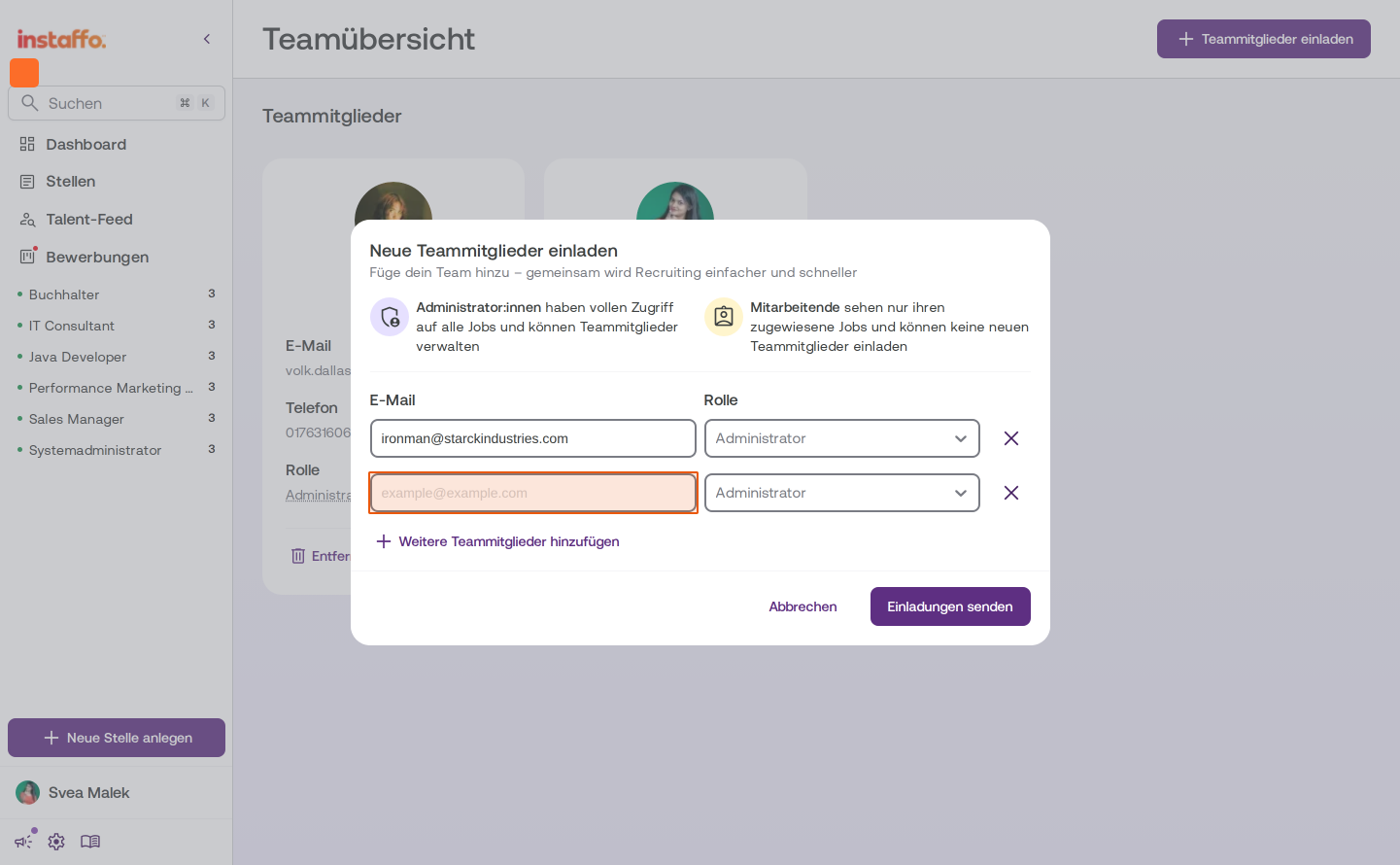
Add more people (optional)
If you want to invite multiple people at once, click Add More Team Members. An additional row with email and role fields will appear. -
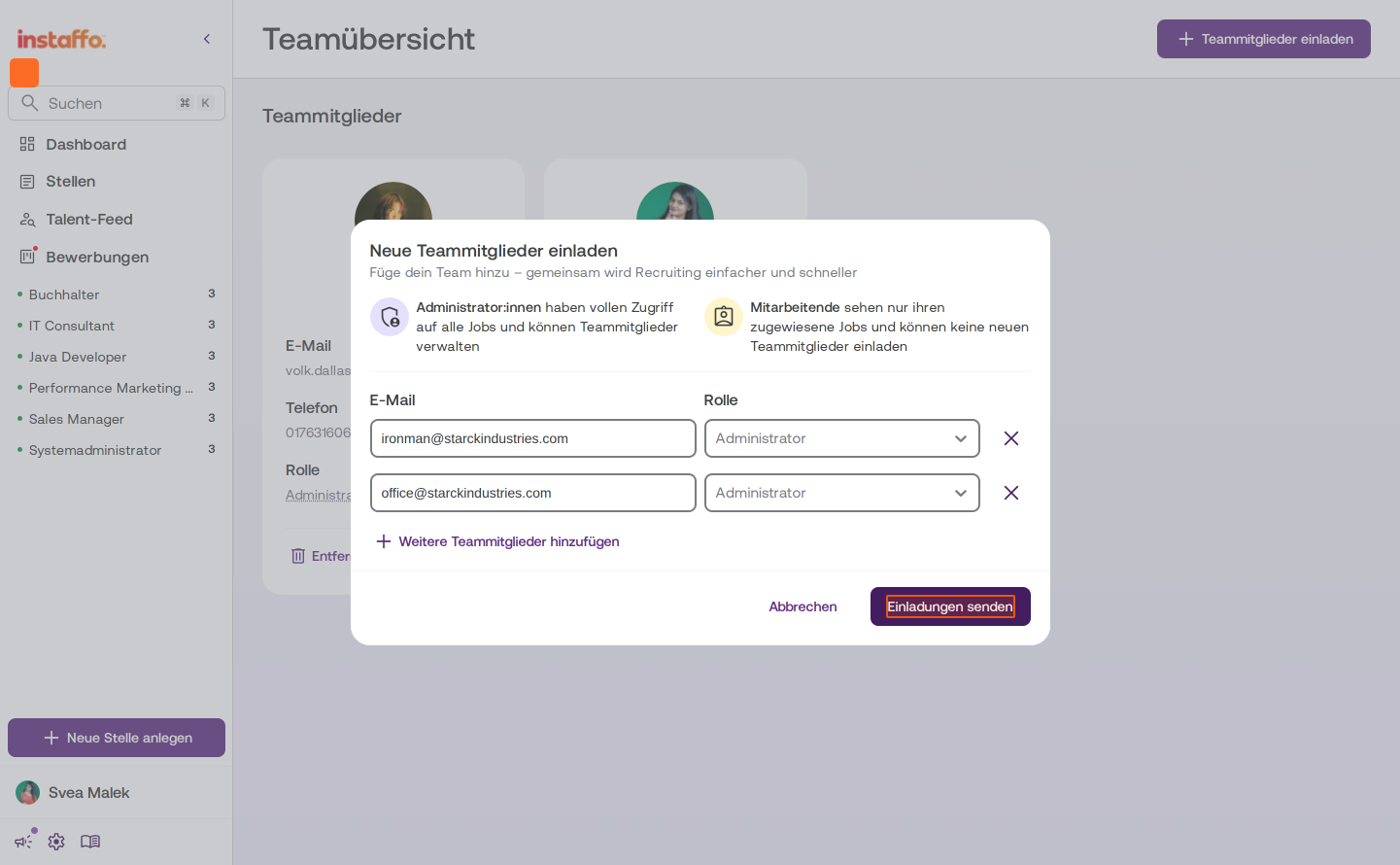
Send invitations
Click Send Invitations to send out the invitations. -
Assign positions (optional)
After sending, a second step will open automatically, where you can assign the newly invited people directly to one or more jobs. You'll see a searchable list of all jobs with the status Draft, Active, or Paused. Select the desired jobs and click Assign to apply the assignment. If you don't want to make an assignment, click Skip.
The invited people will then appear in the team overview under the Reviewers & Invited People section with the status Invitation Pending.
Inviting Team Members Directly via the Hiring Team
-
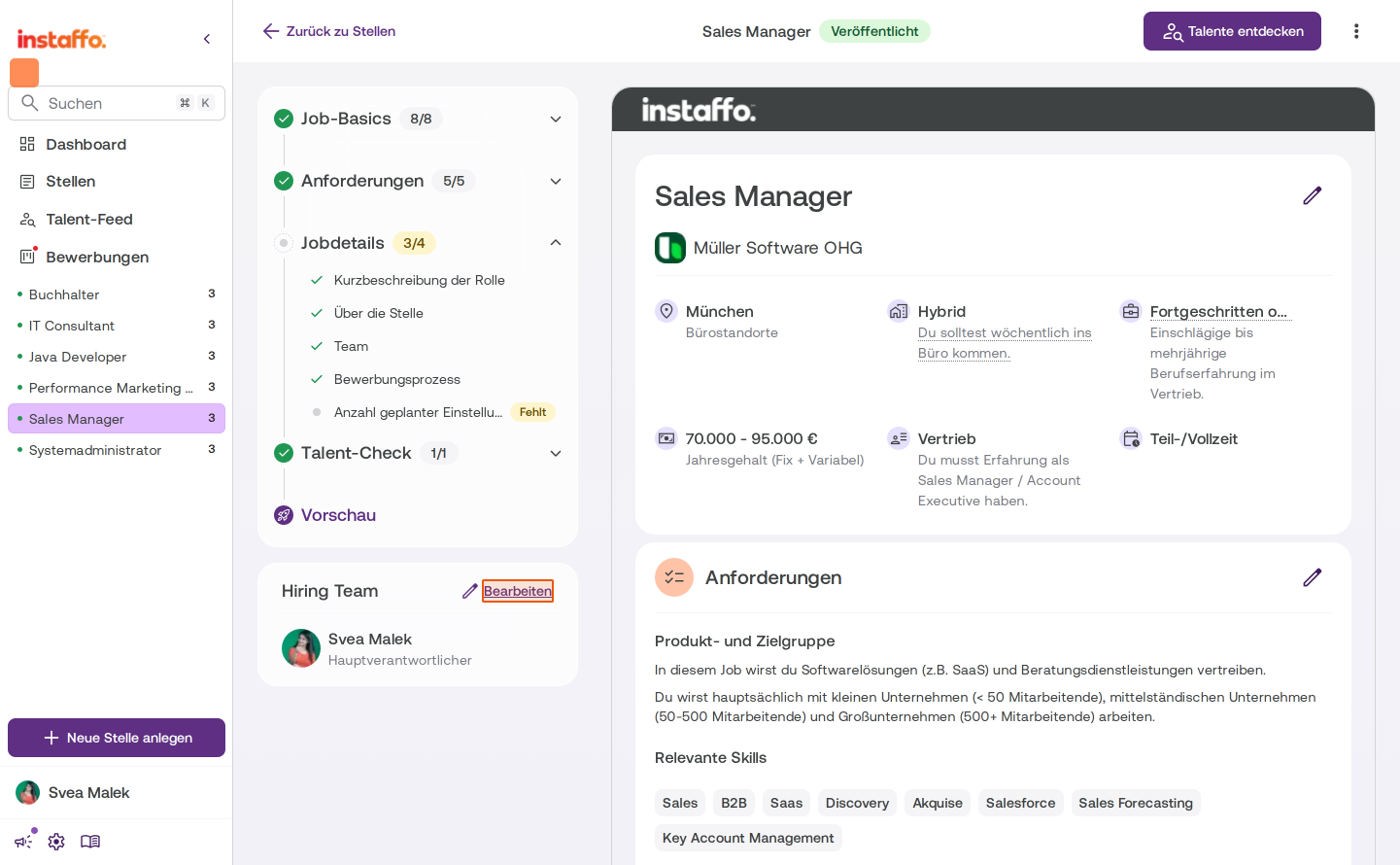
Open a position
Navigate to the desired position via Positions in the sidebar. -
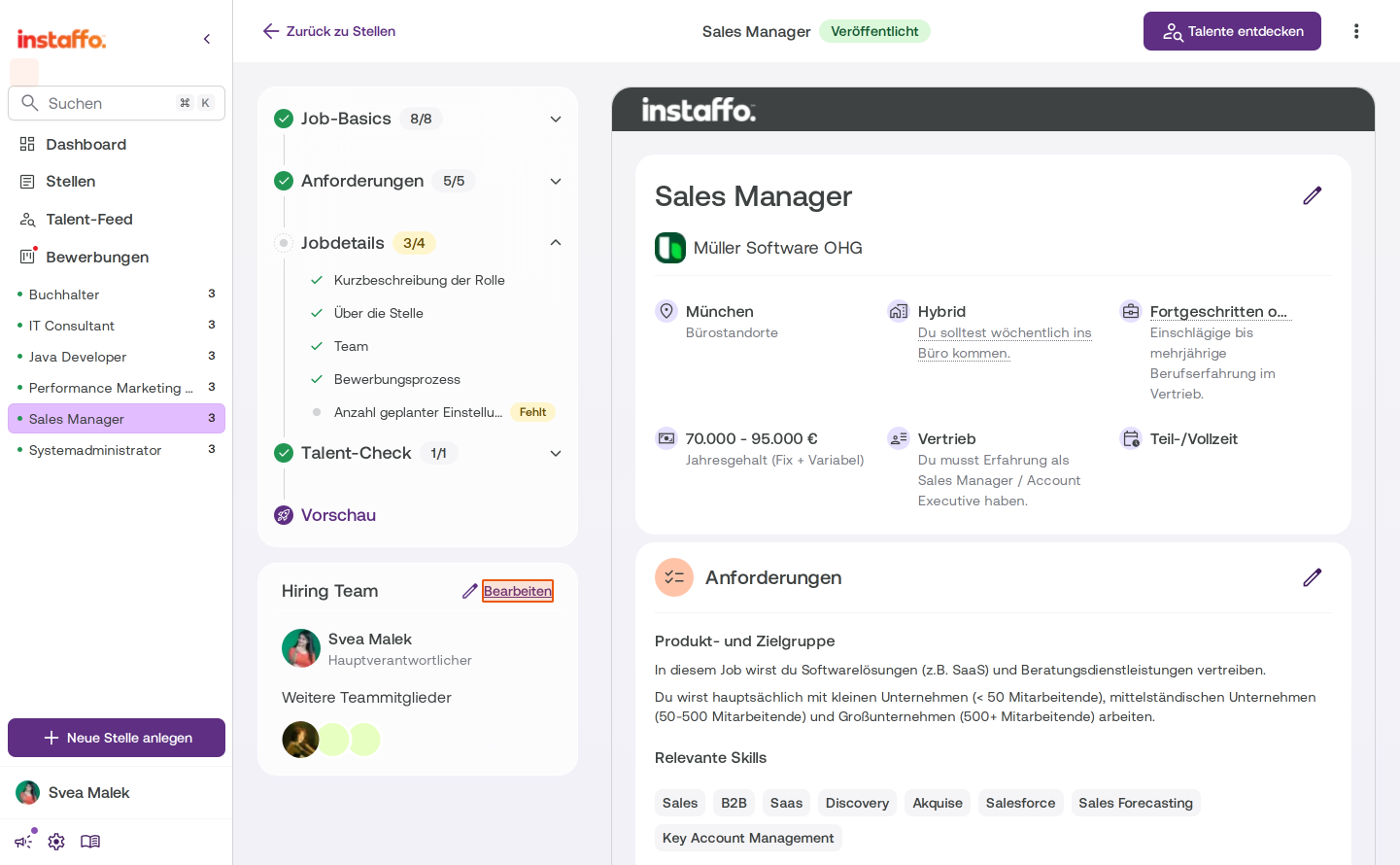
Edit the Hiring Team
In the position view, you'll find the Hiring Team section on the left. Click Edit there.
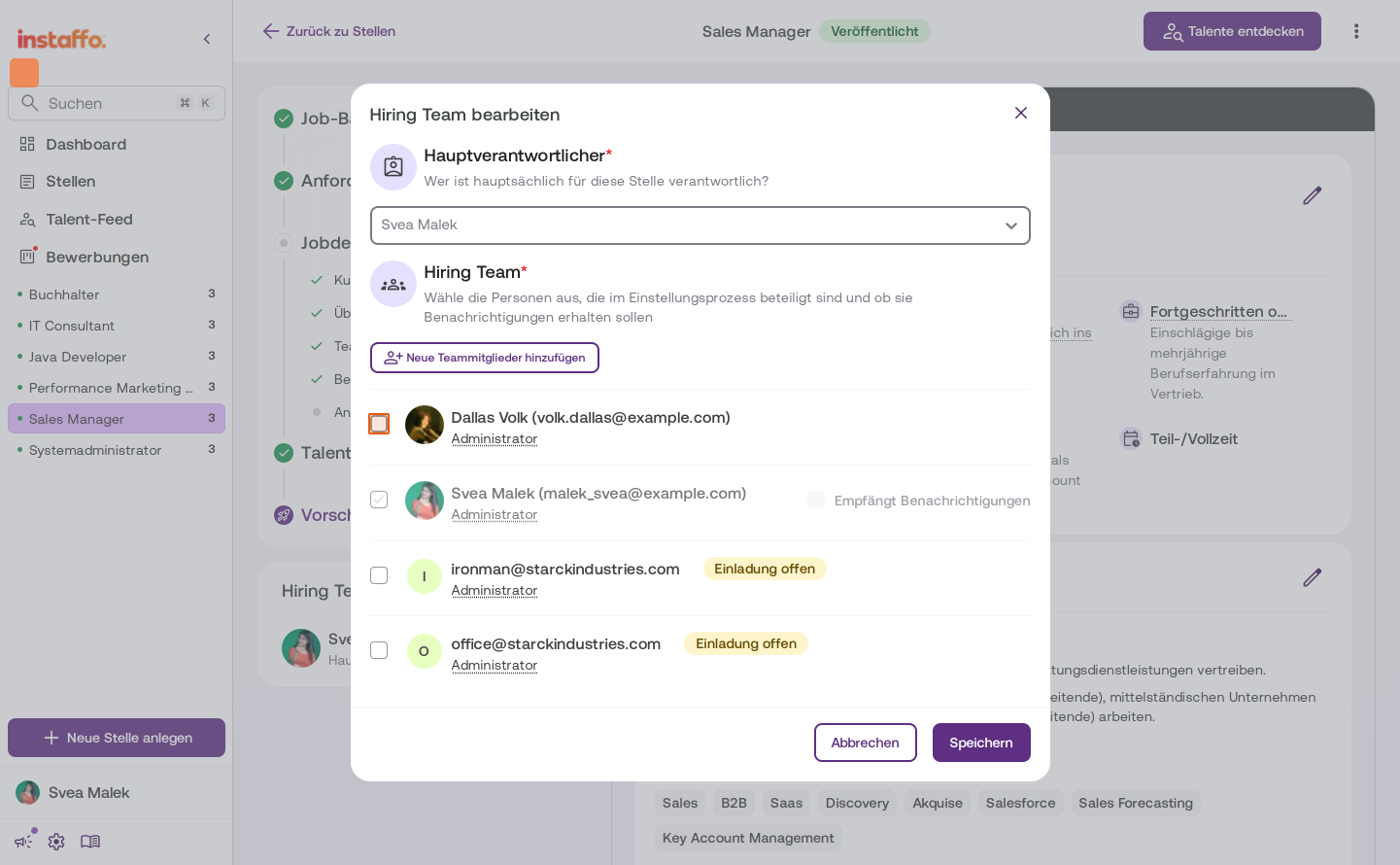
-
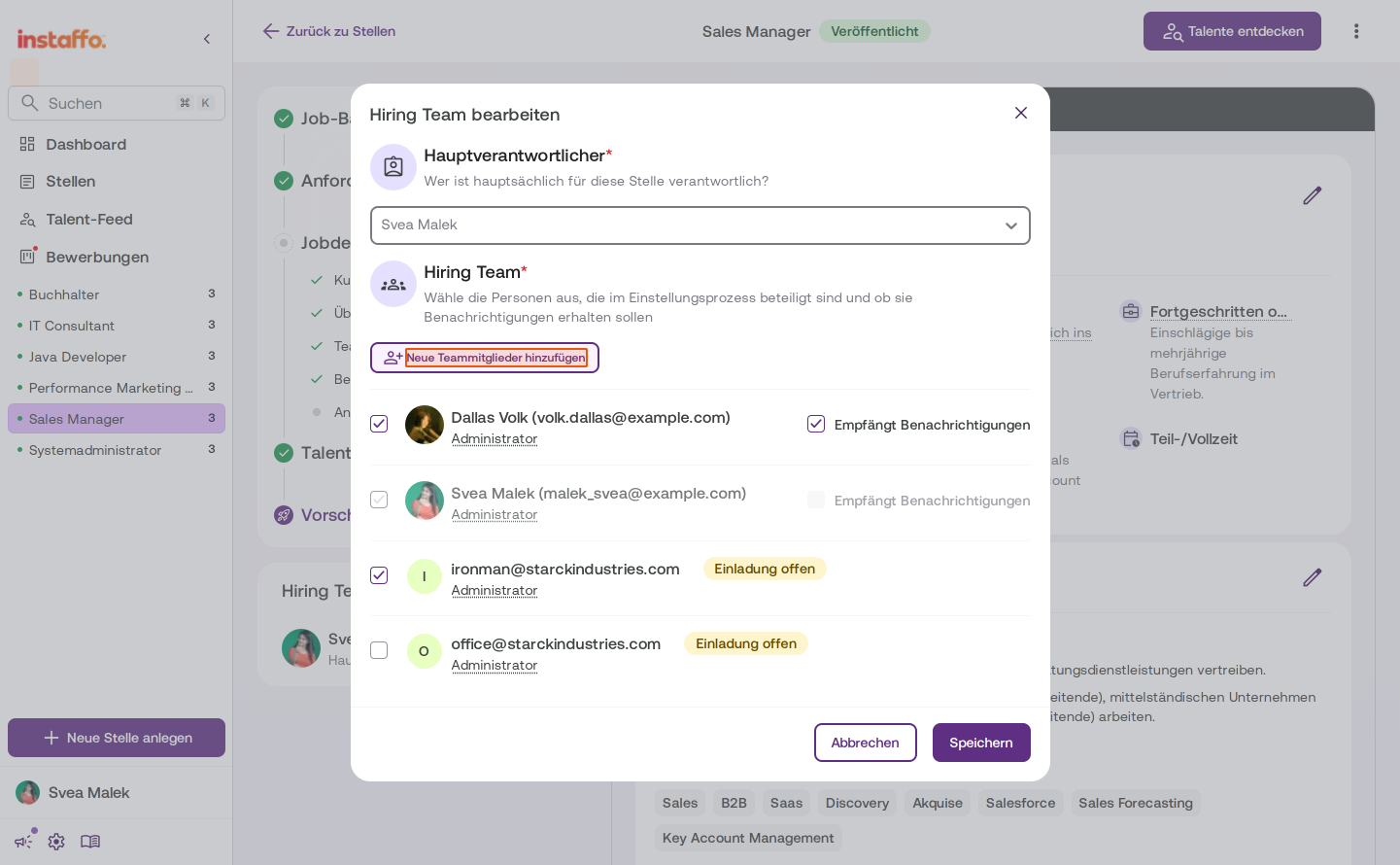
Add existing team members
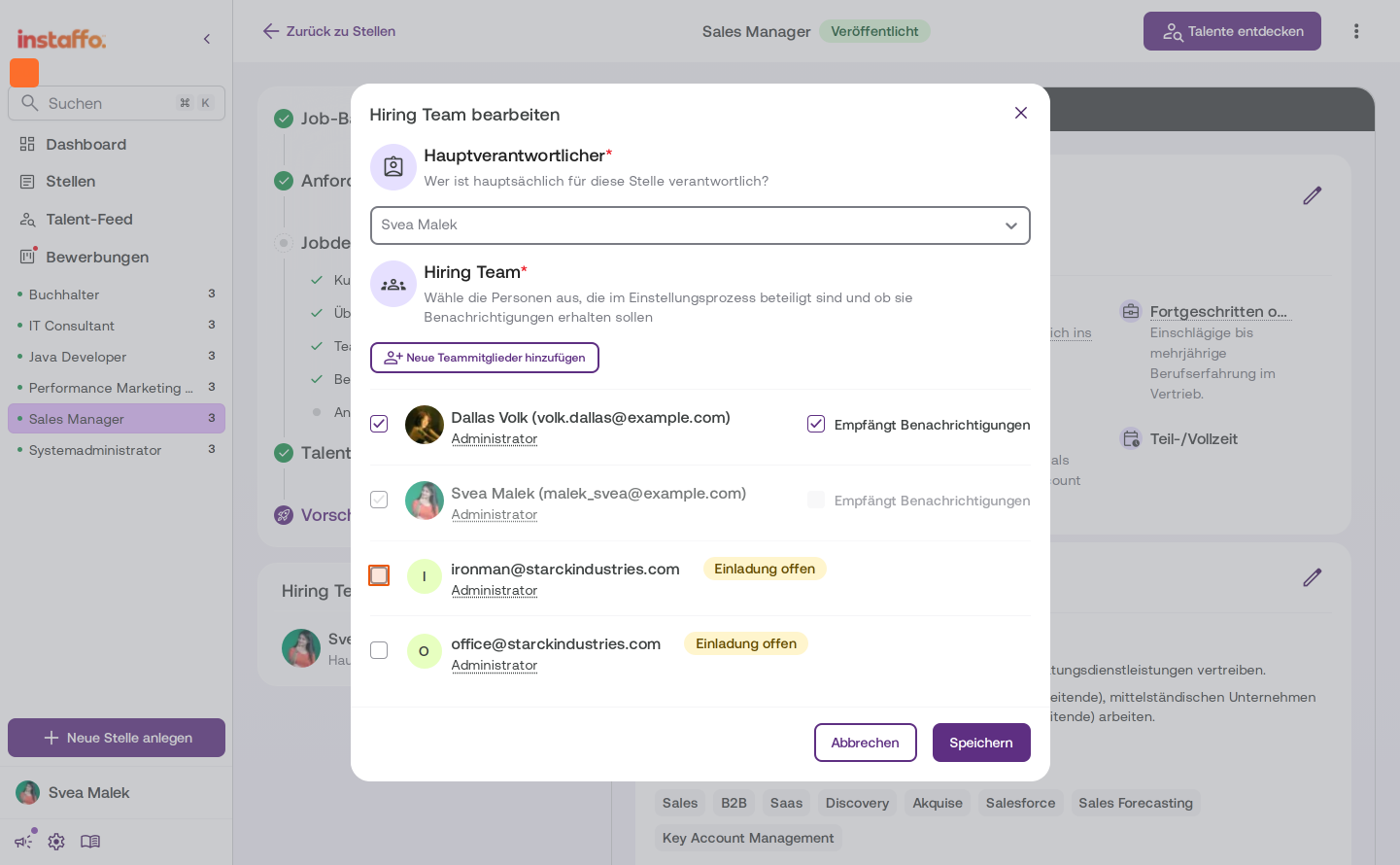
In the Edit Hiring Team dialog, you'll see a list of all available team members. Check the box next to the people you want to add to the Hiring Team. You can also select people who have already been invited with the status Invitation Pending. -
Invite new people directly
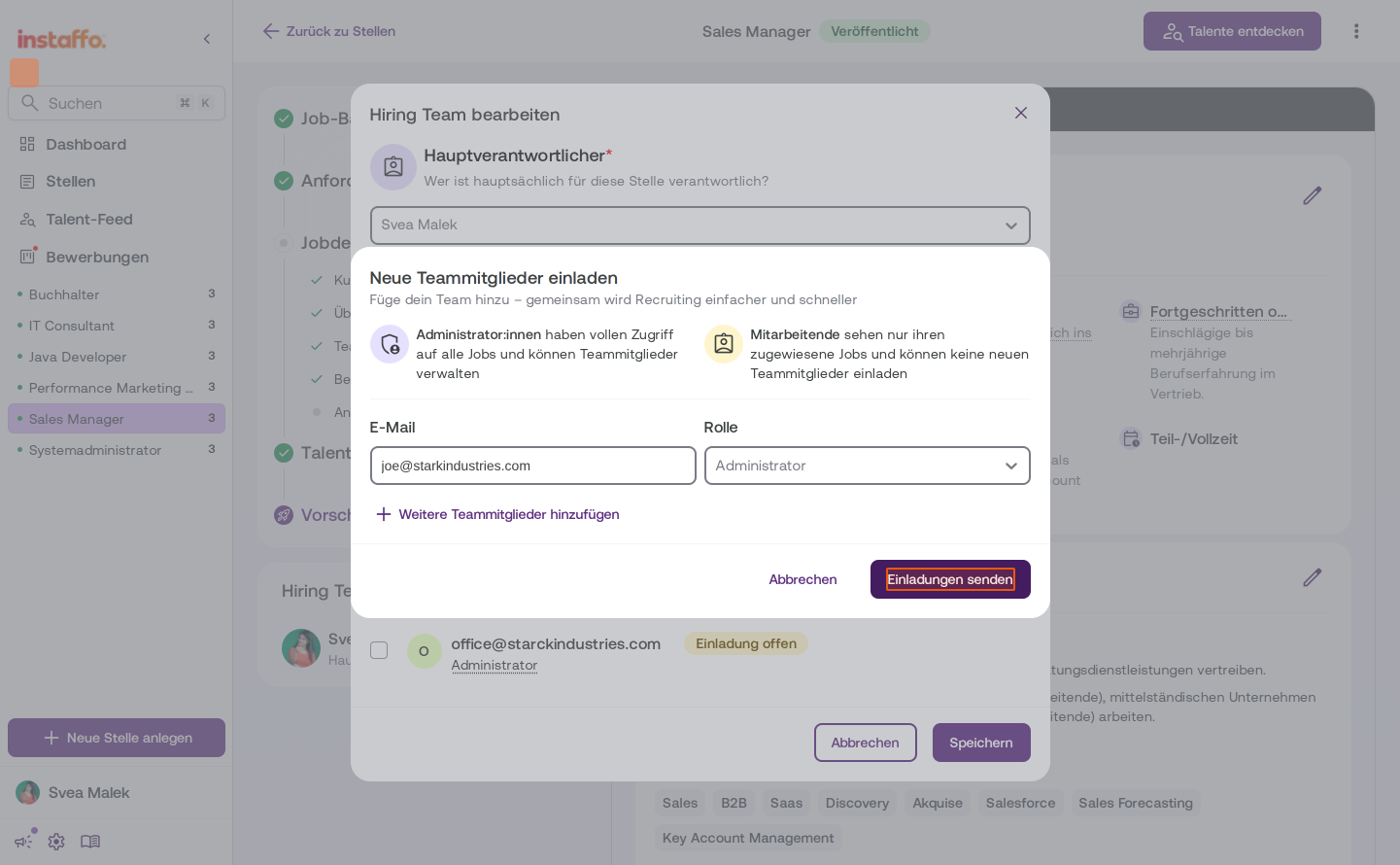
Click Add New Team Members to invite people who don't yet have an Instaffo account. The invitation area will open:- Enter the Email address
- Select the Role (Administrator or Employee)
- Click Send Invitation
-
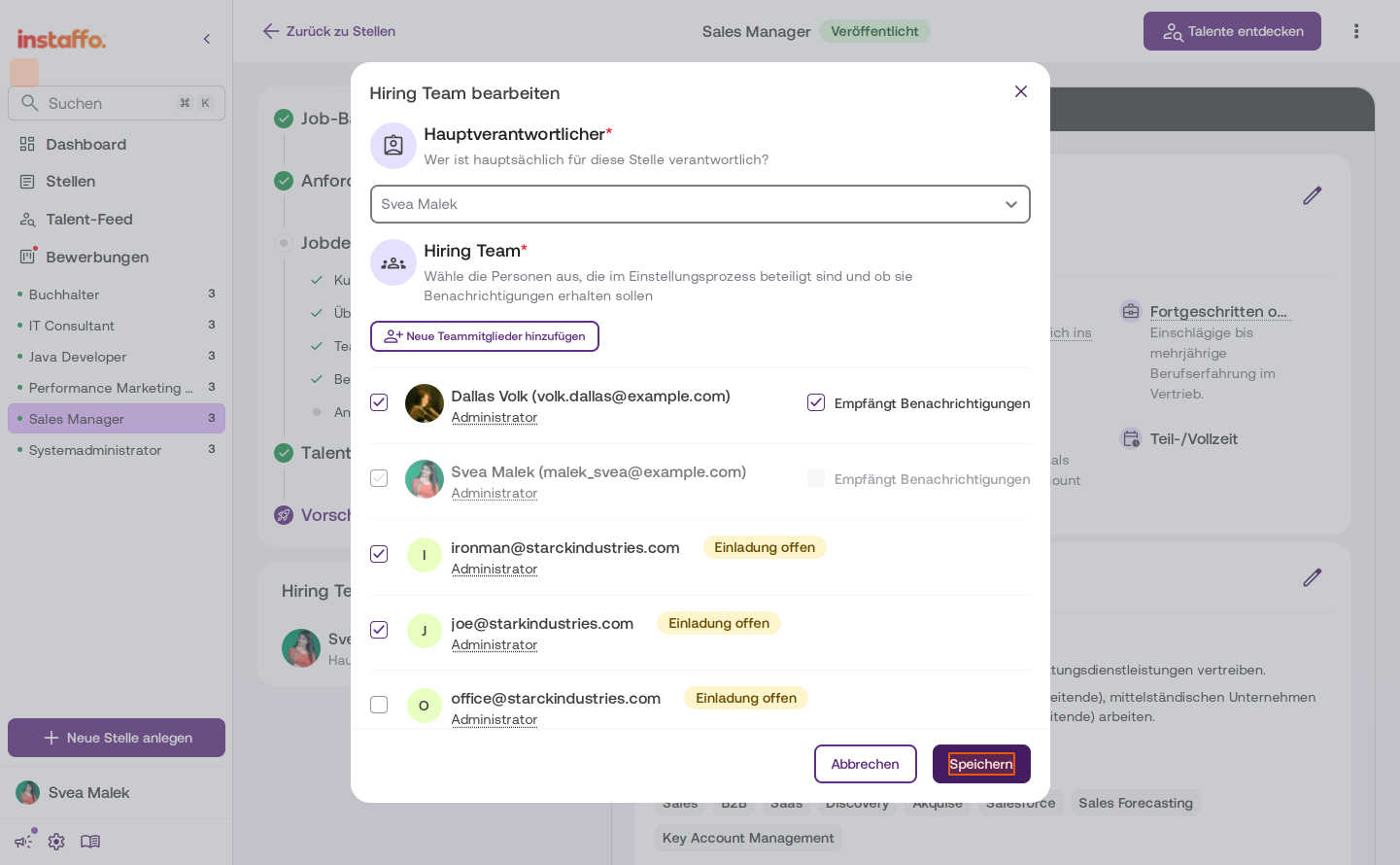
Save changes
Click Save to update the Hiring Team. The newly invited people will receive an email and will be automatically assigned to the Hiring Team after they register.
After sending the invitations, the invited people can set up their account independently and start collaborating in recruiting right away.
 Powered by happysupport.ai